1. Sarrera
This user manual provides detailed instructions for the installation, operation, and maintenance of your Xprinter XP-D200N Thermal Receipt Printer. The XP-D200N is a high-speed thermal printer designed for reliable and efficient receipt printing in various business environments. Please read this manual thoroughly before using the printer to ensure proper functionality and to prevent damage.
2. Segurtasun informazioa
To ensure safe operation and prevent damage to the printer or injury to yourself, please observe the following safety precautions:
- Erabili beti emandako korronte-egokitzailea. Egokitzaile oker bat erabiltzeak inprimagailua kaltetu eta bermea baliogabetu dezake.
- Ez jarri inprimagailua uraren, hezetasunaren edo muturreko tenperaturen eraginpean.
- Saihestu inprimagailua eguzki-argitan edo bero-iturrietatik gertu jartzea.
- Do not attempt to disassemble or repair the printer yourself. Refer all servicing to qualified personnel.
- Ziurtatu inprimagailua gainazal egonkor eta mailakatu batean jarrita dagoela.
- Keep the printer away from dust and debris to maintain optimal performance.
3. Paketearen edukia
Mesedez, egiaztatu paketearen edukia. Elementuren bat falta bada edo hondatuta badago, jarri harremanetan zure saltzailearekin berehala.
- Xprinter XP-D200N Thermal Receipt Printer
- Elikatze-moldagailua
- Elikatze kablea
- USB kablea
- Thermal Paper Roll (starter)
- Erabiltzailearen eskuliburua (dokumentu hau)
4. Produktua amaitu daview
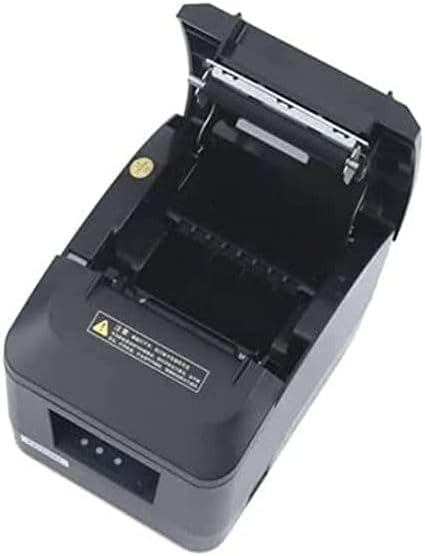
The Xprinter XP-D200N is a compact and efficient thermal receipt printer. Below are images illustrating its key components and design.
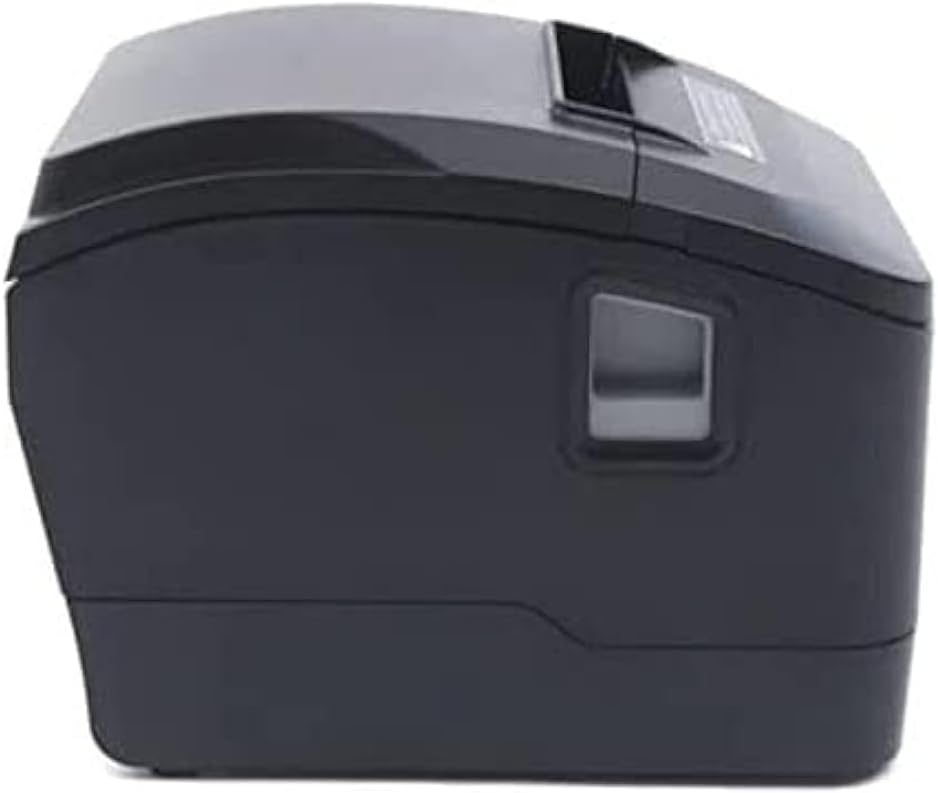
4.1. irudia: Aurrealdea view of the Xprinter XP-D200N Thermal Receipt Printer. This image shows the sleek, black casing and the paper output slot.
4.2. irudia: Aldea view of the Xprinter XP-D200N Thermal Receipt Printer. This perspective highlights the compact design and the power switch on the right side.

4.3. irudia: Goiena view of the Xprinter XP-D200N Thermal Receipt Printer with the cover open, revealing the thermal paper roll compartment and the print head mechanism. This view is essential for paper loading and maintenance.
5. Konfigurazioa
5.1 Potentzia konektatzea
- Ziurtatu inprimagailuaren etengailua OFF posizioan dagoela.
- Connect the power adapter to the power input port on the back of the printer.
- Plug the power cord into the power adapter, then into a standard electrical outlet.
5.2 Ordenagailu batera konektatzea
The XP-D200N supports both USB and LAN connectivity.
USB konexioa:
- Connect one end of the USB cable to the USB port on the printer.
- Konektatu USB kablearen beste muturra ordenagailuko USB ataka erabilgarri batera.
LAN (Ethernet) konexioa:
- Connect an Ethernet cable to the LAN port on the printer.
- Konektatu Ethernet kablearen beste muturra zure sareko bideratzaile edo etengailura.
- Refer to the printer's advanced settings or driver utility for network configuration (e.g., IP address settings).
5.3 Paper termikoa kargatzea
- Open the printer cover by pressing the release button or lifting the cover latch. (Refer to Figure 4.3).
- Insert the thermal paper roll into the compartment with the paper feeding from the bottom and the leading edge extending towards the front of the printer. Ensure the paper is aligned correctly.
- Atera paper zati txiki bat ebakitzailetik.
- Itxi inprimagailuaren estalkia ondo, bere lekuan klik egin arte.
5.4 Gidariaren instalazioa
After connecting the printer, you will need to install the appropriate drivers on your computer. Drivers are typically provided on a CD included with the printer or can be downloaded from the official Xprinter webgunea. Jarraitu pantailan agertzen diren argibideei instalazioan zehar.
6. Funtzionamendu-argibideak
6.1 Piztu/Itzaltzea
- To power on: Ensure the power cord is connected, then flip the power switch to the ON position. The indicator light will illuminate.
- To power off: Flip the power switch to the OFF position.
6.2 Oinarrizko inprimaketa
Once the printer is connected and drivers are installed, you can print receipts from your point-of-sale (POS) software or other applications. Select the Xprinter XP-D200N as your default printer in your application's print settings.
6.3 Egoera-adierazleak
The printer features indicator lights (usually on the front panel) that provide information about its status:
- Potentzia adierazlea: Solid light indicates the printer is powered on.
- Errore-adierazlea: Flashing or solid light indicates an error (e.g., paper out, cover open, print head overheat). Refer to the troubleshooting section.
- Paper Out Indicator: Illuminates when the paper roll is empty or nearly empty.
7. Mantentzea
7.1 Inprimatze-burua garbitzea
Inprimatze-burua aldizka garbitzeak inprimatze-kalitate optimoa bermatzen du eta inprimagailuaren bizitza luzatzen du.
- Itzali inprimagailua eta deskonektatu korronte-kablea.
- Ireki inprimagailuaren estalkia.
- Kotoi-puska bat erabili arinkiampened with isopropyl alcohol (70% or higher) to gently wipe the thermal print head surface. Avoid touching the print head with bare hands.
- Allow the print head to dry completely before closing the cover and reconnecting power (approximately 2-3 minutes).
7.2 Garbiketa orokorra
Garbitu inprimagailuaren kanpoaldea oihal leun eta lehor batekinamp oihal. Ez erabili garbitzaile edo disolbatzaile urratzailerik.
7.3 Paper-erroilua ordezkatzea
When the paper out indicator illuminates or print quality degrades, it's time to replace the paper roll. Follow the steps in Section 5.3 "Loading Thermal Paper".
8. Arazoak
| Arazoa | Kausa posiblea | Irtenbidea |
|---|---|---|
| Inprimagailua ez da pizten. | No power, faulty power adapter/cord. | Check power connections. Ensure power switch is ON. Test outlet. |
| Inprimaketarik ez. | Paper out, cover open, incorrect driver, incorrect printer selected, cable disconnected. | Load paper, close cover, check USB/LAN connection, verify driver installation, select correct printer in software. |
| Poor print quality (faint, blank lines). | Dirty print head, low quality thermal paper, print head damage. | Clean print head (Section 7.1). Replace thermal paper. If problem persists, contact support. |
| Paper ataskatzea. | Papera behar bezala kargatzea, objektu arrotza. | Turn off printer, open cover, carefully remove jammed paper. Reload paper correctly. |
| Errore adierazlearen argia piztuta/keinuka ari da. | General error, paper out, cover open. | Check for paper out, ensure cover is closed. Power cycle the printer. If error persists, consult manufacturer's support. |
9. Zehaztapenak
| Marka: | Xprinter |
| Eredua: | XP-D200N |
| Inprimagailu mota: | Ordainagiri Inprimagailu Termikoa |
| Inprimatzeko metodoa: | Zuzeneko Termikoa |
| Inprimatzeko abiadura: | 220 mm/sec (as per product description) |
| Gehienezko euskarriaren tamaina: | 8 cm (80mm) |
| Konektibitatea: | USB, LAN (Ethernet) |
| Potentzia sarrera: | 24 V - 2.5 A |
| Inprimagailuaren irteera: | Monokromoa |
| Ezaugarri bereziak: | Sleek, Compact, Lightweight Design, High Print Quality, Durability, Low Noise, Automatic Paper Cutting |
| Produktuaren neurriak: | 18.4 x 14 x 13.5 cm |
| Elementuaren pisua: | 1.63 kg |
10. Bermea eta Laguntza
The Xprinter XP-D200N Thermal Receipt Printer comes with a standard manufacturer's warranty. For specific warranty terms and conditions, please refer to the warranty card included with your product or visit the official Xprinter website. For technical support, driver downloads, or service inquiries, please contact your local dealer or the Xprinter customer support team through their official channels.
Azken informazioa eta laguntza-baliabideak lortzeko, bisitatu: www.xprinter.net


