1. Produktua amaitu daview
The Tera HW0004 Barcode Scanner is a versatile 1D laser scanner designed for efficient data capture in various environments such as supermarkets, retail stores, and logistics. It offers flexible connectivity options and multiple operating modes to suit different user needs.
- 2-in-1 transmisio polifazetikoa: Supports both 2.4GHz wireless and USB 2.0 wired connections. Compatible with Windows and Mac OS, and integrates with common software like Word, Excel, and Novell.
- Bi lan-modu: Features Instant Upload Mode for real-time data transfer and Storage Upload Mode for offline scanning and later upload.
- Plug and Play: Requires no driver or software installation for quick setup.
- 1D Barcode Support: Capable of scanning various 1D printed barcodes including Code 39, UPC-A/UPC-E, EAN13, EAN8, Code 93, Code 128, Codabar, Industrial/Interleaved 2 of 5, MSI, Code11, ISBN/ISSN, and Matrix 2 of 5. Note: Does not scan 2D codes (e.g., QR, PDF417) or barcodes from screens.
2. Paketearen edukia
Paketea irekitzean, egiaztatu osagai guztiak daudela:
- Tera Barcode Scanner (HW0004)
- 2.4 GHz-ko haririk gabeko USB dongle-a
- USB 2.0 kablea
- Stand erregulagarria
- Erabiltzailearen eskuliburua (dokumentu hau)
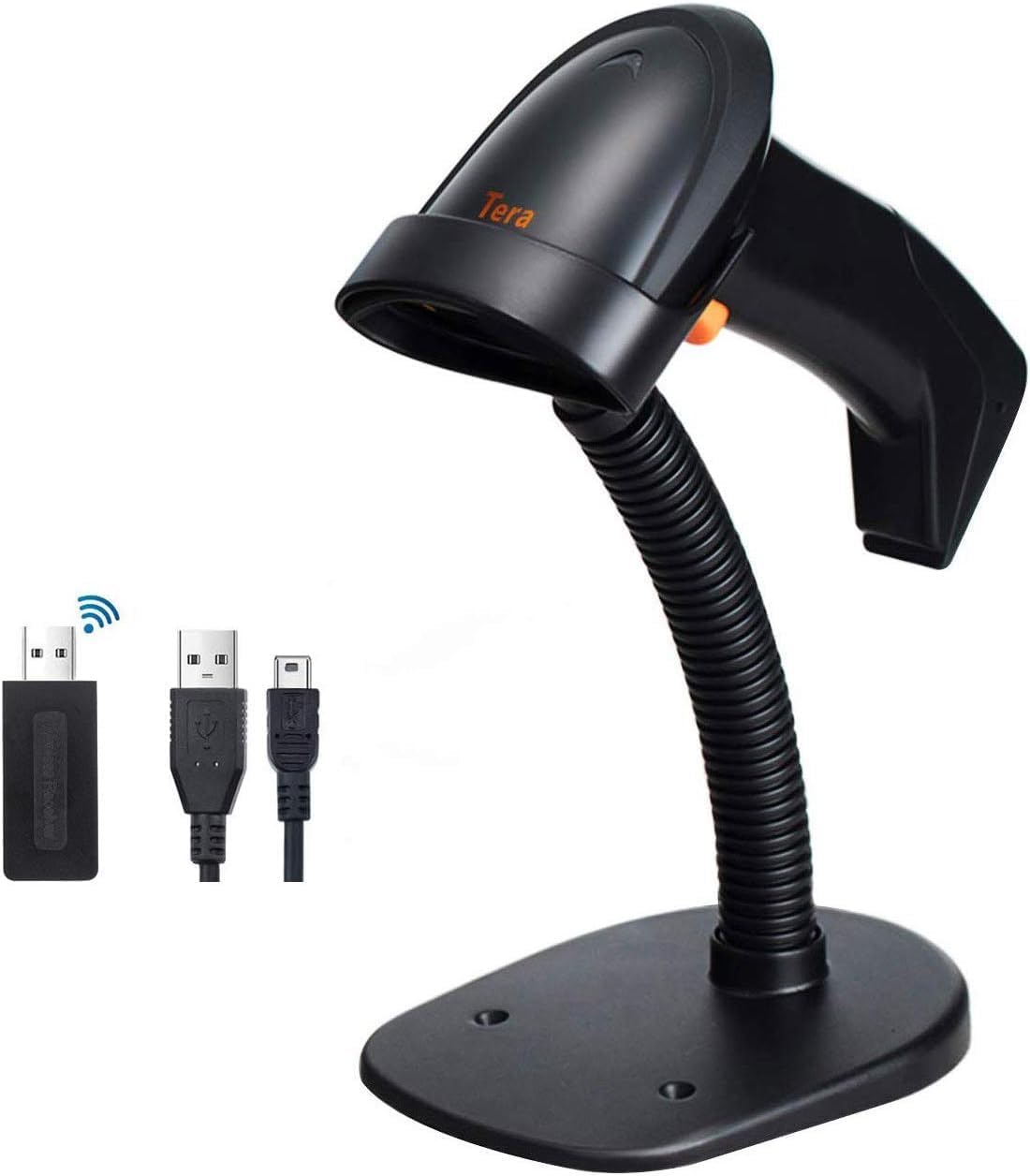
Image: The Tera HW0004 barcode scanner, its wireless USB dongle, USB cable, and the included stand.
3. Konfigurazioa eta konexioa
The Tera HW0004 scanner is designed for easy plug-and-play operation, requiring no complex driver installations.
3.1. Haririk gabeko konexioa (2.4GHz)
- Insert the 2.4GHz wireless USB dongle into an available USB port on your computer or device.
- Piztu barra-kode eskanerra. Automatikoki parekatuko da donglearekin.
- Eskanerra haririk gabeko funtzionamendurako prest dago orain.

Image: The barcode scanner connected to a laptop via the wireless dongle, illustrating the plug-and-play setup.
3.2. Wired Connection (USB 2.0)
- Connect one end of the provided USB 2.0 cable to the scanner's USB port.
- Connect the other end of the USB 2.0 cable to an available USB port on your computer or device.
- The scanner will be recognized as a standard HID keyboard device and is ready for use.
The scanner is compatible with various operating systems, including Windows XP, Windows 7, Windows 8, Windows 10, Android, and Linux.
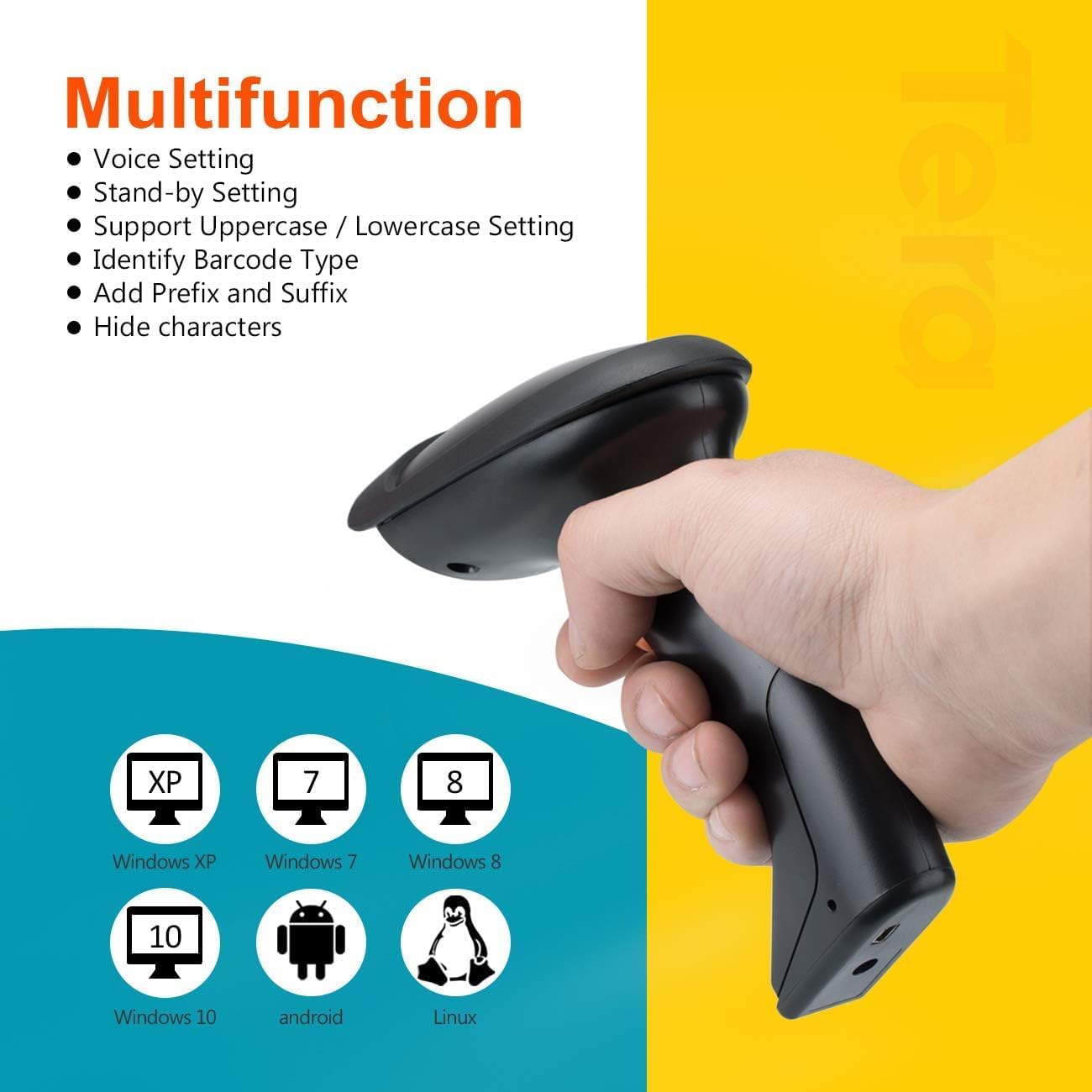
Image: The scanner demonstrating compatibility with multiple operating systems.
4. Eskanerra erabiltzea
4.1. Eskaneatze moduak
Eskanerrak bi eskaneatze modu nagusi onartzen ditu:
- Gako abiarazte modua: Press the trigger button to activate the laser and scan a barcode. Release the button to stop scanning.
- Etengabeko eskaneatzeko modua: The scanner continuously emits the laser, allowing for hands-free scanning when placed on the stand. This mode is ideal for high-volume scanning.
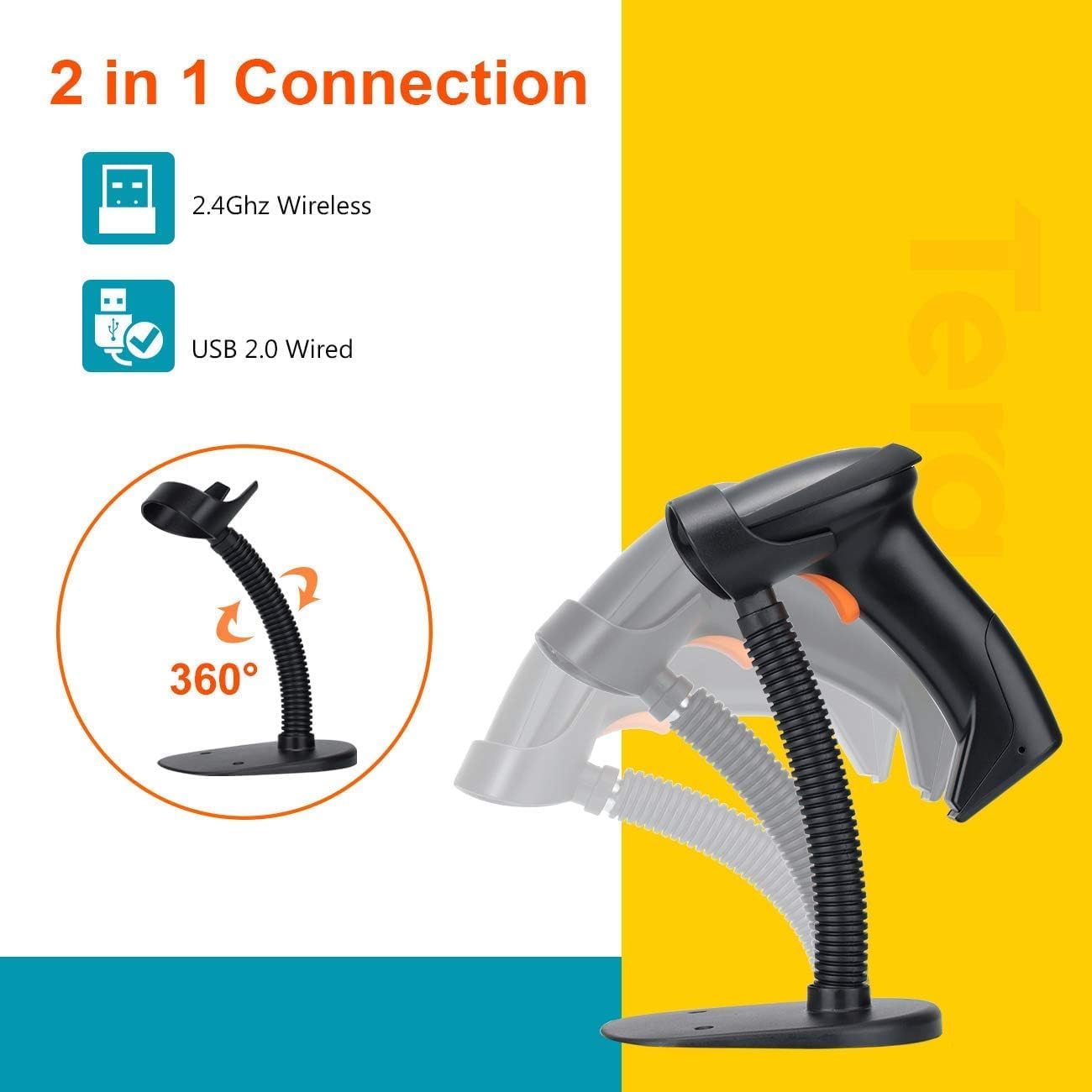
Image: The scanner on its adjustable stand, highlighting its 360-degree rotation and dual connection capabilities.
4.2. Datuak kargatzeko moduak
Eskanerrak bi metodo eskaintzen ditu eskaneatutako datuak kargatzeko:
- Berehalako kargatzeko modua: Barcodes are synchronously uploaded to your connected device immediately after scanning. This is the default mode for real-time data entry.
- Biltegiratze kargatzeko modua: Barcodes are stored in the scanner's built-in 16MB memory. This mode is useful for scanning outside the wireless signal range. Data can be uploaded to your device later when needed.
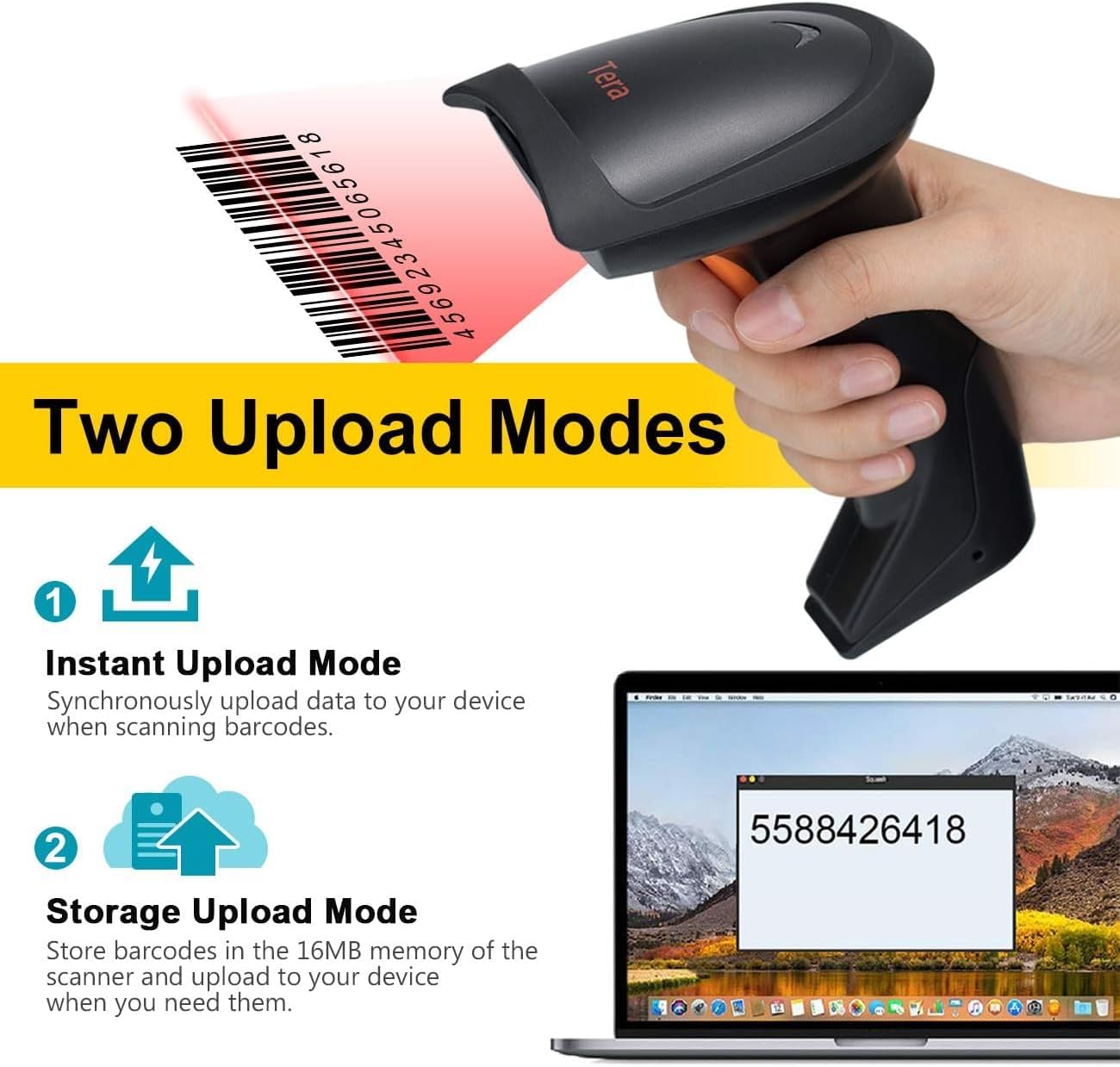
Image: A visual representation of the two data upload modes: Instant Upload and Storage Upload.
4.3. Supported Barcodes and Languages
The scanner supports a wide range of 1D printed barcodes and multiple languages for output:
- Onartutako 1D barra-kodeak: Code 39, UPC-A/UPC-E (Include Complement Code), EAN13, EAN8, Code 93, Code 128, Codabar, Industrial/Interleaved 2 of 5, MSI, Code11, ISBN/ISSN, Matrix 2 of 5.
- Unsupported Codes: 2D codes (e.g., QR, PDF417) and barcodes displayed on screens.
- Onartutako hizkuntzak: English, Spanish, German, Japanese, French, Italian.

Image: The scanner highlighting its multi-language support and the types of 1D barcodes it can read.
4.4. Multifunction Settings
The scanner offers several configurable settings to enhance its functionality:
- Ahotsaren ezarpena
- Stand-by Setting
- Support Uppercase / Lowercase Setting
- Identify Barcode Type
- Add Prefix and Suffix to scanned data
- Ezkutatu pertsonaiak
Refer to the detailed programming guide (usually a separate document or a section within a comprehensive manual) for instructions on how to configure these settings by scanning specific setup barcodes.
5. Mantentzea
Mantentze egokiak zure barra-kode eskanerra irauten eta errendimendu optimoa bermatzen du.
- Garbiketa: Use a soft, dry, lint-free cloth to clean the scanner's exterior. For the scanning window, use a lens cleaning cloth and a mild, non-abrasive cleaning solution if necessary. Avoid harsh chemicals or abrasive materials.
- Biltegiratzea: Gorde eskanerra leku fresko eta lehor batean, eguzki-argitik eta muturreko tenperaturetatik babestuta.
- Bateria zaintzea: As the scanner is battery-powered, ensure it is charged regularly. Avoid fully discharging the battery frequently to prolong its lifespan. If storing for an extended period, charge the battery to about 50% and store in a cool, dry place.
- Manipulazioa: Avoid dropping the scanner or subjecting it to strong impacts, which can damage internal components.
6. Arazoak
If you encounter issues with your Tera HW0004 barcode scanner, refer to the following common troubleshooting steps:
| Arazoa | Kausa posiblea | Irtenbidea |
|---|---|---|
| Eskanerra ez da pizten. | Bateria baxua edo energia arazoa. | Charge the scanner using the USB cable. Ensure the cable is properly connected to a power source. |
| No data output after scanning. | Incorrect connection mode, scanner not paired, or application issue. |
|
| Eskanerrak bip egiten du baina daturik ez. | Barcode not recognized or corrupted. |
|
| Haririk gabeko konexioa ezegonkorra. | Interference or distance issues. |
|
If the problem persists, please contact Tera customer support for further assistance.
7. Zehaztapenak
| Ezaugarri | Xehetasuna |
|---|---|
| Eredua | HW0004 |
| Marka | Tera |
| Konektibitate Teknologia | 2.4GHz Wireless, USB 2.0 Wired |
| Eskaner mota | 1D Laser Handheld Linear Bar Code Reader |
| Onartutako barra-kodeak | Code 39, UPC-A/UPC-E, EAN13, EAN8, Code 93, Code 128, Codabar, Industrial/Interleaved 2 of 5, MSI, Code11, ISBN/ISSN, Matrix 2 of 5 |
| Unsupported Barcodes | 2D codes (QR, PDF417), barcodes from screens |
| Gailu bateragarriak | Mahaigaina, ordenagailu eramangarria |
| Sistema eragile bateragarriak | Windows XP/7/8/10, Mac OS, Android, Linux |
| Energia iturria | Bateriaren bidez |
| Elementuaren pisua | 8 ontza (227 gramo inguru) |
| Paketearen neurriak | 7.9 x 3.9 x 3.2 hazbete (gutxi gorabehera 20.1 x 9.9 x 8.1 cm) |
| Fabrikatzailea | Tera |
| Eskuragarri dagoen lehen data | 4ko irailaren 2023a |
8. Bermea eta Laguntza
Specific warranty information for the Tera HW0004 Barcode Scanner is typically provided with the product packaging or available on the manufacturer's official website. Please refer to these resources for detailed warranty terms and conditions.
For technical support, troubleshooting beyond this manual, or inquiries regarding product functionality, please visit the official Tera webwebgunean edo jarri harremanetan bezeroarentzako arreta-zerbitzuarekin. Harremanetarako informazioa normalean produktuaren ontzian edo fabrikatzailearen eskuliburuan aurki daiteke. webgunea.
You can visit the Tera Store on Amazon for more information: Tera Store
9. Aplikazio-eszenatokiak
The Tera HW0004 barcode scanner is suitable for a variety of applications, including but not limited to:
- Logistika
- Biltegiaren Kudeaketa
- Supermarkets and Convenient Stores
- Liburutegiak
- Retail Industry
- Postal Industry
- Bankuak
- Medical Institutions

Irudia: Adibamples of environments where the barcode scanner can be effectively utilized.


