1. Sarrera
Thank you for choosing the Cherry KW 7100 Mini Multi-Device Compact Keyboard. This manual provides essential information for setting up, operating, and maintaining your new keyboard. Designed for versatility and portability, this keyboard offers seamless connectivity across multiple devices.
2. Zer dago kutxan
- Cherry KW 7100 Mini Multi-Device Compact Keyboard
- USB-C to USB-A Charging/Connection Cable
- 2x AAA bateria
- 2.4 GHz Wireless Nano Receiver (stored magnetically in the keyboard)
- Eramateko zorroa
- Argibide eskuliburua

1. irudia: Goitik behera view of the Cherry KW 7100 Mini Keyboard.
3. Konfigurazioa
3.1. Bateriaren instalazioa
- Bilatu bateriaren konpartimentua teklatuaren azpialdean.
- Ireki bateriaren konpartimenduaren estalkia.
- Sartu bi AAA pilak, polaritate zuzena ziurtatuz (+/-).
- Itxi bateriaren konpartimenduaren estalkia ondo.
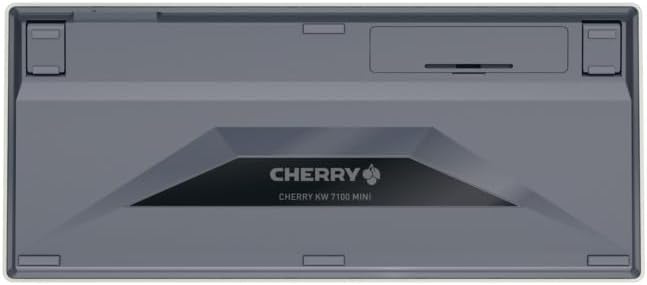
2. irudia: Teklatuaren azpialdea bateriaren konpartimentuarekin.
3.2. Teklatua konektatzea
The Cherry KW 7100 Mini supports three connection methods: Bluetooth, 2.4 GHz Wireless, and Wired USB-C.
3.2.1. Bluetooth Connection (Up to 3 Devices)
- Piztu teklatua alboan dagoen pizteko etengailua erabiliz.
- Press and hold one of the Bluetooth channel keys (F1, F2, or F3) for 3-5 seconds until the corresponding LED indicator blinks rapidly. This indicates pairing mode.
- On your device (laptop, smartphone, tablet), navigate to Bluetooth settings and search for available devices.
- Select "Cherry KW 7100" from the list to pair. The LED will stop blinking and remain solid for a few seconds upon successful connection.
- Repeat for up to two additional devices using the other Bluetooth channel keys (F1, F2, or F3).
3.2.2. 2.4 GHz-ko haririk gabeko konexioa
- Locate the 2.4 GHz wireless nano receiver, typically stored magnetically in a slot on the underside of the keyboard.
- Insert the nano receiver into an available USB-A port on your computer.
- Piztu teklatua etengailua erabiliz. Teklatua automatikoki konektatu beharko litzateke hargailura.
3.2.3. USB-C konexio kableatua
- Connect one end of the provided USB-C cable to the USB-C port on the keyboard.
- Connect the other end of the USB-C cable to an available USB-A port on your computer.
- The keyboard will function as a wired keyboard.
Video 1: Demonstrating the setup and typing experience of the Cherry KW 7100 Mini Keyboard.
4. Teklatua erabiltzea
4.1. Konektatutako gailuen artean aldatzea
To switch between paired Bluetooth devices, simply press the corresponding Bluetooth channel key (F1, F2, or F3) that your device is paired to. The keyboard will automatically connect to the selected device.
4.2. Function Keys (FN)
The keyboard features a dedicated FN key, typically located near the right Shift key. This key, in combination with other keys, activates secondary functions such as media controls, screen brightness, and other system commands. Refer to the keycap legends for specific FN key combinations.
4.3. LED adierazleak
LED indicators on the keyboard provide information about its status:
- Bluetooth Channel LEDs (F1, F2, F3): Indicate the currently active Bluetooth connection or pairing mode.
- Maiuskulak blokeatzeko LEDa: Maiuskulak aktibo dagoenean pizten da.
- Bateriaren egoera LED: Bateria maila baxua adierazten du.
4.4. Oin erregulagarriak
The keyboard is equipped with stable, fold-out feet on the underside. These allow you to adjust the typing angle for improved ergonomics and comfort.
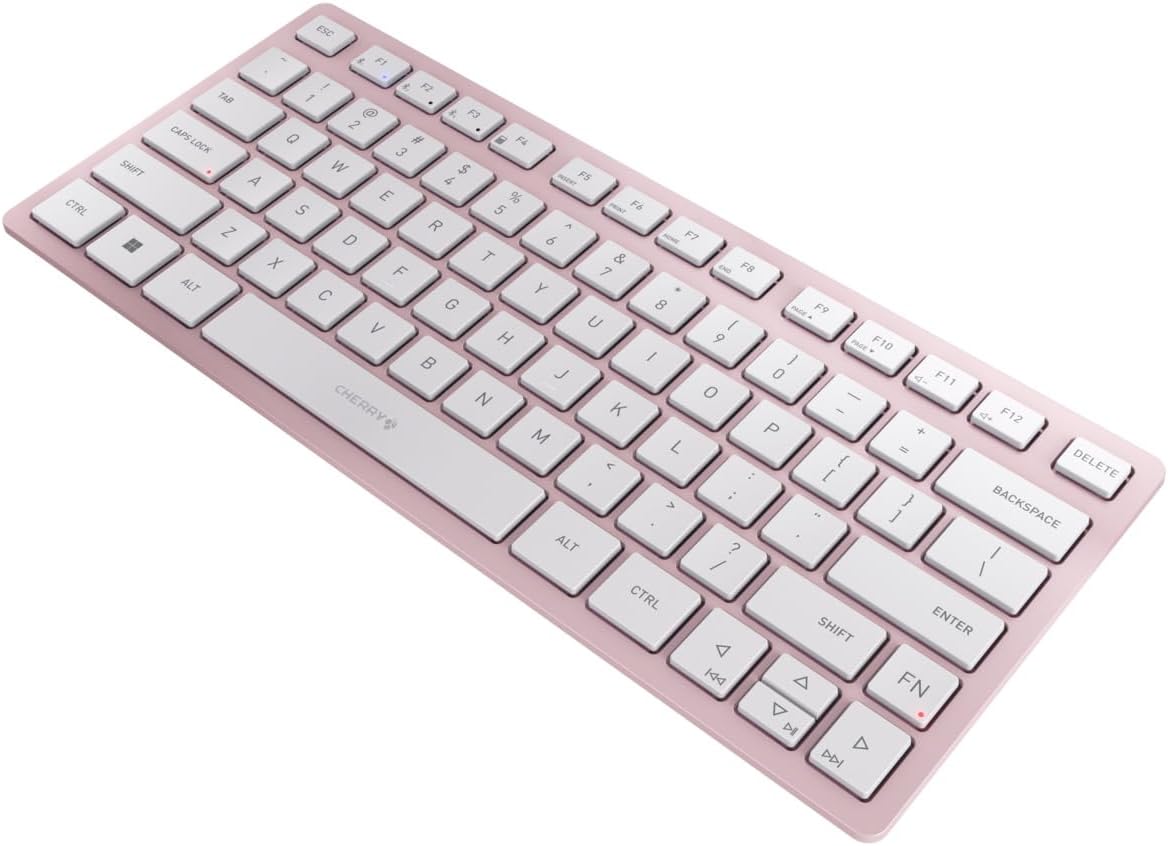
3. irudia: Angeludun view of the keyboard, highlighting its slim profile.

4. irudia: Aldea view showing the adjustable feet extended for an ergonomic typing angle.
5. Mantentzea
5.1. Garbiketa
To clean your keyboard, gently wipe the keycaps and surface with a soft, lint-free cloth. For stubborn dirt, slightly dampGarbitu zapia urarekin edo garbiketa-soluzio leun eta ez-urratzaile batekin. Saihestu gehiegizko hezetasuna eta ez ihinztatu garbitzaileak zuzenean teklatuan.
5.2. Biltegiratzea
When not in use, especially during travel, store the keyboard in its included carrying case to protect it from dust, scratches, and minor impacts.

Figure 5: The keyboard stored in its protective carrying case.
6. Arazoak
6.1. Teklatua ez da konektatzen
- Ziurtatu teklatua piztuta dagoela.
- Egiaztatu bateriak eta ordeztu behar izanez gero.
- For Bluetooth, ensure the correct channel (F1, F2, or F3) is selected and the keyboard is in pairing mode (blinking LED).
- For 2.4 GHz wireless, ensure the nano receiver is securely plugged into a USB-A port.
- Try connecting via the USB-C cable to rule out wireless issues.
- Berrabiarazi gailua eta saiatu berriro parekatzen.
6.2. Teklek ez dute erantzuten
- Check the connection as described above.
- Ziurtatu giltzen azpian hondakinik ez dagoela itsatsita.
- Kable bidezko konexioa erabiltzen baduzu, saiatu beste USB ataka edo kable batekin.
6.3. Bateriaren iraupen laburra
- Ziurtatu AAA bateria berriak eta kalitate handikoak erabiltzen ari zarela.
- Turn off the keyboard when not in use to conserve battery power.
7. Zehaztapenak
| Ezaugarri | Zehaztapena |
|---|---|
| Ereduaren izena | KW 7100 |
| Elementuaren eredu-zenbakia | JK-7100US-19 |
| Marka | Gerezi |
| Konektibitate Teknologia | Bluetooth 5.1 (3 channels), 2.4 GHz Wireless, USB-C Wired |
| Gailu bateragarriak | Ordenagailu eramangarria, telefono adimenduna, tableta |
| Teklatuaren deskribapena | Compact, Multi-Device |
| Mekanismo nagusia | CHERRY SX Guraize Mekanismoa |
| Energia iturria | 2x AAA bateria |
| Enkriptatzea | AES-128 |
| Produktuaren neurriak | 11.6 x 5.1 x 0.6 hazbete |
| Elementuaren pisua | 1.4 kilo |
| Materiala | Metala, Plastikoa |
| Kolorea | Gerezi-lorea |
8. Bermea eta Laguntza
This product is covered by Cherry's standard manufacturer warranty. For detailed warranty information, technical support, or service inquiries, please visit the official Cherry webgunera edo jarri harremanetan zuzenean bezeroarentzako arreta-zerbitzuarekin.
Fabrikatzailea: Gerezi
Webgunea: www.cherry.de