1. Sarrera
This manual provides detailed instructions for the Diyeeni SQ11 Mini 1080P Security Camera. This compact and portable camera is designed for versatile surveillance, offering high-definition video recording with a wide viewing angle and night vision capabilities. Please read this manual thoroughly before operating the device to ensure proper use and optimal performance.
2. Paketearen edukia
Egiaztatu behean zerrendatutako elementu guztiak zure paketean sartuta daudela:
- Diyeeni SQ11 Mini Camera
- USB Charging/Video Output Cable
- Euskarria muntatzea
- Clip
- Erabiltzailearen eskuliburua (dokumentu hau)

Figure 1: Contents of the Diyeeni SQ11 Mini Camera package.
3. Produktua amaitu daview
The Diyeeni SQ11 Mini Camera is a small, cube-shaped device designed for discreet surveillance. It features a 1080P HD lens, infrared lights for night vision, and intuitive controls.
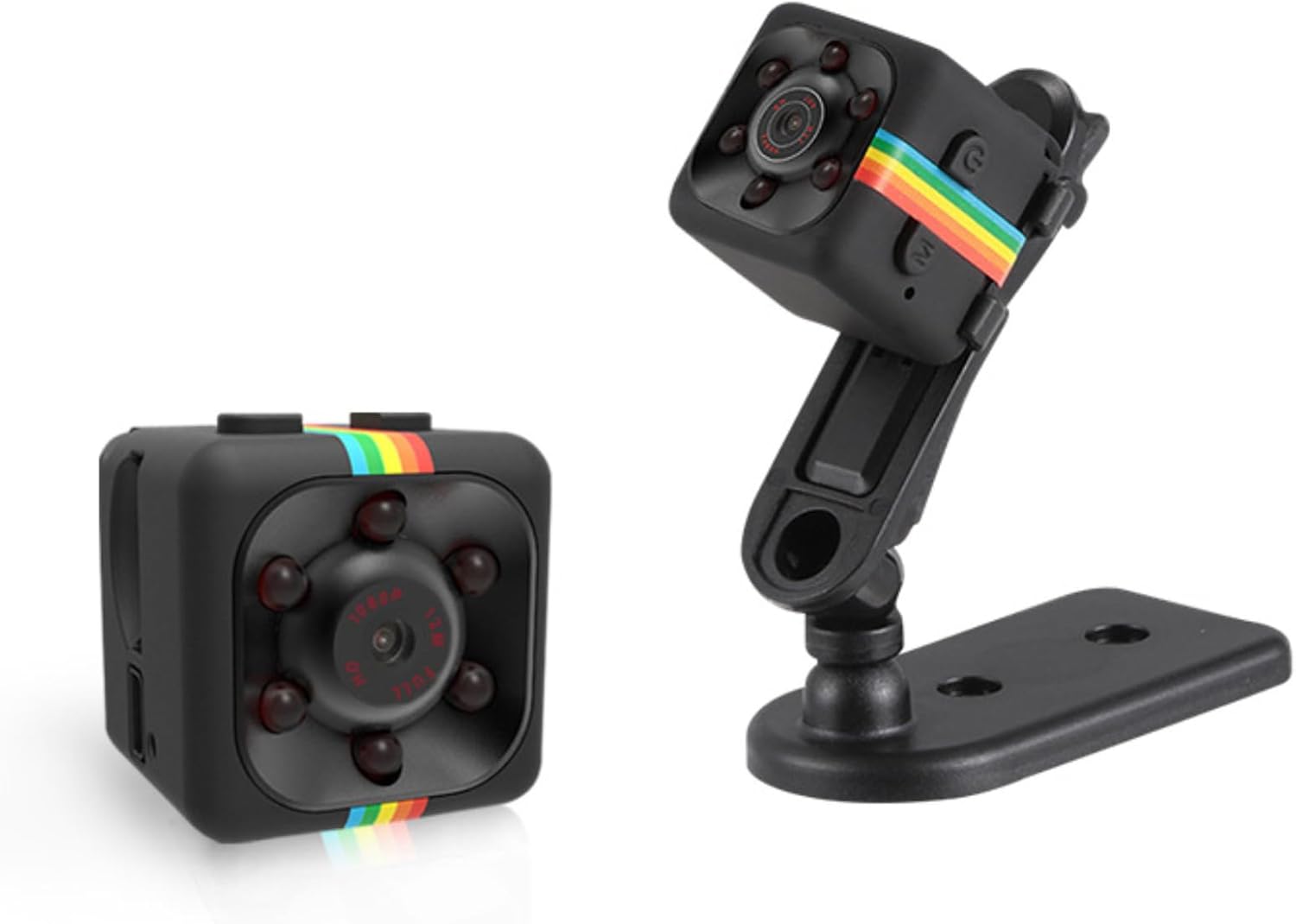
2. irudia: Aurrealdea eta alboa view of the Diyeeni SQ11 Mini Camera with its adjustable stand.
Ezaugarri nagusiak:
- 1080P HD bideoa: Records clear video at 1920x1080 resolution.
- 160°ko zabalera ViewAngelua: Eremu zabala jasotzen du view.
- Gaueko ikuspegia: Automatically switches to night vision mode in low-light conditions.
- Mugimendu-detekzioa: Records when motion is detected, conserving battery and storage.
- Loop grabaketa: Overwrites older footage memoria txartela beteta dagoenean.
- Diseinu trinkoa: Small and portable for discreet placement.

Figure 3: Visual representation of the camera's key features.
4. Konfigurazioa
4.1. Inserting and Formatting the MicroSD Card
The Diyeeni SQ11 Mini Camera requires a MicroSD (TF) card for storing recordings. A MicroSD card is not included and must be purchased separately. Before first use, the MicroSD card must be formatted to FAT32.
- Insert the MicroSD card into a MicroSD to SD adapter.
- Insert the adapter with the MicroSD card into your computer's SD card slot.
- Access your computer's disk utility or file esploratzailea.
- Locate the MicroSD card (often labeled "NO NAME").
- Select the option to format the card. Choose "MS-DOS (FAT)" or "FAT32" as the file sistema.
- Confirm the formatting process. All data on the card will be erased.
- Once formatted, safely eject the MicroSD card from your computer.
- With the camera powered off, carefully insert the formatted MicroSD card into the camera's TF card slot until it clicks into place. Ensure the correct orientation.
Video 1: Demonstration of inserting the MicroSD card into the SQ11 Mini Camera.
4.2. Kamera kargatzea
The camera is equipped with a 200mAh battery. To charge the camera:
- Connect the included USB cable to the camera's Mini USB port.
- Connect the other end of the USB cable to a 5V 1A (or higher) USB power source (e.g., computer USB port, USB wall adapter).
- The LED indicator will show the charging status (refer to the Operating section for LED indications).
- A full charge provides approximately 50 minutes of recording time. For extended recording, connect the camera to an external 10000mAh power bank (not included) for up to 30 hours of operation.
4.3. Kamera muntatzea
The camera comes with a mounting bracket and clip for flexible placement:
- Attach the camera to the clip or mounting bracket. The camera can be rotated 360° and adjusted 90° on the bracket.
- Use the clip to attach the camera to clothing, bags, or other surfaces.
- Use the mounting bracket to secure the camera to a wall or flat surface.
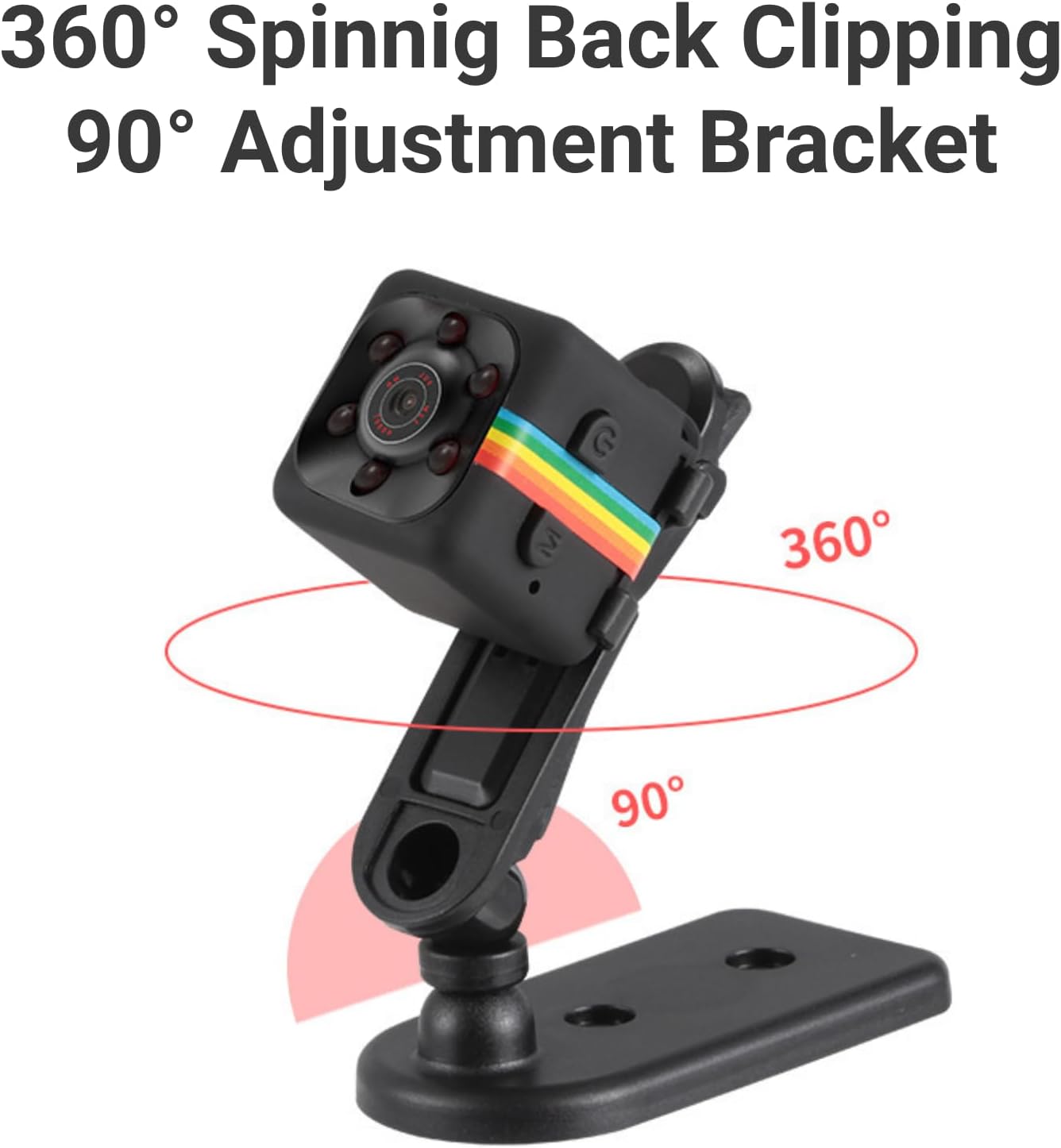
Figure 4: The camera mounted on its adjustable bracket.
5. Funtzionamendu-argibideak
5.1. Piztu/Itzaltzea
- Piztu: Press and hold the Power button (usually marked with a power symbol) for a few seconds until the blue LED indicator lights up.
- Itzali: Press and hold the Power button again for a few seconds until the LED indicator turns off.
5.2. Video Recording (1080P)
To record video in 1080P resolution:
- Ensure the camera is powered on and in standby mode (solid blue LED).
- Press the Mode button (usually marked 'M') once to switch to 1080P video recording mode. The blue LED will blink to indicate recording has started.
- To stop recording, press the Mode button again. The blue LED will become solid, indicating standby mode.

Figure 5: High-definition 1080P video recording capability.
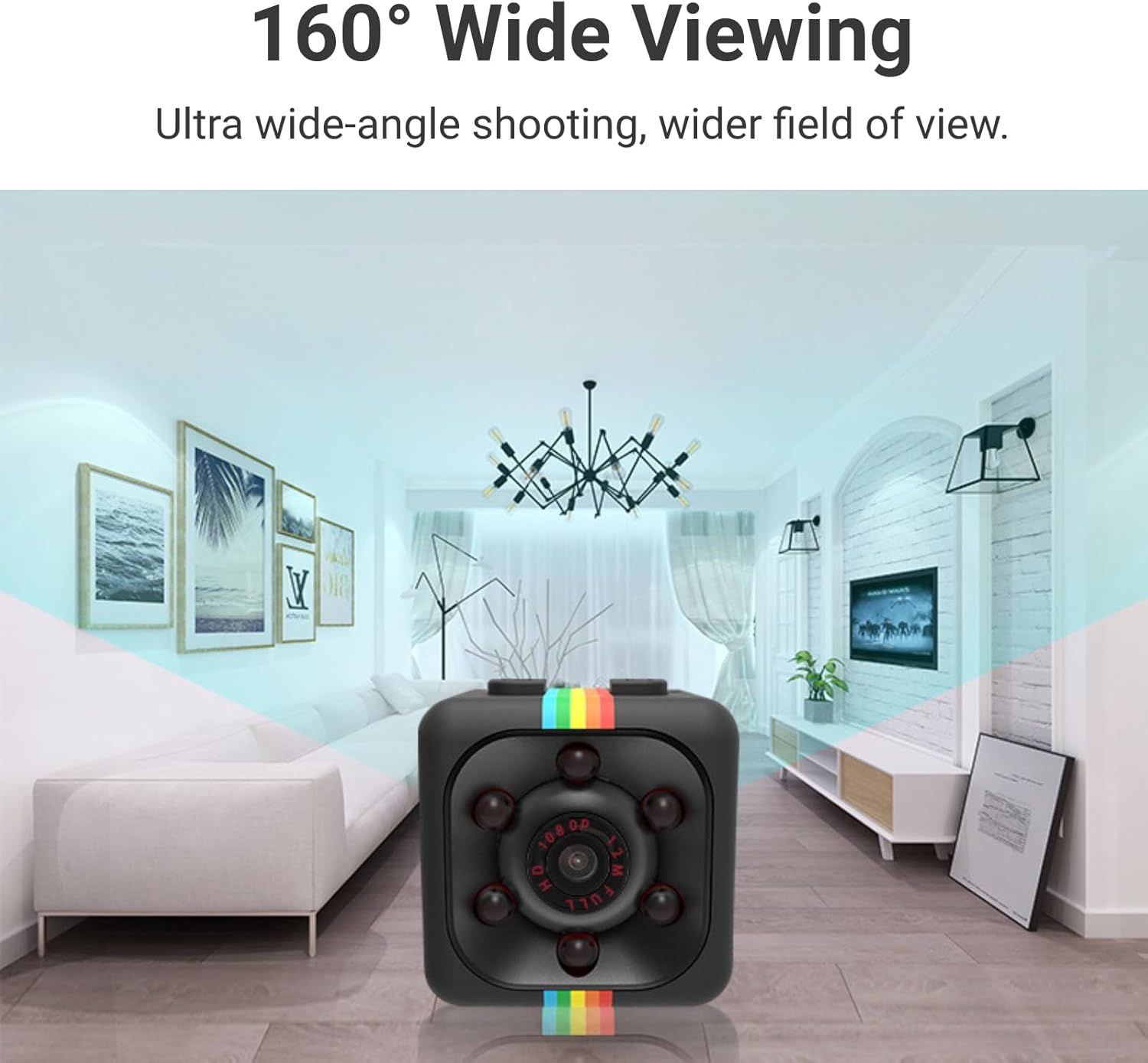
Figure 6: The camera offers a 160° wide viewangelua.
5.3. Gaueko Ikusmen modua
The camera supports night vision for clear recording in low-light conditions:
- While in standby mode, press and hold the Power button for 3 seconds. The infrared lights will activate, and the camera will begin recording in night vision.
- To deactivate night vision, press and hold the Power button again for 3 seconds.

Figure 7: Night vision capability for monitoring in unlit scenes.
5.4. Mugimenduaren detekzioa
The motion detection feature allows the camera to record only when movement is detected, saving battery and storage space:
- From standby mode, press the Mode button twice to enter motion detection mode. The blue and red LEDs will flash simultaneously.
- The camera will automatically start recording when motion is detected and save the file every 5 minutes. If no motion is detected, the device will enter standby mode.
- To exit motion detection mode, press the Mode button again.
5.5. Argazkiak ateratzea
To take still pictures:
- From standby mode, press the Power button once. The red LED will flash once, indicating a picture has been taken.
- Pictures are saved at 12M (4032x3024) resolution.
5.6. Data eta ordua ezartzea
To ensure accurate timestamps on your recordings, you can set the date and time:
- Connect the formatted MicroSD card to your computer using an adapter.
- Sortu testu berri bat file named "time.txt" in the root directory of the MicroSD card.
- Open "time.txt" and enter the current date and time in the format: YYYYMMDDHHMMSS Y (e.g., 20250527101200 Y). The 'Y' indicates that the timestamp should be displayed on recordings. Use 'N' if you do not want the timestamp.
- Gorde "time.txt" fitxategia file and safely eject the MicroSD card from your computer.
- Insert the MicroSD card back into the camera and power it on. The camera will automatically update its date and time settings.
5.7. Loop grabazioa
The camera supports loop recording, which means it will automatically overwrite the oldest video files when the MicroSD card is full. This ensures continuous recording without manual deletion.

Figure 8: Loop recording feature for continuous surveillance.
6. Mantentzea
- Garbiketa: Erabili zapi leun eta lehor bat kameraren lentea eta gorputza garbitzeko. Saihestu garbitzaile likidoak edo material urratzaileak erabiltzea.
- Biltegiratzea: Gorde kamera leku fresko eta lehor batean, eguzki-argitik eta muturreko tenperaturetatik babestuta.
- Bateria zaintzea: To prolong battery life, avoid fully discharging the camera frequently. Charge it regularly, even if not in active use.
7. Arazoak
| Arazoa | Kausa posiblea | Irtenbidea |
|---|---|---|
| Kamera ez da pizten. | Bateria baxua. | Kargatu kamera guztiz emandako USB kablea erabiliz. |
| Camera does not record. | No MicroSD card inserted or card is full/corrupted. | Ensure a formatted MicroSD card is inserted. If full, enable loop recording or transfer files. If corrupted, reformat the card. |
| Bideoaren kalitate eskasa. | Lens is dirty or insufficient lighting. | Clean the camera lens. Ensure adequate lighting or activate night vision mode. |
| Incorrect date/time stamp. | Date/time not set or "time.txt" file okerra da. | Follow instructions in Section 5.6 to correctly set the date and time. |
8. Zehaztapenak
- Ereduaren izena: Diyeeni3ys71gxaui (SQ11)
- Bideoa ateratzeko ebazpena: 1080p
- ViewAngelua: 160 gradu
- Fotograma-tasa: 30 fps
- Bideoa harrapatzeko formatua: AVI
- Bateria Potentzia: 200 milioiampordu lehenago (mAh)
- Elementuaren pisua: 1.76 ontza (0.05 kilogramo)
- Paketearen neurriak: 3.86 x 3.74 x 1.34 hazbete
- Konektibitate-protokoloa: Wi-Fi
- Muntatze mota: Wall Mount (with included accessories)
- Alerta mota: Mugimendua bakarrik
- Fabrikatzailea: Diyeeni
9. Bermea eta Laguntza
For warranty information or technical support, please refer to the product packaging or contact Diyeeni customer service directly. Keep your purchase receipt for warranty claims.


