1. Sarrera
The FIDECO Hard Drive Docking Station YPZ03SN is a versatile external storage solution designed for easy access to various types of hard drives and solid-state drives. It supports 2.5-inch and 3.5-inch SATA HDDs/SSDs, as well as M.2 NVMe and M.2 SATA SSDs. Featuring a built-in cooling fan, this docking station ensures optimal operating temperatures for your drives during data transfer.
This manual provides detailed instructions for setting up, operating, and maintaining your FIDECO docking station, along with troubleshooting tips and product specifications.

Image 1.1: FIDECO Hard Drive Docking Station with examples of supported drives (2.5" SATA, 3.5" SATA, M.2 NVMe/SATA SSDs).
2. Paketearen edukia
Mesedez, egiaztatu elementu guztiak zure paketean daudela:
- 1x FIDECO Hard Drive Docking Station (Model: YPZ03SN)
- 1x USB-C to USB-C Cable with USB-A Adapter
- 1 elikadura egokitzailea (DC 12V)
- 1x Erabiltzailearen eskuliburua (dokumentu hau)
3. Produktuaren ezaugarriak
- Bateragarritasun Unibertsala: Supports 2.5"/3.5" SATA HDDs/SSDs and M.2 NVMe/SATA SSDs.
- Abiadura handiko datuen transferentzia: Up to 10Gbps for M.2 NVMe SSDs and 5Gbps for 2.5"/3.5" SATA drives.
- Hozte eraginkorra: Integrated cooling fan with an independent switch to prevent overheating.
- Plug and Play: Driver-free installation for Windows, Mac OS, and Linux operating systems.
- Konexio erraza: Includes a USB-C to USB-C cable with an attached USB-A adapter for broad device compatibility.
4. Konfiguratzeko argibideak
4.1 Osagaiak identifikatzea

4.1 irudia: Goiko eta atzeko aldea view of the docking station highlighting key components and ports.
- SATA Interfazea: For 2.5-inch and 3.5-inch SATA HDDs/SSDs.
- M.2 SSD Interface: For M.2 NVMe and M.2 SATA SSDs.
- LED argia: Indicates power and activity status.
- Hozte haizagailua: Provides active cooling for inserted drives.
- C motako ataka: Connects to your computer via the provided USB cable.
- Pizteko botoia: Ainguratze-estazioa piztu edo itzaltzen du.
- Cooling Fan Switch: Toggles the cooling fan on or off independently.
- DC 12V ataka: Barneratutako energia-egokitzailera konektatzen da.
4.2 Ainguratze-estazioa konektatzea
- Connect the provided power adapter to the DC 12V port on the docking station and then to a power outlet.
- Connect the USB-C end of the data cable to the Type-C port on the docking station.
- Connect the other end of the data cable (USB-C or USB-A, using the adapter if necessary) to an available USB port on your computer.
- Press the Power Button to turn on the docking station. The LED light will illuminate.
4.3 Inserting a Hard Drive/SSD
Important: Only one hard drive or SSD can be inserted and used at a time.
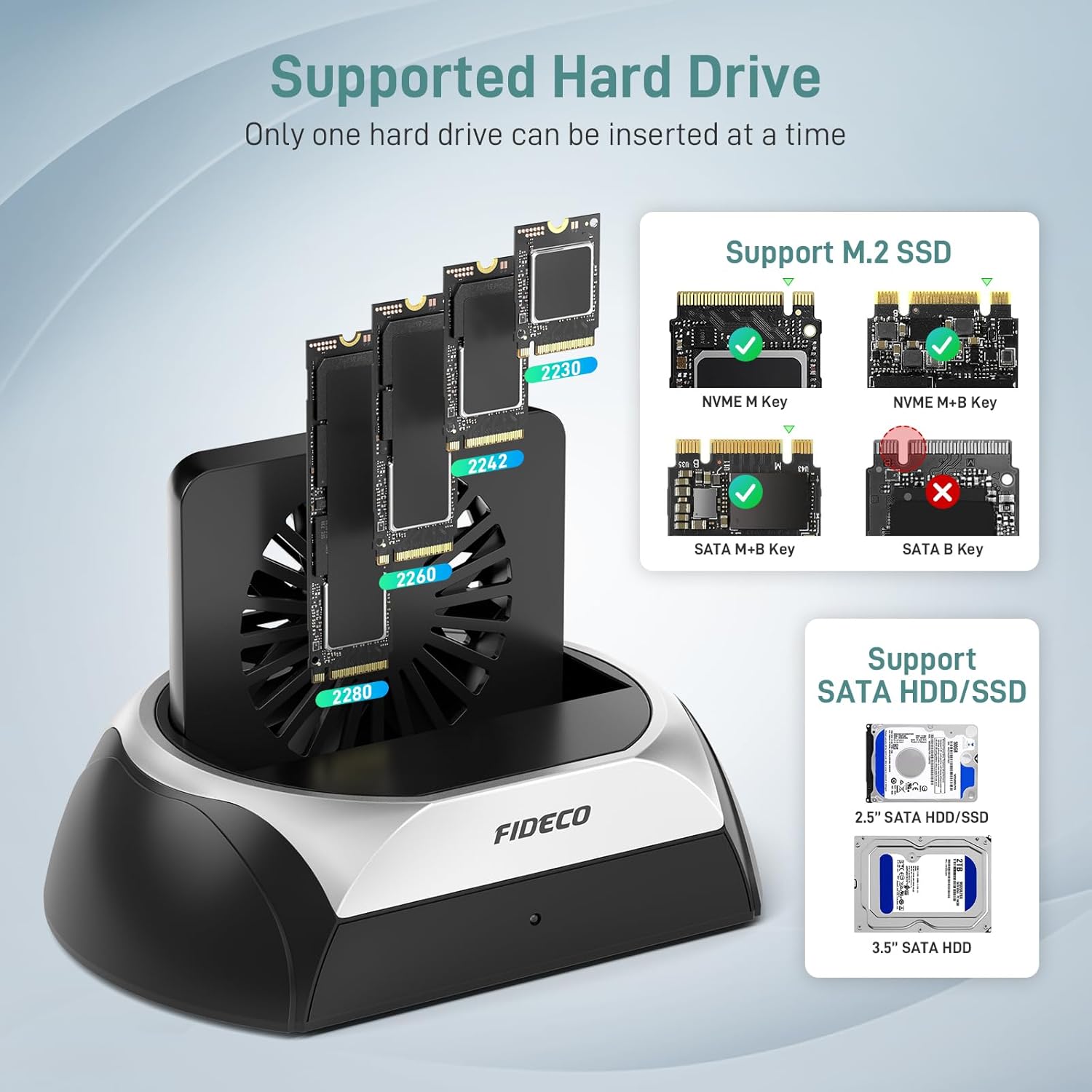
Image 4.2: Visual guide for compatible M.2 SSD and SATA HDD/SSD types.
- For 2.5"/3.5" SATA HDD/SSD: Gently slide the SATA drive into the SATA interface slot until it is firmly seated. Ensure the drive's connectors align with the docking station's connectors.
- For M.2 NVMe/SATA SSD: Insert the M.2 SSD into the M.2 SSD interface slot at an angle, then gently push down to secure it. Ensure the M.2 key type (M-Key or B+M Key for NVMe; B+M Key for SATA) matches the slot.
Note for New Drives: For new HDDs or SSDs, they must be initialized and formatted by your computer's operating system before they can be recognized and used. Refer to your operating system's disk management tools for this process.
5. Funtzionamendu-argibideak
5.1 Datuen transferentzia
Once a drive is properly inserted and the docking station is connected and powered on, your computer should automatically detect the drive. You can then access, transfer, and manage files as you would with any internal or external drive.

Image 5.1: High-speed data transfer with an M.2 NVMe SSD, reaching up to 10Gbps.

Image 5.2: Data transfer with a 2.5"/3.5" SATA HDD/SSD, reaching up to 5Gbps.
5.2 Hozte-haizagailuaren funtzionamendua
The docking station features a cooling fan to maintain optimal drive temperatures, especially during extended use or large data transfers. The fan has an independent switch located at the rear of the unit.
- To turn the cooling fan on, slide the Cooling Fan Switch to the 'ON' position.
- To turn the cooling fan itzali, slide the Cooling Fan Switch to the 'OFF' position.
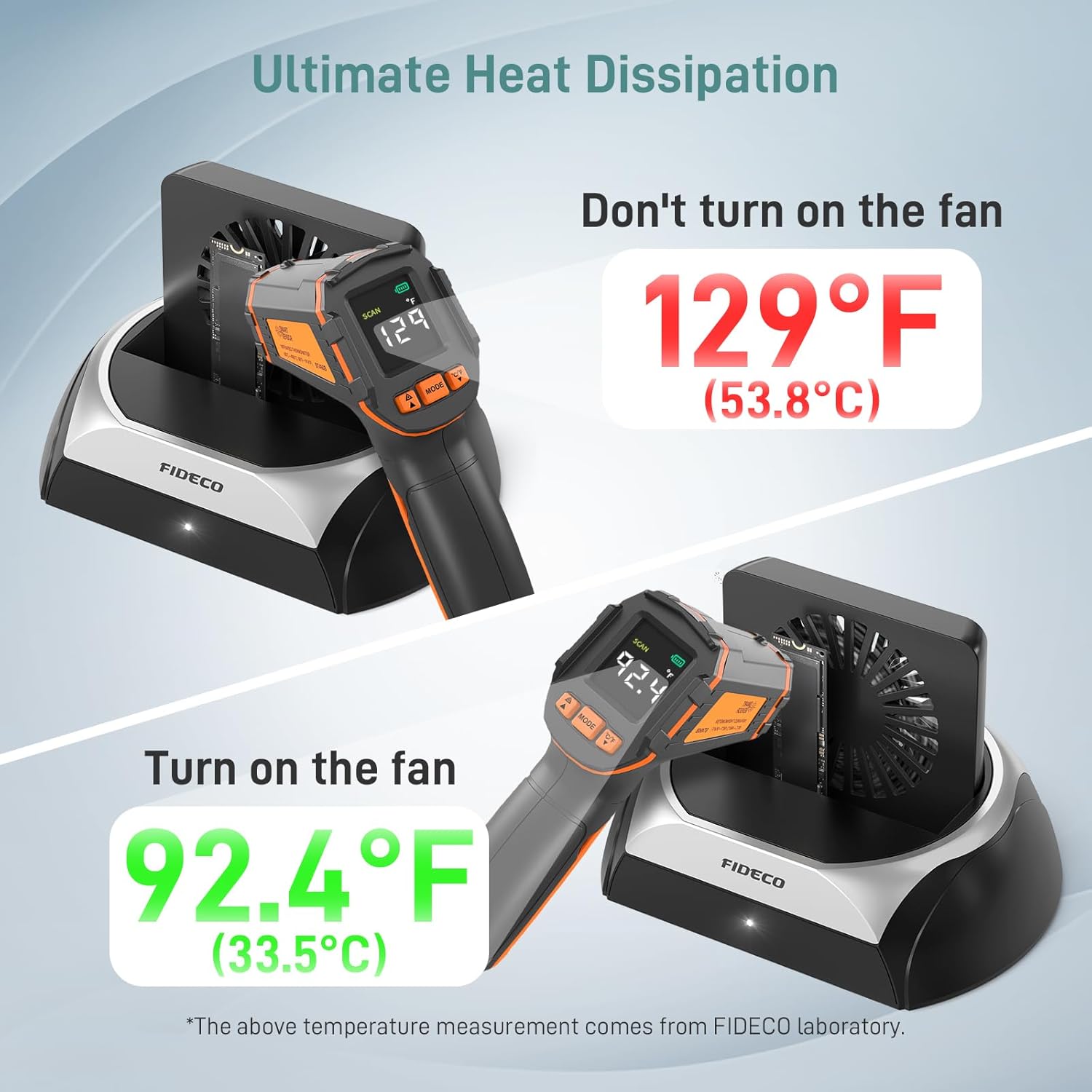
Image 5.3: Demonstrates the effectiveness of the cooling fan in reducing drive temperature.
5.3 Sistemaren bateragarritasuna
The FIDECO docking station is designed for broad compatibility and operates without the need for additional drivers on most modern operating systems.

Image 5.4: The docking station offers driver-free, plug-and-play functionality across Windows, Mac OS, and Linux.
6. Mantentzea
To ensure the longevity and optimal performance of your FIDECO Hard Drive Docking Station and the drives connected to it, consider the following maintenance guidelines:
- Mantendu garbi: Regularly clean the docking station and its ports with a soft, dry cloth to prevent dust accumulation, especially around the cooling fan vents.
- Tratamendu egokia: Beti kontuz maneiatu disko gogorrak eta SSDak. Saihestu erortzea edo kolpe fisikoak jasotzea.
- Cooling Fan Use: Utilize the cooling fan during prolonged data transfers or when accessing drives for extended periods to prevent overheating, which can impact drive performance and lifespan.
- Seguru kentzea: Always safely eject or unmount drives from your operating system before physically removing them from the docking station or disconnecting the docking station from your computer.
7. Arazoak
If you encounter issues with your FIDECO Hard Drive Docking Station, please refer to the following common solutions:
- Unitatea ez da detektatu:
- Ensure the docking station is powered on and the LED indicator is lit.
- Verify that the drive is correctly and firmly seated in its slot.
- Saiatu kargatzeko estazioa ordenagailuko beste USB ataka batera konektatzen.
- If it's a new drive, ensure it has been initialized and formatted in your operating system's Disk Management (Windows) or Disk Utility (Mac OS).
- Test with a different known-good drive to rule out a drive issue.
- Datuen transferentzia abiadura motela:
- Ensure you are using a USB 3.0/3.1/3.2 port on your computer for optimal speeds. Connecting to a USB 2.0 port will result in slower speeds.
- Check the condition of your USB cable. Try a different cable if available.
- Ensure the cooling fan is active during large transfers to prevent thermal throttling.
- The actual speed may vary depending on the drive's performance and your computer's system configuration.
- Cooling Fan Not Working:
- Ensure the Cooling Fan Switch is in the 'ON' position.
- Check if the docking station is receiving power.
If these steps do not resolve your issue, please contact FIDECO customer support.
8. Zehaztapenak
| Ezaugarri | Xehetasuna |
|---|---|
| Modelo zenbakia | YPZ03SN |
| Marka | FIDECO |
| Gailu bateragarriak | Personal Computer, Laptops, OTG-enabled Phones/Tablets |
| Supported Hard Disk Form Factors | 2.5 Inches, 3.5 Inches (SATA HDD/SSD), M.2 (NVMe/SATA SSD) |
| Onartutako gailuen gehienezko kopurua | 1 (one drive at a time) |
| Datuen transferentzia-tasa | Up to 10 Gigabits Per Second (M.2 NVMe), Up to 5 Gigabits Per Second (SATA) |
| Hardware interfazea | USB Docking Station (USB 3.2 Gen 2 Type-C) |
| Sistema eragileen bateragarritasuna | Windows, Mac OS, Linux |
| Materiala | Akrilonitrilo Butadieno Estirenoa (ABS) |
| Kolorea | Beltza eta Zilarrezkoa |
| Produktuaren neurriak | 4.65 x 4.84 x 6.97 hazbete |
| Elementuaren pisua | 7.8 ontza (220 gramo) |
9. Bermea eta Laguntza
FIDECO is committed to providing quality products and customer satisfaction. For technical support, firmware updates, or warranty inquiries, please contact our support team.
- Posta elektronikoko laguntza: support@fideco.cn
- Bermearen informazioa: Please refer to the product packaging or contact FIDECO customer support for specific warranty terms and conditions.


