1. Sarrera
Thank you for choosing the AMOCAM Wireless WiFi TUYA Access Control System. This advanced system integrates fingerprint, password, and ID card access methods with smart Tuya APP control, offering a secure and convenient solution for various access control needs. Featuring an intuitive LED screen and voice prompts, this full-metal, weatherproof keypad is designed for reliable performance in diverse environments. This manual provides detailed instructions for installation, operation, and maintenance to ensure optimal performance and longevity of your device.
2. Segurtasun-neurriak
Mesedez, irakurri eta ulertu segurtasun-jarraibide guztiak instalazioa eta erabilera aurretik. Jarraibide hauek ez jarraitzen badituzu, deskarga elektrikoak, suteak edo lesio larriak gerta daitezke.
- Elikatze-iturria: Ziurtatu elikadura hornidura zehaztutako bolumenarekin bat datorrelatage (DC12-24V). Incorrect voltagGailua kaltetu dezake.
- Kableatua: All wiring should be performed by a qualified electrician in accordance with local electrical codes. Ensure power is disconnected before wiring.
- Ingurumena: Although weatherproof (IP68), avoid submerging the device in water or exposing it to extreme conditions beyond its specified operating temperature range (-40°C to 60°C).
- Mantentzea: Ez saiatu gailua zeuk desmuntatzen edo konpontzen. Mantendu mantentze-lan guztiak langile kualifikatuen esku.
- Garbiketa: Erabili zapi leun eta lehor bat garbitzeko. Saihestu garbitzaile edo disolbatzaile urratzaileak.
3. Paketearen edukia
Egiaztatu elementu guztiak paketean daudela:
- Wireless WiFi TUYA Access Control Keypad (1 unit)
- ID Keyfobs (5 pieces)
- Muntatzeko torlojuak eta hormako takoak
- Erabiltzailearen eskuliburua (dokumentu hau)
4. Produktuaren ezaugarriak
The AMOCAM Access Control System offers a robust set of features for enhanced security and convenience:
- Visualized Operation: Equipped with an LED display and voice prompts for clear, intuitive navigation and feedback during setup and operation. Features include calendar, clock, and doorbell function.
- Tuya Wireless Integration: Seamlessly control the keypad via the Tuya APP from anywhere. Features include remote unlocking, public password setting, user management (fingerprint/password/ID card), and door opening record viewing.
- Sarbide metodo anitzak: Supports fingerprint, swipe card (EM Card), and code password unlocking.
- Erabiltzaileentzako gaitasun handia: Capable of managing up to 10,000 users.
- Eraikuntza sendoa: Features a strong zinc alloy shell, epoxy encapsulated, providing anti-prying, anti-vandal, and weatherproof (IP68) protection. Includes anti-strong magnet unlocking and anti-duplicate card technology.
- Advanced Biometrics: Utilizes a semiconductor biometric fingerprint sensor for quick (0.3s identification, 1s unlocking) and secure access.
- Zabalgarritasuna: Supports Wiegand 26/34 input/output, door magnetic switch, exit button, all electric locks, alarm systems, and garage/sliding door openers.
- Flexible Work Modes: Operates in Standalone access control mode, Reader mode, and Relay toggle mode.
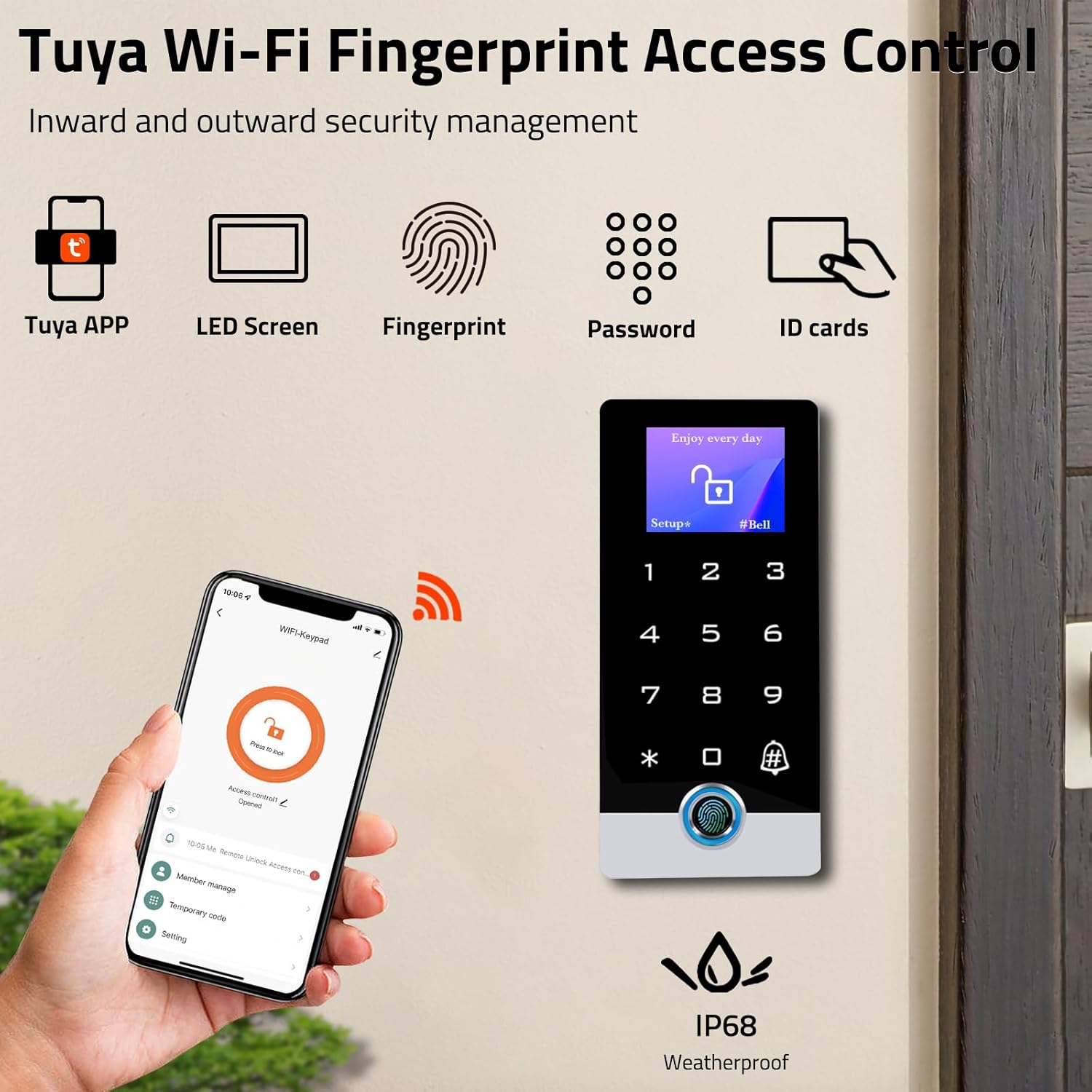
Irudia: Gainetikview of Tuya Wi-Fi Fingerprint Access Control features including Tuya APP, LED Screen, Fingerprint, Password, ID cards, and IP68 Weatherproof rating.

Image: Demonstrates the rapid 0.3-second fingerprint identification and 1-second unlocking capability of the device.
5. Instalazio gida
Follow these steps for proper installation of your access control system.
5.1 Teklatua muntatzea
- Choose a suitable mounting location, ensuring it is within reach of power and lock wiring. The device is weatherproof, suitable for outdoor installation.
- Use the provided mounting template (if available, otherwise measure the device) to mark the drilling points on the wall.
- Zulatu zuloak eta sartu tapoiak.
- Secure the keypad to the wall using the provided screws.

Image: Detailed dimensions of the access control keypad, showing its height (5.2 inches / 134 mm), width (2.5 inches / 64 mm), and depth (0.8 inches / 22 mm).
5.2 Kableatu-diagrama
Refer to the diagram below for correct wiring connections. Ensure power is OFF before making any connections.
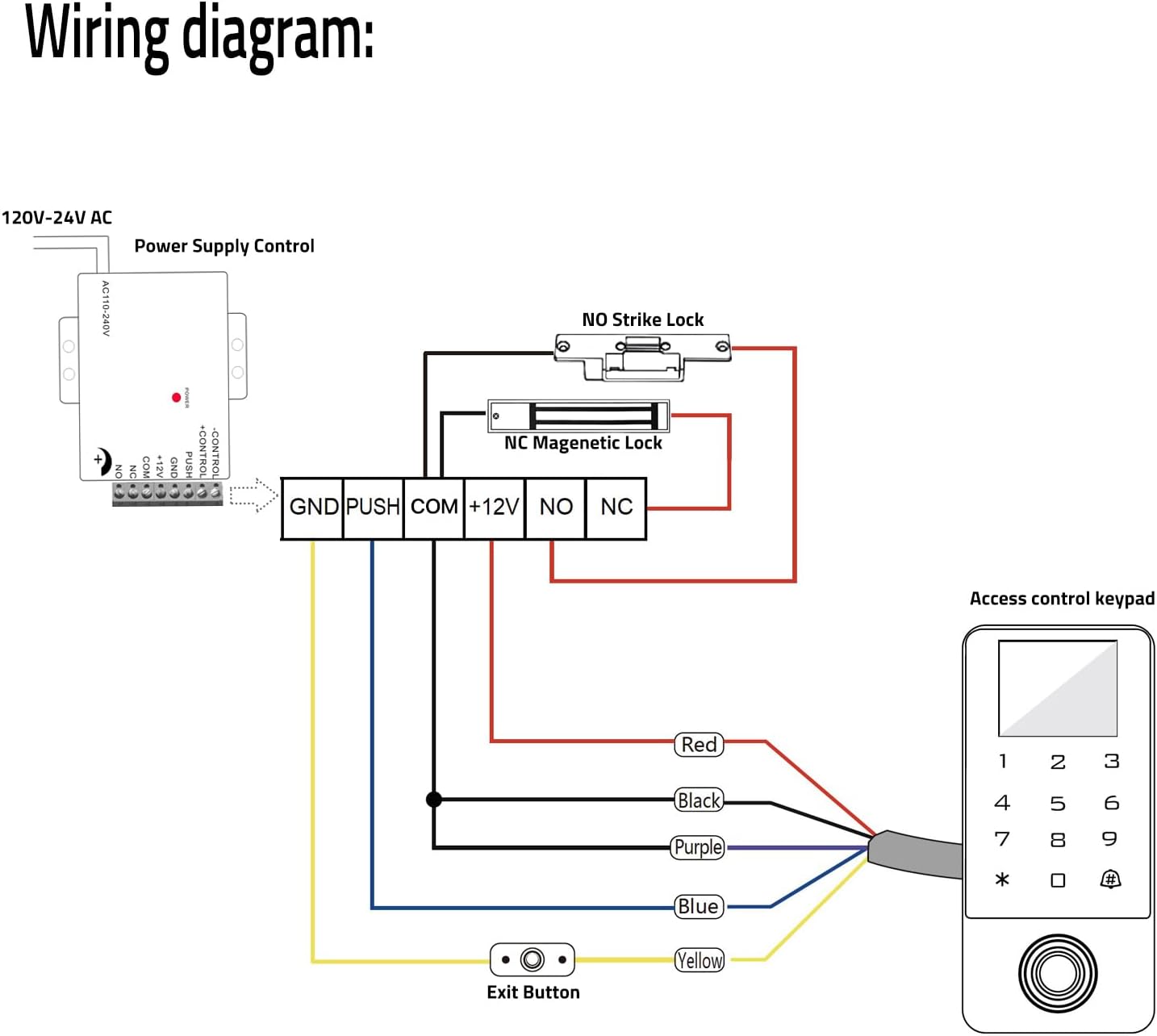
Image: Comprehensive wiring diagram illustrating connections for the access control keypad with a power supply control, NO Strike Lock, NC Magnetic Lock, and an Exit Button. Shows color-coded wires for easy identification.
Key Wiring Connections:
- DC+12-24V (Red): Connect to the positive terminal of your 12-24V DC power supply.
- GND (beltza): Connect to the negative terminal of your power supply.
- D0 (Green) / D1 (White): Wiegand data lines for connecting to an external controller (if used in Reader mode).
- NO (Yellow) / COM (Purple) / NC (Orange): Relay output for connecting to electric locks (Normally Open, Common, Normally Closed).
- PUSH (Blue): Connect to an exit button.
- BELL_A (Pink) / BELL_B (Brown): Doorbell connections.
5.3 Piztea
After completing all wiring, connect the power supply. The keypad will power on, and the LED screen will display the current time and date. Follow the voice prompts for initial setup.
6. Funtzionamendu Gida
This section details how to configure and use your access control system.
6.1 Initial Setup: Setting the Admin Password
Upon first power-up, you will need to set an administrator password. Follow the on-screen prompts and voice guidance.
- Sakatu Konfigurazioa* teklatuan.
- Enter the default administrator password (if any, refer to quick start guide or factory settings).
- Follow the prompts to set your new administrator password. Remember this password for future system configurations.
6.2 Erabiltzaileen kudeaketa
The system supports adding and deleting users via fingerprint, ID card, or password.
Adding a User:
- Enter Admin Mode: Press Konfigurazioa*, then enter your Admin Password.
- Navigate to "Add User" on the LED screen (use arrow keys or number pad to select).
- Select the desired user type: Fingerprint, Card, or Password.
- For Fingerprint: Place the user's finger on the sensor multiple times as prompted until successfully registered.
- For Card: Present the ID card to the keypad's card reader.
- For Password: Enter the desired password (e.g., 6 digits) and confirm.
- Confirm the addition.
Erabiltzaile bat ezabatzea:
- Enter Admin Mode.
- Navigate to "Delete User".
- Select the user type and enter the user ID, fingerprint, or present the card to be deleted.
- Berretsi ezabatzea.

Image: Flowchart demonstrating the visualized menu operation on the LED screen, showing steps for doorbell, unlock, system menu, WiFi match, add user, add fingerprint, work mode, and unlocking mode.
6.3 Desblokeatzeko metodoak
The system supports multiple ways to unlock the door:
- Hatz-marka: Place a registered finger on the fingerprint sensor. The door will unlock upon successful verification.
- ID Card: Present a registered ID keyfob or card to the card reader area on the keypad.
- Pasahitza: Enter a registered password on the keypad, then press # (or designated key).
- Tuya APP: Use the Tuya Smart application on your smartphone for remote unlocking.

Image: Shows the access control keypad alongside a smartphone displaying the Tuya APP interface for remote unlocking.

Image: Highlights the key features of phone control: Keyless Entry, Manage Users, Log Record, and Share Ekey.
6.4 Tuya APP Integration
To connect the keypad to the Tuya APP:
- Download the "Tuya Smart" or "Smart Life" app from your mobile app store.
- Erregistratu edo sartu zure kontuan.
- On the keypad, enter Admin Mode and navigate to the "WiFi Match" option.
- Follow the on-screen instructions on the keypad and in the Tuya APP to add the device. Ensure your phone and the keypad are connected to the same 2.4GHz Wi-Fi network during pairing.
- Once connected, you can remotely unlock, manage users, set temporary passwords, and view access logs through the app.
7. Mantentzea
Proper maintenance ensures the longevity and optimal performance of your access control system.
- Garbiketa: Regularly wipe the keypad surface and fingerprint sensor with a soft, dry, lint-free cloth. Do not use harsh chemicals, abrasive cleaners, or excessive moisture.
- Ingurumen-baldintzak: While weatherproof, avoid prolonged exposure to direct sunlight or extreme temperatures that exceed the specified operating range to prevent potential damage to the screen or internal components.
- Firmware eguneraketak: Check the Tuya APP periodically for any available firmware updates for the device. Keeping the firmware updated can improve performance and security.

Image: The metal rainproof LED display access control keypad, highlighting its IP68 weatherproof rating, shown with water droplets on its surface.
8. Arazoak
If you encounter issues with your access control system, refer to the following common problems and solutions:
| Arazoa | Kausa posiblea | Irtenbidea |
|---|---|---|
| Keypad does not power on. | Ez dago energia-iturririk; kableatu okerra. | Egiaztatu konexio elektrikoak eta ziurtatu bolumen egokiatage (DC12-24V). Verify wiring according to the diagram. |
| Fingerprint/Card/Password not recognized. | User not registered; incorrect input; dirty sensor/card. | Ensure the user is properly registered. Re-enter password carefully. Clean fingerprint sensor or card. |
| Door does not unlock. | Lock wiring issue; lock malfunction; incorrect relay setting. | Check wiring to the electric lock. Test the lock independently. Verify the relay mode setting in the keypad menu. |
| Cannot connect to Tuya APP. | Incorrect Wi-Fi password; 5GHz Wi-Fi network; keypad not in pairing mode. | Ensure correct Wi-Fi password. Connect to a 2.4GHz Wi-Fi network. Put the keypad into WiFi matching mode via the menu. |
| Voice prompts are unclear or too loud/quiet. | Bolumenaren ezarpena doitu behar da. | Access the system menu to adjust the adjustable volume/language choices. |
9. Zehaztapen Teknikoak
| Ezaugarri | Zehaztapena |
|---|---|
| Modelo zenbakia | TF3LCD-TWF |
| Marka | AMOCAM |
| Neurriak | 7.4 x 4.8 x 2.2 hazbete (Produktua) |
| Elementuaren pisua | 1.19 kilo |
| Energia iturria | Kable elektrikoa |
| liburukiatage | DC12-24V |
| Bistaratzeko mota | LED pantaila |
| Iragazgaitzaren balorazioa | IP68 |
| Giro-tenperatura | -40 °C eta 60 °C (-40 °F eta 140 °F) |
| Inguruko Hezetasuna | %0etik %95era (kondentsatu gabe) |
| Erabiltzaile-gaitasuna | 10,000 erabiltzaile |
| Sarbide-metodoak | Fingerprint, Password, ID Card, Tuya APP |
| Wiegand interfazea | WG26/34 Input/Output |
| Dakarten osagaiak | Keypad, 5PCS ID Keyfobs |
10. Bermea eta Laguntza
AMOCAM Technology Inc. is committed to providing high-quality products and customer satisfaction. This product comes with a standard manufacturer's warranty against defects in materials and workmanship. For specific warranty terms and conditions, please refer to the warranty card included with your product or visit the official AMOCAM webgunea.
For technical support, troubleshooting assistance, or any inquiries regarding your AMOCAM Access Control System, please contact our customer service team through the contact information provided on our official website or through your purchase platform. Please have your model number (TF3LCD-TWF) and purchase details ready when contacting support.


