1. Sarrera
This manual provides detailed instructions for the setup, operation, and maintenance of your KTC 32-Inch 2K QHD IPS Monitor, model H32T13. Please read this manual thoroughly before using the monitor to ensure proper functionality and to prevent damage.
The KTC H32T13 monitor features a 32-inch IPS panel with 2K QHD (2560x1440) resolution, a 100Hz refresh rate, and support for FreeSync/G-Sync technologies. It is designed for both office productivity and gaming, offering vibrant colors, wide viewing angles, and eye-care features.
2. Zer dago kutxan
Egiaztatu osagai guztiak paketean daudela:
- KTC 32-Inch 2K QHD IPS Monitor (H32T13)
- Monitorearen euskarria (oinarria eta lepoa)
- HDMI kablea
- Elikatze kablea
- Elikatze-moldagailua
- Bihurkin
- Erabiltzailearen eskuliburua (dokumentu hau)

Image: Contents of the KTC H32T13 monitor package.
3. Produktua amaitu daview
The KTC H32T13 monitor is designed for a superior visual experience. Key features include:
- 32-inch QHD (2560x1440) IPS Panel: Delivers crisp, detailed images with accurate colors and wide viewangeluak.
- 100 Hz freskatze-abiadura: Provides smoother motion for gaming and fast-paced content.
- FreeSync/G-Sync Compatibility: Pantailaren urradura eta tartekatzea murrizten ditu joko-esperientzia fluidoagoa lortzeko.
- HDR euskarria: Enhances contrast and color for more realistic visuals.
- Begiak zaintzeko teknologia: Features Flicker-Free and Low Blue Light modes to reduce eye strain during prolonged use.
- Konektibitate polifazetikoa: Equipped with multiple HDMI 2.0 and DisplayPort 1.4 inputs.
- Diseinu ergonomikoa: Offers tilt adjustment and VESA mount compatibility for flexible positioning.
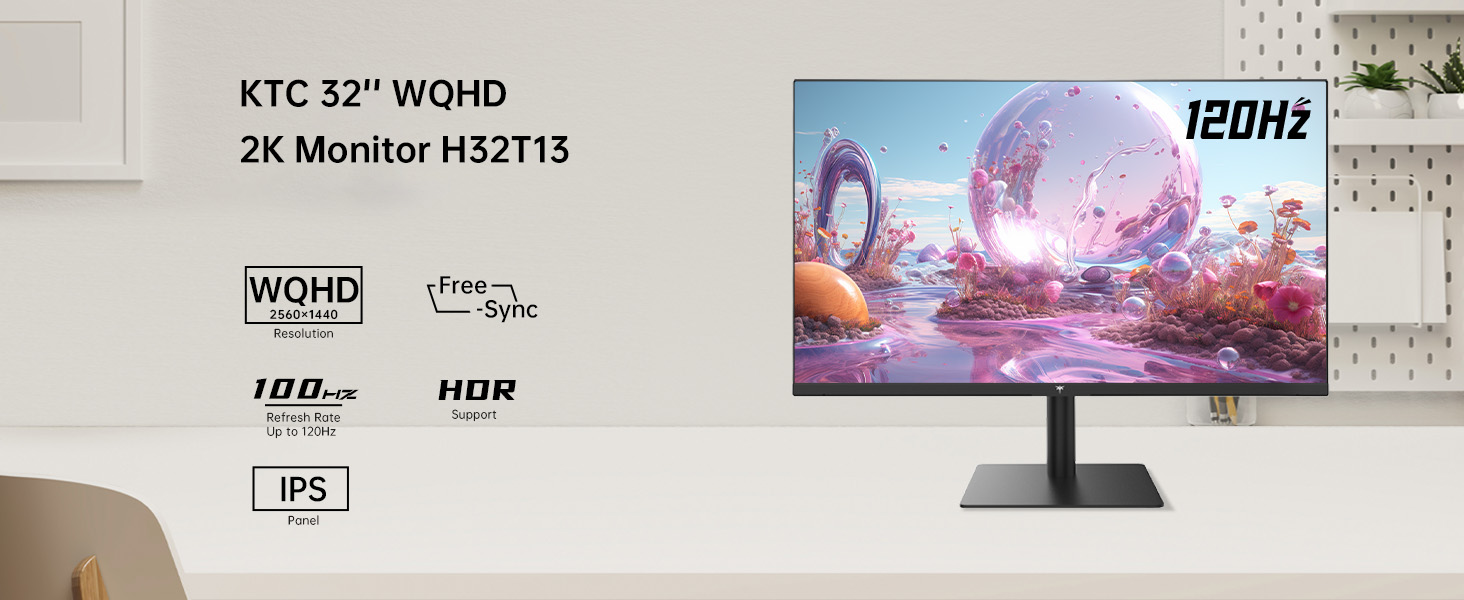
Image: KTC H32T13 monitor showcasing its key display technologies.

Image: The 32-inch screen size of the KTC H32T13 monitor.
4. Konfigurazioa
4.1 Standa muntatzea
- Kontu handiz atera monitorearen eta euskarriaren osagaiak paketetik.
- Attach the stand neck to the monitor panel using the provided screws and screwdriver.
- Lotu euskarriaren oinarria euskarriaren lepoari.
- Jarri muntatutako monitorea gainazal egonkor eta lau batean.
4.2 VESA Mounting (Optional)
The monitor supports VESA 100mm x 100mm mounting. If you wish to use a VESA-compatible arm or wall mount (not included), remove the stand and attach the VESA mount according to its instructions.

Irudia: Atzealdea view of the monitor with VESA 100x100mm mounting points.
4.3 Ordenagailu batera konektatzea
- Ziurtatu monitorea eta ordenagailua itzalita daudela.
- Connect one end of the provided HDMI cable to an HDMI port on your computer's graphics card.
- Connect the other end of the HDMI cable to one of the HDMI 2.0 ports on the monitor. Alternatively, use a DisplayPort cable to connect to a DP 1.4 port for higher refresh rates and FreeSync/G-Sync functionality.
- Connect the power adapter to the monitor's DC input and then plug the power cord into a power outlet.
- Piztu ordenagailua, eta gero piztu monitore.

Image: Monitor connectivity ports (DC, HDMI 1, HDMI 2, DP 1).
5. Funtzionamendu-argibideak
5.1 Piztu/Itzali
Sakatu monitorearen gainean dagoen pizteko botoia pizteko edo itzaltzeko. Pizteko adierazlearen argia piztuko da monitorearen piztuta dagoenean.
5.2 Sarrera iturriaren hautaketa
Use the OSD (On-Screen Display) menu buttons to navigate and select your desired input source (HDMI 1, HDMI 2, or DisplayPort).
5.3 Adjusting Display Settings (OSD Menu)
The OSD menu allows you to customize various display settings. Typically, buttons are located on the back or bottom of the monitor. Refer to the quick start guide for specific button functions.
- Distira/Kontrastea: Doitu luminantzia orokorra eta kontraste-erlazioa.
- Kolore ezarpenak: Modify color temperature, gamma, and individual RGB levels. The monitor supports 1.07 billion colors and 103% sRGB.
- Irudi modua: Select from preset modes optimized for different content (e.g., Standard, Game, Movie, Text).
- Freskatze-tasa: The monitor supports up to 100Hz. Ensure your graphics card settings are configured to match.
- FreeSync/G-Sync: Enable this feature in the OSD menu and your graphics card control panel for adaptive synchronization.
- Eye Care Modes: Activate Flicker-Free and Low Blue Light modes to reduce eye strain.
- HDR: Enable HDR for compatible content and devices.

Image: Monitor displaying enhanced colors and brightness with HDR enabled.

Image: Visual comparison of FreeSync/G-Sync enabled and disabled, demonstrating smoother gameplay.

Image: IPS panel advantages in brightness and color over VA panels.
5.4 Physical Adjustments
The monitor stand allows for tilt adjustment from -5° to 15° to optimize your viewangelua.

Image: Monitor tilt adjustment range and eye care features.
Bideoa: Amaitu daview of the KTC 2K IPS Office Monitor, highlighting its features and suitability for office use. This video demonstrates the monitor's visual quality and design.
6. Mantentzea
6.1 Monitorea garbitzea
- Itzali beti monitorearen energia eta deskonektatu elikatze-kablea garbitu aurretik.
- Erabili lipurrik gabeko zapi leun bat dampUrarekin edo pantaila-garbitzaile leun eta ez-urratzaile batekin garbitu.
- Wipe the screen gently to remove dust and smudges. Avoid applying direct pressure to the screen.
- Ez erabili alkohola, amoniakoa duten garbitzaileak edo material urratzaileak, hauek pantailaren gainazala kaltetu baitezakete.
- Garbitu monitore c.asinoihal leun eta lehor batekin garbitu.
6.2 Biltegiratzea
If storing the monitor for an extended period, ensure it is powered off, unplugged, and stored in a cool, dry place away from direct sunlight and extreme temperatures. Use the original packaging if available for best protection.
7. Arazoak
| Arazoa | Kausa posiblea | Irtenbidea |
|---|---|---|
| Ez dago irudirik pantailan | Monitorea ez dago piztuta; Sarrera-iturri okerra; Bideo-kablea askatuta; Ordenagailua lo moduan. | Ensure power is connected and monitor is on. Select correct input source. Check video cable connections. Wake up computer. |
| Irudia lausoa edo distortsionatua dago | Incorrect resolution; Faulty video cable; Graphics driver issues. | Set display resolution to 2560x1440. Try a different video cable. Update graphics drivers. |
| Pantaila keinuka edo urradura | Refresh rate mismatch; FreeSync/G-Sync not enabled or incompatible. | Ensure refresh rate is set to 100Hz. Enable FreeSync/G-Sync in monitor OSD and graphics card settings. Use DisplayPort for FreeSync/G-Sync. |
| Entzungailuen soinurik ez | Headphones not connected properly; Audio output not set to monitor. | Check headphone connection. Set monitor as default audio output in your computer's sound settings. |
| Botoiek ez dute erantzuten | OSD lock enabled; Temporary software glitch. | Check if OSD lock is active (refer to quick start guide). Power cycle the monitor. |
8. Zehaztapenak
| Ezaugarri | Xehetasuna |
|---|---|
| Modelo zenbakia | H32T13 |
| Pantailaren tamaina | 32 hazbete |
| Panel mota | IPS |
| Ebazpena | 2560 x 1440 (QHD zabala 1440p) |
| Aspektu-erlazioa | 16:9 |
| Freskatze tasa | 100Hz |
| Distira | 350 Candela (typ.) |
| Kolore gama | %103 sRGB |
| Kolore-Sakonera | 1.07 mila milioi kolore |
| HDR euskarria | Bai |
| Sinkronizazio egokitzailea | FreeSync/G-Sync Compatible |
| Konektibitatea | 2x HDMI 2.0, 1x DisplayPort 1.4 |
| Inklinazioa doitzea | -5°-tik 15°-ra |
| VESA mendia | 100 mm x 100 mm |
| Begien Zaintza Ezaugarriak | Flicker-Free, Eye Protection Mode (Low Blue Light) |
| Produktuaren neurriak | 5.31 x 32.48 x 21.2 hazbete |
| Elementuaren pisua | 18.81 kilo |
9. Bermea eta Laguntza
9.1 Bermearen informazioa
KTC products are covered by a limited warranty. Please refer to the warranty card included in your product packaging or visit the official KTC webwebgunean bermearen baldintza zehatzak ikusteko. Gorde erosketaren frogagiria bermearen erreklamazioetarako.
9.2 Bezeroarentzako laguntza
For technical assistance, troubleshooting not covered in this manual, or warranty inquiries, please contact KTC customer support through the following channels:
- Lineako laguntza: Visit the KTC official website for FAQs, driver downloads, and support contact forms.
- Posta elektronikoko laguntza: Refer to your warranty card or the KTC webwebgunean laguntza-helbide elektroniko egokia lortzeko.
- Amazonen laguntza: If purchased via Amazon, you can contact the seller directly through your Amazon order history for assistance.
Image: Steps to contact KTC customer support via Amazon.


