1. Sarrera
Welcome to the user manual for your ASUS ZenScreen MB166CR Portable USB Monitor. This document provides essential information for setting up, operating, maintaining, and troubleshooting your device. Please read this manual thoroughly before using the monitor to ensure proper function and longevity.
The ASUS ZenScreen MB166CR is a 16-inch (15.6-inch viewable) Full HD IPS portable monitor designed for enhanced productivity and versatility. It features a single USB Type-C connection for both power and video, a 360° detachable kickstand, and an anti-glare surface.
2. Paketearen edukia
Egiaztatu elementu guztiak zure paketean daudela. Elementuren bat falta bada edo hondatuta badago, jarri harremanetan zure saltzailearekin.
- ASUS ZenScreen MB166CR Portable Monitor
- 360° Detachable Kickstand
- USB-C kablea
- Babes-manuka
- Hasierako gida azkarra
- Berme Txartela

This image displays the complete contents of the ASUS ZenScreen MB166CR retail package. It includes the portable monitor, a detachable 360-degree kickstand, a USB-C cable for connectivity, a protective sleeve for transport, a quick start guide for initial setup, and a warranty card.
3. Konfigurazioa
3.1. Monitorea konektatzea
The ASUS ZenScreen MB166CR utilizes a single USB Type-C connection for both power and video transmission.
- Connect one end of the provided USB Type-C cable to the USB Type-C port on your ASUS ZenScreen MB166CR monitor.
- Connect the other end of the USB Type-C cable to a compatible USB Type-C port on your host device (e.g., laptop, smartphone, tablet). Ensure your device's USB-C port supports DisplayPort Alternate Mode (DP Alt Mode) for video output.
For more information on USB-C support, please refer to the official ASUS support page: ASUS USB-C Support FAQ.

This image demonstrates the straightforward connection process of the ASUS ZenScreen MB166CR. A single USB Type-C cable connects the portable monitor to a laptop, indicating that the USB-C port handles both video signal and power transmission. The monitor is shown in portrait mode, displaying data, while the laptop screen shows a graph.
3.2. Attaching the Kickstand
The 360° detachable kickstand allows for flexible viewing angles and orientations.
- Locate the screw-in socket on the rear of the monitor.
- Align the kickstand with the socket and screw it in securely.
- Adjust the kickstand to achieve your desired tilt angle for either portrait or landscape mode.

This diagram illustrates the versatility of the ASUS ZenScreen MB166CR's 360-degree detachable kickstand. It shows how the kickstand can be rotated to support the monitor in portrait mode, landscape mode, and even a wall-mounted mode. The diagram also highlights the ability to tilt the monitor up to 70 degrees for optimal viewing.
4. Funtzionamendu-argibideak
4.1. Piztu/Itzali
The monitor powers on automatically when connected to a compatible device via USB Type-C. To power off, disconnect the USB Type-C cable.
4.2. Display Orientation (Auto Rotate)
The monitor supports auto-rotation for seamless switching between portrait and landscape modes. This feature is enabled via the DisplayWidget Center software (under Windows OS).
4.3. Pantailaren ezarpenak doitzea
Use the physical buttons located on the monitor to access the On-Screen Display (OSD) menu. From the OSD menu, you can adjust settings such as brightness, contrast, color temperature, and other display parameters.
4.4. Erabilera-eszenatokiak
- Extended Monitor: Connect to your laptop for an expanded workspace, ideal for multitasking.
- Edukia partekatzea: Easily share content with others in small group settings.
- Erretratu modua: Optimizatu viewing documents, coding, or web arakatzen.
- Wall-Mounted Mode: Utilize the tripod socket for space-saving setups.

This image collage showcases the versatile applications of the ASUS ZenScreen MB166CR. It depicts the monitor being used for content sharing on a small table, as an extended display for a laptop to create a more efficient setup, and mounted on a partition to conserve desktop space. These examples highlight its adaptability for optimizing small workspaces.
5. Mantentzea
5.1. Monitorea garbitzea
Monitorearen pantaila garbitzeko, astiro-astiro zapi leun eta pelusik gabeko batekin garbitu. Orba egoskorrak kentzeko, garbituampen the cloth slightly with water or a mild, non-abrasive screen cleaner. Avoid using harsh chemicals or abrasive materials.
5.2. Biltegiratzea
When not in use, store the monitor in its protective sleeve to prevent scratches and dust accumulation.
5.3. Manipulazioa
Handle the monitor with care. Avoid dropping it or subjecting it to excessive force, as this can damage internal components or the screen.
6. Arazoak
6.1. No Display / Black Screen
- Ensure the USB Type-C cable is securely connected to both the monitor and your host device.
- Verify that your host device's USB-C port supports DisplayPort Alternate Mode (DP Alt Mode).
- Try connecting the monitor to a different USB-C port or another compatible device to rule out port or device issues.
- Check your host device's display settings to ensure the external monitor is detected and enabled.
6.2. Energia arazoak
- Confirm that the USB Type-C cable is providing sufficient power. Some devices may require an external power source if the USB-C port does not supply enough power.
- If using a USB hub, ensure it is powered and supports power delivery to the monitor.
6.3. Irudiaren kalitatearen arazoak
- Doitu distira, kontrastea eta kolore ezarpenak OSD menuaren bidez.
- Ensure the display resolution on your host device is set to 1920x1080 for optimal clarity.
- Check for any physical damage to the screen or cable.
7. Zehaztapenak
| Ezaugarri | Xehetasuna |
|---|---|
| Zutik pantailako tamaina | 16 hazbete |
| Bistaratzeko ebazpena | 1920x1080 |
| Pantailaren bereizmen maximoa | 1920 x 1080 pixel |
| Marka | Asus |
| Seriea | MB166CR |
| Elementuaren modelo-zenbakia | MB166CR |
| Sistema eragileen bateragarritasuna | 10/11 leihoa |
| Produktuaren neurriak (L x W x H) | 53.34 x 96.52 x 124.46 cm |
| Elementuaren pisua | 771.11 g |
| Kolorea | Beltza |
| liburukiatage | 100 Volt |
| Pantailaren tamaina | 16 hazbete |
| Ebazpena | FHD 1080p |
| Aspektu-erlazioa | 16:9 |
| Screen surface description | Matea |
| Eskuragarri dagoen lehen data | 19ko otsailaren 2024a |
8. Ezaugarri gehigarriak
8.1. Diseinu eramangarria
The ASUS ZenScreen MB166CR is designed for portability, featuring an ultra-light weight of 0.78 kg and an ultraslim display of 11.8 mm. It includes a protective sleeve for easy and safe transport.

This image emphasizes the portability of the ASUS ZenScreen MB166CR. It shows a person carrying the monitor, highlighting its ultra-light weight of 0.78 kg and ultra-slim profile of 11.8 mm. The image also mentions the included protective sleeve, making it ideal for travel.
8.2. Vivid Display Quality
Esperientzia hobetua viewing with a vivid display quality, featuring a 178° wide-viewing angle, Full HD 1080p resolution, IPS panel technology, and an anti-glare screen. It is also TÜV Rheinland Certified for Flicker-Free and Low Blue Light technologies, promoting eye comfort.
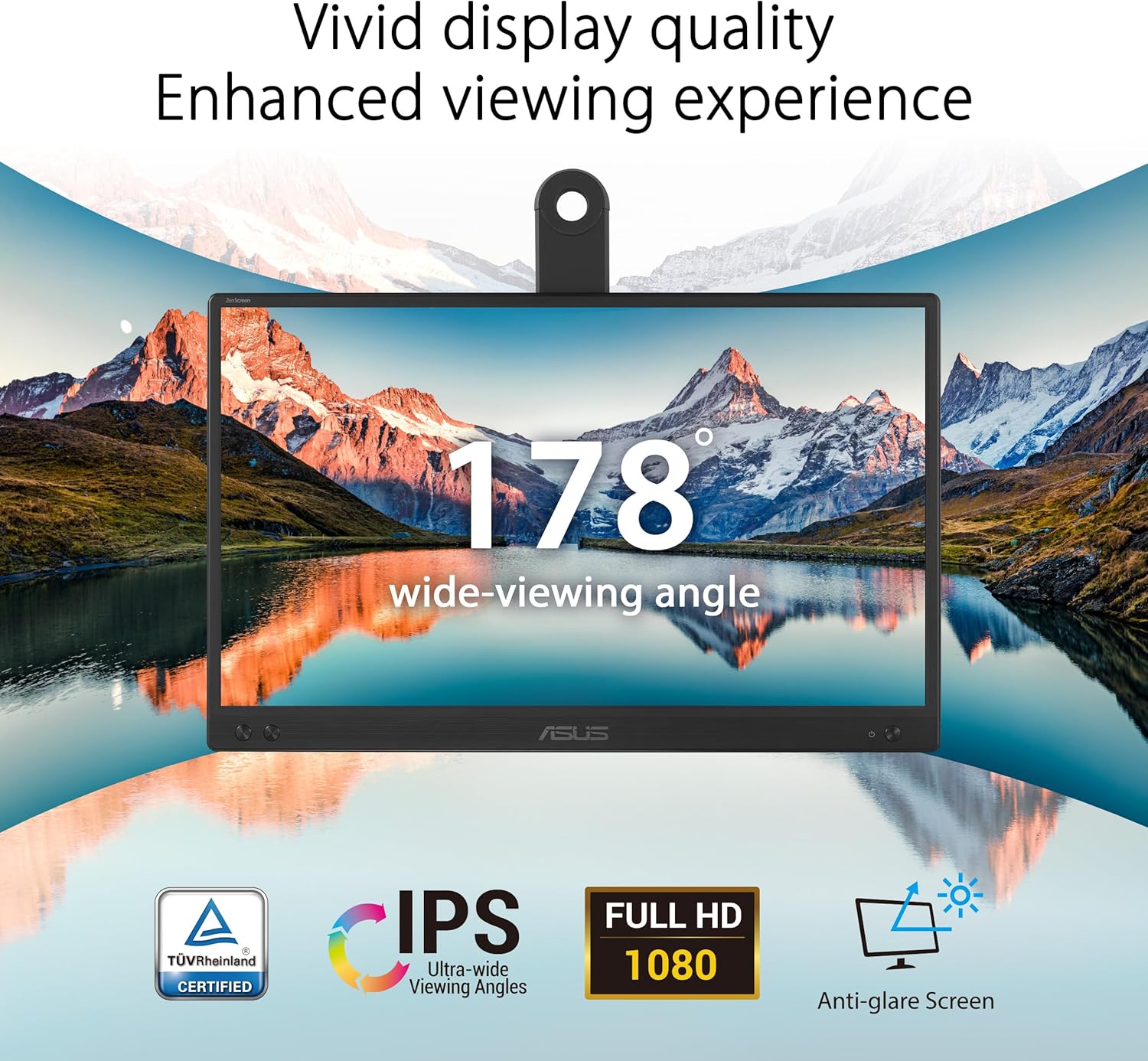
This image highlights the superior display quality of the ASUS ZenScreen MB166CR. It features a vibrant scenic landscape on the monitor screen, emphasizing its 178-degree wide-viewing angle. Icons indicate key features such as IPS technology, Full HD 1080p resolution, an anti-glare screen, and TÜV Rheinland certification for eye care.
9. Bermea eta Laguntza
9.1. Bermearen informazioa
This product comes with a 3-year limited warranty. Please refer to the included Warranty Card for detailed terms and conditions. Retain your proof of purchase for warranty claims.
9.2. Bezeroarentzako arreta
For technical assistance, product inquiries, or warranty service, please visit the official Asus support website or contact Asus customer service.
Official Asus Support: www.asus.com/support
For USB-C compatibility questions: ASUS USB-C Support FAQ


