BlitzWolf BW-VT2 Mini Proiektorearen Erabiltzaile Eskuliburua
Your comprehensive guide to setting up, operating, and maintaining your BlitzWolf BW-VT2 Mini Projector.
1. Produktua amaitu daview
1.1 Paketearen edukia
Mesedez, egiaztatu elementu guztiak zure paketean daudela:
- BlitzWolf BW-VT2 Mini Proiektorea
- Urruneko Kontrola
- Elikatze-moldagailua
- HDMI kablea
- Erabiltzailearen eskuliburua (dokumentu hau)
1.2 Gailuaren diseinua
Familiarize yourself with the various parts and ports of your projector.
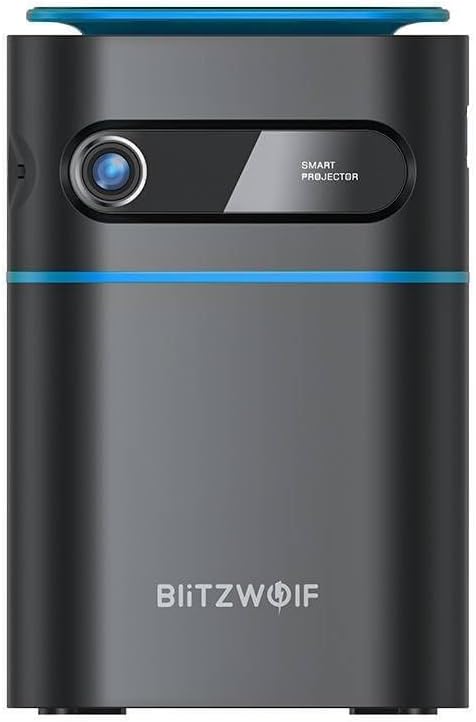
1.1. irudia: Aurrealdea View. This image displays the front of the BlitzWolf BW-VT2 Mini Projector, highlighting the projection lens and the 'SMART PROJECTOR' branding.

Figure 1.2: Projector with Remote Control. This image shows the BlitzWolf BW-VT2 Mini Projector alongside its dedicated remote control, illustrating the compact size of both devices.
1.3. Irudia: Atzealdea View. The rear of the projector is shown, featuring ventilation grilles and various input/output ports.

1.4. irudia: Aldea View. This image highlights the side of the projector where additional connectivity options such as USB and HDMI ports are located.

1.5. irudia: Goikoa View. The top surface of the projector is visible, featuring the integrated touch control panel for direct interaction.
1.3 Portuak eta kontrolak
- HDMI ataka: Connect to laptops, game consoles, Blu-ray players, etc.
- USB ataka: Konektatu USB flash unitateak multimedia erreproduzitzeko.
- Audio Out (3.5mm) Port: Konektatu kanpoko bozgorailuak edo entzungailuak.
- DC IN ataka: Konektatu korronte-egokigailua.
- Pizteko botoia: Proiektorea pizten edo itzaltzen du.
- Fokuaren gurpila: Irudiaren argitasuna doitzen du.
- Ukitu kontrol-panela: Navigate menus and control playback directly on the device.
2. Konfigurazio gida
2.1 Piztea
- Konektatu korronte-egokitzailea proiektorearen DC IN atakara.
- Entxufatu korronte-egokigailua hormako entxufe batera.
- Press and hold the Power Button on the projector or the remote control until the device powers on.
2.2 Hasierako kokapena
Optimorako viewing experience, consider the following:
- Jarri proiektorea gainazal egonkor eta lau batean.
- Ensure there is adequate ventilation around the projector to prevent overheating.
- Position the projector perpendicular to the projection surface (wall or screen) for a rectangular image.
- Adjust the distance to achieve your desired screen size.
2.3 Fokuaren doikuntza
After powering on, adjust the focus to ensure a clear image:
- Biratu lentearen ondoan dagoen fokatze-gurpila proiektatutako irudia zorrotz eta garbi agertu arte.
2.4 Urruneko kontrolaren konfigurazioa
Insert batteries into the remote control before first use:
- Ireki bateriaren konpartimentuaren estalkia urruneko agintearen atzeko aldean.
- Insert two AAA batteries (not included), ensuring correct polarity (+/-).
- Itxi bateriaren konpartimenduaren estalkia.
3. Funtzionamendu-argibideak
3.1 Nabigazioa
You can navigate the projector's interface using either the remote control or the touch control panel on top of the device.
- Urruneko kontrola: Use the directional buttons (up, down, left, right) to move through menus and the 'OK' button to select.
- Ukitu kontrol-panela: Swipe and tap on the touch-sensitive surface to navigate.
3.2 Gailuak konektatzea
The BW-VT2 supports various input sources:
- HDMI Sarrera: Connect your laptop, game console, or other HDMI-enabled devices using an HDMI cable. Select the HDMI input source from the projector's menu.
- USB Sarrera: Insert a USB flash drive into the USB port. The projector's media player will typically detect the drive automatically, allowing you to browse and play supported media fileak (bideoak, argazkiak, musika).
- Wi-Fi konexioa: Navigate to the 'Settings' menu, then 'Network' or 'Wi-Fi'. Select your Wi-Fi network and enter the password to connect the projector to the internet. This enables access to online streaming apps and updates.
3.3 Android OS Features
As an Android-powered projector, the BW-VT2 offers smart functionalities:
- Aplikaziorako sarbidea: Download and install various streaming apps (e.g., Netflix, YouTube) directly from the pre-installed app store or by sideloading APKs.
- Ezarpenak: Customize display settings, audio output, network configurations, and system preferences through the Android settings menu.
- Pantaila islatzea: Utilize built-in screen mirroring features (e.g., Miracast, AirPlay compatible apps) to project content from your smartphone or tablet wirelessly.
3.4 Audio irteera
The projector has built-in speakers, but you can also connect external audio devices:
- 3.5 mm-ko audio irteera: Connect headphones or external speakers via the 3.5mm audio jack for enhanced sound.
4. Mantentzea
Mantentze egokiak zure proiektorearen iraupena eta errendimendu optimoa bermatzen ditu.
4.1 Lenteen garbiketa
To maintain clear image quality, clean the projector lens regularly:
- Erabili lente optikoetarako bereziki diseinatutako zapi leun eta lihorik gabekoa.
- Gently wipe the lens in a circular motion.
- Avoid using abrasive cleaners or excessive force, which can scratch the lens.
4.2 Aireztapena
Ensure proper airflow to prevent overheating:
- Do not block the ventilation vents on the projector.
- Erabili proiektorea ondo aireztatutako gune batean.
- Periodically clean dust from the vents using a soft brush or compressed air.
4.3 Biltegiratzea
When not in use, store your projector properly:
- Store the projector in a cool, dry place, away from direct sunlight and extreme temperatures.
- Use the original packaging or a protective case to prevent dust accumulation and physical damage.
5. Arazoak
Atal honetan ohiko arazoei eta haien irtenbideei buruzko informazioa aurkituko duzu.
| Arazoa | Kausa posiblea | Irtenbidea |
|---|---|---|
| Projector does not power on. | Ez dago korronte konexiorik; korronte egokitzaile akastuna. | Ensure power adapter is securely connected to both projector and outlet. Try a different outlet. |
| Ez da irudirik proiektatzen. | Incorrect input source selected; loose HDMI/USB cable. | Verify the correct input source is selected in the menu. Check cable connections. |
| Irudia lausoa da. | Focus not adjusted; projector too close/far. | Rotate the focus wheel until the image is clear. Adjust projection distance if necessary. |
| Soinurik ez. | Volume too low; external audio device not connected properly. | Increase volume. Check connections to external speakers/headphones. Ensure audio output is set correctly in settings. |
| Wi-Fi konexio arazoak. | Pasahitz okerra; bideratzailearen arazoak; seinalearen interferentziak. | Re-enter Wi-Fi password. Restart router. Move projector closer to router. |
| Urruneko kontrola ez dabil. | Pilak agortuta; oztopoa; urrutiko agintea ez dago parekatuta. | Aldatu bateriak. Ziurtatu ez dagoela oztoporik urrutiko agintearen eta proiektorearen artean. |
6. Zehaztapen Teknikoak
Key specifications of the BlitzWolf BW-VT2 Mini Projector:
| Ezaugarri | Zehaztapena |
|---|---|
| Marka | BlitzWolf |
| Modelo zenbakia | BW-VT2EU |
| Kolorea | Beltza |
| Konektibitate Teknologia | HDMI, USB, VGA, Wi-Fi |
| Bistaratzeko ebazpena | 1920 x 1080 (HD osoa) |
| Bistaratzeko mota | LCD, LED |
| Forma-faktorea | Eramangarria |
| Ezaugarri bereziak | Portable, Android OS, Wi-Fi, HDMI, USB, VGA |
| Gailu bateragarriak | Laptops, Smartphones, Game Consoles, Blu-ray Players, Media Players, Wi-Fi enabled devices |
| Gomendatutako Erabilerak | Home Cinema |
7. Bermea eta Laguntza
7.1 Fabrikatzailearen bermea
The BlitzWolf BW-VT2 Mini Projector comes with a 2 urteko fabrikatzailearen bermeaBerme honek materialen eta fabrikazioaren akatsak estaltzen ditu erabilera normalaren pean. Gorde erosketaren egiaztagiria bermearen erreklamazioak egiteko.
7.2 Bezeroarentzako laguntza
If you encounter issues not covered in the troubleshooting section or require further assistance, please contact BlitzWolf customer support. Refer to the product packaging or the official BlitzWolf webgunea kontaktu-informazio eguneratuena lortzeko.


