1. Sarrera
The LTC GM022 is an ultralight 3-mode wireless gaming mouse designed for precision and versatility. It features a high-performance PAW3395 sensor, multiple connectivity options, and a convenient RGB charging dock. This manual provides instructions for setting up, operating, maintaining, and troubleshooting your GM022 mouse.
Paketearen edukia
- LTC GM022 Gaming Mouse
- RGB kargatzeko kaia
- USB-C kablea
- 2.4G USB Receiver (stored in mouse)

LTC GM022 Wireless Gaming Mouse with RGB Charging Dock and 2.4G USB Receiver.
2. Konfigurazioa eta Konektibitatea
The LTC GM022 mouse offers three connectivity modes: 2.4GHz wireless, Bluetooth 5.0, and wired USB-C. Select the mode that best suits your needs.

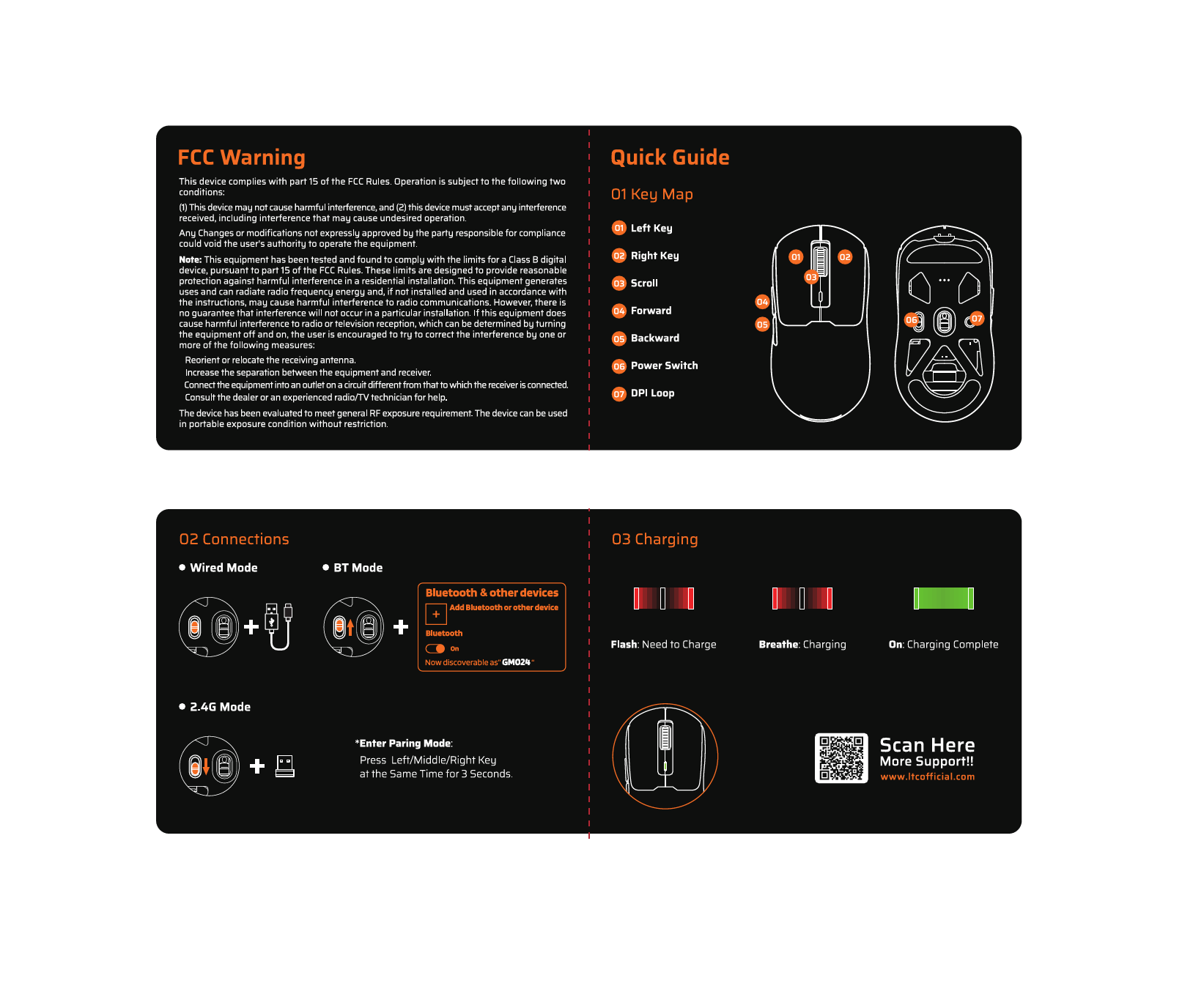
Diagram illustrating the three connectivity modes: 2.4GHz wireless, Bluetooth 5.1, and USB-C wired connection.
2.1. 2.4 GHz-ko haririk gabeko modua
- Locate the 2.4G USB receiver stored in the compartment on the underside of the mouse.
- Konektatu USB hargailua zure ordenagailuko USB ataka erabilgarri batean.
- Slide the mode switch on the bottom of the mouse to the "2.4G" position.
- Sagua automatikoki konektatu beharko litzateke zure ordenagailura.
2.2. Bluetooth 5.0 Mode
- Slide the mode switch on the bottom of the mouse to the "BT" position.
- Zure ordenagailuan edo gailuan, ireki Bluetooth ezarpenak eta bilatu gailu berriak.
- Select "LTC GM022" from the list of available devices to pair.
2.3. Wired USB-C Mode
- Konektatu emandako USB-C kablea saguaren aurreko atakara.
- Konektatu USB-C kablearen beste muturra zure ordenagailuko USB ataka libre batera.
- Saguak kable bidezko moduan funtzionatuko du eta aldi berean kargatuko da.

Underside of the LTC GM022 mouse with labels for mode switch, dongle storage, PTFE feet, and DPI loop button.
3. Funtzionamendu-argibideak
3.1. Botoiaren funtzioak
The LTC GM022 mouse features 5 programmable buttons:
- Ezkerreko klik: Lehen mailako ekintza.
- Egin klik eskuineko botoiarekin: Bigarren mailako ekintza/testuinguru menua.
- Erdiko klik (gurpil-gurpila): Scroll up/down, click for universal scroll or other assigned function.
- Aurrera egiteko botoia: Aurrera nabigatzen du web nabigatzaileak edo file esploratzaileak.
- Atzera botoia: Atzeraka nabigatzen du web nabigatzaileak edo file esploratzaileak.

Illustration of the LTC GM022 mouse highlighting its five programmable buttons and their default assignments.
3.2. DPI doikuntza
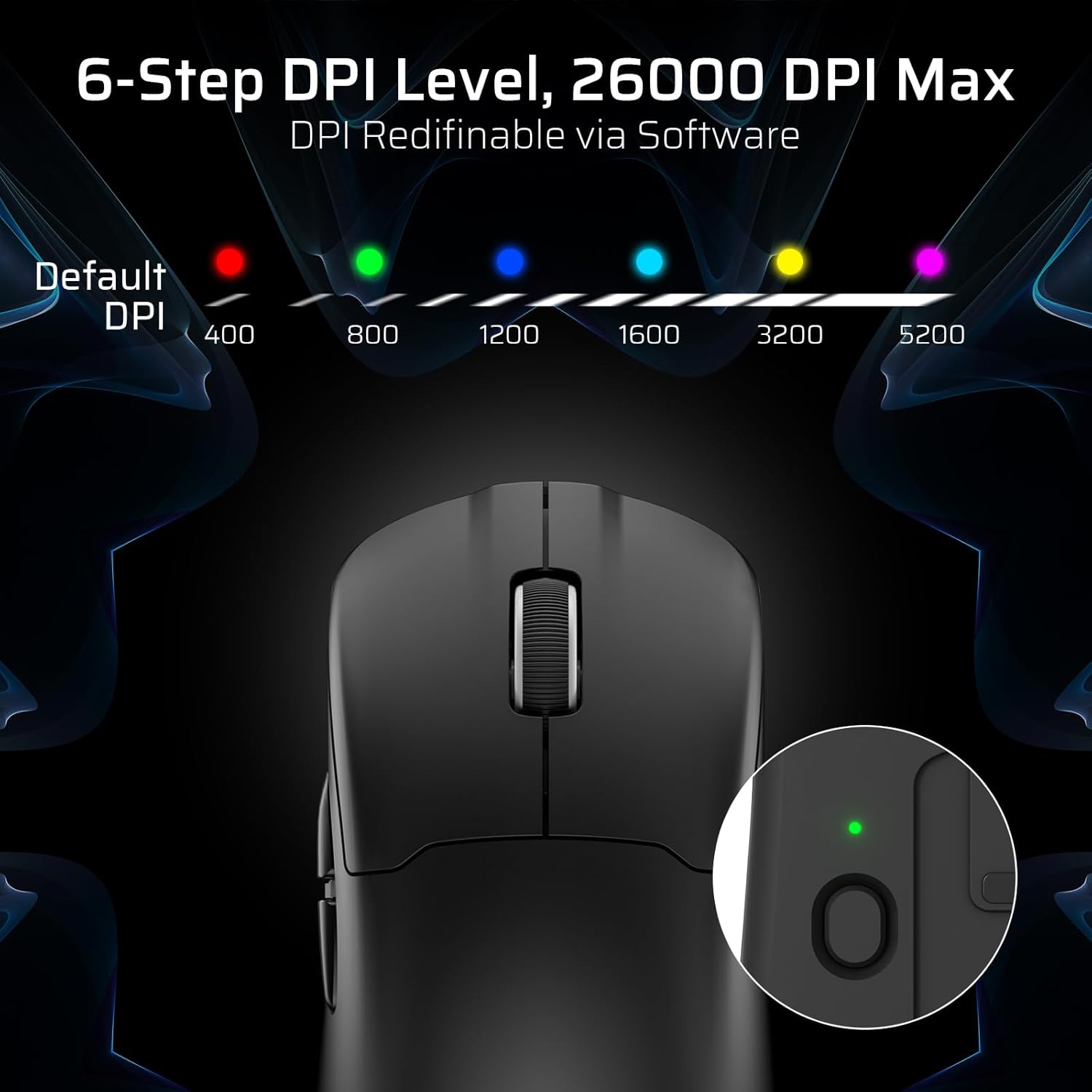
The mouse has a dedicated DPI button on its underside, allowing you to cycle through 6 preset DPI levels. Each level is indicated by a different LED color:
- 400 DPI (Gorria)
- 800 DPI (Berdea)
- 1200 DPI (Urdina)
- 1600 DPI (ziana)
- 3200 DPI (Horia)
- 5200 DPI (Magenta)
These DPI levels can be further customized and redefined up to 26000 DPI using the LTC software.

Visual representation of the 6-step DPI levels (400, 800, 1200, 1600, 3200, 5200) and the corresponding LED indicator colors.
3.3. Softwarearen pertsonalizazioa
Download and install the official LTC software from the manufacturer's website to unlock full customization options. The software allows you to:
- Esleitu makroak botoiei.
- Berriz mapatu teklaren funtzioak.
- Redefine 6-step DPI levels up to 26000 DPI.
- Adjust polling rate (up to 1000Hz).
- Modify click and scroll speed.
- Bateriaren egoera kontrolatu.

Screenshot of the LTC software interface for customizing mouse settings, including key assignments, DPI, polling rate, and battery monitoring.
4. Sagua kargatzea
The LTC GM022 mouse is equipped with a 400mAh battery and can be charged using the included magnetic RGB charging dock or directly via the USB-C cable.
4.1. Kargatzeko oinarri magnetikoa erabiltzea
- Connect the USB-C cable to the charging dock and then to a power source (e.g., computer USB port, USB wall adapter).
- Place the mouse onto the charging dock. The magnetic connection will secure it in place, and charging will begin automatically.
- The RGB lighting on the dock will indicate charging status.
4.2. USB-C bidez zuzenean kargatzea
- Connect the USB-C cable directly to the mouse's front port.
- Konektatu USB-C kablearen beste muturra elikatze-iturri batera.
- Sagua kable bidezko moduan erabil daiteke kargatzen ari den bitartean.

The LTC GM022 mouse magnetically charging on its RGB illuminated dock, indicating a 400mAh battery.
5. Mantentzea eta Zainketa
To ensure the longevity and optimal performance of your LTC GM022 mouse, follow these maintenance guidelines:
- Garbiketa: Erabili zapi leun eta lehor bat saguaren gainazala garbitzeko. Zikinkeria egoskorra bada, garbitu pixka bat.ampGarbitu zapi bat urarekin edo garbiketa-soluzio leun batekin. Saihestu produktu kimiko gogorrak edo material urratzaileak.
- Sentsoreen zainketa: Jarraipenaren zehaztasuna mantentzeko, mantendu saguaren azpialdeko sentsore optikoa garbi eta hautsik edo hondakinik gabe.
- PTFE oinak: The mouse comes with durable PTFE feet for smooth gliding. If they show significant wear, replacement feet may be available from the manufacturer.
- Biltegiratzea: When not in use for extended periods, store the mouse in a clean, dry environment.
Close-up of the mouse's underside, detailing the PTFE feet for smooth gliding and the inclusion of backup feet.
6. Arazoak
If you encounter issues with your LTC GM022 mouse, refer to the following common problems and solutions:
| Arazoa | Irtenbide posiblea |
|---|---|
| Mouse not responding in 2.4G wireless mode | Ensure the USB receiver is securely plugged in. Check if the mouse mode switch is set to "2.4G". Try a different USB port. Ensure the mouse battery is charged. |
| Mouse not connecting via Bluetooth | Ensure the mouse mode switch is set to "BT". Make sure Bluetooth is enabled on your device. Remove previous pairings and re-pair the mouse. Ensure the mouse battery is charged. |
| Sagua ez da kargatzen | Ensure the USB-C cable is properly connected to both the dock/mouse and the power source. Verify the power source is active. Clean the charging contacts on the mouse and dock. |
| Jarraipen zehaztugabea edo kurtsorearen atzerapena | Clean the optical sensor on the underside of the mouse. Ensure you are using the mouse on a suitable surface (e.g., a mouse pad). Check for interference in wireless modes. Adjust DPI settings. |
| Botoiek ez dute erantzuten | Ensure the mouse is powered on and connected. If using software, check button assignments. Try restarting your computer. |
If the issue persists after trying these solutions, please contact LTC customer support for further assistance.
7. Zehaztapenak
Key technical specifications for the LTC GM022 Ultralight 3-Mode Wireless Gaming Mouse:
- Eredua: GM022
- Konektibitatea: 2.4 GHz haririk gabekoa, Bluetooth 5.0, USB-C kable bidezkoa
- Sentsore: PixArt PAW3395 sentsore optikoa
- Gehienezko DPI: 26000 DPI (6-step re-definable via software)
- Bozketa-tasa: 1000Hz
- Jarraipen abiadura: 650 IPS
- Azelerazioa: 50G
- Botoiak: 5 botoi programagarri
- Aldatu bizi-iraupena: 80 milioi klik
- Bateria: 400mAh litio-polimeroa
- Pisua: Gutxi gorabehera 55 gramo (2.01 ontza)
- Neurriak: 4.7 x 2.44 x 0.04 hazbete
- Ezaugarri bereziak: RGB Charging Dock, Ultralight Design, PTFE Feet

Xehetasuna view of the PixArt PAW3395 sensor specifications including 26K DPI Max, 1000Hz Polling Rate, 650 IPS Tracking Speed, and 50G Acceleration.

Illustration highlighting the durable switches with an 80 million click lifespan.
8. Bermea eta Laguntza
LTC products are designed and manufactured to the highest quality standards. For information regarding warranty coverage, technical support, or to download the latest software and drivers, please visit the official LTC webwebgunean edo jarri harremanetan bere bezeroarentzako arreta zerbitzuarekin.
Gorde erosketa-agiria erosketaren frogagiri gisa, berme-erreklamazioetarako.