1. Sarrera
This manual provides comprehensive instructions for the installation, operation, maintenance, and troubleshooting of your RSHTECH 3.5" Aluminum USB C to SATA External Hard Drive Dock Case (Model: RSH-339STC). This enclosure is designed to house 2.5" or 3.5" SATA HDDs and SSDs, supporting capacities up to 24TB, and features a versatile 2-in-1 USB cable for broad compatibility.
2. Paketearen edukia
Mesedez, egiaztatu behean zerrendatutako elementu guztiak zure paketean daudela:
- RSHTECH 3.5" Hard Drive Enclosure (RSH-339STC)
- 2-in-1 USB-A/USB-C Detachable Cable (3.3 ft / 1 m)
- Power Adapter (4 ft / 1.2 m cable)
- Vertical Stand Bracket
- Bihurkin
- Muntatzeko Torlojuak
- Erabiltzailearen eskuliburua (dokumentu hau)

Image: Contents of the RSHTECH Hard Drive Enclosure package, including the enclosure, cables, power adapter, stand, and tools.
3. Produktuaren ezaugarriak
- External Hard Drive Dock: Designed for internal 2.5"/3.5" SATA hard disks, supporting up to 24TB capacity.
- 2-in-1 USB Cable: Features a 3.3 ft USB-A/USB-C detachable cable, compatible with USB-A/USB-C/Thunderbolt port hosts (e.g., Laptop, PC, PS4, Xbox One, smart TV).
- Ultra-Fast & Stable: Data transfer speeds up to 5Gbps, with UASP technology support up to 6Gbps, powered by a built-in ASM1153E chip for enhanced performance.
- Lo automatikoaren funtzioa: Enters sleep mode after 10 minutes of data access inactivity to conserve power and extend drive lifespan.
- LED adierazleak: Two LED indicators show power status (Red) and hard drive activity status (Blue).
- Electronic Power Button: Tap to turn on, long press for 3 seconds to turn off, providing effective protection for your hard drive.
- Aluminum Housing & Vertical Bracket: Durable aluminum housing with bottom vents for improved heat dissipation and shock resistance. Includes a removable stand for vertical or horizontal placement.
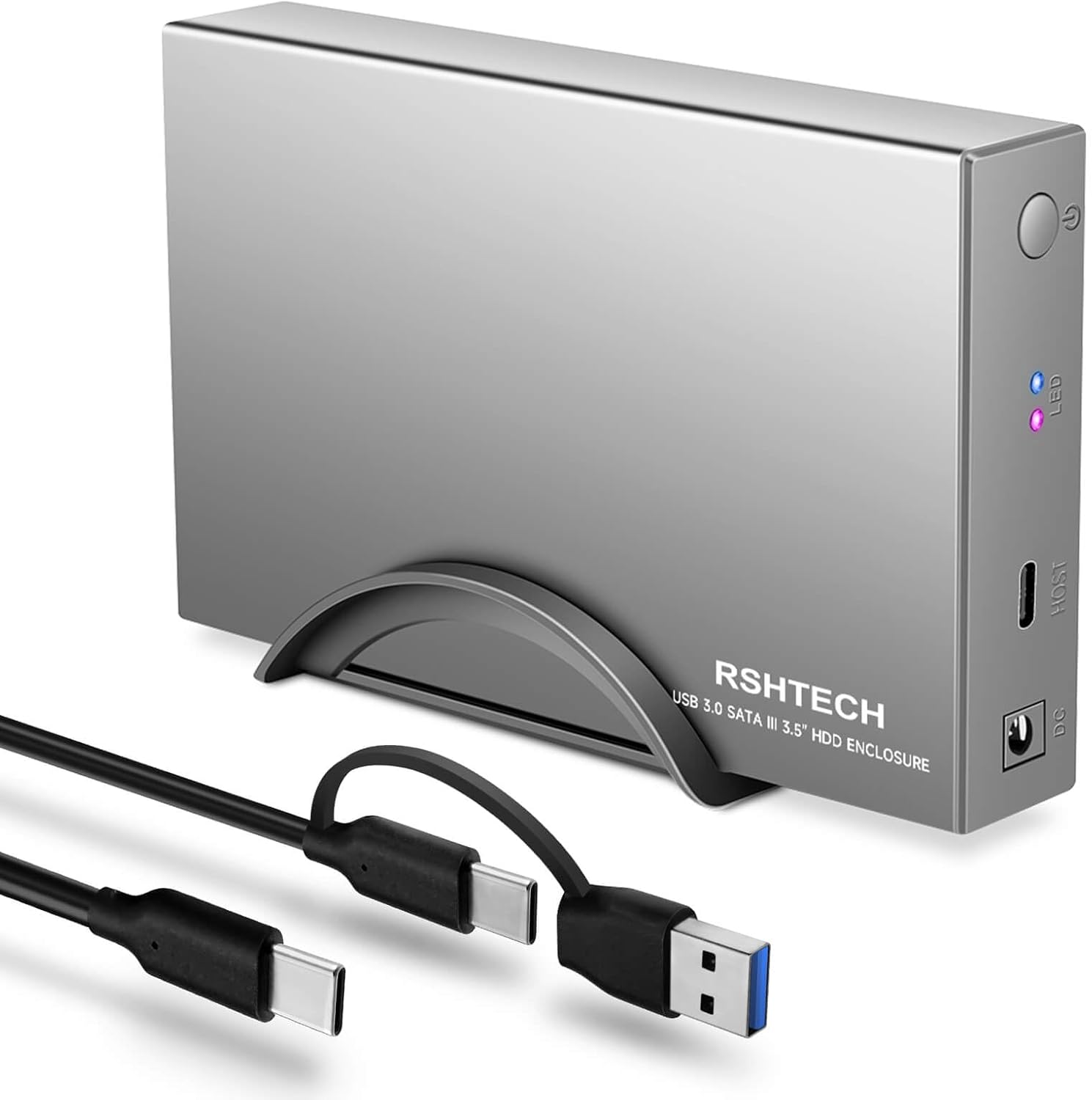
Image: The RSHTECH Hard Drive Enclosure in its vertical stand, showcasing the 2-in-1 USB cable.
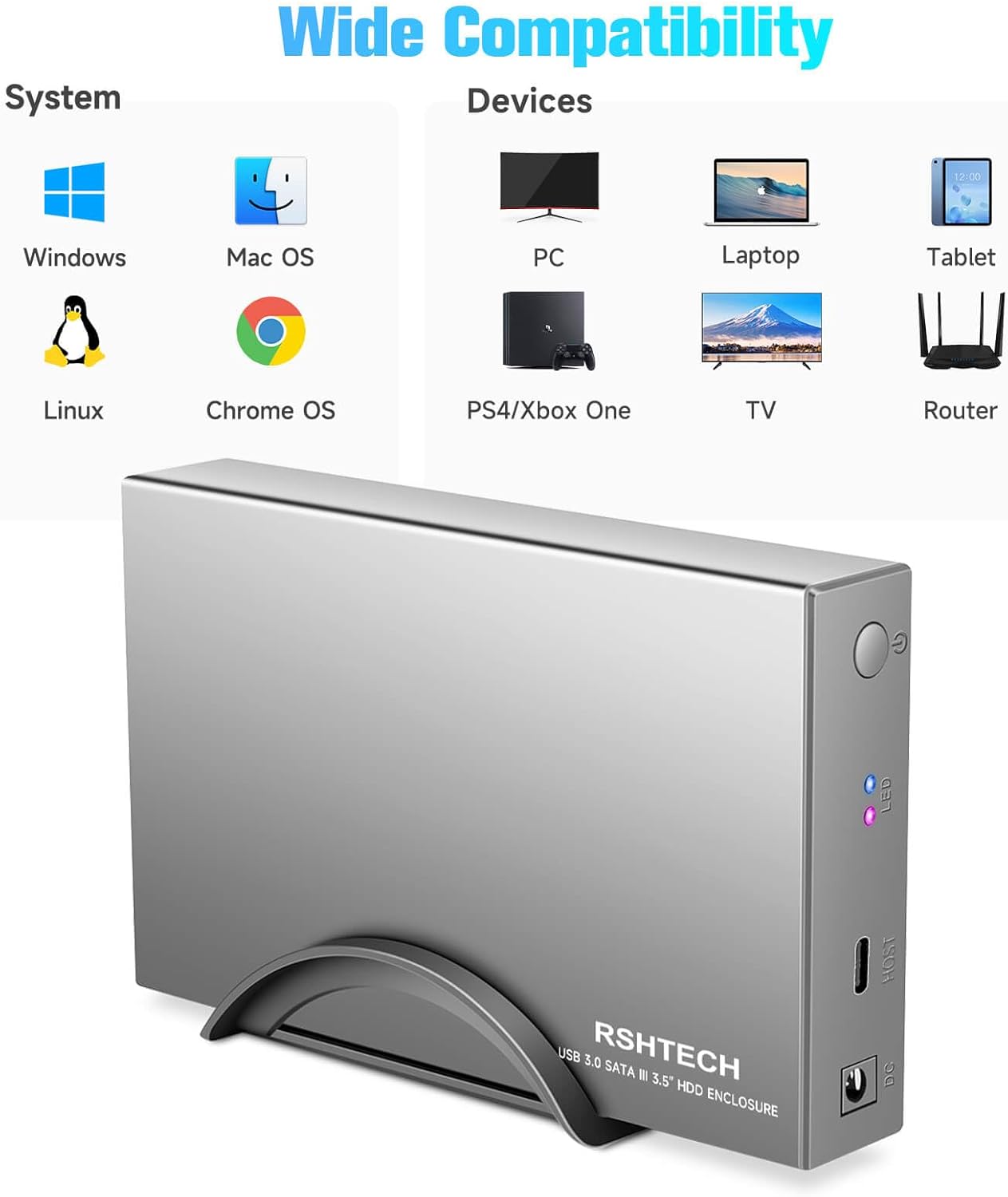
Image: Detailed diagram highlighting the power button, LED indicators, USB-C input, DC jack, enclosure stand, and heat dissipation holes.
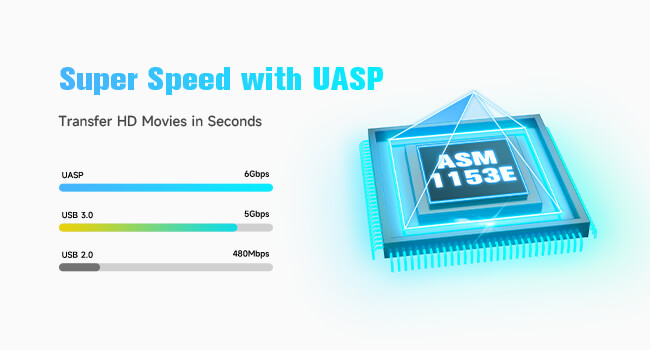
Image: Graphic illustrating the super speed capabilities with UASP, showing transfer rates of up to 6Gbps.
4. Konfigurazioa eta instalazioa
Follow these steps to install your 3.5-inch SATA HDD or SSD into the enclosure:
- Ireki astiro-astiro kaxa-estalkia.
- Insert your 3.5" SATA HDD or SSD into the internal tray, ensuring the SATA connectors align properly.
- Secure the hard drive to the tray using the provided screws and screwdriver.
- Slide the tray with the secured hard drive back into the aluminum enclosure until it clicks into place.
- Tighten any external screws to fully secure the enclosure.
- Connect the 2-in-1 USB cable to the USB-C input port on the enclosure and to a compatible USB-A or USB-C port on your computer or host device.
- Connect the power adapter to the DC Jack on the enclosure and plug it into a power outlet.
- Press the power button on the enclosure to turn it on. The red LED indicator will illuminate.
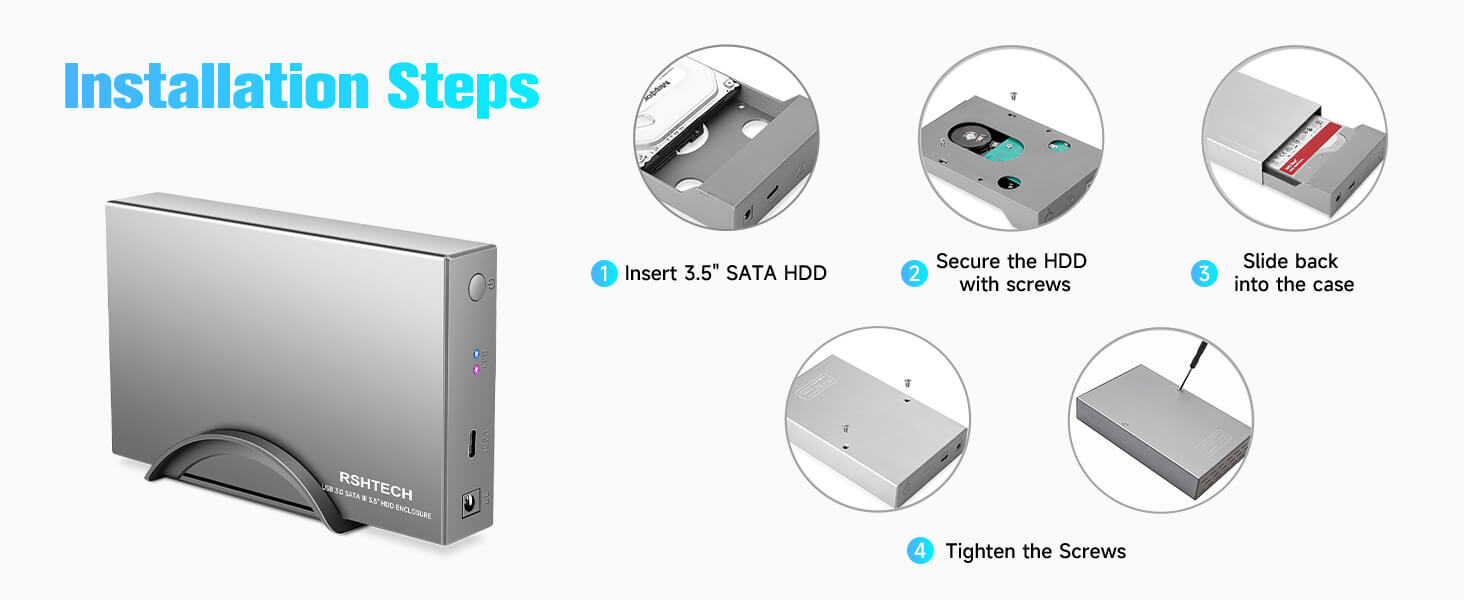
Image: Visual guide demonstrating the steps for installing a hard drive into the enclosure, including inserting the HDD, securing it, and sliding it into the case.
5. Funtzionamendu-argibideak
Once the hard drive is installed and the enclosure is connected to power and your host device:
- Piztu/Itzali:
- To turn on: Tap the power button once. The red LED will light up.
- To turn off: Press and hold the power button for approximately 3 seconds until the red LED turns off. This ensures safe shutdown and protects your hard drive.
- LED adierazleak:
- LED gorria: Indicates power status. Solid red means the unit is powered on.
- LED urdina: Indicates hard drive activity. Flashes blue when data is being accessed (read or written).
- Lo modu automatikoa: The enclosure will automatically enter sleep mode after 10 minutes of inactivity (no data access). This feature helps conserve energy and prolong the lifespan of your hard drive. The blue LED will turn off when in sleep mode. Data access will automatically wake the drive.
- Gailuetara konektatzea: The 2-in-1 USB cable allows connection to various devices including PCs, laptops, tablets, PS4, Xbox One, and smart TVs. Ensure your device has a compatible USB-A or USB-C port.
- New Drive Initialization: If you are using a brand new, unformatted hard drive, it will need to be initialized and formatted through your operating system's Disk Management (Windows) or Disk Utility (macOS) before it can be used. Refer to your operating system's documentation for detailed steps.
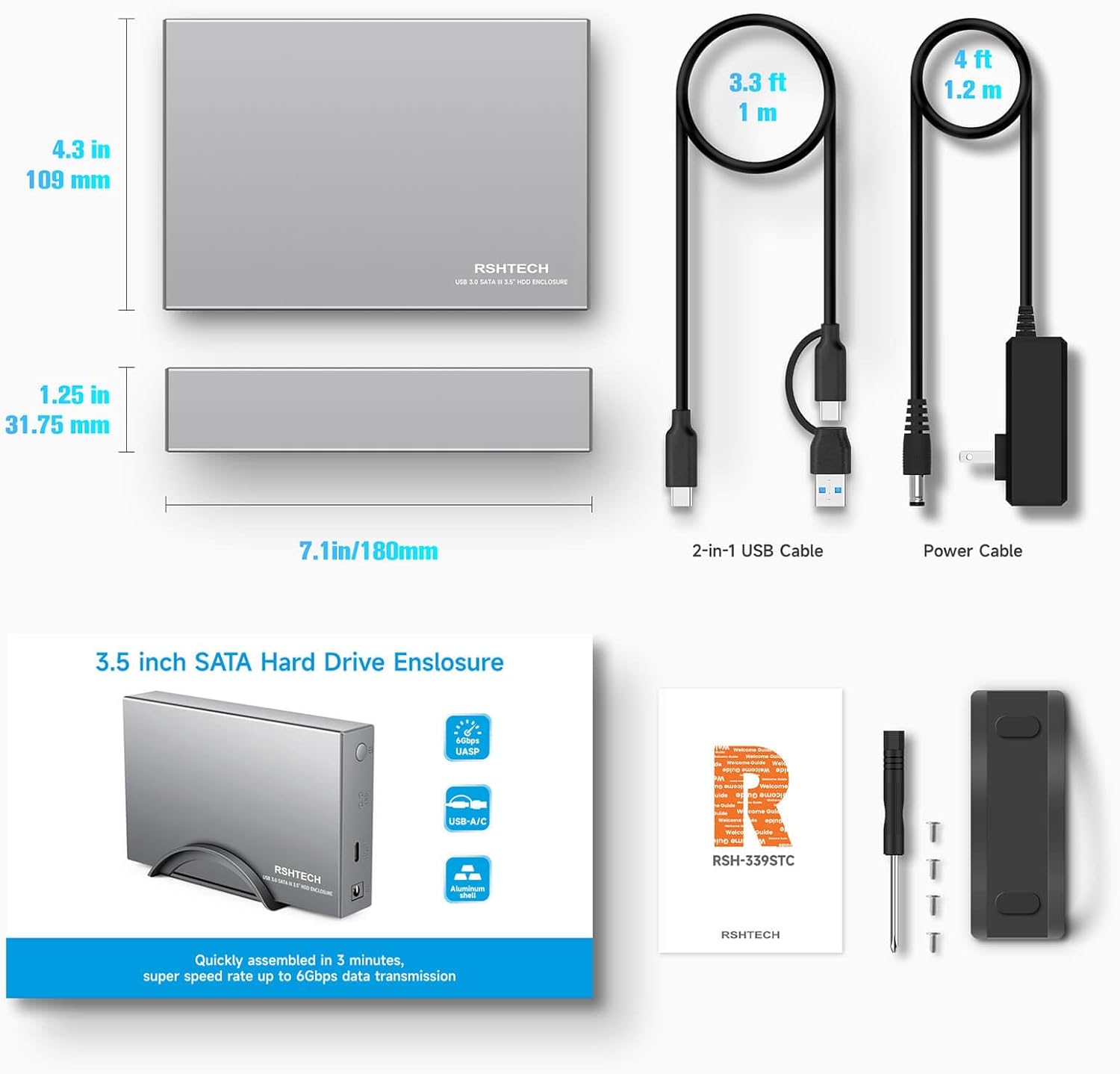
Image: Diagram showing the wide compatibility of the enclosure with Windows, Mac OS, Linux, Chrome OS systems, and devices like PCs, laptops, tablets, PS4/Xbox One, TVs, and routers.
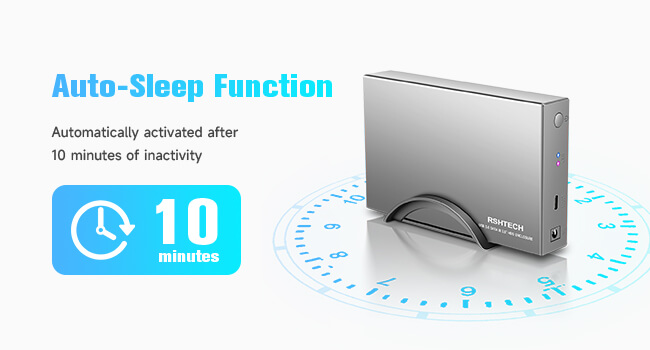
Image: Graphic illustrating the auto-sleep function, which activates after 10 minutes of inactivity.
6. Mantentzea
To ensure the longevity and optimal performance of your RSHTECH Hard Drive Enclosure:
- Mantendu kaxa garbi eta hautsik gabe. Erabili zapi leun eta lehor bat garbitzeko.
- Saihestu unitatea tenperatura altuen, hezetasunaren edo eguzki-argiaren eraginpean jartzea.
- Do not block the heat dissipation holes located at the bottom of the enclosure.
- Manipulatu kaxa kontu handiz kalte fisikoak saihesteko.
- Always safely eject the hard drive from your operating system before disconnecting the enclosure or powering it off to prevent data corruption.
7. Arazoak
| Arazoa | Kausa posiblea | Irtenbidea |
|---|---|---|
| Enclosure not powering on. | No power from outlet; power adapter faulty; power button not pressed. | Ensure power adapter is securely connected and plugged into a working outlet. Tap the power button to turn on. Try a different outlet. |
| Hard drive not detected by computer. | USB cable loose/faulty; drive not properly seated; drive unformatted/uninitialized; driver issue. | Check USB cable connection. Re-seat the hard drive inside the enclosure. For new drives, initialize and format in Disk Management/Disk Utility. Try a different USB port on your computer. Update USB drivers if necessary. |
| Datuen transferentzia abiadura motela. | Connected to USB 2.0 port; UASP not enabled; drive performance limitations. | Ensure connection to a USB 3.0/3.1/3.2 port. Verify your system supports UASP. Drive performance is also a factor; older HDDs will be slower than SSDs. |
| Enclosure frequently disconnects. | Loose connections; power supply issue; drive overheating. | Check all cable connections. Ensure adequate power supply. Ensure proper ventilation and that the heat dissipation holes are not blocked. |
8. Zehaztapenak
| Ezaugarri | Xehetasuna |
|---|---|
| Modelo zenbakia | RSH-339STC |
| Unitate mota bateragarriak | 2.5" / 3.5" SATA HDD eta SSD |
| Onartutako gehienezko edukiera | 24 TB |
| Datuen transferentzia-tasa | Up to 5 Gbps (USB 3.0), Up to 6 Gbps (UASP) |
| Hardware interfazea | SATA 6.0 Gb/s |
| Konektibitatea | USB-C Input, DC Power Jack |
| Kable mota | 2-in-1 USB-A/USB-C Detachable Cable (3.3 ft / 1 m) |
| Materiala | Aluminum Alloy, ABS Plastic |
| Produktuaren neurriak | 7.1 x 4.3 x 1.25 hazbete (180 x 109 x 31.75 mm) |
| Elementuaren pisua | 1.21 kilo |
| Lo automatikoa | 10 minuturik gabe egon ondoren |
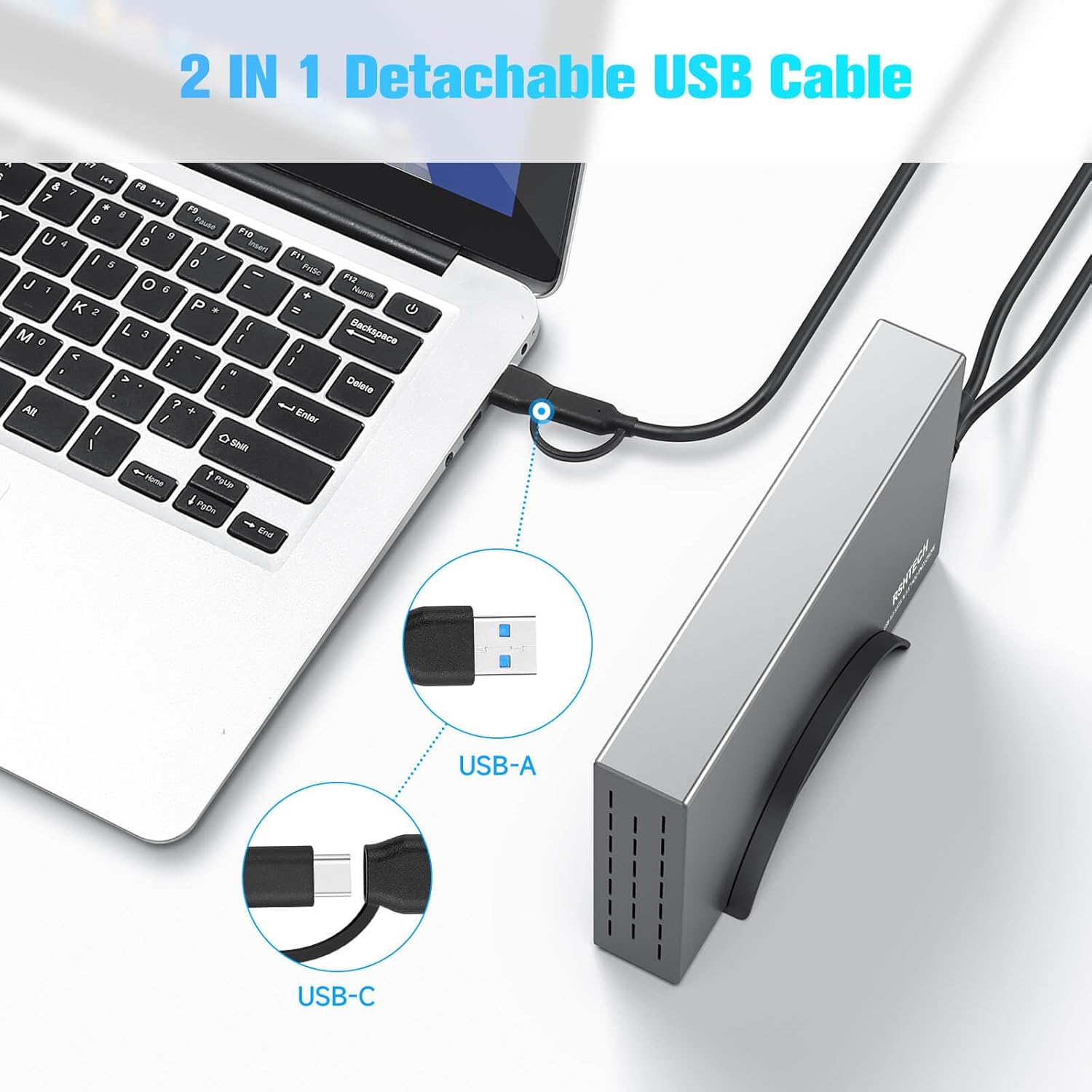
Image: The enclosure highlighting its support for up to 24TB large capacity 3.5-inch SATA HDD/SSD.
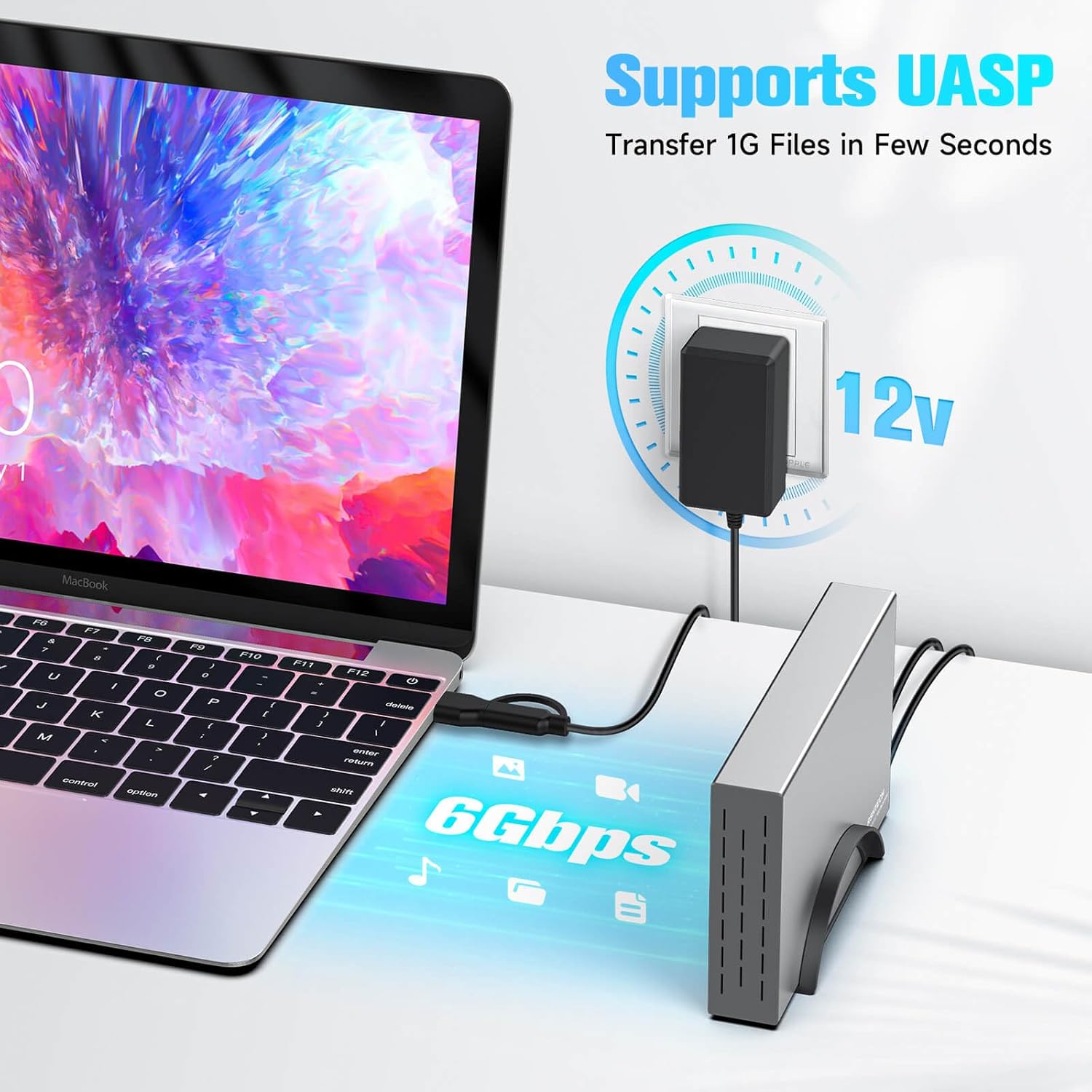
Image: Close-up of the 2-in-1 detachable USB cable, showing both USB-A and USB-C connectors, connected to a laptop.
9. Bermea eta Laguntza
RSHTECH products typically come with a standard manufacturer's warranty. For specific warranty terms, duration, and to obtain technical support or service, please refer to the warranty card included with your product or visit the official RSHTECH website. You may also contact RSHTECH customer service directly through their support channels for assistance with product issues or inquiries.
For additional information and support, you can visit the RSHTECH brand store on Amazon: RSHTECH Store


