1. Sarrera
This manual provides detailed instructions for setting up, operating, maintaining, and troubleshooting your ASUS RT-BE82U BE6500 Dual-Band WiFi 7 Router. Please read this manual thoroughly before using the device to ensure optimal performance and safety.
Ezaugarri nagusiak:
- Ultrafast WiFi 7 (802.11be) dual-band speeds up to 6500 Mbps.
- Five 2.5GbE Ports for optimized wired connectivity.
- Smart AiMesh Extendable Network for whole-home seamless roaming.
- Multi-link Operation for stable internet connections and efficient data transfers.
- Commercial-Grade AiProtection Pro powered by Trend Micro for advanced network security.
- Advanced Parental Controls for managing internet activity.
2. Paketearen edukia
Egiaztatu elementu guztiak zure paketean daudela:
- ASUS RT-BE82U Router
- RJ-45 kablea
- Potentzia-egokigailua
- Hasierako gida azkarra
- Berme txartela
3. Konfigurazioa eta instalazioa
Follow these steps to set up your ASUS RT-BE82U router:
- Routerraren paketea deskonektatzea: Kontu handiz atera routerra eta osagarri guztiak paketetik.
- Konektatu antenak: Ensure all four external antennas are securely attached and positioned for optimal signal.
- Konektatu Internetera:
- Connect one end of the provided RJ-45 cable to the WAN port (blue) on the back of the RT-BE82U router.
- Connect the other end of the RJ-45 cable to your modem's LAN port.
- Piztu: Connect the power adapter to the router's DC-IN port and then plug it into a power outlet. Press the power button to turn on the router.
- Initial Configuration (via ASUS Router App):
- Download the ASUS Router app from your mobile device's app store (available on iOS and Android).
- Open the app and follow the on-screen instructions to detect and configure your new router. This includes setting up your Wi-Fi network name (SSID) and password.
- Egiaztatu konexioa: Once setup is complete, check the LED indicators on the front of the router. The WAN, 2.4GHz, and 5GHz LEDs should be solid white, indicating a successful connection.

3.1. irudia: Aurrealdea view of the ASUS RT-BE82U BE6500 Dual-Band WiFi 7 Router with antennas extended.

3.2. Irudia: Atzealdea view showing the 2.5GbE WAN, 2.5GbE LAN ports, USB WAN, DC-IN, Power button, and Reset button.
4. Zure bideratzailea erabiltzea
4.1. Network Management via ASUS Router App
The ASUS Router app provides comprehensive control over your network. You can:
- Kontrolatu sareko trafikoa eta konektatutako gailuak.
- Manage Wi-Fi settings for 2.4GHz and 5GHz bands.
- Set up guest networks for visitors.
- Configure advanced security features like AiProtection Pro.
- Implement parental controls to manage internet access for family members.

Figure 4.1: ASUS Router App interface for managing parental controls and network settings.
4.2. AiMesh System
The RT-BE82U supports ASUS AiMesh technology, allowing you to create a whole-home mesh Wi-Fi system by adding compatible ASUS routers. This extends coverage and eliminates Wi-Fi dead zones, providing seamless roaming throughout your home.
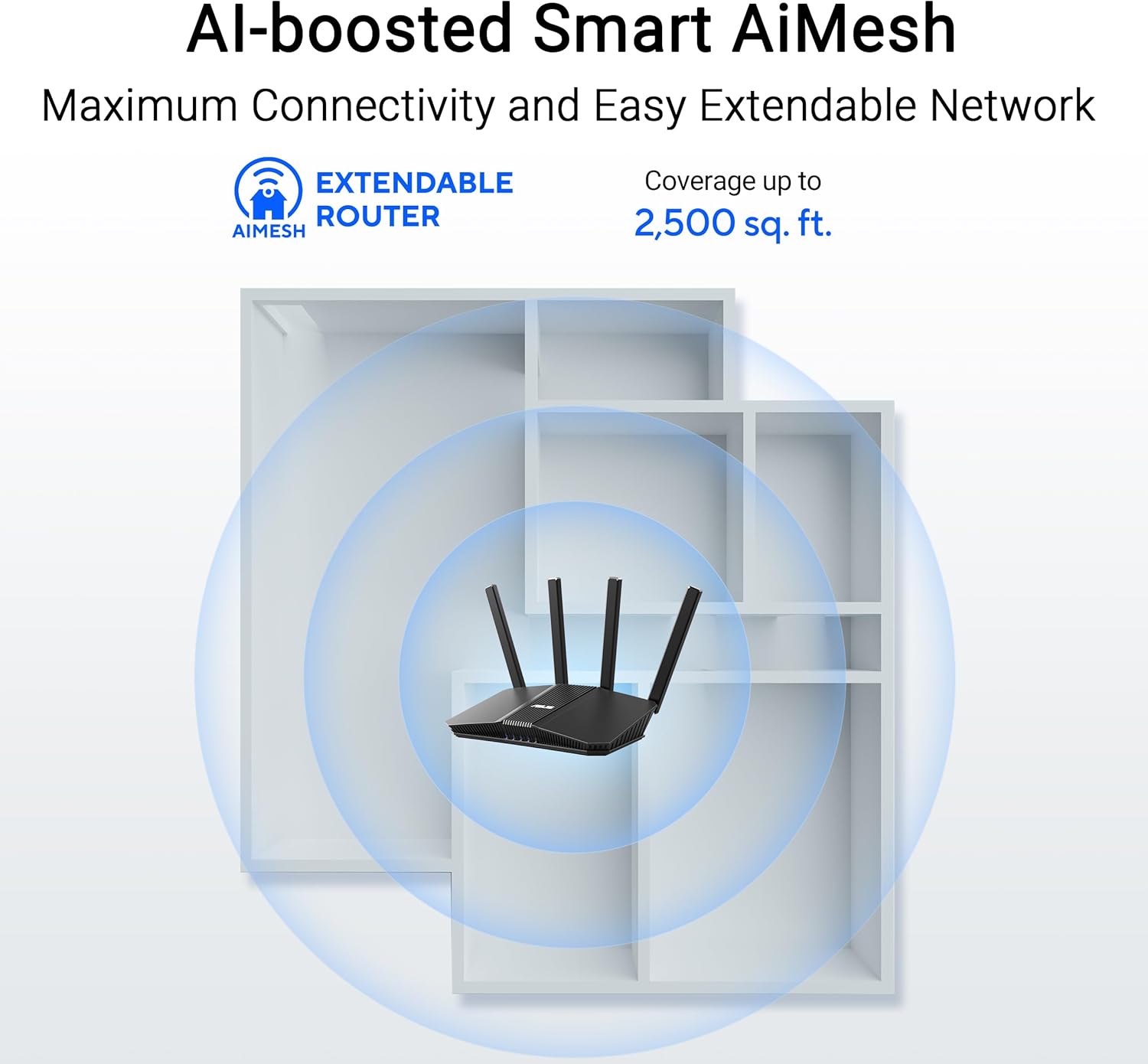
Figure 4.2: AiMesh system extending Wi-Fi coverage up to 2,500 sq. ft.
4.3. Advanced Network Security
The router includes AiProtection Pro, a commercial-grade network security suite. This feature provides real-time network protection against internet threats, malicious websites, and intrusion prevention. It also offers a one-tap security scan and Safe Browsing features.

Figure 4.3: AiProtection Pro interface within the ASUS Router App.
5. Mantentzea
To ensure the longevity and optimal performance of your router, consider the following maintenance tips:
- Firmware eguneraketak: Regularly check for and install firmware updates via the ASUS Router app or the web interface. Updates often include security patches and performance improvements.
- Lekua: Place the router in a central location, away from obstructions and other electronic devices that may cause interference. Ensure good airflow around the device to prevent overheating.
- Garbiketa: Keep the router clean and free of dust. Use a soft, dry cloth to wipe the exterior. Do not use liquid cleaners.
- Berrabiarazi aldian-aldian: A periodic restart (e.g., once a month) can help clear temporary issues and refresh network performance.
6. Arazoak
Zure bideratzailearekin arazoak badituzu, saiatu arazoak konpontzeko urrats hauekin:
- Ez dago Interneteko konexiorik:
- Check all cable connections (WAN, LAN, power) to ensure they are secure.
- Berrabiarazi modema eta gero bideratzailea.
- Egiaztatu zure Interneteko zerbitzu hornitzailearen (ISP) konexioa aktibo dagoela.
- Wi-Fi abiadura motela:
- Ensure your devices are connected to the 5GHz band for faster speeds, if supported.
- Murriztu interferentziak bideratzailea beste gailu elektronikoetatik urrunduz.
- Egiaztatu atzeko planoan exekutatzen ari diren banda-zabalera asko kontsumitzen duten aplikazioak.
- Consider adding an AiMesh node to extend coverage if you have dead zones.
- Ezin da bideratzailearen ezarpenetara sartu:
- Ziurtatu gailua bideratzailearen Wi-Fi sarera edo Ethernet kable baten bidez konektatuta dagoela.
- Saiatu bideratzailearen sarbidea web interface using the default IP address (e.g., 192.168.1.1) or via the ASUS Router app.
- Fabrikaren berrezarpena: If all else fails, perform a factory reset. Locate the Reset button on the back of the router (refer to Figure 3.2), press and hold it for 5-10 seconds until the power LED blinks, then release. This will restore the router to its default settings.
7. Zehaztapenak
| Ezaugarri | Xehetasuna |
|---|---|
| Marka | ASUS |
| Ereduaren izena | RT-BE82U |
| Maiztasun Banda Klasea | Banda Bikoitza |
| Haririk gabeko komunikazio estandarra | 802.11be (WiFi 7), 802.11ac, 802.11ax, 802.11n |
| Datuen transferentzia-tasa | 6500 Mbps arte (5764 Mbps 5 GHz-tan, 688 Mbps 2.4 GHz-tan) |
| Portu kopurua | 5 (Five 2.5GbE Ports) |
| Antena Mota | Fixed (4 Antennas) |
| Segurtasun Protokoloa | AiProtection, VPN, Let's Encrypt, DNS-over-TLS, SSH, Security Scan, Firewall, WPS support, WPA/WPA2/WPA3-Personal, WPA/WPA2-Enterprise, WPS |
| AiMesh Support | Yes (Extendable Router) |
| Neurriak (L x W x H) | 5.8"L x 3.8"Z x 9.3"A |
| Elementuaren pisua | 1.1 kilo |
8. Bermearen informazioa
The ASUS RT-BE82U BE6500 Dual-Band WiFi 7 Router comes with a 3 urteko bermea. Please refer to the included Warranty Card in your package for detailed terms and conditions, including information on service and support.
9. Laguntza
For further assistance, technical support, or to download the latest drivers and firmware, please visit the official ASUS support website or use the ASUS Router app. You can also find additional resources and FAQs on the ASUS webgunea.
ASUS laguntza Webgunea: www.asus.com/support/
ASUS Router aplikazioa: Available on the Apple App Store and Google Play Store.


