Sarrera
The Keychron M7 is a versatile wireless gaming optical mouse designed for optimal performance and comfort. It features tri-mode connectivity (2.4 GHz wireless, Bluetooth 5.1, and wired USB), a high-precision PixArt 3395 sensor, and a lightweight ergonomic design. This manual provides instructions for setting up, operating, maintaining, and troubleshooting your Keychron M7 mouse.

Figure 1: Keychron M7 Wireless Gaming Optical Mouse (White)
Paketearen edukia
Please ensure all the following items are included in your Keychron M7 package:
- Keychron M7 Haririk gabeko sagua
- Type-C 2.4 GHz Receiver
- A motako 2.4 GHz-ko hargailua
- Bateria kargagarria (aurrez instalatuta)
- USB-Ctik USB-Arako kablea (kargatzeko eta kable bidezko konexiorako)
Produktuaren Ezaugarriak
- Hiru moduko konexioa: Seamlessly switch between 2.4 GHz wireless, Bluetooth 5.1, and wired USB connections.
- Zehaztasun handiko sentsorea: Equipped with the PixArt 3395 sensor, offering up to 26,000 DPI and 650 IPS for accurate tracking.
- Diseinu ergonomiko arina: Weighing only 63 grams with an ergonomic curved design and grip patterns for comfortable extended use.
- Pertsonaliza daitezkeen botoiak: Programmable macro buttons and settings via the Keychron Engine software.
- Bateriaren iraupen luzea: Up to 70 hours of continuous use on a single charge with an 800mAh battery.
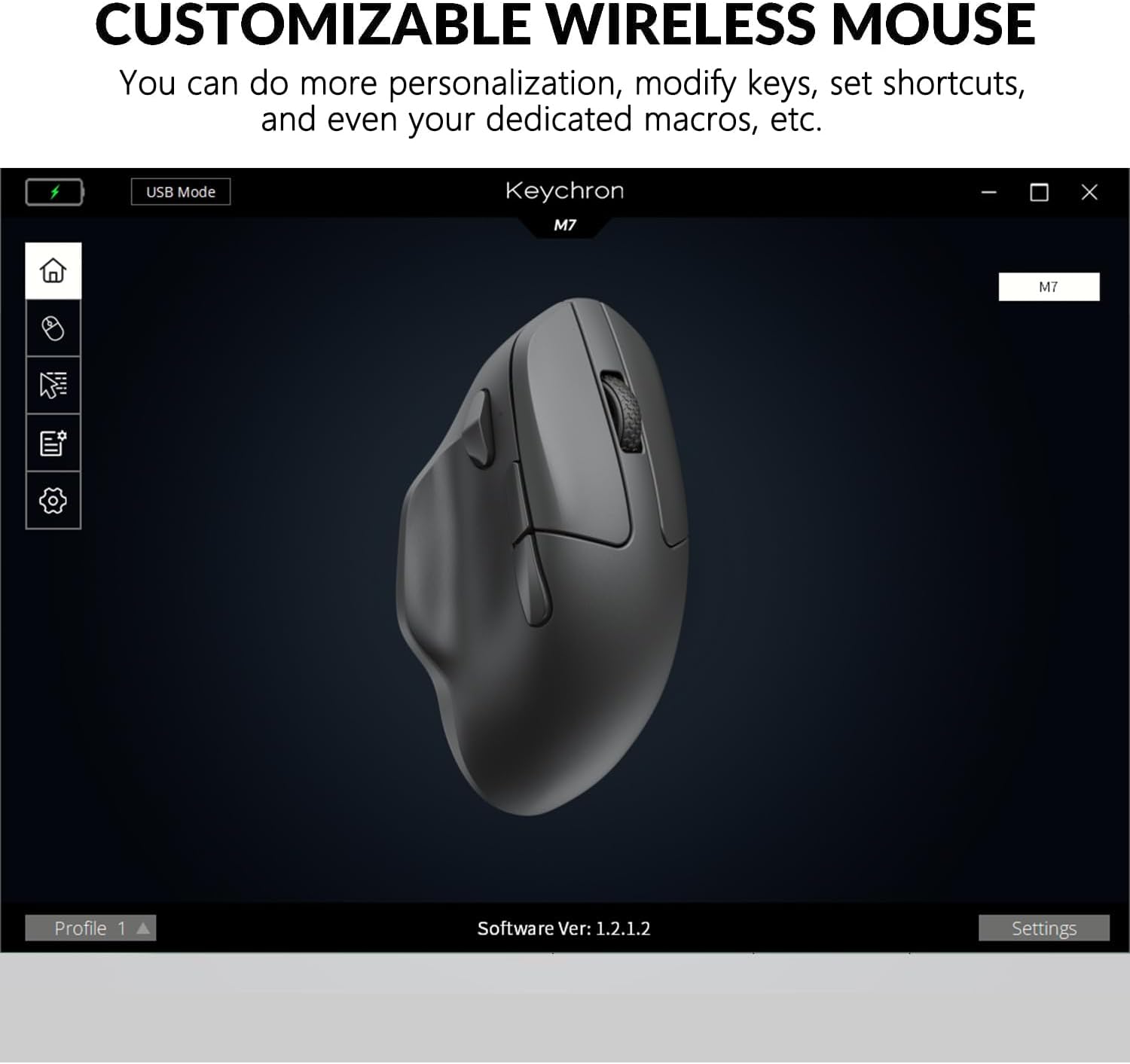
Figure 2: Keychron M7 features: 70-hour battery life and 26,000 DPI sensor.
Hasteko
1. Sagua kargatzea
Before first use, it is recommended to fully charge the mouse. Connect the provided USB-C to USB-A cable to the mouse's USB-C port and the other end to a powered USB port on your computer or a USB charger. The LED indicator will show charging status.
2. Sagua konektatzea
The Keychron M7 offers three connection modes:
- Kable modua: Connect the mouse directly to your computer using the USB-C to USB-A cable. The mouse will function immediately and charge simultaneously.
- 2.4 GHz-ko haririk gabeko modua:
- Locate the 2.4 GHz receiver (either Type-C or Type-A).
- Konektatu hargailua ordenagailuko USB ataka erabilgarri batean.
- On the bottom of the mouse, slide the switch to the 'G' (2.4 GHz) position. The mouse will automatically connect.
- Bluetooth 5.1 modua:
- On the bottom of the mouse, slide the switch to the 'B' (Bluetooth) position.
- Press and hold the Bluetooth pairing button (usually located near the mode switch) until the LED indicator starts blinking, indicating pairing mode.
- On your computer, open Bluetooth settings and search for new devices. Select "Keychron M7" from the list to pair.

Figure 3: Keychron M7 2.4 GHz receivers and polling rate indicator table.
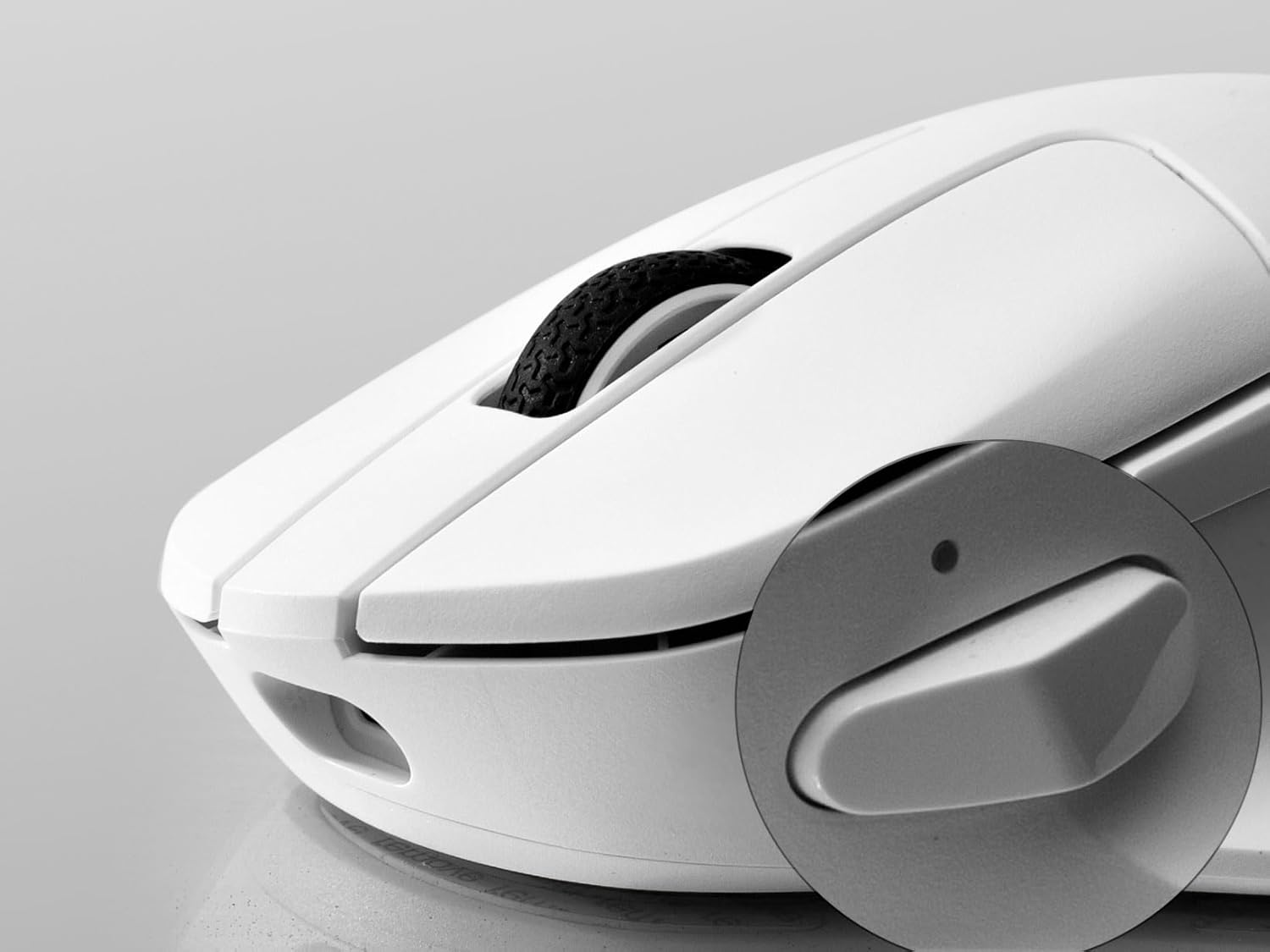
Figure 4: Mouse bottom with G/OFF/B mode switch and pairing button.
Sagua erabiltzea
DPI doikuntza
The Keychron M7 allows for on-the-fly DPI adjustment. Use the dedicated DPI button on the bottom of the mouse to cycle through preset DPI levels. The LED indicator will change color to indicate the current DPI setting.
Bozketa-tasaren doikuntza
In 2.4 GHz or Wired mode, you can adjust the polling rate using the 'RPT' button on the bottom of the mouse. Press this button to switch between 125 Hz (White LED), 500 Hz (Blue LED), and 1000 Hz (Red LED).
Programmable Buttons and Macros
The Keychron M7 features programmable buttons. To customize button functions, set shortcuts, or create dedicated macros, download and install the Keychron Engine software from the official Keychron website. The software also allows for professional settings like Lift-Off Distance (LOD) and further DPI customization.

Figure 5: DPI switch and macro button location.

Figure 6: Keychron Engine software interface for customization.
Mantentzea
Garbiketa
To maintain optimal performance and appearance, regularly clean your Keychron M7 mouse. Use a soft, dry, lint-free cloth to wipe the surface. For stubborn dirt, slightly dampen the cloth with water or a mild electronics cleaner. Avoid using harsh chemicals or abrasive materials.
Bateria zaintzea
The Keychron M7 uses a rechargeable Lithium Polymer battery. To prolong battery life:
- Saihestu bateria maiz erabat deskargatzea.
- Gorde sagua leku fresko eta lehor batean denbora luzez erabiltzen ez duzunean.
- Charge the mouse using the provided cable or a certified USB charger.
Arazoak konpontzea
- Saguak ez du erantzuten: Ensure the mouse is charged. Check the mode switch on the bottom of the mouse is set correctly (G for 2.4 GHz, B for Bluetooth, or connected via cable). For wireless modes, ensure the receiver is properly plugged in or Bluetooth is paired.
- Haririk gabeko moduan atzerapenak edo deskonexioak: Try moving the receiver closer to the mouse. Ensure there are no strong interfering signals (e.g., other 2.4 GHz devices, Wi-Fi routers) nearby. Switch to a different USB port for the receiver.
- DPI or button issues: Ensure the Keychron Engine software is installed and updated. Check your settings within the software. Reset the mouse to factory defaults if necessary (refer to software instructions).
- Saguaren kurtsorea irregularra: Garbitu saguaren beheko aldean dagoen sentsore optikoa. Ziurtatu sagua gainazal egoki batean erabiltzen ari zarela (sagu-alfonbra bat erabiltzea gomendatzen da).
Zehaztapen Teknikoak
| Ezaugarri | Zehaztapena |
|---|---|
| Eredua | Keychron M7 Haririk gabeko sagua |
| Konektibitatea | 2.4 GHz Wireless, Bluetooth 5.1, USB Wired |
| Sentsore | PixArt 3395 Sentsore Optikoa |
| DPI tartea | 26,000 DPI arte |
| IPS | 650 IPS |
| Azelerazioa | 50G |
| Bozketa-tasa | 125 Hz, 500 Hz, 1000 Hz (adjustable) |
| Pisua | 63 gramo (gutxi gorabehera 2.22 ontza) |
| Neurriak (L x W x H) | 127.7 x 77.1 x 40.5 mm (4.8 x 2.95 x 1.97 hazbete) |
| Bateria | 800mAh Lithium Polymer (rechargeable) |
| Bateriaren iraupena | Gehienez 70 ordu (karga bakarra) |
| Bateragarritasuna | Windows PC, Mac |

Figure 7: Keychron M7 mouse dimensions.
Bermea eta Laguntza
Keychron products are covered by a limited warranty against manufacturing defects. For specific warranty terms and conditions, please refer to the warranty information provided with your purchase or visit the official Keychron website. For technical support, troubleshooting assistance, or to download the Keychron Engine software, please visit the Keychron support page:


