1. Sarrera
This manual provides detailed instructions for the setup, operation, maintenance, and troubleshooting of your NIIMBOT B1 Portable Thermal Label Printer. Please read this manual thoroughly before using the device to ensure proper function and longevity.

Image 1.1: The NIIMBOT B1 Label Maker shown with examples of printed labels for various applications.
2. Produktua amaitu daview
2.1 Paketearen edukia
Egiaztatu elementu guztiak zure paketean daudela:
- NIIMBOT B1 Label Maker x1
- C motako kablea x1
- Erabiltzailearen eskuliburua x1
- Roll label tape (50x30mm) x1 (pre-installed in some models)

Image 2.1: The NIIMBOT B1 Label Maker and its included accessories.
2.2 Ezaugarri nagusiak
- 2-Inch Label Printing: Supports label widths from 20mm to 50mm (1-2 inches).
- Inprimaketa termikoa: No ink or toner required, reducing operational costs.
- Etiketa identifikazio automatikoa: For faster and easier printing.
- Konektibitatea: Compatible with iOS & Android smartphones via Bluetooth, and PC via USB.
- NIIMBOT App: Offers 10+ fonts/languages, 100+ borders, 1500+ symbols, barcodes, QR codes, icons, time stamps, pictures, photos, and OCR print functions.
- Diseinu eramangarria: Trinkoa eta arina, erraz garraiatzeko eta erabiltzeko.
- Itzali automatikoa: Customizable auto-off settings (15min, 30min, 60min, never) to conserve battery.
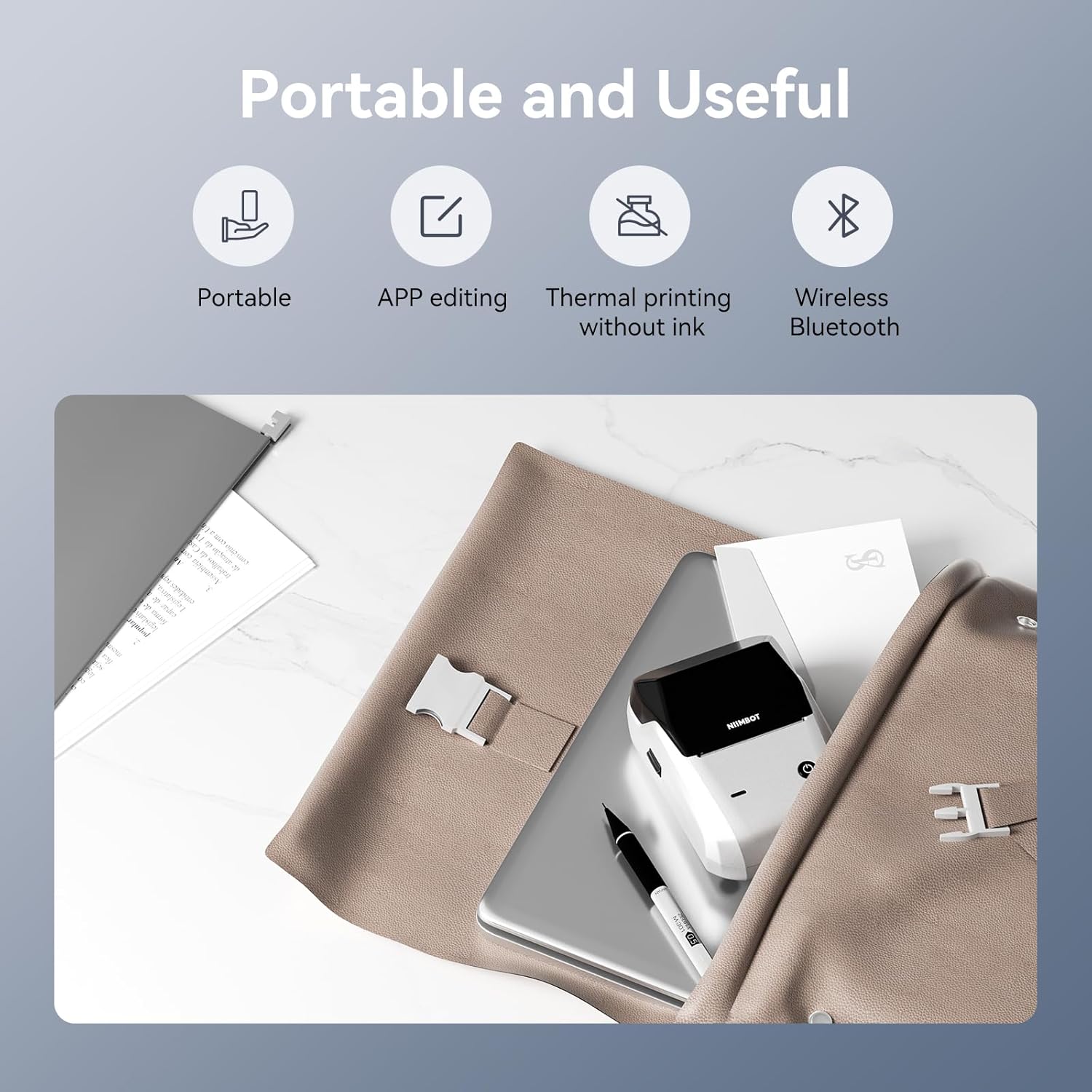
2.2. irudia: Amaituview of the NIIMBOT B1's portable and useful features.
3. Konfigurazioa
3.1 Loading Label Tape
- Rotate the side latch to open the tape slot.
- Load the label tape into the slot, ensuring the label side faces upwards.
- Adjust the guide plate to fit the label roll snugly.
- Close the tape slot, leaving a small portion of the label tape extending for smooth feeding.

Image 3.1: Proper installation of label tape in the NIIMBOT B1.
3.2 Aplikazioaren instalazioa eta konexioa
The NIIMBOT B1 requires the NIIMBOT app for smartphone operation.
- Download the NIIMBOT app from the App Store (iOS) or Google Play Store (Android). Bilatu "NIIMBOT".
- Ziurtatu telefonoaren Bluetooth-a gaituta dagoela.
- Open the NIIMBOT app and click "Connect" to search for nearby devices.
- Select your B1 printer from the list (e.g., B1-XXXXXX) to pair. If prompted for a pairing code, enter 0000 or 1234.
- Once connected, the app will automatically identify the label tape in the printer.

Image 3.2: NIIMBOT App download and connection process.
3.3 PC Connection (Windows)
For PC connectivity, you will need to download the driver from the official NIIMBOT webgunea.
- Bisitatu NIIMBOT ofiziala website and download the B1 printer driver for Windows 7/10.
- Install the driver on your PC.
- Connect the NIIMBOT B1 printer to your PC using the provided USB Type-C cable.
- Open the NIIMBOT desktop software to begin printing.

Image 3.3: Connecting the NIIMBOT B1 to a PC via USB.
3.4 Quick Start Video Guide
Watch this video for a quick visual guide on setting up and using your B1 Label Maker.
Video 3.4: A quick start guide demonstrating the initial setup and basic operation of the NIIMBOT B1 Label Maker.
4. Funtzionamendu-argibideak
4.1 Etiketak sortzea eta editatzea
- In the NIIMBOT app, select a template or create a new label.
- Use the various editing tools to add text, images, icons, barcodes, QR codes, and other elements.
- Customize font styles, sizes, alignment, and other layout options.
- The app supports features like OCR (Optical Character Recognition) for converting images to text.

Image 4.1: The NIIMBOT App interface for creating and editing labels.
4.2 Etiketak inprimatzea
- After designing your label, click the "Print" button in the app.
- Adjust the number of copies and print density as needed.
- Berretsi inprimatze-ezarpenak eta hasi inprimatzen.
- The printer will automatically feed and print the labels. Gently tear off the printed labels.

Image 4.2: Smartphone printing process with the NIIMBOT B1.
4.3 Adierazle argien esanahia
Understand the status of your printer through its indicator light:
- Flash Urdina: Firmwarea eguneratzen ari da.
- Urdin finkoa: Printer is in standby mode.
- Flash berdea: Printer is actively printing.
- Berde iraunkorra: Bluetooth is successfully connected.
- Flash Gorria: Printer is charging.
- Gorri etengabea: Cover is open, out of paper, or low battery.

Image 4.3: Guide to the NIIMBOT B1 indicator light statuses.
4.4 Erabilera Adibamples
The NIIMBOT B1 is versatile for various labeling needs:
- Etxeko erabilera: Kitchen labels, gift labels, kids' item labels, trip item labels.
- Business Use: Beauty & personal care, DIY item labels, mail labels, perfume labels, bakery food labels.

4.4 irudia: Adibideaamples of NIIMBOT B1 usage for home organization.

4.5 irudia: Adibideaamples of NIIMBOT B1 usage for small businesses.

4.6 irudia: Adibideaamples of labels for bakery and food products.
Video 4.7: Demonstration of the NIIMBOT B1 Label Maker's ease of use for various labeling tasks.
4.8 bideoa: Erakutsiasing the multipurpose capabilities of the NIIMBOT B1 Label Maker for different applications.
5. Mantentzea
5.1 Inprimatze-burua garbitzea
Regular cleaning of the print head ensures optimal print quality.
- Itzali inprimagailua eta deskonektatu korronte-kablea.
- Ireki etiketen konpartimendua.
- Garbitu inprimatze-burua astiro-astiro kotoi-zapi batekinampisopropil alkoholarekin egina.
- Allow the print head to dry completely before closing the compartment and turning on the printer.
5.2 Bateria zaintzea
- Kargatu inprimagailua aldizka, maiz erabiltzen ez bada ere, bateriaren egoera mantentzeko.
- Avoid exposing the printer to extreme temperatures.
- Erabili emandako C motako kablea soilik kargatzeko.
6. Arazoak
6.1 Ohiko arazoak eta irtenbideak
| Gaia | Kausa posiblea | Irtenbidea |
|---|---|---|
| Inprimagailua ez da pizten | Bateria gutxi; Pizteko botoia ez da behar bezain denbora sakatu | Charge the printer; Press and hold the power button for 3 seconds. |
| Ezin da Bluetooth bidez konektatu | Bluetooth off on phone; Printer not in pairing mode; App permissions | Ensure Bluetooth is on; Restart printer; Check app permissions for nearby devices. |
| Inprimatze-kalitate eskasa | Dirty print head; Incorrect print density; Low battery | Clean the print head (see 5.1); Adjust print density in the app; Charge the printer. |
| Etiketak ez dira behar bezala elikatzen | Incorrect label installation; Guide plate not adjusted | Reinstall label tape correctly (see 3.1); Adjust the guide plate to fit the label roll. |
| Printer not recognized by PC | Driver not installed; Faulty USB cable | Install the correct PC driver (see 3.3); Try a different USB cable. |
7. Zehaztapenak
| Ezaugarri | Xehetasuna |
|---|---|
| Ereduaren izena | B1 |
| Inprimatzeko Teknologia | Termikoak |
| Konektibitatea | Bluetootha, USBa |
| Inprimatzeko gehienezko bereizmena | 203 ppp |
| Inprimatzeko abiadura maximoa (monokromoa) | 15 mm/s |
| Gehienezko euskarriaren tamaina | 2 hazbete (50 mm) |
| Gailu bateragarriak | Smartphone (Android & iOS), PC (Windows 7/10) |
| Elementuaren pisua | 1.1 libra (499 gramo) |
| Produktuaren neurriak | 5.5" L x 3.5" W x 2.5" H |
| Bateria | 1 bateria behar da (barne) |
| Erabilera espezifikoak | Labeling for Small Business Product Price/Address, School and Office Files Classification, Home Supplies Organization, Personal Item Identification, Name Tags and Warehouse |
8. Bermea eta Laguntza
8.1 Bermearen informazioa
The NIIMBOT B1 Label Printer comes with a 1-year warranty coverage. Please retain your proof of purchase for warranty claims.
8.2 Bezeroarentzako laguntza
For further assistance, technical support, or warranty inquiries, please contact NIIMBOT customer service through their official webgunea edo zure produktuaren ontziarekin emandako harremanetarako informazioa.


