
1. Sarrera
This manual provides detailed instructions for the Glacier Skyloong GK104 Pro Full Size Mechanical Keyboard. This keyboard features triple-mode connectivity (wired, 2.4G wireless, Bluetooth), hot-swappable switches, a customizable display screen, integrated knobs, and a voice calculator function. Please read this manual thoroughly to ensure proper setup and operation of your device.
2. Paketearen edukia
Egiaztatu elementu guztiak paketean daudela:
- Glacier Skyloong GK104 Pro teklatu mekanikoa
- USB-A USB-C kablea
- Switch and Keycap Puller Tool

3. Produktua amaitu daview
The GK104 Pro is a full-size mechanical keyboard designed for versatility and customization. It integrates advanced features for both productivity and gaming.
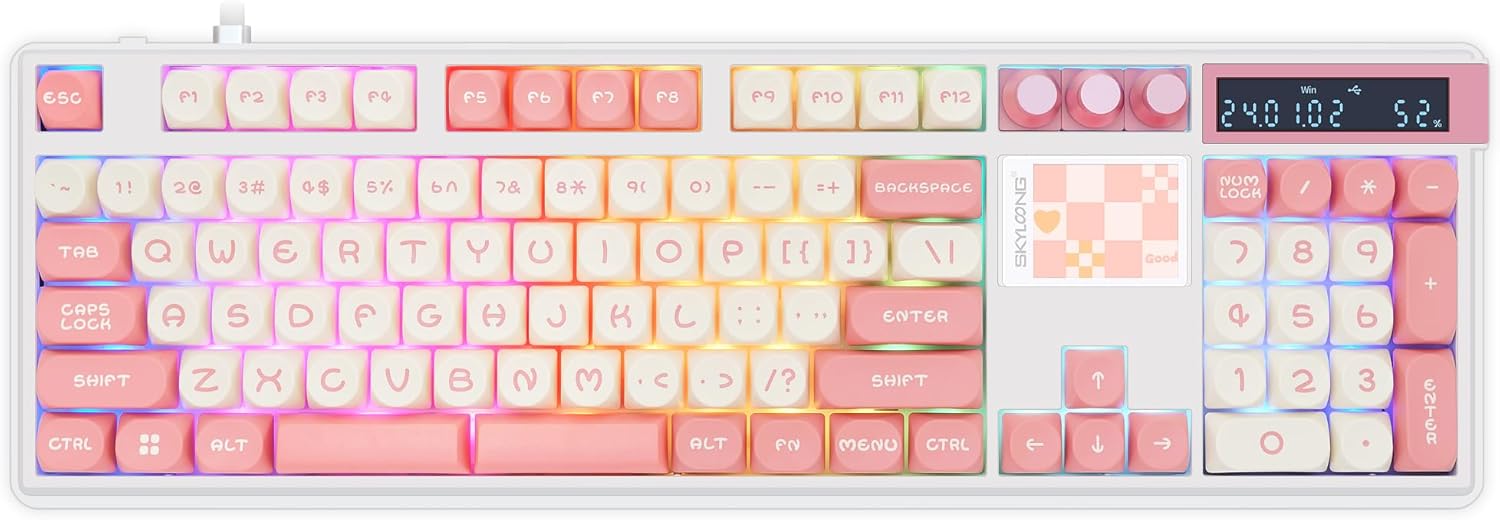
Ezaugarri nagusiak:
- Hirukoitzeko Konexio Modua: Supports wired USB-C, 2.4G wireless, and Bluetooth 5.1 for flexible connectivity across various devices.
- Beroan alda daitezkeen etengailuak: Compatible with 3-pin or 5-pin mechanical switches, allowing for easy customization and replacement without soldering.
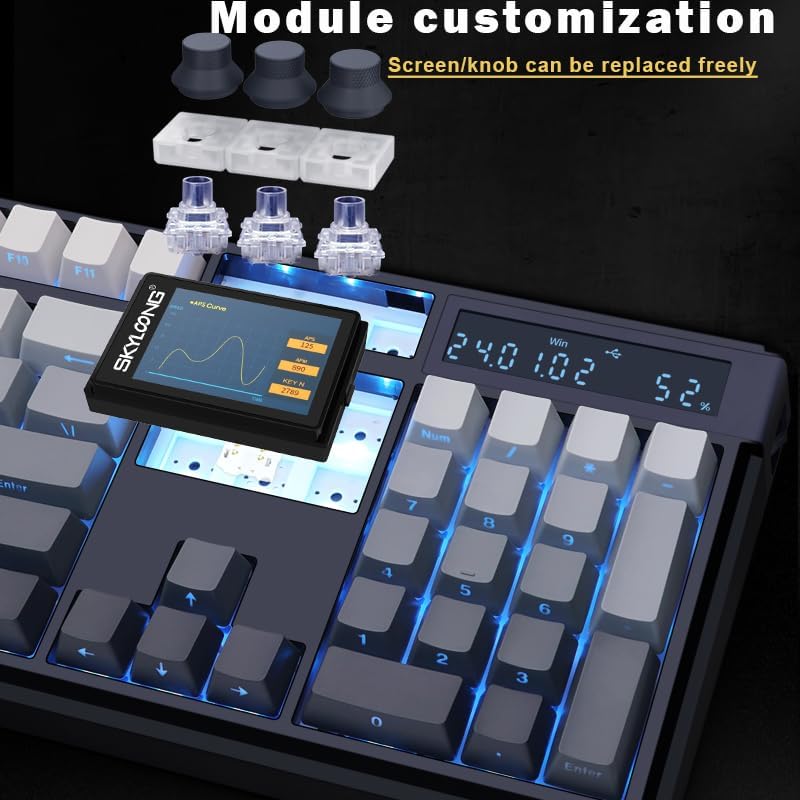
- Customizable Display Screen: Features a 1.7-inch (160x128 resolution) or 2.0-inch (320x240 resolution) TFT LCD RGB screen capable of displaying images or GIFs up to 15MB.
- Integrated Knobs: Provides convenient control for functions such as volume adjustment.
- Voice Calculator: A dedicated calculator function with voice broadcast assistance for enhanced productivity.
- Split Space Bar Compatibility: Designed to support both standard and split space bar configurations.


4. Konfigurazioa
4.1. Teklatua konektatzea
The GK104 Pro supports three connection modes:
- Kable bidezko konexioa: Connect the keyboard to your computer using the provided USB-A to USB-C cable. The keyboard will be recognized automatically.
- 2.4G Haririk gabeko konexioa: Insert the 2.4G USB receiver (not explicitly listed in package contents but implied by feature) into your computer's USB port. The keyboard should connect wirelessly.
- Bluetooth 5.1 konexioa: Activate Bluetooth on your device. Put the keyboard into Bluetooth pairing mode (refer to operating instructions for specific key combinations). Select 'GK104 Pro' from your device's Bluetooth list to pair.

5. Funtzionamendu-argibideak
5.1. Display Screen Operation
- To access the display screen menu: Press and hold FN + Menua (the button next to the Menu key) for 3 seconds.
- Navigate the menu using the arrow keys, Sartu hautatzeko, eta Atzera atzera atzera egiteko.
- To switch through different display views: Sakatu FN + ~`.
5.2. Calculator Function
The GK104 Pro includes a dedicated calculator function:
- To activate the calculator: Press the physical switch located on the right side of the keyboard to the 'I' position.
- To return to normal digital area function: Press the switch to the 'O' position.
- To toggle voice broadcast for the calculator: Press FN + Numeric Area 0.

5.3. Teklatuko lasterbideak
Utilize the following key combinations for various functions:
- FN + 0 (on number pad): Mute/unmute keyboard sound effects.
- FN + - (on number pad): Next sound effect.
- FN + * (on number pad): Previous sound effect.
- FN + 4 (above E/R, hold for 6 seconds): Toggles the battery indicator light.
- FN + 9: Toggles backlight on/off.
- FN + NUM (hold for 3 seconds): Change time setting on the number pad screen.
- FN + 6 (above T/Y, hold for 6 seconds): Switch to Windows profile. The key will light up white to indicate activation.
6. Mantentzea
6.1. Garbiketa
To clean your keyboard, disconnect it from power. Use a soft, dry cloth to wipe down the keycaps and chassis. For deeper cleaning, keycaps can be removed using the provided puller tool and cleaned separately with mild soap and water, ensuring they are completely dry before reattaching.
6.2. Etengailuaren eta teklaren estalkien ordezkapena
The GK104 Pro features hot-swappable switches, allowing for easy replacement without soldering. Use the switch puller tool to carefully remove switches. To replace keycaps, use the keycap puller side of the tool. Ensure proper alignment when inserting new switches or keycaps.

7. Arazoak
7.1. Arazo arruntak
- Softwarearen bateragarritasuna: If experiencing issues with RGB or key customization software (e.g., GK6Xplus Driver, CMSengine), ensure you have the correct and latest version for your operating system. For screen customization (GMonitor V2.2), if image transfer fails, try unplugging and replugging the keyboard while the software is open.
- Display Screen Not Working: If the screen goes black or is unresponsive, try restarting the keyboard or reconnecting it. Ensure the screen module is properly seated. If issues persist, contact customer support.
- Teklatuak ez du erantzuten: Check the connection mode (wired, 2.4G, Bluetooth). Ensure the cable is securely connected or the wireless receiver is properly inserted. For Bluetooth, re-pair the device. Check battery level if using wireless modes.
- Unwanted Sound Effects: If the keyboard produces unexpected sounds, use FN + 0 (on number pad) to mute them.
8. Zehaztapenak
| Ezaugarri | Zehaztapena |
|---|---|
| Modelo zenbakia | GK104 Pro |
| Konektibitatea | Kable bidezkoa (USB-C), 2.4G haririk gabekoa, Bluetooth 5.1 |
| Teklatu mota | Mekanikoa |
| Etengailuen bateragarritasuna | 3-pin or 5-pin Hot-Swappable |
| Bistaratzeko pantaila | 1.7-inch (160x128) or 2.0-inch (320x240) TFT LCD RGB |
| Ezaugarri bereziak | Backlit RGB, Customizable Display Keys, Ergonomic, Hot-Swappable, Volume Knobs, Voice Calculator |
| Gailu bateragarriak | PC, Gaming Console, Smartphone, Tablet |
| Materiala | Polietilenoa |
| Elementuaren pisua | 3.68 kilo |
| Paketearen neurriak | 19.09 x 7.6 x 2.56 hazbete |
9. Bermea eta Laguntza
Glacier products are manufactured to high-quality standards. For warranty information or technical support, please refer to the documentation included with your purchase or visit the official Glacier support webgunea. Gorde erosketaren egiaztagiria bermearen erreklamazioetarako.


