Sarrera
Welcome to the TECWARE Spectre 96% RGB Mechanical Gaming Keyboard user manual. This guide provides detailed instructions on setting up, operating, maintaining, and troubleshooting your new keyboard. The Spectre 96% is designed to enhance your gaming and typing experience with its advanced features and customizable options.

Goitik behera bat view of the TECWARE Spectre 96% RGB Mechanical Gaming Keyboard, showcasing its full layout with vibrant RGB backlighting.
Konfigurazioa
Paketearen edukia
- 1 x TECWARE Spectre 96% RGB Mechanical Gaming Keyboard
- 1 x Braided 1.8m USB Cable
- 1 x Switch & Keycap Remover Tool
- 1 x Spacebar Silencer Pad
- 1 x Spare LCD Screen Protector
- 4 x Spare Switches
- Erabiltzaile gida azkarra
Konektibitate moduak
The TECWARE Spectre 96% keyboard offers versatile connectivity options:
- 2.4 GHz-ko haririk gabekoa: For a stable and fast wireless connection.
- Bluetooth 5.0: For convenient wireless pairing with multiple devices.
- USB-C: For a reliable wired connection and charging.

An illustration showing the keyboard's three connectivity modes: 2.4GHz Wireless, Bluetooth 5.0, and USB-C, along with its 4000mAh battery.
Connecting via 2.4GHz Wireless
- Move the switch on the keyboard to the '2.4G' position.
- Insert the included USB dongle into an available USB port on your computer.
- Teklatua automatikoki parekatu behar da.
Connecting via Bluetooth 5.0
- Move the switch on the keyboard to the 'BT' position.
- Sakatu FN + 1, 2, edo 3 parekatutako Bluetooth gailuen artean aldatzeko.
- Luze sakatu FN + 1, 2, edo 3 for 3 seconds to initiate pairing. The LCD screen will indicate 'Pairing'.
- On your computer or mobile device, search for Bluetooth devices and select 'TECWARE Spectre' to connect.
Connecting via USB-C (Wired Mode)
- Move the switch on the keyboard to the 'USB' position.
- Connect the included USB-C cable from the keyboard to your computer.
- Teklatuak kable bidezko gailu gisa funtzionatuko du eta aldi berean kargatuko da.
Teklatu-oin erregulagarriak
The keyboard features two-step adjustable feet on the underside, allowing you to customize the typing angle for optimal comfort and ergonomics.
Teklatua erabiltzea
LCD pantaila pertsonalizagarria
The 1.14-inch TFT-LCD smart screen allows for personalization and quick access to information:
- Display Time and Date
- Show Connection Modes
- Monitor System Info (CPU/GPU usage)
- Upload Custom Images/GIFs
The 1.14-inch TFT-LCD smart screen on the keyboard, capable of displaying GIFs, time, date, and system information like CPU/GPU usage.
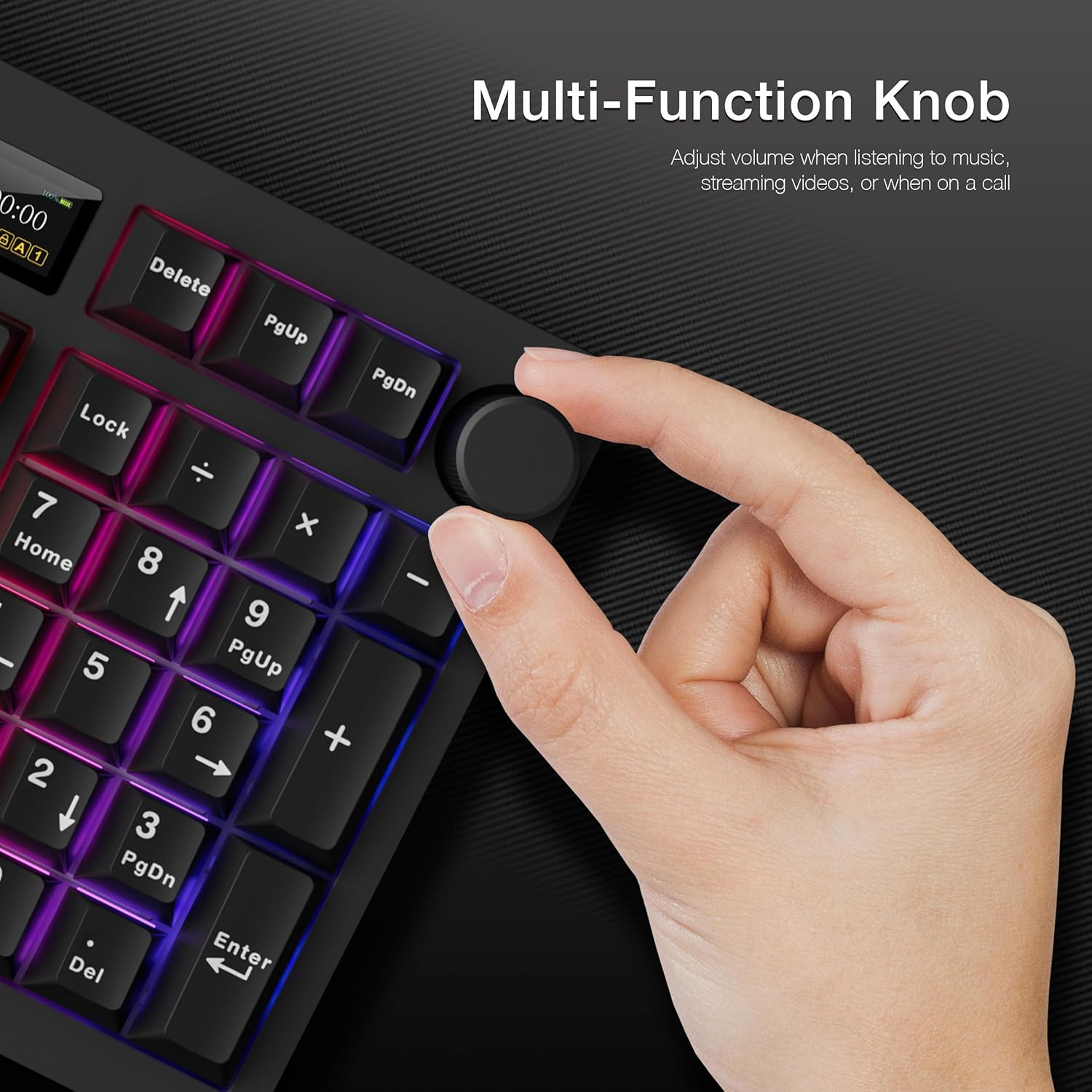
Funtzio anitzeko eskutokia
The dedicated knob on the top right of the keyboard serves multiple purposes:
- Bolumen kontrola: Rotate to adjust volume. Press to mute/unmute.
- LCD Menu Navigation: Luze sakatu FN + Knob for 3 seconds to switch between LCD and Volume mode. In LCD mode, rotate to navigate menus and press to confirm selections.

A hand adjusting the multi-function knob located on the top right of the keyboard, used for volume control and LCD screen navigation.
RGB argiztapena
The keyboard features 16.8 million RGB colors with per-key customization and a stunning RGB LED side underglow. There are 19 pre-set lighting modes available.

The keyboard illuminated with vibrant RGB lighting, featuring customizable per-key RGB and a 3-zone RGB underglow.
RGB argiztapena doitzea
- Use the multi-function knob in LCD mode to navigate to 'Effect' and 'Colour' settings to change lighting modes and colors directly on the keyboard.
- Adjust brightness and speed through the LCD menu.
Dedicated Software Support
For advanced customization, download the dedicated software from the official TECWARE website. The software allows for:
- Macro Recording and Assignment
- Erabiltzaile pertsonalizatua Profiles
- Detailed RGB Lighting Control (Static, Reactive, Breathing, etc.)
- Uploading Custom GIFs to the LCD Screen

The keyboard shown alongside its dedicated software, which allows for macro recording, macro assignment, and custom user profiles.
Mantentzea
Beroan alda daitezkeen entxufeak
The Spectre 96% features 5-pin universal hot-swappable sockets, allowing for easy replacement of switches without soldering. This ensures compatibility with most aftermarket switches.

Xehetasuna view of the keyboard's hot-swappable 5-pin universal sockets and south-facing LEDs, supporting 3-pin and 5-pin switches.
Replacing Switches
This video provides instructions on replacing the keyboard switches. It covers removing the keycap using a puller tool, detaching the switch by latching the prongs and pulling vertically, and then installing a new switch by aligning the pins and pushing it down firmly.
Installing the Spacebar Silencer Pad
A spacebar silencer pad is included to reduce typing noise, especially for the spacebar key.
This video guides users through the process of installing the spacebar silencer pad, demonstrating how to remove the spacebar keycap, apply the silencer pad to the stabilizer, and reattach the keycap to reduce typing noise.
Replacing the LCD Screen Protector
A spare LCD screen protector is provided to keep your screen free from scratches and scuffs.
A step-by-step video demonstrating how to replace the LCD screen protector. It shows how to remove the top case, carefully detach the old protector, apply the new one, and reassemble the keyboard, ensuring the connectivity switch is aligned.
Arazoak konpontzea
Ohiko arazoak eta irtenbideak
- Teklatuak ez du erantzuten: Ensure the correct connectivity mode (2.4G, BT, USB) is selected via the toggle switch. Check battery level. For wired mode, ensure the USB-C cable is securely connected.
- Haririk gabeko konexio arazoak: Ensure the USB dongle is properly inserted for 2.4GHz. For Bluetooth, ensure the keyboard is in pairing mode and visible to your device. Try re-pairing if issues persist.
- LCD pantaila ez da behar bezala bistaratzen: Check the keyboard's battery level. If using CPU/GPU monitoring, ensure the dedicated software is running on your computer.
- Giltzak ez dira erregistratzen edo bi aldiz idazten ari dira: This could indicate a faulty switch. Utilize the included switch remover tool and spare switches to replace the affected key.
- Keyboard not waking up from idle: If the keyboard does not respond after a period of inactivity, try toggling the power switch off and on, or reconnecting the USB cable if in wired mode.
Zehaztapenak
| Produktuaren neurriak | 15.15 x 5.71 x 1.51 hazbete |
| Elementuaren pisua | 2.27 kilo |
| Fabrikatzailea | Tecware |
| ASIN | B0DGY3S1RH |
| Jatorrizko Herrialdea | Txina |
| Pilak | 1 litio-ioizko bateriak behar dira. (barne) |
| Eskuragarri dagoen lehen data | 13ko irailaren 2024a |
| Gailu bateragarriak | PC, Mac, Laptop, Mobile Device |
| Konektibitate Teknologia | BT, USB-C, 2.4 Hz |
| Teklatuaren deskribapena | RGB joko teklatu mekanikoa |
| Produkturako gomendatutako erabilerak | PC, Mac |
| Ezaugarri Berezia | Gasket Mount + Multi-layered Dampening, South-facing LEDs, Volume Roller, Dedicated Software Support, Hot-Swappable |
| Kolorea | Black, Brown Switch (Tactile) |
| Gako kopurua | 96 |
| Teklatuaren atzeko argiaren kolore-laguntza | RGB |
| Estiloa | Spectre 96 Black |
Bermea eta Laguntza
This product is subject to a 30-day return policy for refund or replacement. For detailed warranty information and technical support, please visit the official TECWARE webgunera edo jarri harremanetan zuzenean bezeroarentzako arreta-zerbitzuarekin.
Era berean, bisitatu dezakezu TECWARE Store on Amazon informazio gehiago eta produktuen eskaintzak lortzeko.


