1. Sarrera
The ASUS DC300 Docking Station is a compact device designed to streamline laptop connectivity and enhance productivity. It allows users to connect multiple peripherals, external displays, and power their laptop through a single USB-C cable. This manual provides detailed instructions for setting up, operating, and maintaining your docking station.
2. Produktua amaitu daview
The ASUS DC300 Docking Station offers extensive connectivity options in a sleek, durable design. Its metal construction ensures longevity and a sophisticated appearance that blends seamlessly into any workspace. Key features include support for multiple displays, high-speed data transfer ports, and pass-through charging capabilities.
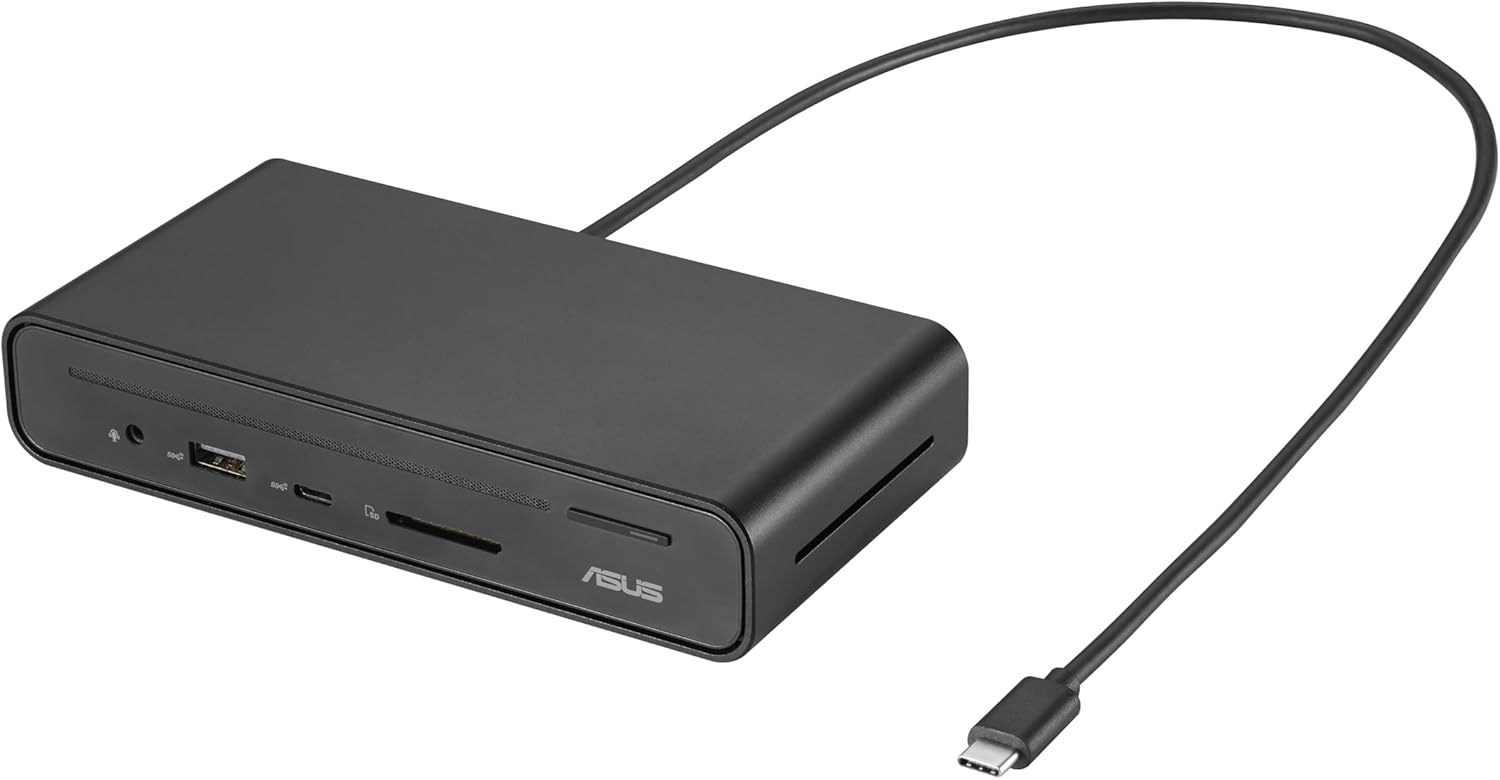
Figure 2.1: ASUS DC300 Docking Station with attached USB-C cable.
3. Paketearen edukia
Ziurtatu elementu guztiak paketean daudela:
- ASUS DC300 Docking Station
- USB Type-C Cable (braided)
- Magnetic Base with Adhesive
- Erabiltzailearen eskuliburua (dokumentu hau)
4. Physical Components and Port Layout
The docking station features a variety of ports for comprehensive connectivity. Familiarize yourself with the port layout for optimal use.
4.1 Aurreko paneleko atakak
- 1x USB Type-C Port (10 Gbps): Abiadura handiko datuak transferitzeko.
- 1x USB Type-A Port (10 Gbps): Abiadura handiko datuak transferitzeko.
- SD txartelaren irakurgailua: SD memoria txartel estandarrak irakurtzeko.
- MicroSD txartel irakurgailua: For reading MicroSD memory cards.
- 3.5 mm-ko audio-konexioa: Entzungailuak edo kanpoko audio gailuak konektatzeko.
- Pizteko botoia: To power on/off the docking station.

4.1. irudia: Aurrealdea view of the docking station with accessible high-speed data and media card ports.
4.2 Atzeko paneleko atakak
- 2x HDMI Ports (4K@60Hz): Kanpoko pantailak konektatzeko.
- 2x DisplayPort (4K@60Hz): Kanpoko pantailak konektatzeko.
- 1x USB Type-C PD Port (100W): For power delivery to your laptop and pass-through charging.
- 1x USB Type-A Port (10 Gbps): Abiadura handiko datuak transferitzeko.
- 1x USB Type-A Port (480 Mbps): For connecting peripherals like keyboard/mouse dongles.
- 1x Gigabit Ethernet Port: Kable bidezko sare-konexio egonkorra lortzeko.

4.2. Irudia: Atzealdea view of the docking station with various display, power, and network ports.
5. Konfigurazio gida
Follow these steps to set up your ASUS DC300 Docking Station:
- Kokatu kaia: Place the docking station on a flat, stable surface. You may use the included magnetic base to secure it to your desk. Ensure the adhesive is applied to a suitable surface if you intend to use it permanently.
- Konektatu ordenagailu eramangarrira: Connect the braided USB Type-C cable from the docking station's "To Laptop" port (rear panel) to your laptop's USB Type-C port.
- Konektatu energia (aukerakoa baina gomendagarria): For optimal performance, especially with multiple displays and charging, connect your laptop's USB Type-C power adapter to the docking station's "USB Type-C PD" port (rear panel). This enables pass-through charging for your laptop.
- Konektatu pantailak: Use HDMI or DisplayPort cables to connect your external monitors to the corresponding ports on the rear panel of the docking station.
- Konektatu periferikoak: Plug in your mouse, keyboard, external drives, or other USB devices to the available USB Type-A or USB Type-C ports on the front or rear panels.
- Sarera konektatu (aukerakoa): For a stable wired internet connection, connect an Ethernet cable to the Gigabit Ethernet port on the rear panel.
- Piztu: Press the power button on the front panel to turn on the docking station. The digital LED display will illuminate, showing the status of connected ports.
6. Funtzionamendu-argibideak
6.1 Bistaratzeko moduak
Ainguratze-estazioak hainbat pantaila-konfigurazio onartzen ditu:
- Windows sistemak: Supports single, dual, and triple external displays in extended or mirrored modes. Resolutions up to 4K@60Hz are supported for single/dual displays, and 4K@30Hz for triple displays.
- Mac OS Systems: Supports single and dual external displays. Triple display is not supported in extended mode; displays will be mirrored.

6.1. irudia: Adibample of a triple monitor setup with the ASUS DC300 Docking Station.
6.2 Datuen transferentzia
Utilize the high-speed USB ports for quick data transfer:
- USB 3.2 Gen 2 Ports (10 Gbps): Ideal for transferring large files to/from external SSDs or other high-speed devices.
- SD/MicroSD Card Readers: For fast transfer of photos and videos from memory cards.
6.3 One-Click Screen Lock
The power button on the top of the docking station also functions as a screen lock button:
- Windows: Press the button once to instantly lock your displays.
- MacOS: Press the button twice to lock your displays.
7. Mantentzea eta Zainketa
- Keep the docking station in a clean, dry environment.
- Saihestu gailua muturreko tenperaturetara edo eguzki-argitara zuzenean jarri.
- Clean the surface with a soft, dry cloth. Do not use liquid cleaners.
- Ensure cables are properly connected and not under strain to prevent damage.
8. Arazoak
Arazoak badituzu, jo ezazu honako ohiko irtenbide hauetara:
- Unstable LAN Connection: If the LAN connection is unstable or disconnects, especially after sleep mode, try disabling and re-enabling the network driver in your operating system settings.
- Power Button Not Functioning: Ensure the docking station is properly connected to your laptop and, if applicable, to a power source.
- Pantailaren keinuka: Check all display cable connections. Ensure your display drivers are up to date. Verify that your monitor and cable support the selected resolution and refresh rate.
- Ez dago pantaila-irteerarik: Confirm that your laptop's USB-C port supports video output (DisplayPort Alt Mode). Ensure all display cables are securely connected. Check your display settings in your operating system.
- Kargatzeko arazoak: Ensure your laptop's power adapter is connected to the docking station's USB Type-C PD port. Verify that your laptop supports USB-C power delivery.
9. Zehaztapenak
| Ezaugarri | Xehetasuna |
|---|---|
| Modelo zenbakia | 90XB08CN-BDS000 |
| Produktuaren neurriak | 3.66 x 3.27 x 0.98 hazbete |
| Elementuaren pisua | 1.1 kilo |
| Konektibitate Teknologia | Kableatua |
| Kargatzeko gaitasuna | Yes (up to 100W via USB-C PD) |
| Bistaratzeko euskarria | 3 Displays Supported (4K resolution) |
| HDMI atakak | 2 (4K@60Hz) |
| DisplayPort | 2 (4K@60Hz) |
| USB portuak guztira | 4 (2x USB 3.2 Gen 2 Type-A, 1x USB 3.2 Gen 2 Type-C, 1x USB 2.0 Type-A) |
| Ethernet | Gigabit Ethernet |
| Memoria Txartelaren irakurgailua | SD, MikroSD |
| Gailu bateragarriak | Expertbook (and other USB-C compatible laptops) |
10. Bermea eta Laguntza
For warranty information and customer support, please refer to the official ASUS website or contact their customer service directly. The product typically comes with a manufacturer's warranty. Please retain your proof of purchase for warranty claims.
ASUS Support: https://www.asus.com/support/