1. Sarrera
The ADREAMER AireScreen13S is a detachable triple portable monitor designed to expand your laptop's display capabilities. It features three 13.3-inch 1920x1200 IPS 16:10 screens, allowing for a quad-screen workstation setup. This device is compatible with laptops ranging from 11.6 to 16 inches and supports Windows (10 and later) and MacOS (M1/M2/M3 chipsets). This manual provides detailed instructions for setup, operation, and maintenance to ensure optimal performance.
2. Zer dago kutxan
- USB 3.0 Type C cable * 3
- 30 W-ko korronte egokitzailea * 1
- USB Storage (with driver included) * 1
- Type C Converter * 1
- Erabiltzailearen eskuliburua * 1
3. Konfigurazioa eta instalazioa
3.1 Instalazio fisikoa
To attach the ADREAMER AireScreen13S to your laptop, open your laptop screen. The monitor extender features a retractable design with a multi-function clip. Gently pull the movable pieces of the clip left or right to adjust it to the width of your laptop screen (11.6" to 16"). Securely clip the main unit to the top edge of your laptop screen. The integrated structural design ensures stability.
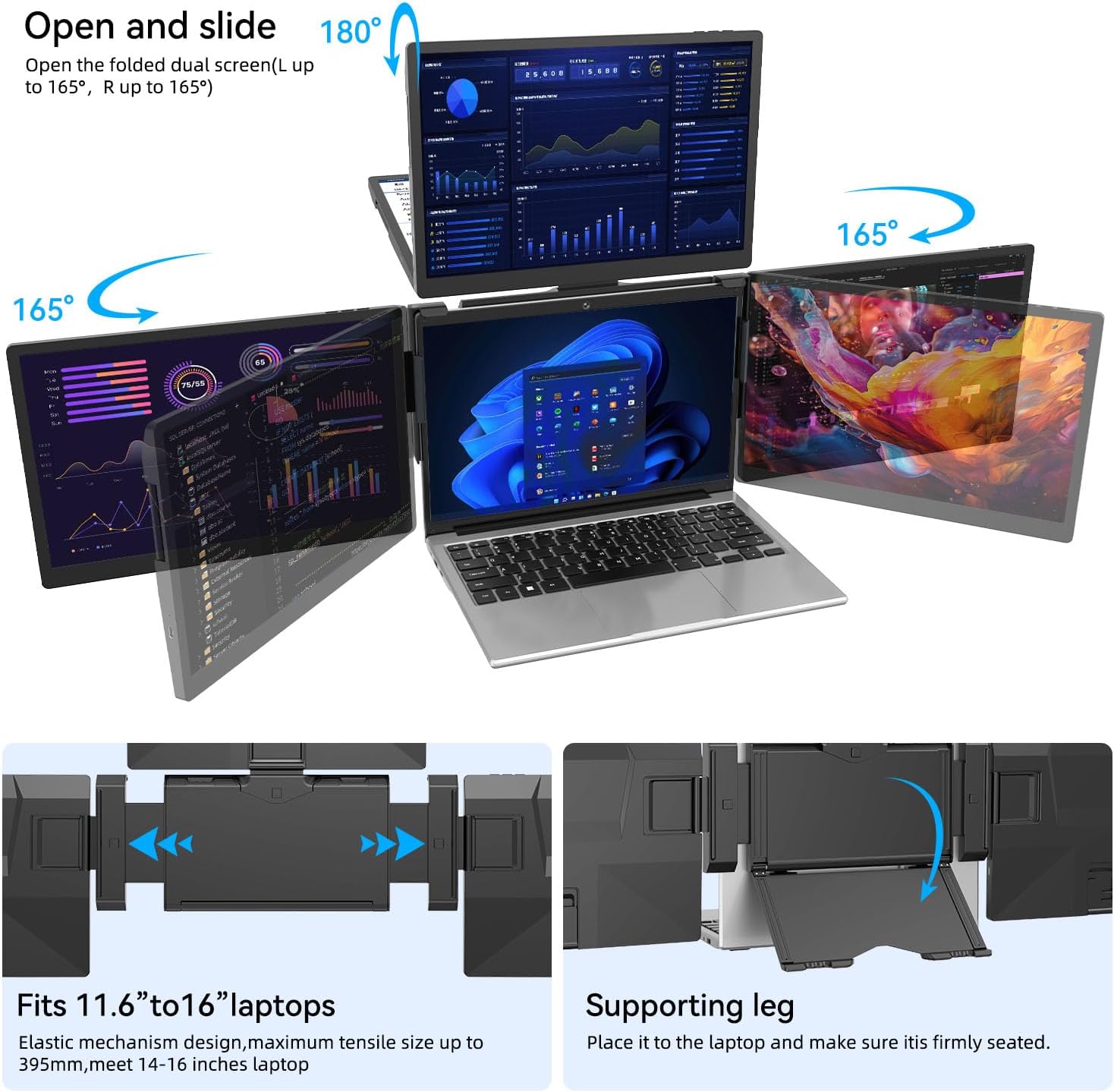
Image: The adjustable clip mechanism of the ADREAMER AireScreen13S, demonstrating how it fits onto a laptop screen.
Each of the three screens has three spindles, supporting opening and closing angles of up to 180 degrees. The main unit also features a supporting leg that can be opened to provide additional stability for the entire setup.

Image: A laptop with the ADREAMER AireScreen13S attached, displaying a quad-screen setup in an office environment.
3.2 Kableen konexioak
The ADREAMER AireScreen13S features a multi-function clip with 4 USB 3.0 ports and 2 full-featured Type-C ports. Connect the three supplied USB 3.0 Type C cables from the individual screens into the USB 3.0 ports on the back clip. Then, connect the main Type-C cable from the back clip to a full-function Type-C port on your laptop. If your laptop does not have enough full-function Type-C ports, you may need to use the provided 30W power adapter to power the clip via one of its Type-C ports.

Image: A visual guide to connecting the three display cables and the main power/data cable from the monitor extender to a laptop.
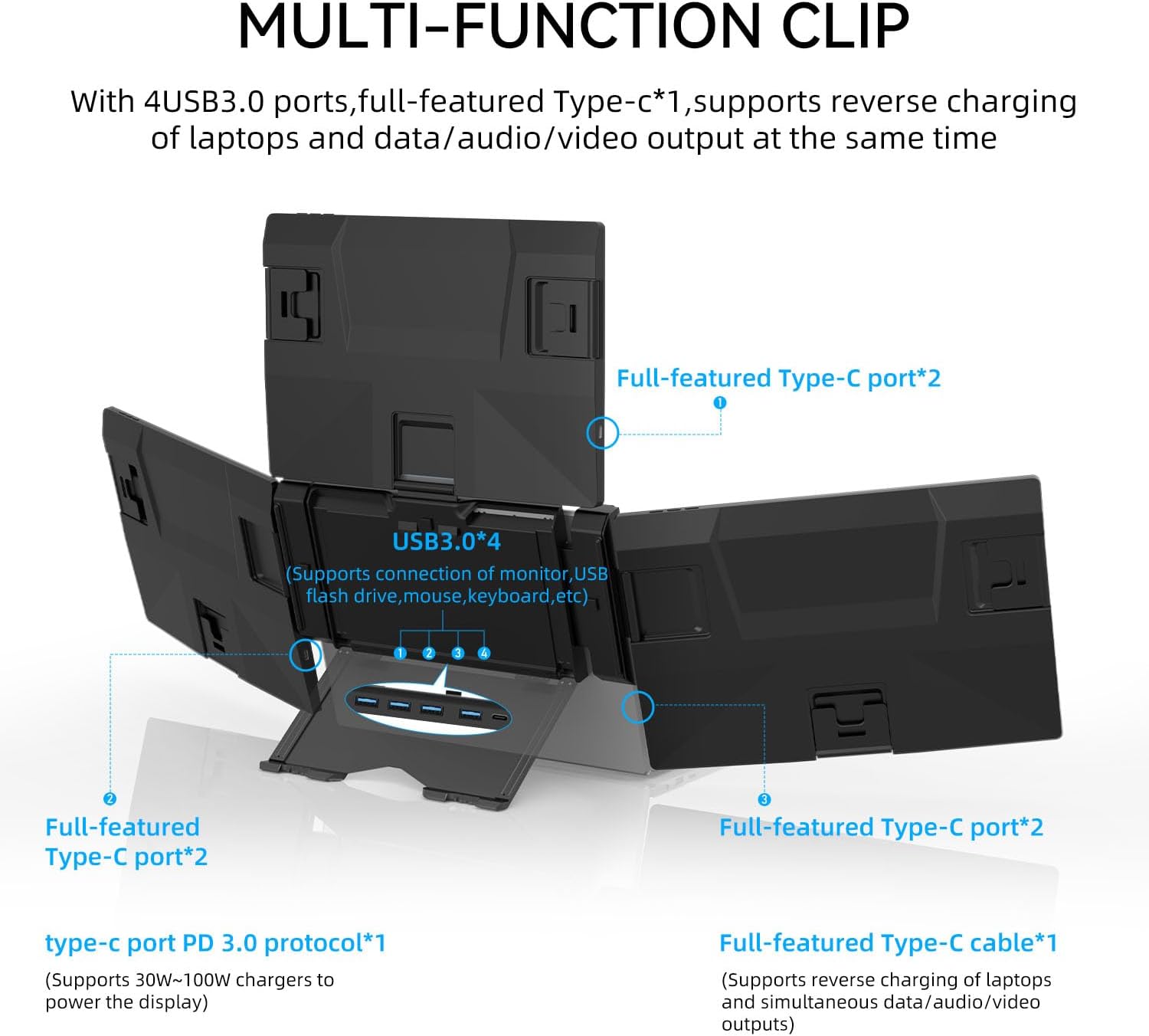
Irudia: Xehetasun handikoa view of the connectivity options on the multi-function clip, including USB 3.0 and Type-C ports for data, audio, video, and reverse charging.
3.3 Gidariaren instalazioa
For initial use, it is essential to install the corresponding driver program. The driver file is included on the USB storage provided in the packaging box. Please follow the instructions below for your operating system.
3.3.1 Windows kontrolatzaileen instalazioa
Insert the USB storage into your computer and locate the Windows driver. Follow the on-screen prompts to complete the installation. A restart of your computer may be required.
Video: A step-by-step guide on how to install the necessary driver files for the ADREAMER AireScreen13S on a Windows operating system.
3.3.2 Mac OS Driver Installation
Insert the USB storage into your Mac and locate the Mac OS driver. Follow the on-screen prompts to complete the installation. You may need to adjust security and privacy settings to allow the driver to function correctly. A restart of your computer may be required.
Video: A step-by-step guide on how to install the necessary driver files for the ADREAMER AireScreen13S on a Mac OS operating system.
4. Funtzionamendu-argibideak
4.1 Bistaratzeko moduak
The ADREAMER AireScreen13S supports both extended and mirrored display modes. You can configure these settings through your operating system's display settings. Extended mode allows you to spread your workspace across all four screens, while mirrored mode duplicates your main laptop display onto the external monitors.
4.2 Screen Rotation and Adjustment
The side and upper screens can be rotated up to 165 degrees, allowing for customizable viewing angles to suit various tasks and environments. This flexibility is ideal for multi-participant meetings, data analysis, programming, or remote teamwork. The independent support bracket ensures stability during adjustments.

Image: The ADREAMER AireScreen13S demonstrating its versatile screen rotation capabilities, allowing for various configurations.
5. Ezaugarri nagusiak
- Quad Screen Workstation: Easily transform your laptop into a quad-screen workstation with three 13.3-inch displays, significantly enhancing productivity for coding, designing, or spreadsheet work.
- Bateragarritasun zabala: Compatible with laptops from 11.6" to 16", supporting Windows (10 and later) and MacOS (M1/M2/M3 chipsets). Features USB-C ports for seamless connectivity.
- Diseinu desmuntagarria: Ensures effortless portability, making it an ideal solution for remote work, business travel, or mobile presentations.
- Ikusmen biziak: Enjoy enhanced clarity with 1920x1200 IPS monitors and a 16:10 aspect ratio, providing additional vertical space for professional tasks.
- Adjustable Back Bracket & Versatile Rotation: Durable back bracket rotates up to 165°, maintaining stability. Side and upper screens rotate up to 165° for customizable viewing angles. Supports extended and mirrored display modes.
6. Zehaztapenak
| Ezaugarri | Xehetasuna |
|---|---|
| Produktuaren neurriak | 0.54 x 12 x 8 hazbete |
| Elementuaren pisua | 5 kilo |
| Elementuaren eredu-zenbakia | AireScreen13S |
| Pantaila zutik bistaratzeko tamaina | 13.3 Inches (each) |
| Aspektu-erlazioa | 16:10 |
| Ebazpena | 1920 x 1200 pixel |
| Irudiaren distira | 300 cd/m² |
| USB portuak guztira | 4 (USB 3.0 on clip) |
| Pantailaren gainazalaren deskribapena | Distiratsua |
7. Mantentzea
To ensure the longevity and optimal performance of your ADREAMER AireScreen13S, follow these maintenance guidelines:
- Garbiketa: Erabili lipurrik gabeko zapi leun bat dampened with water or a screen cleaner to wipe the display surfaces. Avoid harsh chemicals or abrasive materials.
- Biltegiratzea: When not in use, fold the screens carefully and store the unit in a protective case to prevent scratches and damage.
- Manipulazioa: Always handle the monitor extender with care, avoiding excessive force when attaching, detaching, or adjusting the screens.
- Kableen kudeaketa: Ensure cables are not kinked or strained to prevent damage to the connectors and ports.
8. Arazoak
8.1 No Display on External Screens
- Egiaztatu konexioak: Ensure all USB-C cables are securely connected to both the monitor extender and your laptop.
- Elikatze-iturria: Verify that the monitor extender is receiving adequate power. If your laptop's Type-C port does not provide sufficient power, connect the 30W power adapter to the clip.
- Gidariaren instalazioa: Confirm that the correct drivers for your operating system (Windows or Mac) are installed. Refer to Section 3.3 for driver installation instructions.
- Ordenagailu eramangarrien bateragarritasuna: Ensure your laptop's Type-C ports support video output (DisplayPort Alternate Mode) and power delivery.
- Pantailaren ezarpenak: Check your operating system's display settings to ensure the external monitors are detected and configured for extended or mirrored display.
8.2 Incorrect Display Orientation or Resolution
- Pantailaren ezarpenak: Access your operating system's display settings. Adjust the resolution to 1920x1200 and the orientation (e.g., Landscape, Portrait) as desired for each screen.
- Gidariaren eguneratzea: Ensure your display drivers are up to date.
8.3 Screens Not Detaching Smoothly
- Begiratu oztoporik dagoen: Ensure no debris or foreign objects are hindering the movement of the retractable mechanism.
- Gentle Force: Apply gentle, even pressure when sliding the screens. Avoid forcing them.
9. Bermea eta Laguntza
All ADREAMER products are covered by a one-year warranty from the date of purchase. This warranty covers manufacturing defects and malfunctions under normal use. For any inquiries, technical assistance, or warranty claims, please contact ADREAMER customer support. Our 24/7 support team is available to provide assistance.
Contact information can typically be found on the product packaging or the official ADREAMER webgunea.

