Sarrera
This manual provides comprehensive instructions for the ORICO A20PLUS 1TB Magnetic External SSD. It covers product features, setup, operation, maintenance, troubleshooting, and technical specifications. Please read this manual thoroughly to ensure proper use and optimal performance of your device.
Kutxan dagoena
Egiaztatu elementu guztiak paketean daudela:
- 1 x ORICO A20PLUS Portable SSD
- 1 x Enbalatzeko Kutxa
- 1 x Magnetic Stripe (for non-magnetic devices)
- 1 x Erabiltzailearen eskuliburua
- 1 x USB-C to USB-C Data Cable

Konfigurazioa
Follow these steps to set up your ORICO A20PLUS SSD:
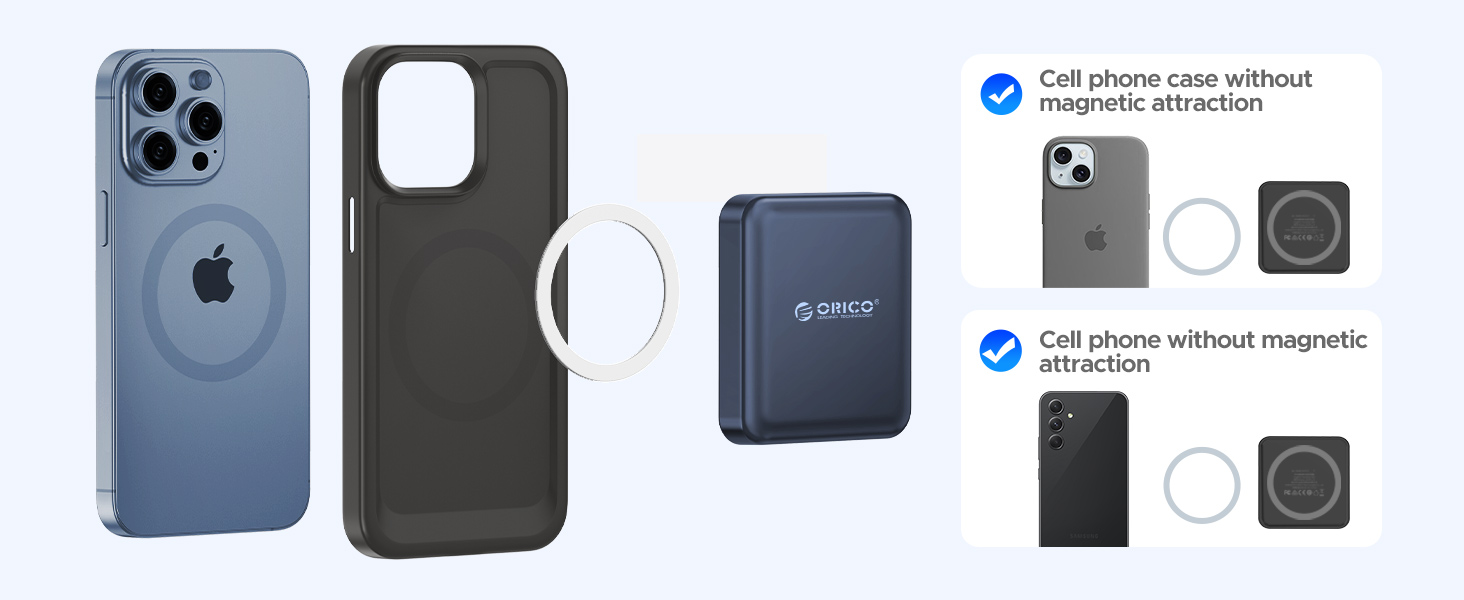
- Eranskin magnetikoa: The ORICO A20PLUS features strong magnetic attraction for compatible devices. Simply align the SSD with the back of your device (e.g., iPhone 15 series) for a secure connection.
- Using the Magnetic Ring: For devices without built-in magnetic attraction (e.g., older iPhone models, Android phones, or cases without magnetic features), attach the included magnetic stripe to the back of your device or phone case. Ensure it is centered for optimal magnetic hold.
- Kablea konektatzea: Connect one end of the provided USB-C to USB-C data cable to the ORICO A20PLUS SSD and the other end to your compatible device (smartphone, tablet, or computer).

Funtzionamendu-argibideak
General Operation (Plug and Play)
The ORICO A20PLUS SSD is designed for plug-and-play functionality. Once connected to a compatible device, it should be recognized automatically as an external storage device. No additional drivers or software are typically required for basic file transferentzia.

iPhone Usage (iPhone 15 Pro/Pro Max and newer)
The ORICO A20PLUS supports 4K ProRes HDR video recording directly from iPhone 15 Pro/Pro Max models. It also allows for easy transfer of existing photos and videos.
- Direct 4K ProRes HDR Recording: Connect the SSD to your iPhone 15 Pro/Pro Max. Open the Camera app, select video mode, and ensure ProRes is enabled. Videos will automatically save to the external SSD.
- Transferring Existing Files:
- Connect the SSD to your iPhone.
- Open the Photos app, select the desired photos/videos.
- Tap the Share icon, then select "Save to Files ".
- Browse and select the ORICO SSD (e.g., named "2TB" or similar) as the destination.
- Tap "Save" to transfer the files.


Android Phone Usage
The ORICO A20PLUS is compatible with USB-C Android smartphones for expanding storage and transferring files.
- Connecting and Accessing: Connect the SSD to your Android phone via the USB-C cable. Access the SSD through your phone's file management application (e.g., "Files" or "My Files"). The SSD will appear as an OTG (On-The-Go) device or external storage.
- Transferitzea Files:
- Zurean file manager, navigate to the filetransferitu nahi duzun.
- Hautatu helburua files.
- Choose the "Copy" or "Move" option.
- Navigate to the ORICO SSD (e.g., "OTG" or the drive's name) and paste the files.

Ordenagailuaren erabilera
Connect the ORICO A20PLUS SSD to your computer (Windows, macOS, Linux) using the provided USB-C cable. The drive will appear as an external storage device, allowing you to drag and drop files for transfer.

Maximizing Transfer Rate
To achieve the maximum transfer speed of 2000MB/s (USB 3.2 Gen2x2), ensure the following:
- Kable bateragarria: Use the provided USB-C to USB-C cable, which supports USB 3.2 Gen2x2 (20Gbps) speeds.
- Interfaze bateragarria: Your host device (smartphone, tablet, or computer) must have a USB 3.2 Gen2x2 (20Gbps) compatible port. The SSD is backward-compatible with lower USB standards, but speeds will be limited by the host device's port.
- Ostalari gailuaren errendimendua: The read and write speeds of the receiving device's internal storage also affect overall transfer rates. For optimal performance, the receiving device's storage should also support high speeds.


Bideo didaktikoa
Video 1: How to use ORICO magnetic external SSD. This video demonstrates the magnetic attachment, connecting the SSD to an iPhone for file transfer and direct recording, and connecting to an Android phone for file transferentzia.
Mantentzea
To ensure the longevity and optimal performance of your ORICO A20PLUS SSD, follow these maintenance guidelines:
- Babes fisikoa: While the SSD offers dust and drop resistance, avoid exposing it to extreme impacts, liquids, or excessive dust.
- Tenperatura: Operate and store the SSD within recommended temperature ranges (typically 0°C to 70°C for operation, -40°C to 85°C for storage).
- Garbiketa: Use a soft, dry cloth to clean the exterior of the SSD. Avoid using harsh chemicals or abrasive materials.
- Kanporaketa segurua: Beti atera SSDa gailutik segurtasunez deskonektatu aurretik, datuak hondatzea saihesteko.
Arazoak konpontzea
If you encounter issues with your ORICO A20PLUS SSD, refer to the following common problems and solutions:
- SSD ez da detektatu:
- Ziurtatu USB-C kablea SSDra eta zure gailura ondo konektatuta dagoela.
- Try using a different USB-C port on your device or a different compatible cable.
- Restart your device (smartphone, tablet, or computer).
- For computers, check Disk Management (Windows) or Disk Utility (macOS) to see if the drive is recognized but unformatted.
- Transferentzia-abiadura motelak:
- Verify that your device's USB-C port supports USB 3.2 Gen2x2 (20Gbps) for maximum speed. Older USB standards will result in lower speeds.
- Ensure you are using the provided high-speed USB-C cable.
- The speed of the internal storage of the device you are transferring to can also be a bottleneck.
- Incompatible with Older iPhones (Lightning Port):
- The ORICO A20PLUS is designed for USB-C devices. It is not directly compatible with iPhones using a Lightning port (iPhone 14 and earlier models). Using third-party adapters may not provide full functionality or power delivery. For these models, ORICO suggests using their LC10 Lightning adapter, though compatibility with this specific SSD is not guaranteed by this manual.
- SSD Gets Warm During Use:
- It is normal for the SSD to become warm during prolonged high-speed data transfers or intensive operations like 4K video recording. This is due to the heat generated by the internal components. If it becomes excessively hot or causes performance issues, discontinue use and contact support.
Zehaztapenak
| Ezaugarri | Xehetasuna |
|---|---|
| Marka | ORIKOA |
| Seriea | A20PLUS |
| Modelo zenbakia | A20PLUS-1TB |
| Disko gogorraren mota | Egoera Solidoko Unitatea |
| Biltegiratze Digitalaren Ahalmena | 1 TB |
| Disko gogorraren interfazea | USB 3.0 (Note: Product supports USB 3.2 Gen2x2 for 2000MB/s) |
| Konektibitate Teknologia | USB-C |
| Ezaugarri Berezia | Portable, Magnetic Attachment, 4K ProRes HDR Recording Support |
| Gailu bateragarriak | USB-C Smartphone (iPhone 15 series, Android), Computer |
| Elementuaren pisua | 3.52 ontza |
| Kolorea | Armada |
Bermea eta Laguntza
ORICO products typically come with a manufacturer's warranty. For specific warranty details, including duration and coverage, please refer to the warranty card included with your product or visit the official ORICO website. For technical support, product inquiries, or service requests, please contact ORICO customer service through their official channels.
Informazio gehiago eta laguntza baliabideak aurki ditzakezu hemen: ORICO Store on Amazon.


