1. Sarrera
This manual provides detailed instructions for the proper setup, operation, and maintenance of your MageGee K2 Wired RGB Backlit 104-Key Ergonomic Keyboard. Please read this manual thoroughly before using the product to ensure optimal performance and longevity.
2. Paketearen edukia
The MageGee K2 Keyboard package includes the following items:
- MageGee K2 Wired RGB Backlit 104-Key Ergonomic Keyboard
- Erabiltzailearen eskuliburua (dokumentu hau)
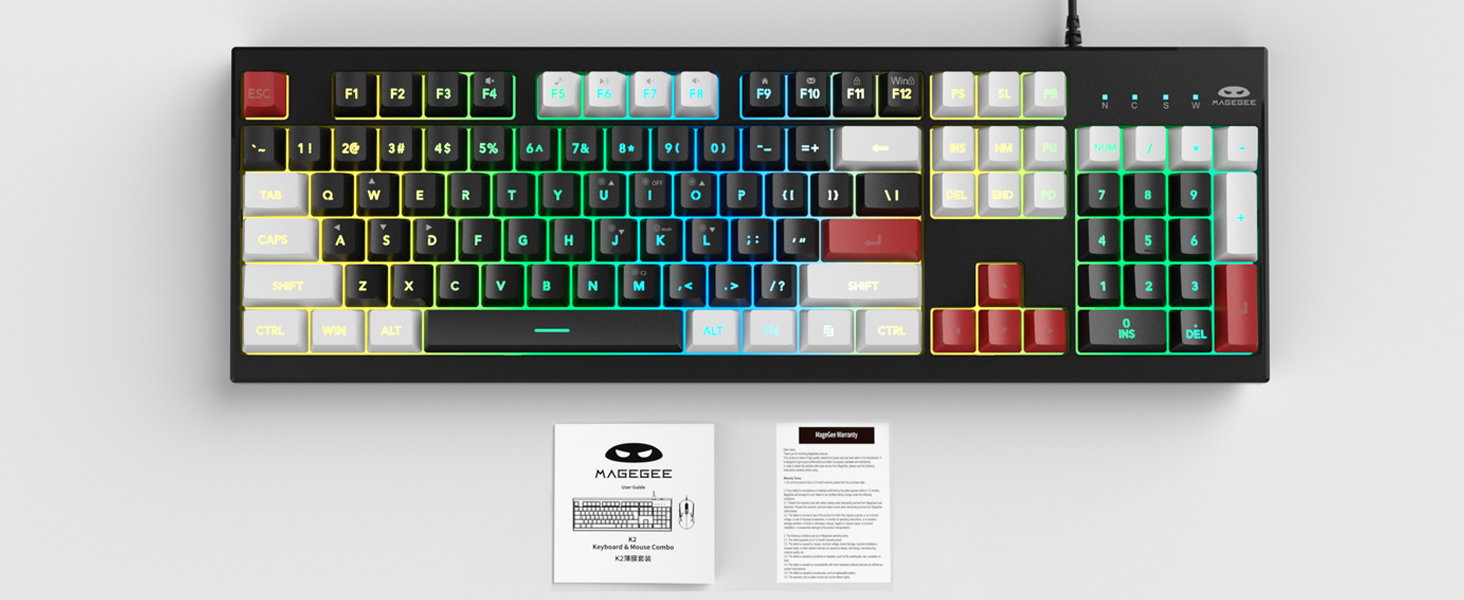
Image: MageGee K2 Keyboard shown with its accompanying user manual.
3. Konfiguratzeko argibideak
3.1 Teklatua konektatzea
- Locate an available USB port on your computer (PC, laptop, or Mac).
- Plug the USB connector of the MageGee K2 keyboard into the USB port.
- The keyboard is plug-and-play and should be automatically recognized by your operating system (Windows 2000/XP/ME/Vista/7/8/10, Android, Linux, Mac). No additional drivers are typically required.
3.2 Teklatuaren altuera doitzea
The keyboard features a foldable bracket at the bottom, allowing you to adjust its height for a more comfortable typing angle.
- To raise the keyboard, gently pull out the foldable feet located on the underside of the keyboard.
- To lower the keyboard, fold the feet back into their recessed positions.

Image: The MageGee K2 Keyboard demonstrating its ergonomic design with adjustable feet.
4. Funtzionamendu-argibideak
4.1 RGB atzeko argiztapenaren kontrola
The MageGee K2 keyboard features vibrant RGB backlighting with multiple modes and brightness levels. Use the following key combinations to control the lighting:
- FN + L: Atzeko argiaren distira handitu.
- FN + J: Atzeko argiaren distira txikitu.
- FN + K: Switch between different backlight modes.
- FN + M: Switch between constant color and multi-color backlight modes.
- FN + I: Turn backlight on/off.

Image: Visual guide to RGB backlight control keys on the MageGee K2 Keyboard.
4.2 Multimedia lasterbideak
Access common multimedia functions quickly using the FN key in combination with the F1-F12 keys:
- FN + F1-F12: Quickly switch between multimedia playback, volume adjustment, and other functions. Refer to the keycap legends for specific functions.
4.3 Anti-Ghosting eta N-Key Rollover
The MageGee K2 keyboard features advanced anti-ghosting technology, allowing up to 19 keys to be pressed simultaneously without conflicts. This ensures accurate and fast input, especially during gaming or rapid typing.
- 19 teklako biraketa: Allows simultaneous pressing of multiple keys without issues.
- FN + W: Switch between the W, A, S, D keys and the arrow keys for enhanced gaming control.
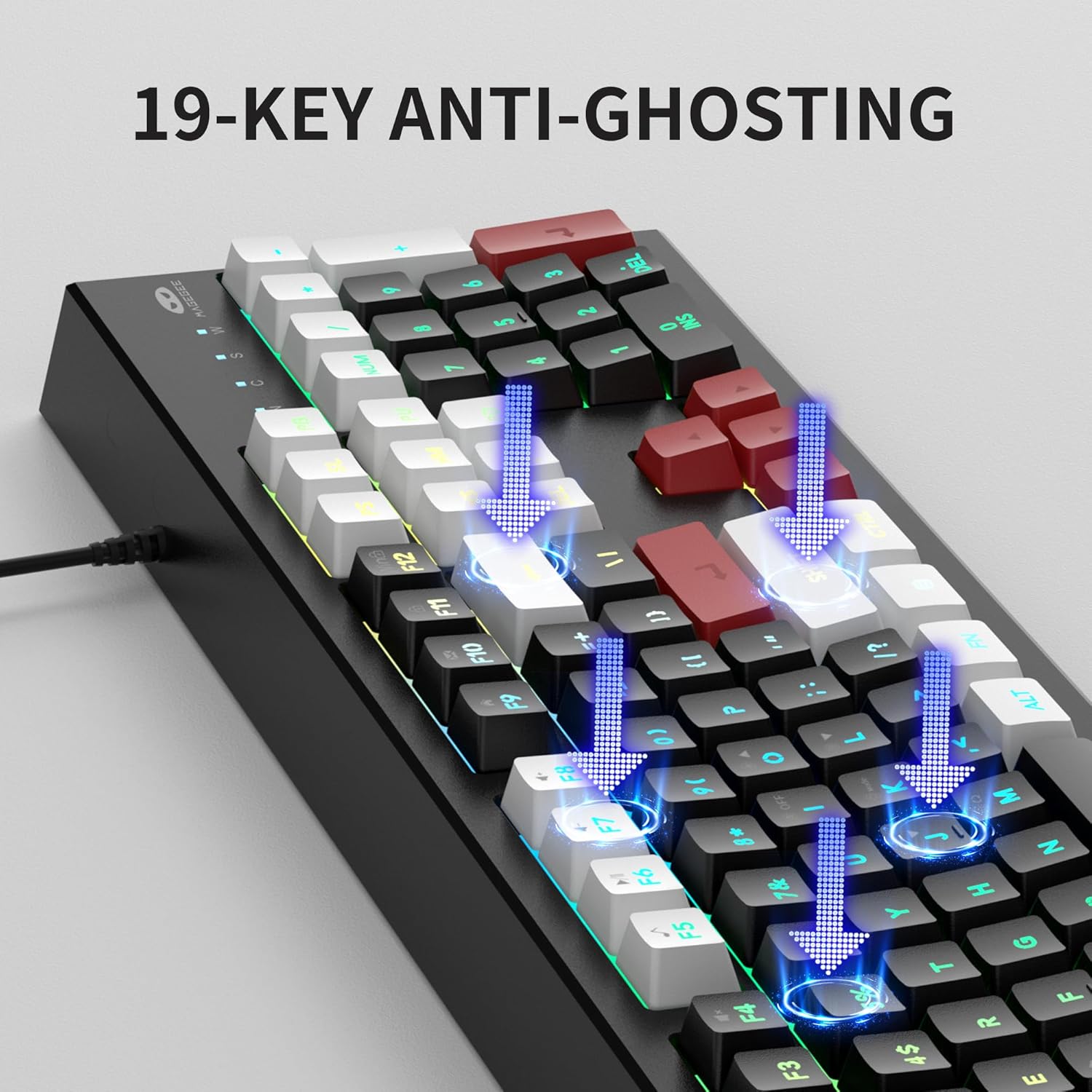
Image: Illustration of 19-key anti-ghosting functionality on the MageGee K2 Keyboard.
4.4 Diseinu ergonomikoa
The keyboard is designed with carefully crafted high and low keys and a stepped layout to provide an ergonomic angle, reducing strain during long typing sessions and promoting comfortable finger movement.
5. Mantentzea
5.1 Teklatua garbitzea
- Deskonektatu teklatua ordenagailutik garbitu aurretik.
- Erabili biguna, damp cloth to wipe the surface of the keyboard. Avoid using harsh chemicals or abrasive materials.
- Teklen arteko garbiketa egiteko, erabili aire konprimatua hautsa eta hondakinak kentzeko.
5.2 Arreta orokorra
- Avoid exposing the keyboard to extreme temperatures, direct sunlight, or high humidity.
- While the keyboard is designed to be waterproof, avoid submerging it in liquids. In case of accidental spills, disconnect immediately and allow it to dry completely before reconnecting.
- Do not attempt to disassemble the keyboard, as this may void the warranty.
6. Arazoak
6.1 Teklatuak ez du erantzuten
- Ziurtatu USB kablea ondo konektatuta dagoela bai teklatuan bai ordenagailuan.
- Saiatu teklatua ordenagailuko beste USB ataka batera konektatzen.
- Berrabiarazi ordenagailua.
- Probatu teklatua beste ordenagailu batean arazoa teklatuan edo jatorrizko ordenagailuan dagoen zehazteko.
6.2 Atzeko argiztapena ez dabil edo okerra da
- Ziurtatu atzeko argia piztuta dagoela erabiliz FN + I.
- Doitu distira erabiliz FN + L (handitzea) eta FN + J (gutxitzea).
- Cycle through different modes using FN + K eta FN + M.
6.3 Giltzak ez dira erregistratzen edo bi aldiz idazten ari dira
- Clean the keyboard as described in the Maintenance section to remove any debris under the keycaps.
- Ensure the keyboard is connected directly to the computer and not through a USB hub, which can sometimes cause power or signal issues.
7. Zehaztapenak
| Ezaugarri | Xehetasuna |
|---|---|
| Marka | MageGee |
| Eredua | K2 |
| Kolorea | Knight Red |
| Konektibitate Teknologia | USB kableduna |
| Teklatuaren deskribapena | Ergonomic, 104 Keys |
| Ezaugarri bereziak | RGB Backlighting, Foldable Bracket, 19-Key Anti-Ghosting, Multimedia Shortcuts |
| Gailu bateragarriak | Gaming Console, Laptop, PC (Win2000, XP, ME, Vista, Win7, Win8, Win10, Android, Linux, Mac) |
| Materiala | Plastikoa |
| Elementuaren pisua | 2.07 kilo |
| Paketearen neurriak | 17.68 x 7.09 x 1.93 hazbete |
| Fabrikatzailea | MAGOA |

Image: Detailed dimensions of the MageGee K2 Keyboard.
8. Produktuaren bideo ofiziala
Bideoa: Produktu ofizialaren bideo-erakustaldiaasing the MageGee K2 PC Gaming Keyboard features and RGB lighting.
9. Bermea eta Laguntza
MageGee products are designed for reliability and performance. For any issues or inquiries, please refer to the following information:
- After-Sales System: The product is supported by MageGee's after-sales system. For specific warranty details or technical support, please contact the retailer or visit the official MageGee webgunea.
- Itzultzeko politika: This product typically comes with a 30-day return policy. Please check with your point of purchase for exact return terms.


