Sarrera
This manual provides essential information for setting up, operating, maintaining, and troubleshooting your CyberpowerPC Gamer Supreme Liquid Cooled Gaming Desktop Computer. Please read this guide thoroughly before using your new system to ensure optimal performance and longevity.
1. Konfigurazioa
1.1 Paketatzea
Carefully remove the computer and all included accessories from the packaging. It is recommended to retain the original packaging for future transport or service needs.
1.2 Periferikoak konektatzea
Jarraitu urrats hauek zure periferiko garrantzitsuak konektatzeko:
- Monitor(s): Connect your monitor(s) to the graphics card ports (HDMI, DisplayPort) located at the rear of the computer. Ensure connections are secure.
- Teklatua eta sagua: Konektatu teklatua eta sagua eskuragarri dauden USB ataka guztietara.
- Beste periferikoak: Connect any other devices such as speakers, external hard drives, or network cables.
- Potentzia: Connect the power cable to the power supply unit (PSU) at the rear of the computer, then plug it into a grounded electrical outlet.

Irudia: Aurrealdea eta albokoa view of the CyberpowerPC Gamer Supreme desktop computer, showcasing the tempered glass panel and internal RGB lighting.
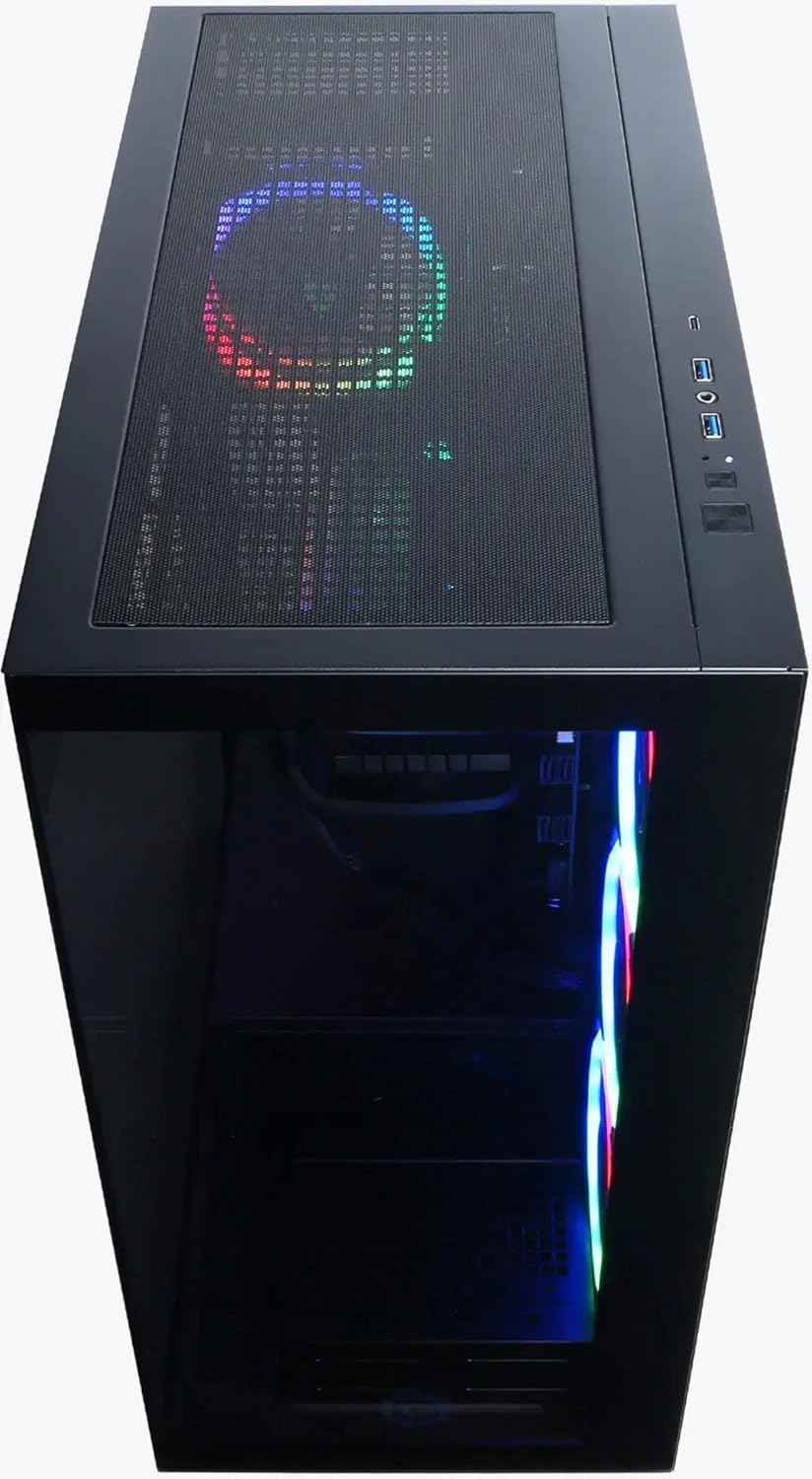
Irudia: Goitik behera view of the CyberpowerPC Gamer Supreme desktop computer, highlighting the top mesh panel for ventilation and the accessible front I/O ports.
1.3 Hasierako abioa
Once all connections are secure, press the power button located on the top or front of the chassis. The system will boot into Windows 11 Home. Follow the on-screen instructions to complete the initial operating system setup.
2. Funtzionamendu-argibideak
2.1 Piztu/Itzali
- Piztu: Sakatu pizteko botoia behin.
- Itzali: In Windows, click the Start button, then select Power > Shut down. Avoid direct power-offs unless absolutely necessary to prevent data corruption.
2.2 Konektibitatea
- USB atakak: Utilize the high-speed USB 3.2 Type-C and Type-A ports for connecting compatible devices such as external storage, gaming peripherals, and mobile devices.
- Haririk gabekoa: The system includes integrated Wi-Fi for network access and Bluetooth for connecting wireless peripherals like headsets and controllers.
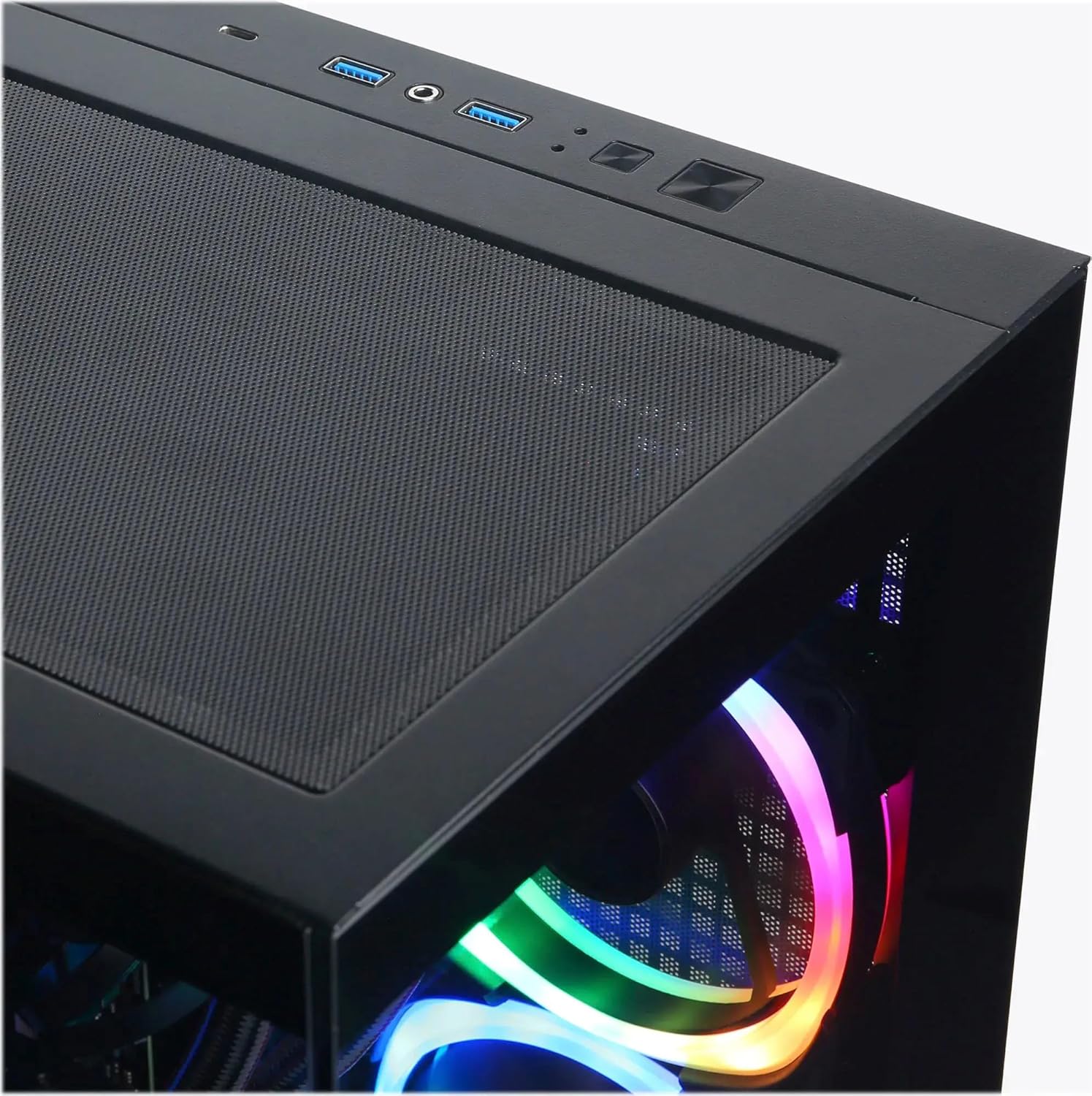
Irudia: Gertuko planoa view of the top I/O ports, showing USB 3.2 Type-A, USB Type-C, and audio jacks for convenient access.
2.3 Errendimenduaren Ezaugarriak
- Prozesadorea: The Intel Core i7-14700F processor provides robust performance for demanding applications and multitasking.
- Grafikoak: The NVIDIA GeForce RTX 5070 Ti graphics card delivers high frame rates and visual fidelity for an immersive gaming experience.
- Biltegiratzea: A 2TB PCIe 4.0 NVMe SSD ensures rapid boot times and quick loading of applications and games.
- Hoztea: The integrated liquid cooling system helps maintain optimal CPU temperatures, preventing thermal throttling during intensive use.
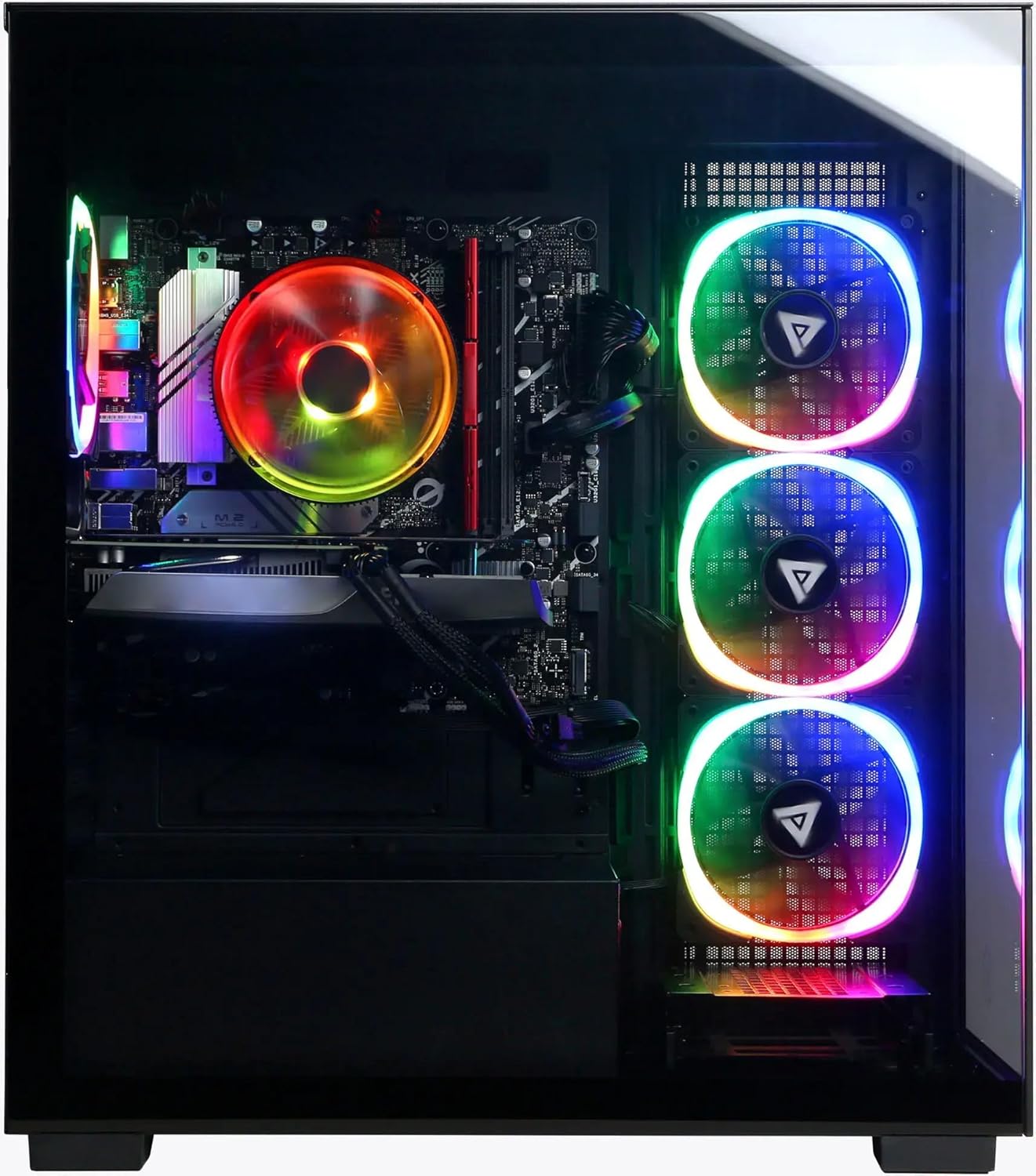
Irudia: Barnealdea view of the CyberpowerPC Gamer Supreme desktop, illustrating the arrangement of key components including the liquid cooling system, RAM, and graphics card.
3. Mantentzea
3.1 Garbiketa
- Regularly clean dust from the exterior surfaces and ventilation grilles using a soft, dry cloth or compressed air.
- Ensure that all fan vents are clear of obstructions to maintain proper airflow.
- Do not open the computer case unless you are familiar with computer hardware, as this may void your warranty or cause damage.
3.2 Software eguneraketak
Keep your Windows 11 operating system and all device drivers (especially graphics drivers) updated to ensure system stability, security, and optimal performance. You can typically find driver updates on the CyberpowerPC or component manufacturer webguneak.
3.3 System Backups
Regularly back up important data to an external storage device or cloud service to prevent data loss.
4. Arazoak
If you encounter issues with your CyberpowerPC system, consider the following common troubleshooting steps:
- Potentziarik gabe: Verify that the power cable is securely connected to both the computer and a working electrical outlet. Ensure the power supply unit (PSU) switch at the rear of the computer is in the 'On' position.
- Ez dago pantailarik: Confirm that your monitor cables are securely connected to the graphics card ports (not the motherboard's integrated video ports). Ensure the monitor is powered on and set to the correct input source.
- Errendimendu motela: Check for excessive background applications, ensure sufficient free space on your primary SSD, and update all drivers.
- Sistemak blokeatzen/matxuratzen du: Ensure all drivers are up to date. Monitor system temperatures to rule out overheating.
For further assistance, refer to the CyberpowerPC support website or contact their technical support department.
5. Zehaztapenak
Key specifications for your CyberpowerPC Gamer Supreme Liquid Cooled Gaming Desktop Computer:
- Prozesadorea: Intel Core i7-14700F (20 Cores, up to 5.4GHz)
- Txartel grafikoa: NVIDIA GeForce RTX 5070 Ti 16GB GDDR7
- RAM: 32 GB DDR5 RAM
- Biltegiratzea: 2TB PCIe 4.0 NVMe SSD
- Sistema eragilea: Windows 11 Home
- Hoztea: Hozteko sistema likidoa
- Konektibitatea: USB 3.2 Type-C, USB 3.2 Type-A, Wi-Fi, Bluetooth
- Marka: CyberpowerPC
- UPC: 811842082976
6. Bermea eta Laguntza
Your CyberpowerPC Gamer Supreme system comes with a limited warranty. For detailed warranty information, product registration, and technical support, please visit the official CyberpowerPC website or contact their customer service department. Keep your purchase receipt and the system's serial number readily available when seeking support.
CyberpowerPC Official Webgunea: www.cyberpowerpc.com


