1. Sarrera
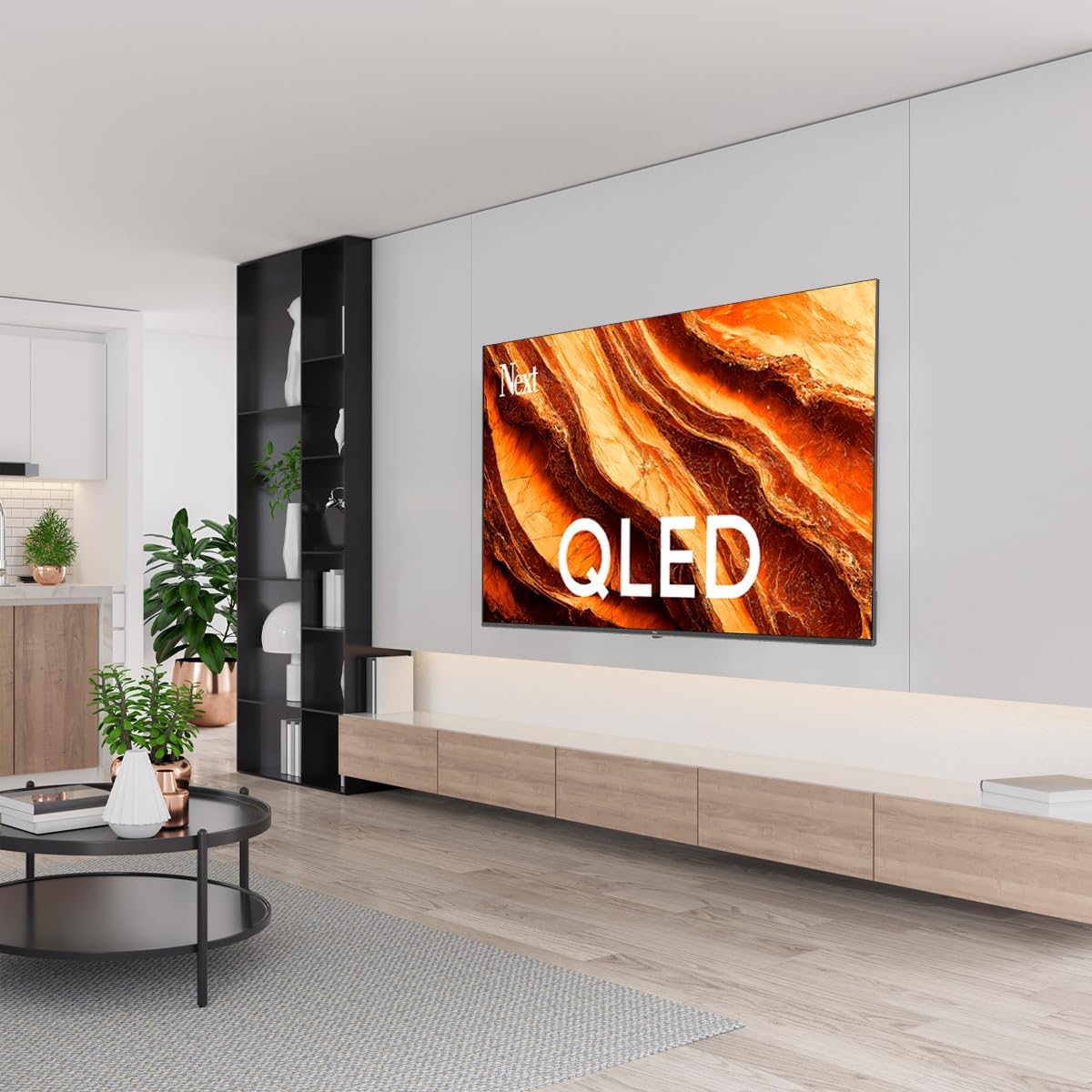
This manual provides essential information for the safe and efficient operation of your Next YE-65GFSG8-QLED 65-inch UHD 4K Google QLED TV. Please read this manual thoroughly before using the television and retain it for future reference. Your new television combines QLED display technology with the Google TV operating system, offering a high-quality viewing experience and smart features.
2. Segurtasun informazio garrantzitsua
Always follow these basic safety precautions when operating your television:
- Energia iturria: Ziurtatu telebista bolumen zehatzeko energia-iturri batera konektatuta dagoela.tagbarrutia.
- Aireztapena: Ez blokeatu aireztapen-irekidurak. Utzi nahikoa leku telebistaren inguruan aire-fluxu egokia izan dadin.
- Ura eta hezetasuna: Ez jarri telebista euripean edo hezetasunean. Ez jarri likidoz betetako objekturik, hala nola loreontziak, telebistaren gainean.
- Garbiketa: Deskonektatu telebista entxufetik garbitu aurretik. Erabili zapi leun eta lehor bat. Ez erabili garbitzaile likidorik edo aerosol garbitzailerik.
- Lekua: Jarri telebista gainazal egonkor eta lau batean. Saihestu eguzki-argitan edo bero-iturrietatik gertu jartzea.
- Tximista: During lightning storms or when unused for long periods, unplug the TV from the power outlet and disconnect the antenna.
- Zerbitzua: Ez saiatu produktu hau zuk zeuk ematen. Bidali zerbitzu guztiak zerbitzu kualifikatuko langileengana.
3. Paketearen edukia
Verify that all items are present in your TV package:
- Next YE-65GFSG8-QLED 65-inch UHD 4K Google QLED TV
- Urruneko Kontrola
- Elikatze-kablea
- Telebista-euskarria (2 pieza) eta torlojuak
- Erabiltzailearen eskuliburua (dokumentu hau)
- Hasierako gida azkarra
4. Konfigurazioa
4.1 Instalazio fisikoa
You can install your TV on a stand or mount it on a wall. Ensure the TV is placed on a stable surface or securely mounted.

Irudia: TV Dimensions. This image illustrates the physical dimensions of the 65-inch television, including its width, height, and diagonal screen size of 164 cm (65 inches).
Standaren instalazioa:
- Kontu handiz jarri telebista aurpegia behera gainazal bigun eta lau batean, pantaila kaltetu ez dadin.
- Attach the two stand pieces to the designated slots on the bottom of the TV.
- Lotu euskarriak emandako torlojuekin.
- Kontu handiz altxa telebista gainazal egonkor batean zutik jarri.
Horman muntatzea:
For wall mounting, use a VESA-compatible wall mount kit (sold separately) that matches the TV's VESA pattern. Follow the instructions provided with your wall mount kit. It is recommended to have professional assistance for wall mounting.
4.2 Periferikoak konektatzea
Connect your external devices to the appropriate ports on the back of your TV.
Irudia: Rear Panel Connections. This image displays the various input and output ports located on the back of the television, including HDMI, USB, DVB-S, DVB-T, CI Module, Mini AV-IN, Optical Out, and Ethernet.
- HDMI (ARC): Connect Blu-ray players, game consoles, or other HDMI devices. HDMI 1 supports Audio Return Channel (ARC).
- USB (2x): Konektatu USB biltegiratze gailuak multimedia erreproduzitzeko.
- DVB-S / DVB-T: Connect satellite (DVB-S) or terrestrial (DVB-T) antenna cables.
- CI Module: Insert a Common Interface (CI) module for encrypted digital channels.
- Mini AV-IN: Connect older devices using an AV adapter cable.
- Irteera optikoa: Connect to an external audio system for digital audio output.
- Ethernet: Konektatu Ethernet kable bat kable bidezko internet konexioa lortzeko.
- Potentzia: Konektatu elikatze-kablea telebistara eta gero hormako entxufe batera.
4.3 Hasierako piztea eta lehen konfigurazioa
- After connecting all cables, plug the power cord into an electrical outlet.
- Sakatu urrutiko agintean edo telebistan pizteko botoia.
- Telebistak hasierako konfigurazio prozesuan zehar gidatuko zaitu, eta horrek honako hauek barne hartzen ditu:
- Hizkuntza hautatzea
- Wi-Fi edo Ethernetera konektatzen
- Signing in with your Google Account (required for Google TV features)
- Baldintzak eta zehaztapenak onartzea
- Channel scanning (for DVB-S/T)
- Jarraitu pantailako argibideei konfigurazioa osatzeko.
5. Zure telebista funtzionatzea
5.1 Urruneko kontrolaren funtzioak
The remote control allows you to navigate the TV's features. Familiarize yourself with its buttons:
- Potentzia: Telebista pizten edo itzaltzen du.
- Google Laguntzailea: Ahots-komandoak aktibatzen ditu.
- Nabigazio-tekla (Gora/Behera/Ezkerra/Eskuina/Ados): Menuetan nabigatzen du eta aukerak hautatzen ditu.
- Itzuli: Aurreko pantailara itzultzen da.
- Hasiera: Google TV-ren hasierako pantailara sartzen da.
- +/- bolumena: Bolumen-maila doitzen du.
- Kanala +/-: Telebistako kateak aldatzen ditu.
- Sarrera: Sarrera iturriak hautatzen ditu (HDMI, AV, etab.).
- Aplikazioaren botoiak: Direct access to popular streaming applications.
5.2 Navigating Google TV Interface
Google TV organizes your entertainment with a personalized home screen. Content from your apps is brought together and organized for easy discovery.

Irudia: Google TV Interface. This image shows the main Google TV home screen with various streaming app icons and content recommendations, demonstrating the user interface.
- Hasierako pantaila: Displays personalized recommendations, installed apps, and quick access to content.
- For You Tab: Provides tailored content suggestions based on your viewohiturak.
- Zuzeneko fitxa: Accesses live TV channels from integrated services.
- Apps Tab: Shows all installed applications. You can download more from the Google Play Store.
- Library Tab: Accesses your purchased or rented content from Google Play.
5.3 Irudi eta soinu ezarpenak
Irudiaren eta soinuaren ezarpenak doitzeko:
- Sakatu Ezarpenak button (usually a gear icon) on your remote.
- Nabigatu Pantaila eta soinua.
- Irudiaren ezarpenak: Adjust brightness, contrast, color, sharpness, and select picture modes (e.g., Standard, Vivid, Movie, Game). Your QLED TV offers enhanced color saturation.
- Soinu ezarpenak: Adjust bass, treble, balance, and select sound modes (e.g., Standard, Music, Movie, Speech).

Irudia: QLED Color Saturation. This image visually demonstrates the high color saturation achieved with QLED technology, showing a vibrant and rich color display.

Irudia: HDR (High Dynamic Range). This image illustrates the visual impact of HDR, showcasing improved contrast and color detail in a scene when HDR is enabled versus when it is off.
5.4 Sarearen ezarpenak
To connect your TV to the internet:
- Sakatu Ezarpenak urruneko botoia.
- Nabigatu Sarea eta Internet.
- Hautatu Wi-Fi to connect to a wireless network or ensure Ethernet is connected for a wired connection.
- For Wi-Fi, select your network from the list and enter the password.
6. Mantentzea
6.1 Telebista garbitzea
- Deskonektatu beti telebista garbitu aurretik.
- Erabili zapi leun, lehor eta lihorik gabeko bat pantaila eta telebistaren gorputza astiro-astiro garbitzeko.
- Marka egoskorretarako, arinki garbituampen the cloth with water or a specialized screen cleaner (ensure it's safe for TV screens). Never spray cleaner directly onto the screen.
- Saihestu garbitzaile urratzaileak, argizariak edo disolbatzaileak erabiltzea.
6.2 Software eguneraketak
Your TV may receive software updates to improve performance and add new features. It is recommended to keep your TV's software updated.
- Ziurtatu zure telebista Internetera konektatuta dagoela.
- Sakatu Ezarpenak urruneko botoia.
- Nabigatu Sistema > Buruz > Sistema eguneratzea.
- Hautatu Egiaztatu eguneratzea.
- Jarraitu pantailan agertzen diren argibideei eskuragarri dauden eguneratzeak deskargatu eta instalatzeko.
7. Arazoak
Telebistarekin arazoak badituzu, jo ezazu honako arazo eta irtenbide ohikoenei:
| Arazoa | Balizko Kausa / Irtenbidea |
|---|---|
| Botererik ez | Check if the power cord is securely plugged into the TV and the wall outlet. Ensure the outlet is working. |
| Ez dago irudirik, baina soinua badago | Check the input source. Ensure the connected device is turned on and functioning correctly. |
| Soinurik ez, baina irudia badago | Check the volume level and mute status. Verify audio cable connections for external devices. Check TV sound settings. |
| Urruneko kontrola ez dabil | Ordeztu bateriak. Ziurtatu ez dagoela oztoporik urrutiko agintearen eta telebistaren IR sentsorearen artean. |
| Ezin da wifira konektatu | Ensure your Wi-Fi router is on and within range. Re-enter the Wi-Fi password carefully. Try restarting the TV and router. |
| Aplikazioak motel doaz edo izozten dira | Close unused apps. Clear app cache (Settings > Apps > See all apps > [App Name] > Clear cache). Ensure a stable internet connection. |
Irtenbide hauek probatu ondoren arazoa konpontzen ez bada, jarri harremanetan bezeroarentzako arreta-zerbitzuarekin.
8. Zehaztapenak
Technical specifications for the Next YE-65GFSG8-QLED 65-inch UHD 4K Google QLED TV:
- Marka: Hurrengoa
- Eredu urtea: 2025
- Ebazpena: 4K (3840x2160)
- Bistaratzeko teknologia: QLED
- Pantailaren tamaina: 65 hazbete (165 cm)
- Aspektu-erlazioa: 16:9
- Freskatze-tasa: 60 Hz
- Ezaugarri nagusiak: Markorik gabeko diseinua
- Konektibitatea: Bluetooth, Ethernet, HDMI (ARC), USB (2x), Wi-Fi
- Produktuaren neurriak: 27.8S x 144.6Z x 88.9A cm
- Pisua: 16.3 kilogramo
- Sistema eragilea: Google TV
- Dakarten osagaiak: Urruneko Kontrola
- Jatorrizko herrialdea: Turkia
9. Bermea eta Laguntza
Your Next YE-65GFSG8-QLED TV comes with a manufacturer's warranty. Please refer to the warranty card included in your package for specific terms and conditions, including the warranty period and coverage details.
For technical support, service requests, or further assistance, please contact Next customer service. Contact information can typically be found on the manufacturer's webgunean edo bermearen dokumentazioan.
- Lineako laguntza: Visit the official Next website for FAQs, troubleshooting guides, and support contact details.
- Zerbitzu Zentroak: For hardware issues, locate an authorized service center near you.


