1. Sarrera
Thank you for choosing the Glacier Weikav Stars75s Mechanical Keyboard. This manual provides essential information to help you set up, operate, and maintain your keyboard. The Stars75s features a premium CNC aluminum case, triple-mode connectivity (Bluetooth, 2.4G wireless, USB-C), customizable RGB lighting, and hot-swappable switches for a personalized typing experience.
2. Paketearen edukia
Mesedez, egiaztatu elementu guztiak zure paketean daudela:
- Glacier Weikav Stars75s Mechanical Keyboard
- Detachable USB-C Cable (Aviator Cable variant shown)
- 2.4G Wireless Receiver (pre-installed in keyboard compartment)
- Tekla-tapoiak ateratzeko / etengailuak ateratzeko tresna
- Erabiltzailearen eskuliburua (dokumentu hau)
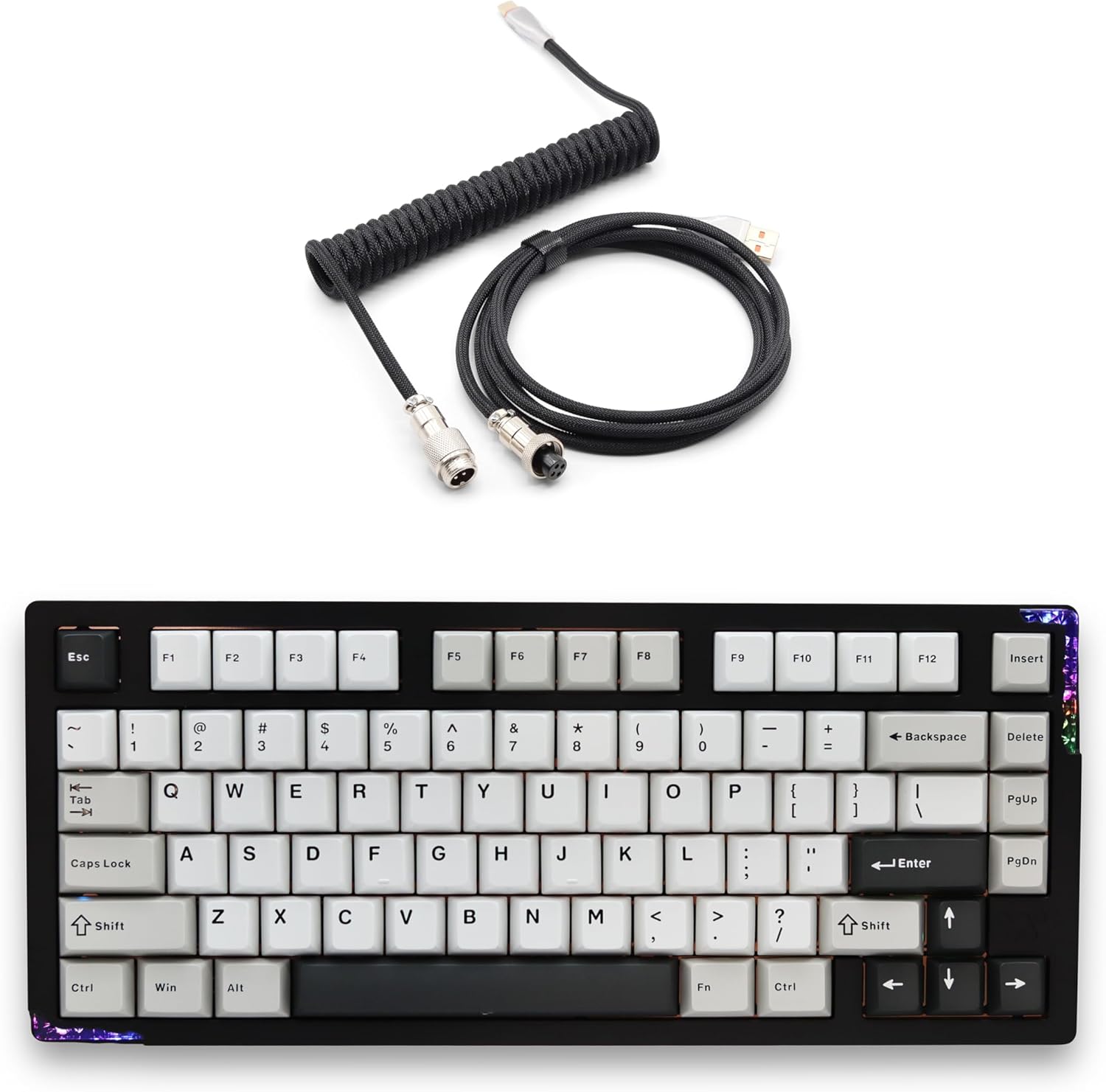
Image: The Glacier Weikav Stars75s mechanical keyboard shown with its detachable aviator USB-C cable.
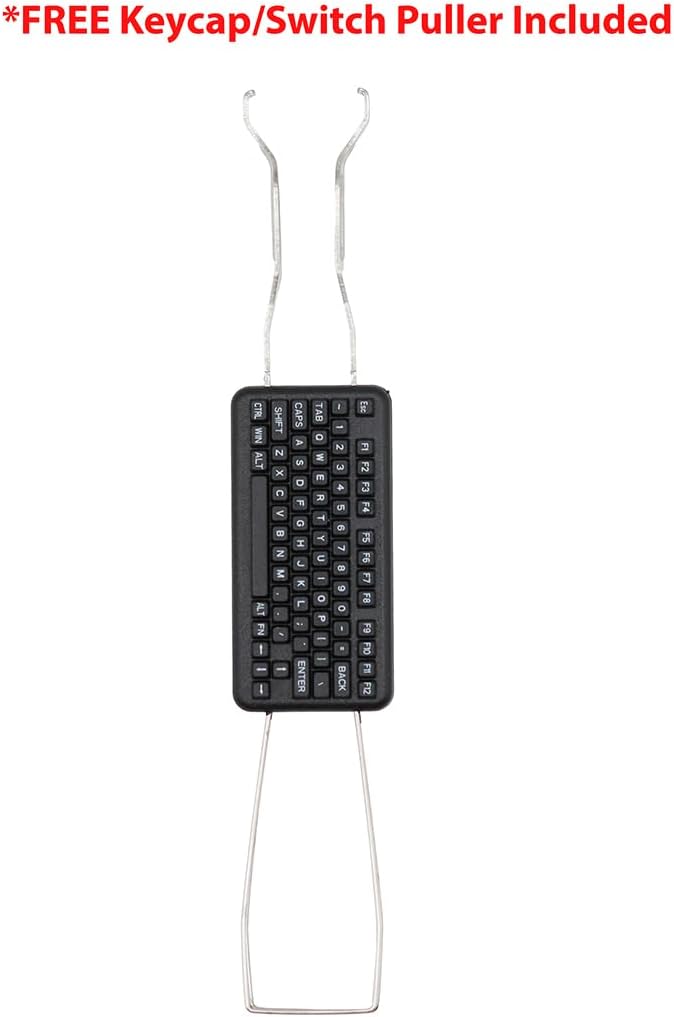
Image: Included keycap and switch puller tool for customization and maintenance.
3. Konfigurazioa eta konexioa
The Glacier Weikav Stars75s supports three connection modes: USB-C wired, 2.4G wireless, and Bluetooth wireless. It is compatible with Mac OS, Windows, Linux, iOS, and Android operating systems.

Image: Visual representation of the keyboard's triple-mode connectivity and broad operating system compatibility.
3.1. USB-C kable bidezko konexioa
- Connect the detachable USB-C cable to the keyboard's USB-C port.
- Konektatu kablearen beste muturra zure ordenagailuko USB-A ataka libre batera.
- Teklatua automatikoki ezagutuko da eta erabiltzeko prest egongo da.
3.2. 2.4G Haririk gabeko konexioa
- Locate the 2.4G wireless receiver. It is stored in a magnetic compartment on the underside of the keyboard.
- Plug the 2.4G receiver into an available USB-A port on your computer.
- Ensure the keyboard's mode switch (usually on the side or back) is set to 2.4G wireless mode.
- The keyboard should connect automatically. If not, press the designated pairing key combination (refer to keyboard specific key combinations, often Fn + 4 or similar) to initiate pairing.

Image: The bottom of the keyboard revealing the magnetic compartment for the 2.4G wireless receiver.
3.3. Bluetooth haririk gabeko konexioa
- Ziurtatu teklatuaren modu-etengailua Bluetooth moduan dagoela ezarrita.
- Zure ordenagailuan edo gailuan, joan Bluetooth ezarpenetara.
- Activate Bluetooth pairing mode on the keyboard. This typically involves holding down a function key combination (e.g., Fn + 1, Fn + 2, or Fn + 3 for different profiles) until an indicator light flashes.
- Select "Glacier Stars75s" (or similar name) from the list of available Bluetooth devices on your computer/device.
- Jarraitu pantailako edozein gomendio parekatzeko prozesua amaitzeko.
3.4. Teklatua kargatzea
The keyboard features a built-in rechargeable battery for wireless operation. Connect the USB-C cable to the keyboard and a powered USB port on your computer or a wall adapter to charge. An indicator light will typically show charging status and turn off when fully charged.
4. Funtzionamendua
4.1. Oinarrizko tekla funtzioak
The Glacier Weikav Stars75s uses a standard QWERTY layout. Many keys have secondary functions accessible via the Fn key. Refer to the keycaps for printed secondary legends.
- Fn+F1-F12: Multimedia controls, volume adjustment, etc.
- Fn + Gezi-teklak: Adjust RGB lighting effects (brightness, speed, mode).
- Fn + Atzera atzera: Delete (if applicable).
- Fn + Pgdwn/Pgup: Page Down/Page Up (if applicable).
4.2. RGB argiztapenaren pertsonalizazioa
The keyboard features customizable RGB underglow lighting. Use the Fn key in combination with specific keys (often arrow keys or dedicated lighting keys) to cycle through various lighting modes, adjust brightness, change speed, and select colors.

Image: The Glacier Weikav Stars75s keyboard showcasing its customizable RGB underglow lighting.
4.3. Beroan alda daitezkeen etengailuak
The Glacier Weikav Stars75s is equipped with hot-swappable sockets, allowing you to change mechanical switches without soldering. This enables customization of your typing feel.
- Using the included keycap puller, carefully remove the desired keycap.
- Using the included switch puller, gently grip the switch from the top and bottom clips and pull it straight up.
- Align the pins of the new switch with the holes in the PCB socket. Ensure the pins are straight.
- Gently push the new switch straight down until it clicks into place. Do not force it.
- Ordeztu giltza-tapoia.
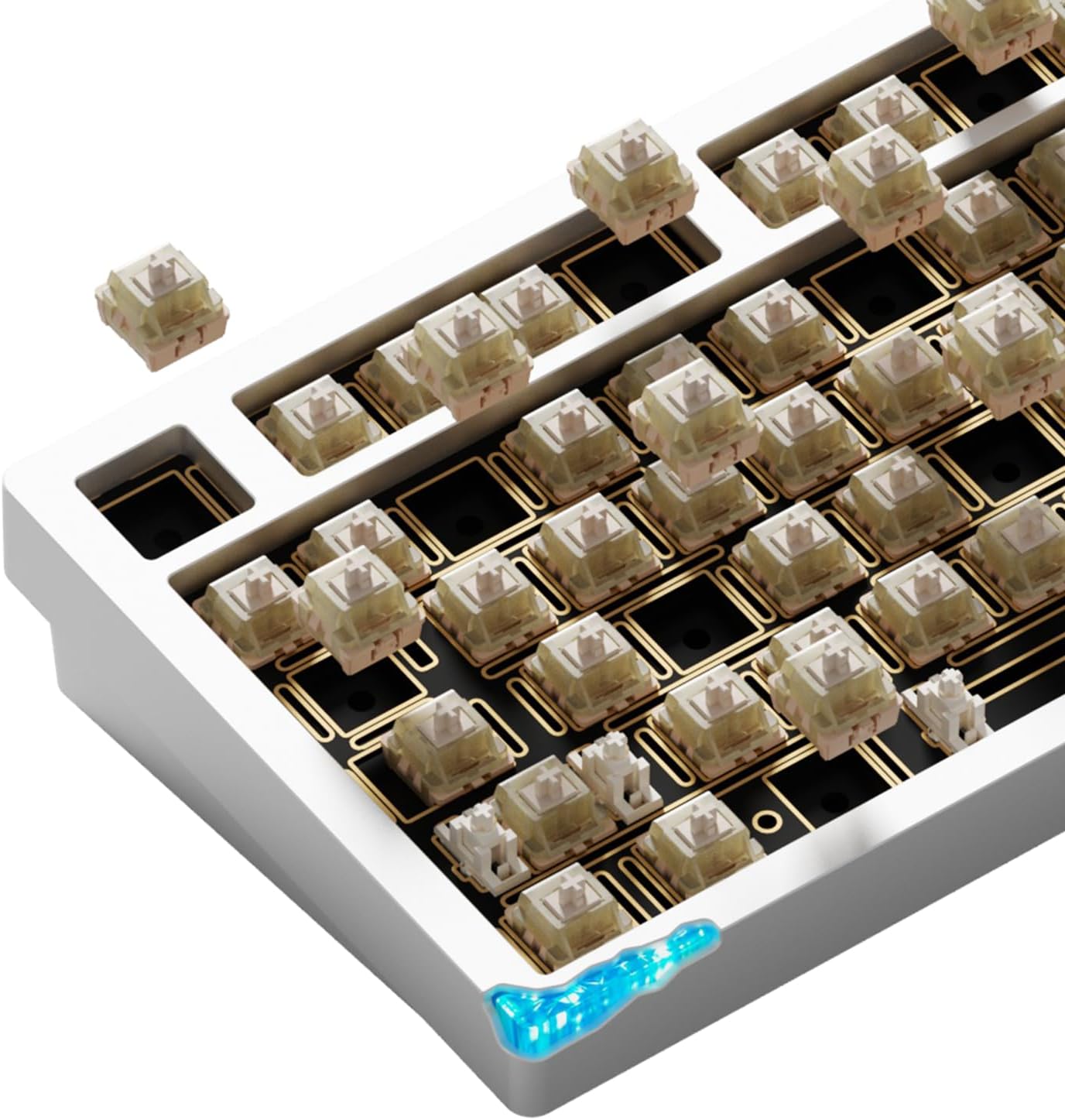
Irudia: Gertutik view of the hot-swappable sockets and switches on the keyboard, illustrating ease of replacement.
Note: Ensure the keyboard is powered off or disconnected before changing switches to prevent damage.
5. Mantentzea
5.1. Garbiketa
- Deskonektatu teklatua ordenagailutik garbitu aurretik.
- Erabili eskuila leun bat edo aire konprimatua teklak estalkien arteko hautsa eta hondakinak kentzeko.
- For stubborn dirt, remove keycaps using the included puller and wipe them with a damp cloth and mild soap solution. Ensure keycaps are completely dry before reattaching.
- Wipe the keyboard case with a soft, slightly damp oihal. Saihestu produktu kimiko gogorrak.
5.2. Etengailuaren eta teklaren estalkien ordezkapena
As detailed in Section 4.3, the hot-swappable design allows for easy replacement of switches. Keycaps can also be replaced to customize the keyboard's appearance. Always use the provided tools to prevent damage.
6. Arazoak
6.1. Teklatuak ez du erantzuten
- Kable modua: Ziurtatu USB-C kablea ondo konektatuta dagoela teklatura eta ordenagailura. Saiatu beste USB ataka edo kable batekin.
- 2.4G Haririk gabeko modua: Verify the 2.4G receiver is plugged in and the keyboard is set to 2.4G mode. Re-pair if necessary (refer to Section 3.2). Check battery level.
- Bluetooth modua: Confirm Bluetooth is enabled on your device and the keyboard is paired. Re-pair if connection is lost (refer to Section 3.3). Check battery level.
- Modu guztiak: Restart your computer. Ensure the keyboard is charged.
6.2. RGB argiztapena ez dabil
- Ensure the lighting is not turned off or set to minimum brightness. Use Fn key combinations to adjust.
- Check if the keyboard's battery is critically low, as some lighting features may be disabled to conserve power.
6.3. Giltzak ez dira erregistratzen edo bi aldiz idazten ari dira
- This could indicate a faulty switch. Use the switch puller to remove the problematic switch and replace it with a new one.
- Ziurtatu etengailua bere entxufean guztiz sartuta dagoela.
- Garbitu etengailuaren entxufearen inguruko hondakin guztiak.
7. Zehaztapenak
| Ezaugarri | Xehetasuna |
|---|---|
| Eredua | Glacier Weikav Stars75s |
| Konektibitatea | Bluetooth, 2.4G haririk gabekoa, USB-C kable bidezkoa |
| Kasu Materiala | CNC Aluminum (6063 aerospace-grade) |
| Muntatzeko estiloa | Leaf Spring Beryllium Copper Mount |
| Giltzak | PBT |
| Etengailuak | Hot-Swappable, Linear Type (QingYun/Rouge variants) |
| Argiztapena | Customizable RGB Underglow |
| Diseinua | QWERTY |
| OS bateragarria | Mac OS, Windows, Linux, iOS, Android |
| Neurriak (gutxi gorabehera) | 15.75 x 6.75 x 3 hazbete |
| Pisua (gutxi gorabehera) | 4.99 kilo |

Image: Detailed specifications for the QingYun and Rouge linear switch types, including spring, lifecycle, travel, and operating force.
8. Bermea eta Laguntza
Glacier products are designed for quality and durability. For warranty information, technical support, or to contact customer service, please visit the official Glacier webgunea edo kontsultatu zure produktuarekin batera datorren berme-txartela.
Era berean, bisitatu dezakezu Glaziar denda Amazonen produktuari buruzko informazio gehigarria eta laguntza-baliabideak lortzeko.


