Sarrera
This manual provides essential instructions for setting up, operating, and maintaining your Epson EcoTank L1270 WiFi printer. Please read this guide thoroughly to ensure proper use and to maximize the performance and longevity of your device. The Epson EcoTank L1270 is an inkjet printer designed for efficient printing with a rechargeable ink tank system and Wi-Fi connectivity.
1. Konfigurazioa
1.1 Inprimagailua desegitea
Carefully remove the printer from its packaging. Ensure all protective tapes and materials are removed from the exterior and interior of the printer. Keep the packaging materials for future transport or storage.
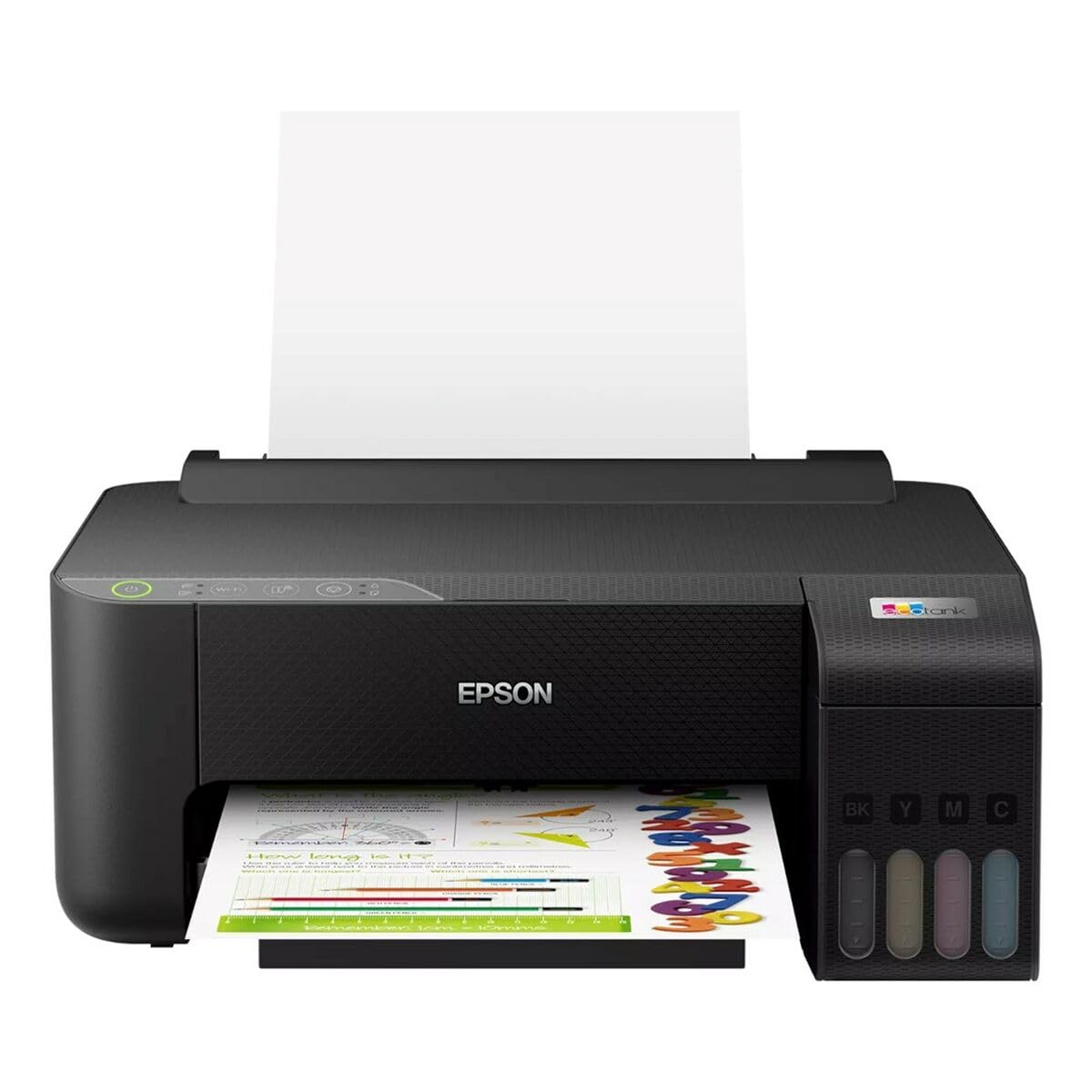
Image 1.1: Epson EcoTank L1270 WiFi Printer. This image shows the printer ready for initial setup after unpacking.
1.2 Tinta-tangak betetzea
EcoTank L1270ak tinta-depositu berriz betetzeko sistema bat erabiltzen du. Jarraitu urrats hauek tinta-deposituak betetzeko:
- Open the ink tank unit cover on the printer.
- Uncap the ink bottle for the corresponding color. Each bottle is keyed to fit only the correct tank.
- Sartu tinta botila betegarri-atakan. Tinta automatikoki hasiko da depositua betetzen. Ez estutu botila.
- Depositua beteta dagoenean, kendu botila eta jarri berriro tapoia. Itxi tinta-deposituaren estalkia.
- Errepikatu kolore guztietarako.
Oharra: Use only genuine Epson ink bottles to prevent damage and ensure optimal print quality.
1.3 Energia-konexioa
Connect the power cord to the printer and then to a wall outlet. Press the power button to turn on the printer. The printer will perform an initial setup process, which may take a few minutes.
1.4 Software eta kontrolatzaileen instalazioa
To use your printer, you need to install the necessary drivers and software on your computer. Visit the official Epson support website for the EcoTank L1270 model to download the latest drivers and utilities. Follow the on-screen instructions provided by the installer.
- Joan zaitez Epson laguntza.
- Bilatu "EcoTank L1270".
- Download and run the recommended driver package.
1.5 Wi-Fi konfigurazioa
The Epson EcoTank L1270 supports Wi-Fi connectivity. You can connect the printer to your wireless network using one of the following methods:
- Using the Printer's Control Panel: Navigate to the Wi-Fi settings on the printer's control panel, select your network, and enter the password.
- Using EpsonNet Setup: If installed, use the EpsonNet Setup utility on your computer to configure the wireless connection.
- WPS (Wi-Fi Babestutako Konfigurazioa): If your router supports WPS, press the WPS button on your router, then follow the instructions on the printer's control panel to establish a connection.
2. Inprimagailuaren funtzionamendua
2.1 Papera kargatzea
Load paper into the rear paper feeder. Ensure the paper guides are adjusted to the width of the paper. The printer supports various paper types and sizes, up to A4.
- Fan the paper stack before loading to prevent misfeeds.
- Do not overload the paper feeder; refer to the maximum capacity (100 sheets for plain paper).
2.2 Dokumentuak inprimatzea
Dokumentu bat ordenagailutik inprimatzeko:
- Ireki inprimatu nahi duzun dokumentua.
- Hautatu "Inprimatu" aplikazioaren menuan (adibidez, File > Inprimatu).
- Choose "Epson EcoTank L1270" as your printer.
- Adjust print settings such as paper size, print quality, and number of copies.
- Egin klik "Inprimatu" aukeran.
2.3 Duplex Printing (Two-Sided Printing)
The EcoTank L1270 supports manual duplex printing. To print on both sides of the paper:
- In your print settings, select the option for "Manual Duplex Printing" or "Print on Both Sides".
- Print the odd-numbered pages first.
- When prompted, reload the printed pages into the paper feeder according to the on-screen instructions to print the even-numbered pages on the reverse side.
3. Mantentzea
3.1 Tinta mailak egiaztatzea
Visually inspect the ink tanks on the front of the printer to check current ink levels. The tanks are transparent, allowing for easy monitoring. Refill ink when levels are low to avoid running out during a print job.
3.2 Tinta-tangak berriz betetzea
When an ink tank is low, purchase genuine Epson replacement ink bottles. Follow the same procedure as described in Section 1.2 "Filling the Ink Tanks".
3.3 Inprimatze-burua garbitzea
If print quality declines (e.g., missing lines, faded colors), perform a print head cleaning. This can be done through the printer's utility software on your computer or via the printer's control panel. Refer to the software's help guide for detailed steps.
3.4 Paperaren ibilbidea garbitzea
If you experience paper jams or streaks on prints, the paper path may need cleaning. Consult the printer's software utility or the online manual for instructions on how to perform a paper path cleaning.
4. Arazoak
Atal honek zure Epson EcoTank L1270 inprimagailuarekin izan ditzakezun arazo ohikoenei buruzko informazioa ematen du.
4.1 Printer Not Printing / Blank Pages
- Tinta mailak egiaztatu: Ensure all ink tanks have sufficient ink.
- Print Head Clogged: Perform a print head cleaning (see Section 3.3).
- Paper Loaded Correctly: Verify paper is loaded properly and not jammed.
- Gidariaren instalazioa: Ensure printer drivers are correctly installed and up to date. Reinstall if necessary.
4.2 Wi-Fi konexio arazoak
- Router Range: Ziurtatu inprimagailua zure Wi-Fi bideratzailearen irismenean dagoela.
- Sareko pasahitza: Double-check that the correct Wi-Fi password has been entered.
- Berrabiarazi gailuak: Try restarting your printer, computer, and Wi-Fi router.
- Reconfigure Wi-Fi: Attempt to set up the Wi-Fi connection again (see Section 1.5).
4.3 Inprimatze-kalitate eskasa
- Inprimatu buruaren garbiketa: Egin inprimatze-burua garbitu eta toberak egiaztatu.
- Paper mota: Ziurtatu inprimatze-ezarpenetarako paper mota zuzena erabiltzen ari zarela.
- Tinta Kalitatea: Use genuine Epson inks for best results.
For more complex issues, refer to the comprehensive online manual on the Epson support webgunearekin edo jarri harremanetan Epson bezeroarentzako arreta-zerbitzuarekin.
5. Zehaztapenak
| Ezaugarri | Xehetasuna |
|---|---|
| Marka | Epson |
| Ereduaren izena | EcoTank L1270 WiFi |
| Inprimatzeko Teknologia | Inkjet |
| Konektibitatea | Wi-Fi |
| Inprimatzeko gehienezko bereizmena (koloretan) | 5760 x 1440 ppp |
| Inprimatzeko gehienezko bereizmena (zuri-beltzean) | 5760 ppp |
| Inprimatzeko abiadura maximoa (monokromoa) | 15 orrialde minutuko |
| Max Paper Capacity | 100 orri (paper arrunta) |
| Duplex Inprimaketa | Bai (eskuzkoa) |
| Ezaugarri Berezia | Rechargeable Ink Tank |
| Neurriak (L x W x H) | 26P x 42,5l x 46H cm (approx.) |
6. Bermearen informazioa
The Epson EcoTank L1270 WiFi printer comes with a limited warranty. For specific terms, conditions, and duration of your warranty, please refer to the warranty documentation included with your product or visit the official Epson support webgunea. Gorde erosketaren egiaztagiria bermearen erreklamazioetarako.
7. Laguntza
Laguntza gehiago lortzeko, euskarri teknikoa lortzeko edo azken kontrolatzaileak eta eskuliburuak deskargatzeko, bisitatu Epsonen euskarri ofiziala. webgunea:
Epsonen laguntza ofiziala Webgunea
You may also find helpful resources and FAQs on their webgunea.


