1. Segurtasun informazio garrantzitsua
This section outlines critical safety precautions for operating the Twotrees TTS-10 Pro Laser Engraver. Failure to follow these instructions may result in serious injury or damage to the equipment.
1.1 Laser segurtasuna
The TTS-10 Pro is a Class 4 laser product. Direct or scattered laser radiation can cause severe eye and skin damage. Always wear appropriate laser safety goggles when the machine is in operation. Never look directly into the laser beam.

Image: Laser safety warning label for the TTS-10 Pro, indicating Class 4 laser radiation and the need to avoid eye or skin exposure.
- Begietako babesa: Always wear certified laser safety goggles that block the specific wavelength of the laser (typically 450nm for blue diode lasers).
- Azala babestea: Avoid direct exposure of skin to the laser beam.
- Itxitura: Operate the engraver in a controlled environment, ideally with a protective enclosure to contain scattered radiation.
- Material sukoiak: Do not engrave or cut highly flammable materials without proper ventilation and fire suppression.
- Aireztapena: Ensure adequate ventilation to remove smoke and fumes produced during engraving/cutting, which can be harmful.
- Gainbegiratzea: Ez utzi inoiz makina arretarik gabe funtzionatzen ari den bitartean.
1.2 Segurtasun elektrikoa
- Erabili emandako korronte-egokigailua soilik.
- Ensure the power supply is stable and matches the machine's requirements (DC 12V, 4A).
- Ez erabili makina esku bustiekin edo lehorrean.amp baldintzak.
2. Produktua amaitu daview
The Twotrees TTS-10 Pro is a high-precision laser engraving and cutting machine designed for various materials including wood, metal, acrylic, glass, and stainless steel. It features a 10000mW laser output, a 0.069mm laser spot, and a maximum engraving speed of 30000mm/min.

Image: The Twotrees TTS-10 Pro Laser Engraver, fully assembled and ready for use.
2.1 Ezaugarri nagusiak
- High Power Laser: 10000mW (10W) LD+FAC+C-Lens compressed spot technology for efficient engraving and cutting.
- Zehaztasuna: 0.069mm ultra-fine laser spot for detailed work.
- Abiadura: Engraving speeds up to 30000mm/min.
- Advanced Mainboard: 32-bit dual-core MCU for faster processing and versatile functions.
- Konektibitatea: Supports online engraving, TF card offline operation, mobile app (MKSLaser), and computer WEB kontrola.
- Softwarearen bateragarritasuna: Compatible with LaserGRBL (Windows) and Lightburn (Windows, Mac).
- Aire laguntzaileko tobera: Integrated metal air assist nozzle for improved cutting penetration and efficiency.
3. Konfiguratzeko argibideak
The Twotrees TTS-10 Pro comes largely pre-assembled. This section guides you through the final steps to prepare your machine for operation.
3.1 Desontziratzea eta ikuskatzea
- Kontu handiz kendu osagai guztiak ontzitik.
- Egiaztatu ontziratze-zerrendan zerrendatutako pieza guztiak daudela eta kalterik gabe daudela.
- Jarri marko nagusia gainazal egonkor eta mailakatu batean.
3.2 Laser moduluen instalazioa
The laser module is typically pre-installed or requires minimal attachment.
- Ensure the laser module is securely fastened to the gantry. Refer to the quick start guide for specific fastening points if not already attached.
- Connect the laser module cable to the designated port on the mainboard.

Image: The laser module, demonstrating its fine spot size for detailed engraving.
3.3 Air Assist Nozzle Attachment (Optional Upgrade)
The TTS-10 Pro includes a metal air assist nozzle. While the core kit does not include an air pump, the nozzle is designed for easy integration with an external air assist system.
- Attach the metal air assist nozzle to the laser module as per the diagram in the quick start guide.
- If using an external air pump (not included), connect the air hose to the nozzle.

Image: The TTS-10 Pro with optional accessories like air assist, which can be integrated using the included nozzle.
3.4 Energia-konexioa
- Konektatu korronte-egokitzailea makinaren sarrera-atakara.
- Entxufatu korronte-egokigailua entxufe elektriko egoki batean.
4. Funtzionamendu-argibideak
This section provides guidance on operating your Twotrees TTS-10 Pro Laser Engraver.
4.1 Softwarearen instalazioa eta konexioa
The TTS-10 Pro is compatible with several software options:
- LaserGRBL: Free software for Windows. Download from the official LaserGRBL webgunea.
- Lightburn: Paid software for Windows and Mac. Download from the official Lightburn webgunea.
- MKSLaser: Mobile app for Android and iOS systems. Download from your device's app store.
- Install your preferred software on your computer or mobile device.
- Connect the engraver to your computer via USB or establish a wireless connection if supported by the software/mainboard.
- Follow the software's instructions to establish communication with the engraver.
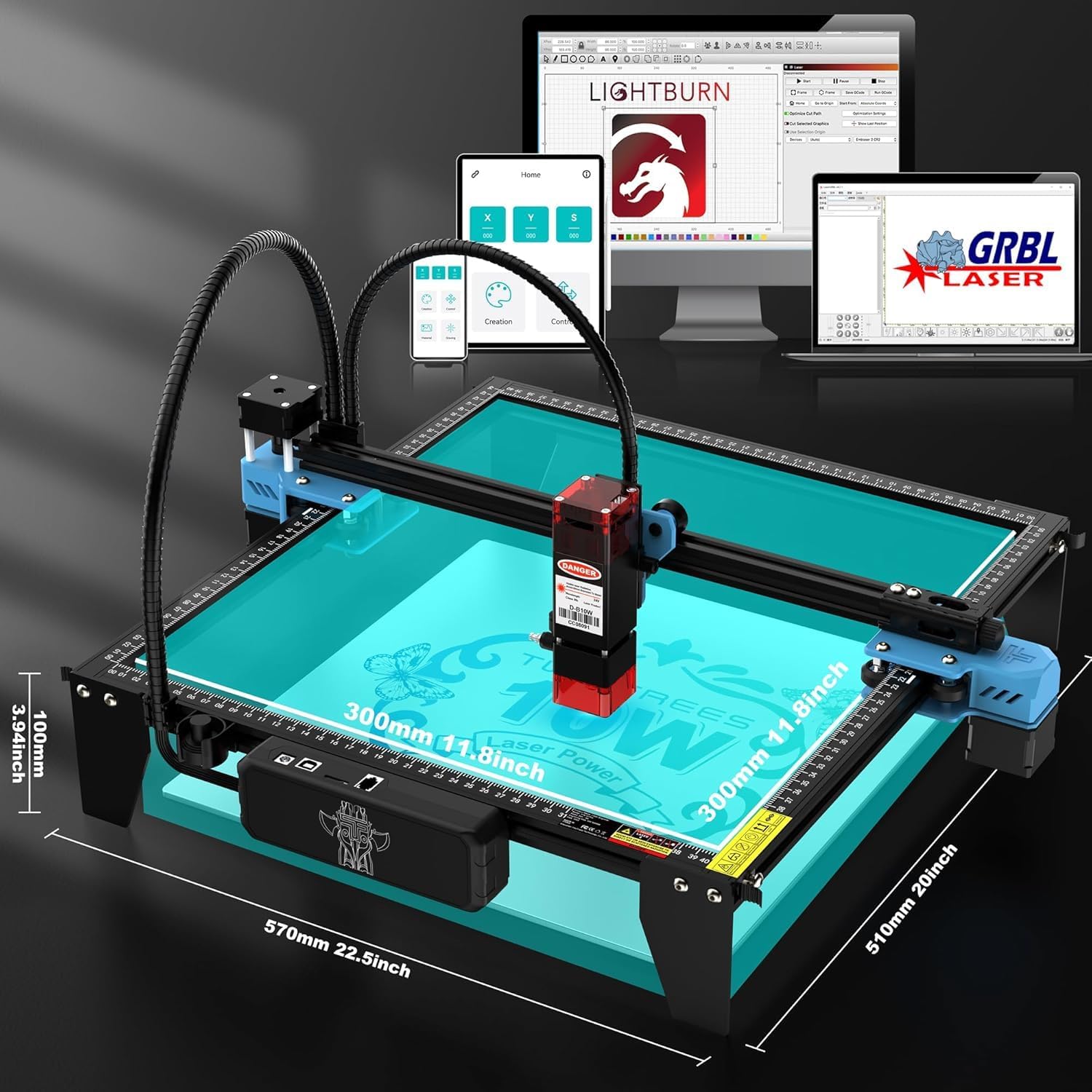
Image: Software compatibility of the TTS-10 Pro, including Lightburn, LaserGRBL, and a mobile application.
4.2 Materialaren prestaketa
- Place the material to be engraved or cut within the working area (300x300mm).
- Ensure the material is flat and securely positioned to prevent movement during operation.
- Doitu laser fokua materialaren lodieraren arabera.
4.3 Grabatu eta ebakitzeko prozesua
- Import or create your design in the chosen software.
- Set the appropriate laser power, speed, and passes for your material. The TTS-10 Pro can cut 8mm plywood and 5mm black acrylic in a single pass.
- Aurreview the engraving path to ensure correct positioning.
- Initiate the engraving/cutting process. Always wear safety goggles during operation.

Image: The TTS-10 Pro demonstrates high-speed and high-quality engraving capabilities compared to other models.
5. Mantentzea
Regular maintenance ensures optimal performance and extends the lifespan of your TTS-10 Pro Laser Engraver.
5.1 Cleaning the Laser Lens
Dust and debris on the laser lens can reduce laser power and engraving quality.
- Maiztasuna: Clean the lens after every 10-20 hours of operation, or if you notice a decrease in performance.
- Prozedura: Use a specialized lens cleaning solution and a lint-free cloth or cotton swab. Gently wipe the lens surface.
5.2 Cleaning the Air Assist Nozzle
The air assist nozzle can accumulate residue from smoke and debris, affecting airflow.
- Maiztasuna: Inspect and clean the nozzle regularly, especially after cutting operations.
- Prozedura: Disconnect the air hose (if applicable) and carefully remove any blockages or buildup from the nozzle opening.
5.3 Rail and Belt Maintenance
The linear rails and belts ensure smooth movement of the laser module.
- Garbiketa: Periodically clean the rails with a soft cloth to remove dust and debris.
- Lubrifikazioa: Apply a small amount of lithium grease or machine oil to the linear rails every few months to ensure smooth operation.
- Gerriko tentsioa: Check the tension of the timing belts. They should be taut but not overly tight. Adjust if necessary.
6. Arazoak
This section addresses common issues you might encounter with your TTS-10 Pro Laser Engraver.
6.1 Laser Not Firing or Weak Output
- Egiaztatu potentzia: Ensure the machine is powered on and the laser module cable is securely connected.
- Software ezarpenak: Verify that the laser power setting in your software is not set too low or to 0.
- Lenteen garbitasuna: A dirty laser lens can significantly reduce output. Refer to Section 5.1 for cleaning instructions.
- Fokua: Ensure the laser is properly focused on the material surface.
6.2 Machine Not Connecting to Software
- USB konexioa: Ensure the USB cable is securely connected to both the machine and the computer. Try a different USB port or cable.
- Gidariak: Egiaztatu beharrezko USB kontrolatzaileak zure ordenagailuan instalatuta daudela.
- Software Port: In your engraving software, ensure the correct COM port is selected.
- Potentzia-zikloa: Turn off both the engraver and your computer, then restart them.
6.3 Poor Engraving/Cutting Quality
- Fokua: Improper focus is a common cause. Re-focus the laser.
- Speed/Power Settings: Adjust laser speed and power settings for the specific material. Too fast or too low power can result in incomplete cuts or faint engravings.
- Materialen bateragarritasuna: Note that diode lasers like the TTS-10 Pro are generally not suitable for cutting clear acrylic. They excel with opaque acrylic, wood, and other materials.
- Material Stability: Ensure the material is not moving during the process.
- Arazo mekanikoak: Check for loose belts or debris on the rails that might cause skipped steps or uneven movement.
6.4 Gantry Movement Issues
- Kableatzea: Inspect all motor and limit switch cables for secure connections and any signs of damage or short circuits.
- Oztopoak: Check the gantry and rails for any physical obstructions.
- Lubrifikazioa: Ensure the linear rails are properly lubricated (see Section 5.3).
7. Zehaztapenak
Detailed technical specifications for the Twotrees TTS-10 Pro Laser Engraver.
| Ezaugarri | Zehaztapena |
|---|---|
| Eredua | TTS-10 Pro |
| Marka | Twotrees |
| Laser irteera potentzia | 10000mW (10W) |
| Laser Klasea | 4. klasea |
| Laser Spot Tamaina | 0.069 mm |
| Grabatu Abiadura | 30000 mm/min arte |
| Lan Eremua | 300 x 300 mm (12 x 12 hazbeteko) |
| Sarrerako balorazioa | DC 12V, 4A |
| Produktuaren neurriak | 20.1 x 7 x 7 hazbete |
| Elementuaren pisua | 7.92 kilo |
| Softwarearen bateragarritasuna | LaserGRBL, Lightburn, MKSLaser App |
| Onartutako materialak | Wood, Metal, Acrylic (opaque), Glass, Stainless Steel, Leather, Paper, Fabric, etc. |


