Sarrera
Thank you for choosing the Rapoo 9390M Wireless Multi-Mode Keyboard and Mouse Combo. This ultra-slim set offers versatile connectivity options, including 2.4 GHz wireless and Bluetooth 4.0/5.0, allowing seamless switching between multiple devices. Designed for efficiency and comfort, this combo features a full-size QWERTZ keyboard with multimedia keys and an ambidextrous optical mouse.
This manual provides essential information for setting up, operating, and maintaining your new Rapoo 9390M combo. Please read it carefully before use.
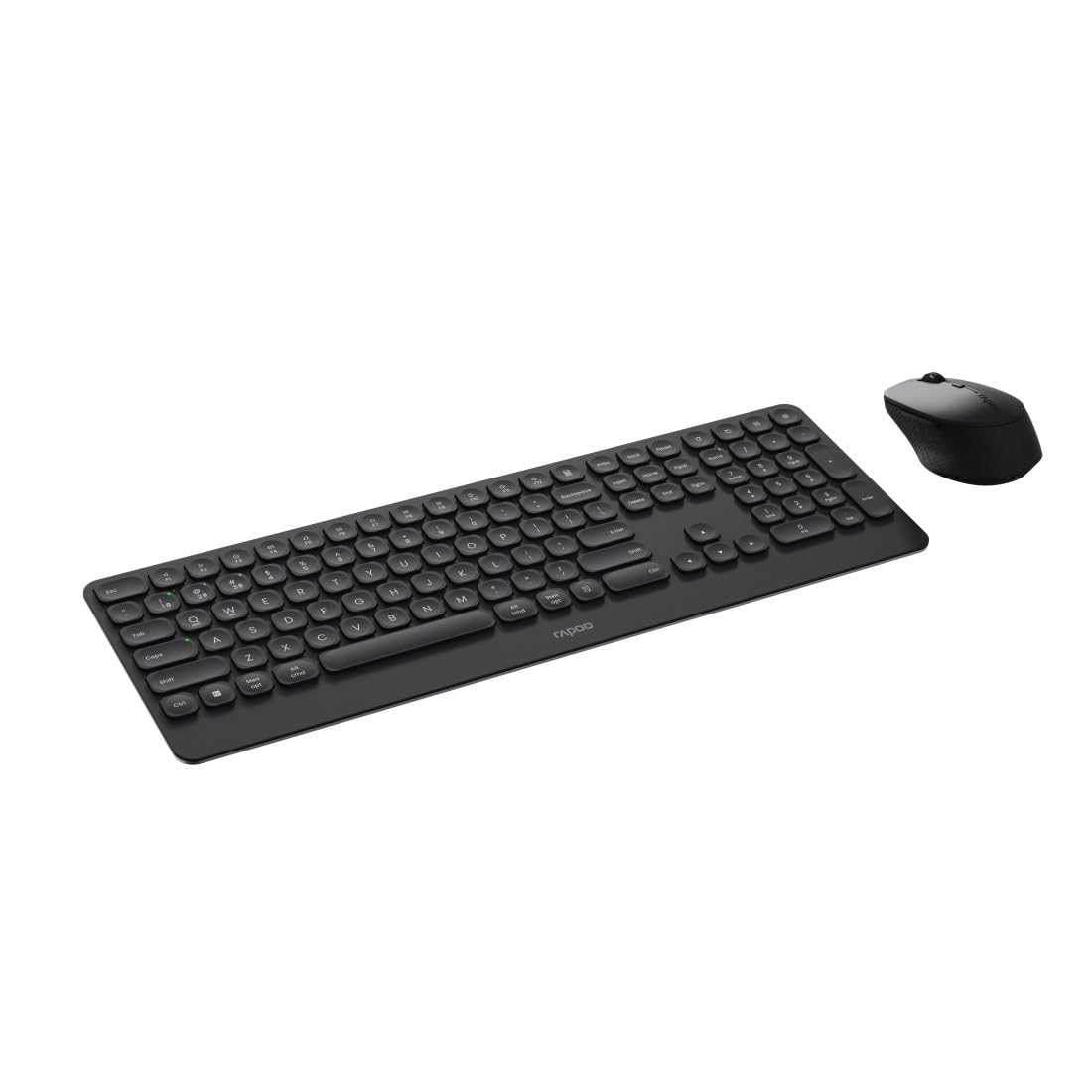
Image: The Rapoo 9390M wireless keyboard and mouse combo, showcasing its sleek design and full QWERTZ layout.
Konfigurazioa
1. Bateriaren instalazioa
The Rapoo 9390M combo requires batteries for operation. Ensure correct polarity when inserting.
- Teklatua: Requires 2 x AAA alkaline batteries.
- Sagua: Requires 1 x AA alkaline battery.
Batteries are included in the package.

Irudia: Alboko profesionalafile of the Rapoo 9390M keyboard and mouse, illustrating their ultra-slim design. Battery compartments are typically located on the underside of each device.
2. Gailuak konektatzea
The Rapoo 9390M supports multi-mode connectivity: 2.4 GHz wireless via USB receiver and Bluetooth 4.0/5.0.
2.1. 2.4 GHz-ko haririk gabeko konexioa
- Insert the USB receiver into an available USB Type-A port on your computer or device.
- Piztu teklatua eta sagua dagokien pizteko etengailuak erabiliz.
- Gailuak automatikoki konektatu beharko lirateke zure ordenagailura.
2.2. Bluetooth konexioa
The keyboard can pair with up to 3 Bluetooth devices, and the mouse with up to 2.
Keyboard Bluetooth Pairing:
- Piztu teklatua.
- Luze sakatu fn+1, fn+2, edo fn+3 for 3 seconds to select a Bluetooth channel. The indicator light will flash slowly.
- Open Bluetooth settings on your device (PC, laptop, tablet, TV).
- Bilatu "Rapoo BT3.0 Keyboard" or "Rapoo BT5.0 Keyboard" and select to pair.
- Behin parekatuta, adierazle-argiak keinu egiteari utziko dio.
Mouse Bluetooth Pairing:
- Piztu sagua.
- Press the Bluetooth pairing button on the underside of the mouse. The indicator light will flash slowly.
- Ireki Bluetooth ezarpenak zure gailuan.
- Bilatu "Rapoo BT3.0 Mouse" or "Rapoo BT5.0 Mouse" and select to pair.
- Behin parekatuta, adierazle-argiak keinu egiteari utziko dio.
Funtzionamendu-argibideak
1. Konektatutako gailuen artean aldatzea
The Rapoo 9390M allows you to switch between multiple connected devices (up to 4 for keyboard, 3 for mouse, including 2.4 GHz).
- Teklatua: Sakatu fn+1, fn+2, fn+3 (for Bluetooth devices) or fn+4 (for 2.4 GHz USB receiver) to switch between paired devices.
- Sagua: Press the mode switch button on the underside of the mouse to cycle between Bluetooth 1, Bluetooth 2, and 2.4 GHz modes.
2. Teklatuaren funtzioak
The keyboard features a full QWERTZ layout with 110 keys, including a numeric keypad and dedicated function keys.
- Multimedia teklak: Use the function keys (F1-F12) in combination with the Fn key to access multimedia controls (e.g., volume, play/pause, browser).
- Browser Buttons: Dedicated keys for browser functions may be present.

Irudia: Goitik behera view of the Rapoo 9390M keyboard and mouse, highlighting the QWERTZ key layout and mouse button configuration.
3. Saguaren funtzioak
The optical mouse features 5 buttons, including a scroll wheel, and adjustable DPI.
- DPI doikuntza: The mouse supports a DPI range of up to 2400. A dedicated DPI button (often located near the scroll wheel) allows you to cycle through different sensitivity levels.
- Diseinu anbidistroa: The mouse is designed for comfortable use by both right-handed and left-handed users.
Mantentzea
1. Garbiketa
Errendimendu eta iraupen optimoa bermatzeko, mantendu teklatua eta sagua garbi.
- Erabili lipurrik gabeko zapi leun bat dampurarekin edo garbiketa-soluzio leun batekin jarri.
- Saihestu produktu kimiko gogorrak, garbitzaile urratzaileak edo gehiegizko hezetasuna.
- Teklatuarentzat, erabili aire konprimatua teklen arteko hautsa eta hondakinak kentzeko.
2. Bateria ordezkatzea
When the battery indicator light flashes or performance degrades, it's time to replace the batteries.
- Open the battery compartment on the underside of the keyboard (2x AAA) and mouse (1x AA).
- Remove the old batteries and dispose of them responsibly according to local regulations.
- Insert new alkaline batteries, ensuring correct polarity.
- Itxi bateriaren konpartimendua ongi.
Arazoak konpontzea
Konexio-arazoak
- No connection (2.4 GHz): Ensure the USB receiver is securely plugged into a working USB port. Try a different USB port. Ensure the keyboard and mouse are powered on.
- No connection (Bluetooth): Ensure Bluetooth is enabled on your device. Re-initiate the pairing process as described in the Setup section. Ensure the keyboard/mouse is in Bluetooth mode and not 2.4 GHz mode.
- Konexio etengabea: Move the devices closer to the receiver/device. Avoid placing the devices near other wireless interference sources (e.g., Wi-Fi routers, other wireless peripherals).
Input Not Registering / Lag
- Check batteries: Low batteries can cause performance issues. Replace them if necessary.
- Aldaketa moduak: Ensure the keyboard and mouse are set to the correct connection mode (2.4 GHz or Bluetooth) for the device you are using.
- Berrabiarazi gailuak: Turn off and on the keyboard, mouse, and your computer/device.
Zehaztapenak
| Ezaugarri | Deskribapena |
|---|---|
| Eredua | 9390M |
| Konektibitatea | 2.4 GHz RF (USB Type-A receiver), Bluetooth 4.0, Bluetooth 5.0 |
| Teklatuaren diseinua | QWERTZ (German) |
| Teklatuaren teklak | 110 keys, Scissor mechanism, Laser engraved keycaps |
| Teklatuaren Ezaugarriak | Multimedia keys, Browser buttons, Ultra-slim design, Aluminum base |
| Saguaren sentsorea | Optikoa |
| Sagua DPI | 2400 DPI arte |
| Saguaren botoiak | 5 buttons (including scroll wheel) |
| Saguaren diseinua | Ambidextrous, High-quality plastic |
| Eragiketa-eremua | Gehienez 10 metro |
| OS bateragarritasuna | Windows XP / Vista / 7 / 8 / 10 / 11 |
| Energia iturria | Battery powered (Alkaline) |
| Pilak barne | Yes (2x AAA for keyboard, 1x AA for mouse) |
| Keyboard Dimensions (W x D x H) | 42.6 x 14.3 x 2 cm |
| Teklatuaren pisua | 409 g |
| Mouse Dimensions (W x D x H) | 6.6 x 10.4 x 3.7 cm |
| Saguaren pisua | 60 g |
Bermea eta Laguntza
For warranty information and technical support, please refer to the warranty card included in your product packaging or visit the official Rapoo webgunea. Gorde erosketaren egiaztagiria bermearen erreklamazioetarako.


