1. Sarrera
This manual provides detailed instructions for the installation, operation, and maintenance of your BlackVue DR970X-2CH Plus II Dash Cam. Please read this manual thoroughly before using the product to ensure proper functionality and safety.
2. Paketearen edukia
Egiaztatu elementu guztiak zure produktuaren paketean daudela:
- BlackVue DR970X-2CH Plus II Front Dash Cam
- Atzeko kamera
- Car Mount (for front camera)
- USB-C korronte kablea
- Atzeko kameraren konexio-kablea
- MicroSD Card (size may vary based on purchase)
- MicroSD txartelaren irakurgailua
- Kable Klipak
- Muntatzeko zinta ordezkoa
- Pry tresna
- Hasierako gida azkarra

Image: The BlackVue DR970X-2CH Plus II Dash Cam, including front and rear cameras, a microSD card, and a smartphone displaying the app interface.
3. Konfigurazioa eta instalazioa
3.1 MicroSD Card Insertion
- Ziurtatu kamera itzalita dagoela.
- Locate the microSD card slot on the side of the front camera.
- Insert the microSD card with the gold contacts facing away from the lens until it clicks into place.

Image: The BlackVue DR970X-2CH Plus II Dash Cam showing the microSD card slot and a microSD card, illustrating the large storage capacity up to 1TB.
3.2 Aurreko kameraren instalazioa
- Choose a mounting location on your windshield, ideally behind the rearview ispilua, ziurtatu ez duela zure ikusmena oztopatzen view.
- Clean the windshield surface thoroughly.
- Attach the front camera mount to the windshield using the adhesive tape. Press firmly for at least 30 seconds.
- Slide the front camera onto the mount until it locks securely.
- Adjust the camera angle to ensure the road ahead is centered in the view.
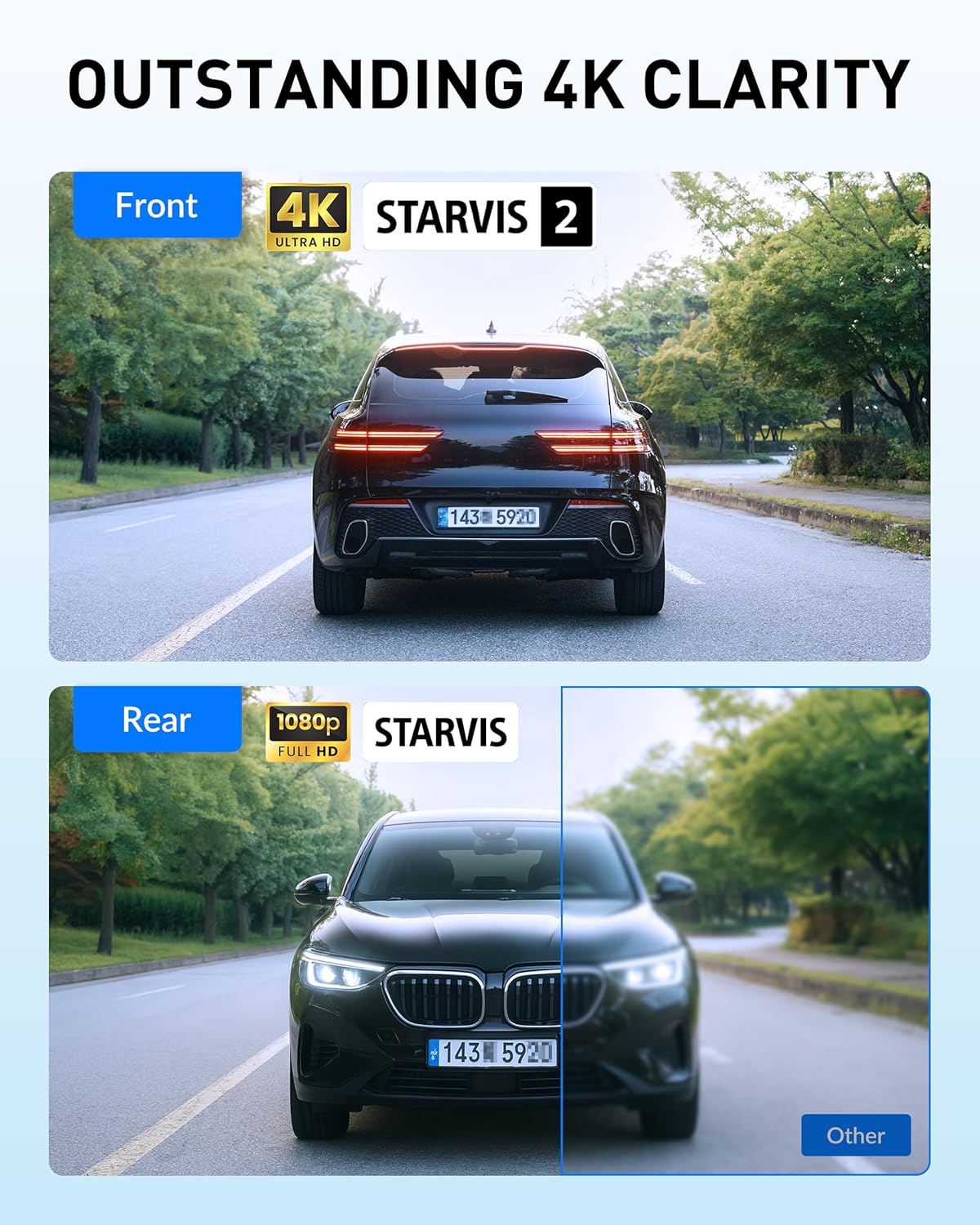
Image: The BlackVue DR970X-2CH Plus II front camera mounted discreetly behind a rearview mirror, showing its compact design.
3.3 Atzeko kameraren instalazioa
- Mount the rear camera on your rear windshield, ensuring a clear view atzean dagoen errepidearena.
- Connect the rear camera to the front camera using the provided coaxial cable. Route the cable neatly along the vehicle's headliner and pillars using the pry tool and cable clips.

Image: A diagram illustrating the routing of the rear camera cable from the front dash cam along the vehicle's interior to the rear camera.
3.4 Energia-konexioa
Connect the USB-C power cable to the front camera and then to your vehicle's cigarette lighter socket or a dedicated USB-C power port. For advanced features like Parking Mode, hardwiring is recommended (hardwiring kit sold separately).

Image: The BlackVue USB-C power cable and car charger, highlighting the easy installation process for the dash cam.
4. Funtzionamendu-argibideak
4.1 Grabaketa automatikoa
The dash cam automatically starts recording when the vehicle's ignition is turned on. Video files are saved in segments and overwrite the oldest files when the microSD card is full (loop recording).
4.2 Video Quality Features: 4K UHD, STARVIS 2, and HDR
The front camera records in 4K UHD (3840x2160) and features the STARVIS 2 sensor and High Dynamic Range (HDR) technology. These technologies work together to provide exceptional clarity, detail, and balanced exposure in various lighting conditions, from bright daylight to low-light environments. The rear camera records in Full HD (1920x1080).

Image: Comparison showing the enhanced clarity and detail provided by HDR and STARVIS 2 technology in the BlackVue DR970X-2CH Plus II, capturing license plates clearly in varying light.
4.3 Aparkaleku modua
When properly hardwired (with a hardwiring kit, sold separately), the dash cam enters Parking Mode when the ignition is turned off. It records motion and impacts, providing surveillance for your parked vehicle. Time-lapse recording is also available for efficient storage.

Image: Illustration of the Smart Parking Surveillance feature, showing the dash cam recording motion, impacts, and time-lapse footage while the vehicle is parked.
4.4 Gertaerak grabatzea
The built-in G-sensor detects sudden impacts or changes in vehicle speed, triggering event recording. These files are protected from being overwritten by loop recording. The system includes 10 seconds of pre-buffering to capture events leading up to an incident.

Image: Visual representation of the Smart Event Recording feature, showing a collision scenario and how the dash cam captures critical footage before and during the event.
4.5 Wi-Fi and Cloud Connectivity
The dash cam features built-in Wi-Fi for direct connection to your smartphone via the BlackVue App. This allows for live view, video playback, and settings adjustments. For remote access, connect the dash cam to a mobile hotspot or the optional CM100G LTE module (sold separately) to utilize BlackVue Cloud features such as Live View, Remote Playback, Auto Backup, and real-time Push Notifications.

Image: A smartphone screen displaying the BlackVue app interface, showing live view and notifications from the dash cam, illustrating Wi-Fi and Cloud connectivity.
5. Mantentzea
5.1 MicroSD txartelaren kudeaketa
Regularly format the microSD card (at least once a month) using the BlackVue App or Viewer software to maintain optimal performance and prevent errors. Use only BlackVue-branded microSD cards for guaranteed compatibility and reliability.
5.2 Firmware eguneraketak
Keep your dash cam's firmware updated to ensure access to the latest features and improvements. Firmware updates can be performed via the BlackVue App or by manually loading the firmware onto the microSD card.
5.3 Garbiketa
Gently clean the camera lenses with a soft, lint-free cloth. Avoid using harsh chemicals or abrasive materials that could damage the lens coating.
6. Arazoak
- Dash Cam does not power on: Check the power cable connection to both the dash cam and the vehicle's power outlet. Ensure the vehicle's ignition is on if not hardwired.
- Grabaketa arazoak: Ensure the microSD card is inserted correctly and is not full. Format the microSD card regularly. If issues persist, try a different BlackVue-branded microSD card.
- Wi-Fi konexio arazoak: Ensure Wi-Fi is enabled on the dash cam and your smartphone. Try restarting both devices.
- Bideoaren kalitate eskasa: Ensure the lenses are clean. Check that the camera angle is correctly adjusted. Verify that the firmware is up to date.
- Dash Cam requires firmware update after initial setup: Some units may require a firmware update for optimal performance. Follow the instructions in the BlackVue App or on the BlackVue webfirmwarea eguneratzeko gunea.
7. Zehaztapenak
| Ezaugarri | Deskribapena |
|---|---|
| Ereduaren izena | DR970X-2CH Plus II |
| Aurrealdeko kameraren bereizmena | 4K UHD (3840x2160) |
| Atzeko kameraren bereizmena | HD osoa (1920x1080) |
| Aurreko sentsorea | GOSEA 2 |
| Bideo-kodeketa | HEVC (H.265), AVC (H.264) |
| Konektibitatea | Wi-Fi, Cloud (via external module) |
| Ezaugarri bereziak | HDR, Fast USB-C Boot, G-Sensor, Smart Parking Mode, Up to 1TB microSD support |
| Biltegiratzea | Supports up to 1TB microSD card (sold separately) |
| Produktuaren neurriak | 7.8" L x 4.8" W x 4" H |
| Elementuaren pisua | 1.87 kilo |
| Fabrikatzailea | Pittasoft |
8. Bermea eta Laguntza
BlackVue products are manufactured by Pittasoft. For warranty information, technical support, or service inquiries, please refer to the official BlackVue webwebgunera edo jarri harremanetan bezeroarentzako arreta-zerbitzuarekin zuzenean. Gorde erosketaren frogagiria berme-erreklamazioetarako.
For additional resources and frequently asked questions, visit the official BlackVue support page.


