1. Sarrera
Thank you for choosing the PRIXTON Prado XL 15.6-inch Digital Photo Frame. This manual provides essential information for setting up, operating, and maintaining your device. Please read it carefully before use to ensure optimal performance and longevity of your digital photo frame.
The PRIXTON Prado XL features a vibrant 15.6-inch Full HD IPS touchscreen display, offering clear and vivid image reproduction. With built-in Wi-Fi, 32GB of internal memory, and support for both photos and videos, it allows you to easily share and display your cherished memories. The frame also includes integrated speakers and multiple input options, including USB Type-C, USB-A, and an SD card slot, providing versatile ways to manage your content.
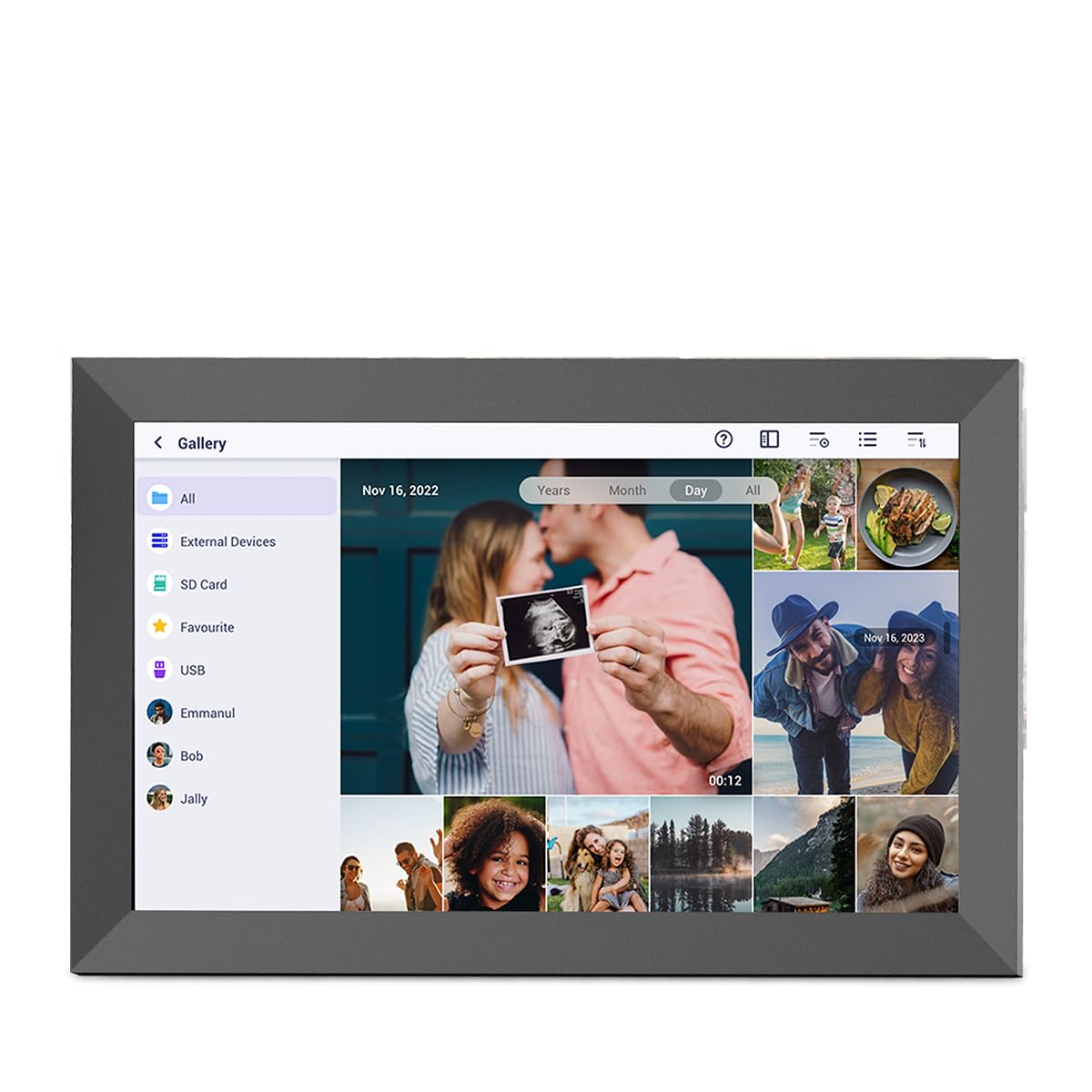
Image: The PRIXTON Prado XL digital photo frame showcasinga familia argazkia.
2. Paketearen edukia
Mesedez, markatu laukitxoa elementu hauetarako:
- PRIXTON Prado XL 15.6-inch Digital Photo Frame
- Elikatze-moldagailua
- Erabiltzailearen eskuliburua (dokumentu hau)
3. Produktua amaitu daview
Familiarize yourself with the various ports and controls on your digital photo frame.

Image: Back panel of the frame, highlighting the power button, USB-A, USB-C, SD card slot, and headphone jack.
Funtsezko osagaiak:
- Pizteko botoia: Located on the back, used to turn the frame on/off or put it into sleep mode.
- USB-A ataka: For connecting USB flash drives to transfer photos and videos.
- USB C motako ataka: For connecting compatible devices or for data transfer.
- SD txartelaren zirrikitua: For inserting SD cards to display or transfer media.
- Aurikularrak Jack: Kanpoko audio gailuak konektatzeko.
- DC potentzia sarrera: Korronte-egokigailua konektatzeko.
- Horman muntatzeko zuloak: Markoa horman muntatzeko.
4. Konfigurazioa
4.1 Piztea
- Connect the power adapter to the DC Power Input port on the back of the frame.
- Entxufatu korronte-egokigailua hormako entxufe batera.
- The frame will automatically power on. If not, press and hold the Power Button for a few seconds.
4.2 Hasierako konfigurazioa
Upon first startup, you will be guided through the initial setup process:
- Aukeratu hizkuntza: Aukeratu nahiago duzun hizkuntza zerrendatik.
- Konektatu wifira: Select your Wi-Fi network and enter the password. A stable internet connection is required for app functionality and software updates.
- Ezarri data eta ordua: Configure the correct date, time, and time zone.
4.3 Connecting with the Uhale App
The Uhale app allows you to easily send photos and videos directly to your frame from your smartphone.
- Deskargatu aplikazioa: Bilatu "Uhale" in your smartphone's app store (iOS or Android) and install it.
- Sortu kontu bat: Open the Uhale app and follow the instructions to create a new user account.
- Parekatu markoa: On your digital photo frame, navigate to the "Settings" menu and find the "Bind Device" or "Add Device" option. This will display a unique code or QR code.
- Enter Code/Scan QR: In the Uhale app, select "Add Device" and either manually enter the code displayed on your frame or use your phone's camera to scan the QR code.
- Behin parekatuta, argazkiak eta bideoak zure markora bidaltzen has zaitezke.

Image: A smartphone screen showing the Uhale app interface next to the digital photo frame.
5. Markoaren funtzionamendua
5.1 Ukipen-pantailaren nabigazioa
The Prado XL features a responsive touchscreen for easy navigation:
- Sakatu: Select an item or open a menu.
- Pasatu hatza: Navigate through photos, menus, or lists.
- Zoom egiteko apur bat egin: Zoom in or out on photos (if supported by software).
5.2 Argazkiak eta bideoak gehitzea
There are several ways to add media to your frame:
5.2.1 Via Uhale App
- Open the Uhale app on your paired smartphone.
- Hautatu bidali nahi dituzun argazkiak edo bideoak.
- Tap the "Send" or "Share" button to transfer them to your frame.
- The media will appear on your frame shortly, provided it is connected to Wi-Fi.
5.2.2 Via USB Drive or SD Card
- Insert a USB flash drive into the USB-A port or an SD card into the SD card slot.
- The frame will detect the external storage. Navigate to the "Gallery" or "Files" section.
- Select the desired photos or videos and choose to copy them to the frame's internal memory.

Image: User interacting with the Uhale app to send content to the digital photo frame.
5.3 Managing Content and Slideshows
- Galeria: Access all your stored photos and videos. You can view them individually or start a slideshow.
- Ezabatu: Select unwanted media and choose the delete option.
- Diapositiba-aurkezpenaren ezarpenak: Customize slideshow duration, transition effects, and playback order in the settings menu.

Image: The digital photo frame displaying a lively birthday party scene.
6. Ezarpenen menua
Access the settings menu by tapping the gear icon on the home screen. Here you can configure various aspects of your frame:
- Pantaila: Adjust brightness, screen sleep time, and display mode.
- Wi-Fi: Kudeatu zure sareko konexioak.
- Data eta ordua: Manually set or synchronize date and time.
- Biltegiratzea: View internal storage usage and manage external storage devices.
- Honi buruz: View device information, including software version and model number.
7. Mantentzea
7.1 Pantaila garbitzea
Ukipen-pantaila garbitzeko, astiro-astiro zapi leun eta pelusik gabeko batekin garbitu. Orban egoskorrak lortzeko, apur bat garbitu.ampGarbitu zapi bat urarekin edo pantailarentzat segurua den garbiketa-soluzio batekin. Saihestu produktu kimiko gogorrak edo material urratzaileak erabiltzea.
7.2 Software eguneraketak
Ensure your frame is connected to Wi-Fi to receive automatic software updates. Updates provide new features, performance improvements, and bug fixes. You can manually check for updates in the "Settings" > "About" menu.
8. Arazoak
| Gaia | Irtenbide posiblea |
|---|---|
| Markoa ez da pizten. | Ziurtatu korronte-egokitzailea ondo konektatuta dagoela markora eta funtzionatzen duen korronte-entxufe batera. Saiatu beste entxufe batekin. |
| Ezin da wifira konektatu. | Check if your Wi-Fi router is on and working. Re-enter the Wi-Fi password carefully. Move the frame closer to the router. |
| Argazkiak/bideoak ez dira agertzen. | Verify that the media has been successfully uploaded via the app or copied from USB/SD. Check file formats for compatibility. Ensure the frame is connected to Wi-Fi if using the app. |
| Ukipen-pantailak ez du erantzuten. | Restart the frame by holding the power button. Ensure the screen is clean and free of debris. |
| Frame is slow or freezes. | Restart the frame. Clear some internal storage if it is nearly full. |
9. Zehaztapenak
| Ezaugarri | Xehetasuna |
|---|---|
| Modelo zenbakia | 10006183 |
| Bistaratzeko tamaina | 15.6 hazbetekoa |
| Bistaratzeko mota | IPS ukipen-pantaila |
| Ebazpena | 1920x1080 Full HD |
| Barne Memoria | 32GB Flash |
| RAM | 1 GB |
| Konektibitatea | Wi-Fi |
| Portuak | USB Type-C, USB-A, SD Card Slot, Headphone Jack |
| Audioa | Bozgorailu Integratuak |
| Neurriak (L x W x H) | 14 x 21 x 2.51 cm |
10. Bermea eta Laguntza
PRIXTON products are designed and manufactured to the highest quality standards. For information regarding warranty coverage, please refer to the warranty card included with your product or visit the official PRIXTON webgunea.
If you encounter any issues or have questions not covered in this manual, please contact PRIXTON customer support for assistance. You can find contact details on the PRIXTON webgunea edo zure erosketa plataformaren bidez.
Lineako laguntza: Visit the PRIXTON Store on Amazon


