1. Sarrera
Welcome to the user manual for your new XIAOMI Redmi 15C smartphone. This guide provides essential information to help you get started, operate, maintain, and troubleshoot your device. Please read this manual carefully to ensure optimal performance and longevity of your smartphone.
Ezaugarri nagusiak:
- Massive 6000mAh (typ) battery with 33W fast charging support.
- Immersive 6.9-inch display with up to 120Hz refresh rate.
- Powerful octa-core processor for smooth performance.
- 50MP AI dual camera system for high-quality photos.
- Sleek and refined design.
2. Konfigurazio gida
2.1 Zer dago kutxan
Upon unboxing your Redmi 15C, verify that the following items are included:
- XIAOMI Redmi 15C telefonoa
- USB kablea
- SIM txartela ateratzeko tresna (eskualdearen arabera alda daiteke)
- Hasierako gida azkarra (dokumentu hau)
Note: A charger is not included with this device and must be purchased separately. For optimal charging, use a 33W compatible charger.
2.2 SIM txartela sartzea
- Bilatu SIM txartelaren erretilua zure gailuaren alboan.
- Sartu SIM txartela ateratzeko tresna erretiluaren ondoko zulo txikian eta sakatu ondo erretilua atera arte.
- Place your Nano-SIM card(s) and/or microSD card into the tray with the gold contacts facing down. Ensure they are correctly aligned.
- Kontu handiz bultzatu erretilua berriro zirrikituan, gailuarekin berdindu arte.
2.3 Hasierako piztea eta konfigurazioa
- Sakatu eta eutsi pizteko botoiari XIAOMI logotipoa agertu arte.
- Jarraitu pantailan agertzen diren argibideei zure hizkuntza eta eskualdea hautatzeko, Wi-Fi sarera konektatzeko eta zure Google kontua konfiguratzeko.
- You will be guided through setting up security features like a PIN, pattern, fingerprint, or face unlock.
2.4 Gailua kargatzea
Lehenengo aldiz erabili aurretik, gomendagarria da gailua guztiz kargatzea.
- Konektatu USB kablea telefonoaren kargatzeko atakara.
- Connect the other end of the USB cable to a compatible 33W power adapter (sold separately) and plug it into a power outlet.
- Kargatzeko adierazlea pantailan agertuko da.
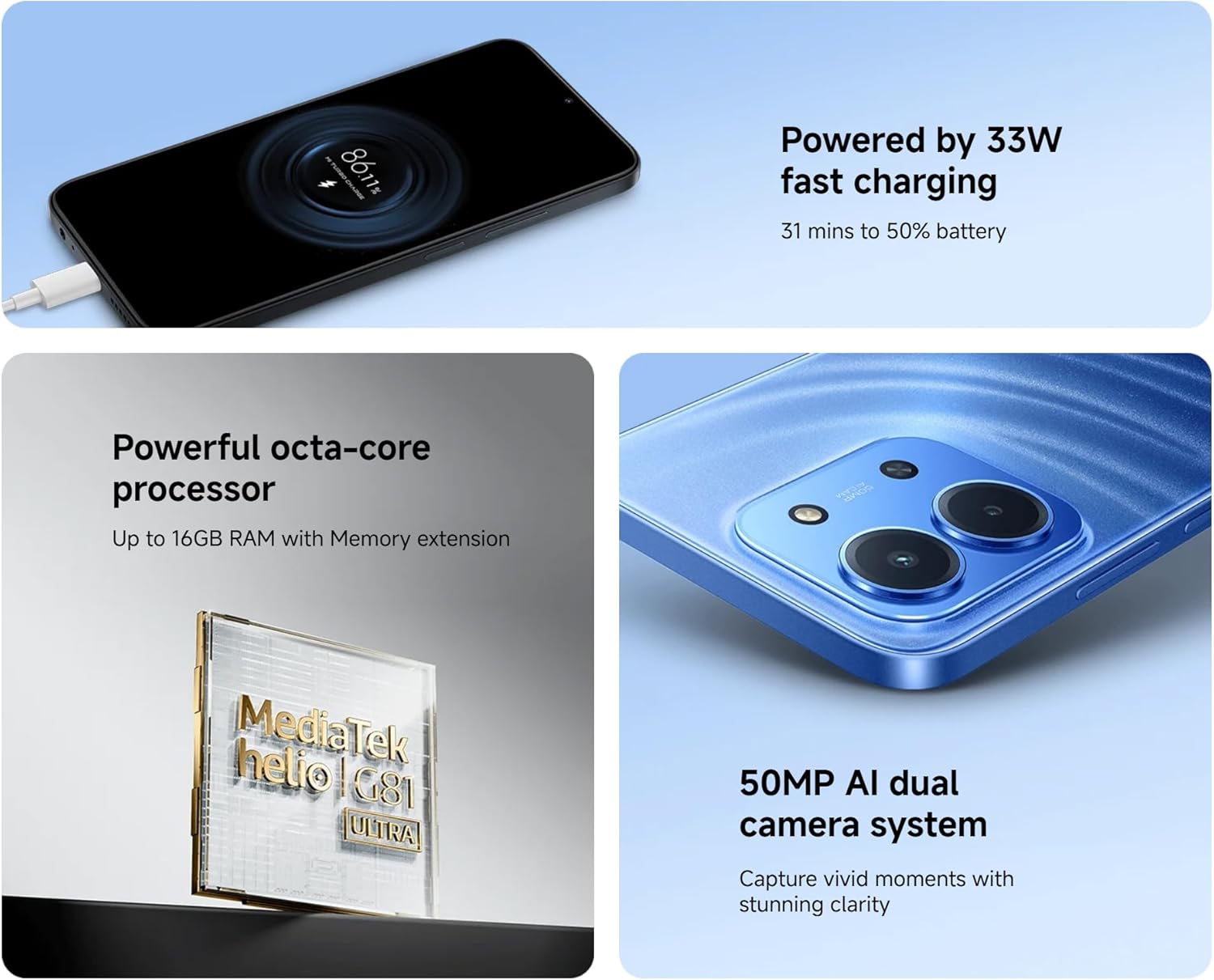
Image: The Redmi 15C connected to a charger, displaying a charging animation indicating 33W fast charging capability.
3. Zure gailua funtzionatzea
3.1 Oinarrizko nabigazioa
- Ukipen-pantailaren keinuak: Swipe, tap, pinch-to-zoom are standard.
- Pizteko botoia: Sakatu pantaila esnatzeko/lo hartzeko. Sakatu eta eutsi itzaltzeko edo berrabiarazteko.
- Bolumen-botoiak: Doitu multimedia bolumena, dei bolumena edo tonuaren bolumena.
3.2 Deiak egitea eta mezuak bidaltzea
- Open the 'Phone' app to dial numbers or select contacts.
- Open the 'Messages' app to compose and send SMS/MMS messages.
3.3 Kameraren erabilera
Your Redmi 15C features a 50MP AI dual camera system.
- Ireki 'Kamera' aplikazioa.
- Hautatu nahi duzun modua (Argazkia, Erretratua, Bideoa, etab.).
- Sakatu obturadorearen botoia argazkiak ateratzeko edo bideo grabazioa hasteko/gelditzeko.

Irudia: Gertutik view of the XIAOMI Redmi 15C's dual camera module, highlighting its 50MP AI capabilities.
3.4 Bistaratzeko Ezaugarriak
The 6.9-inch immersive display offers a smooth visual experience with up to a 120Hz refresh rate.
- Adjust display settings (brightness, color scheme, refresh rate) in 'Settings > Display'.
- AdaptiveSync technology automatically adjusts the refresh rate for optimal viewing and battery efficiency.

Image: The XIAOMI Redmi 15C's large 6.9-inch display, showcasing its immersive viewesperientzia.
3.5 Bateriaren kudeaketa
6000 mAh-ko bateriak erabilera luzeagoa eskaintzen du. Bateriaren iraupena optimizatzeko:
- Use 'Battery Saver' mode when needed.
- Reduce screen brightness and screen timeout.
- Itxi atzeko planoan exekutatzen ez diren aplikazioak.
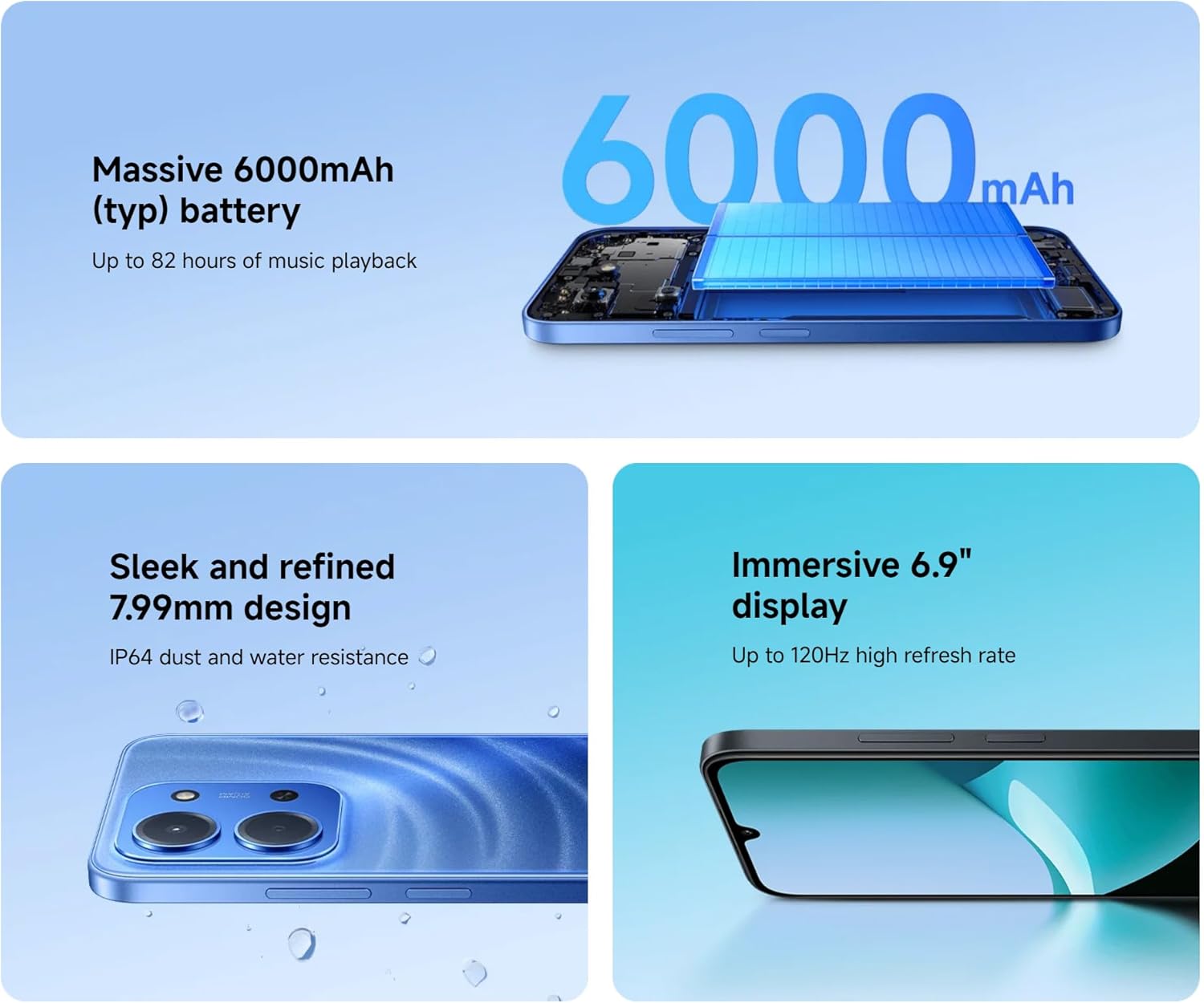
Image: An illustration of the XIAOMI Redmi 15C's internal structure, highlighting its massive 6000mAh battery.
3.6 Processor Performance
The powerful octa-core processor ensures smooth multitasking and efficient app performance.

Image: A visual representation of the MediaTek Helio G81-Ultra octa-core processor, emphasizing its power and efficiency.
3.7 Google Gemini Integration
The Redmi 15C integrates with Google Gemini, your AI assistant from Google, to enhance productivity and creativity. Use Gemini for writing, brainstorming, learning, and more.
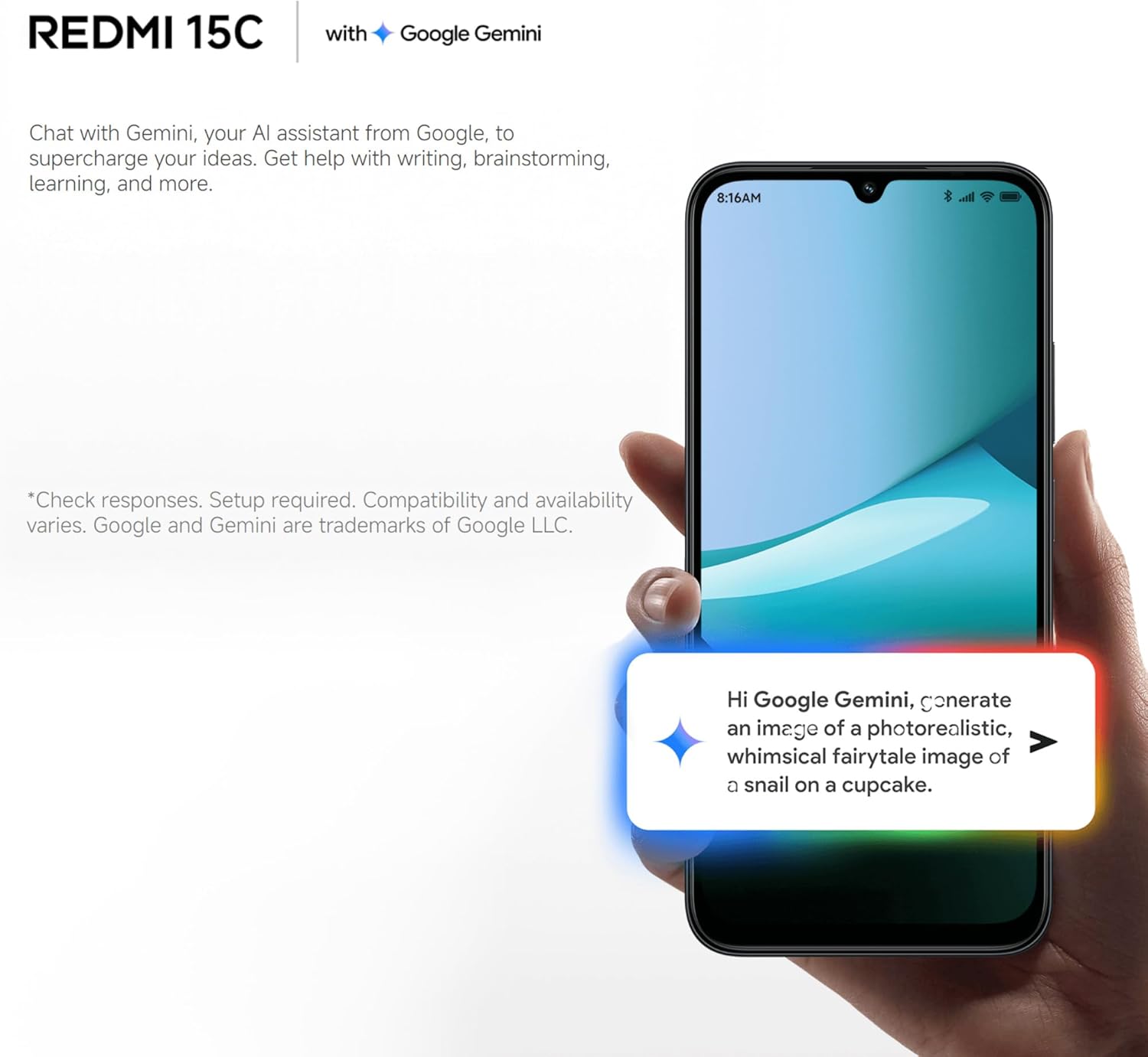
Image: A Redmi 15C displaying a chat interface with Google Gemini, demonstrating its AI capabilities.
4. Mantentzea
4.1 Gailua garbitzea
- Erabili zapi leun eta lihorik gabeko bat pantaila eta gorputza garbitzeko.
- Saihestu produktu kimiko gogorrak, garbitzaile urratzaileak edo aire konprimitua erabiltzea.
- Mantendu portuak hauts eta hondakinik gabe.
4.2 Software eguneraketak
Regularly check for and install system updates to ensure your device has the latest features, security patches, and performance improvements. Go to 'Settings > About phone > MIUI version' to check for updates.
4.3 Bateria zaintzea
- Saihestu tenperatura muturrekoak, bateriaren iraupena murriztu baitezakete.
- Ez utzi telefonoa denbora luzez kargatzen guztiz kargatu ondoren.
- Erabili jatorrizko edo ziurtatutako kargagailu eta kable bateragarriak soilik.
4.4 Biltegiratze kudeaketa
To maintain optimal performance, regularly manage your device's storage:
- Ezabatu behar ez den fileak, argazkiak eta bideoak.
- Desinstalatu erabiltzen ez diren aplikazioak.
- Garbitu aplikazioen cache datuak.
5. Arazoak
Atal honek zure Redmi 15C-rekin izan ditzakezun arazo ohikoenak jorratzen ditu.
| Gaia | Irtenbide posiblea |
|---|---|
| Gailua ez da pizten | Ensure the battery is charged. Connect to a charger for at least 30 minutes. If it still doesn't turn on, try a forced restart by holding the Power button for 10-15 seconds. |
| Slow performance / Apps freezing | Close background apps. Clear app caches. Restart the device. Check for system updates. If issues persist, consider a factory reset (back up data first). |
| Bateria azkar agortzen da | Reduce screen brightness. Disable unused features like GPS, Bluetooth, Wi-Fi when not needed. Check battery usage in settings to identify power-hungry apps. |
| Cannot connect to Wi-Fi / Mobile Data | Toggle Wi-Fi/Mobile Data off and on. Restart the device. Forget the Wi-Fi network and reconnect. Ensure SIM card is properly inserted and activated. |
| Kamera ez dabil | Restart the device. Clear the Camera app's cache and data in 'Settings > Apps'. Ensure no other app is using the camera. |
5.1 Fabrika Berrezarri (Azken Aukera)
If you experience persistent software issues, a factory reset can resolve them. Warning: This will erase all data on your device. Back up all important information before proceeding.
- Go to 'Settings > About phone > Factory reset'.
- Jarraitu pantailako argibideei berrezartzea berresteko.
6. Zehaztapenak
Below are the detailed technical specifications for the XIAOMI Redmi 15C:
| Ezaugarri | Zehaztapena |
|---|---|
| Ereduaren izena | Redmi 15C |
| Sistema eragilea | Hyper OS 2 |
| Prozesadorea | MediaTek Helio Octa-core (20 GHz CPU speed) |
| RAM | 4 GB |
| Biltegiratze Ahalmena | 256 GB |
| Bistaratzeko tamaina | 6.9 hazbete |
| Bistaratzeko ebazpena | 720 x 1560 |
| Freskatze tasa | 120 Hz |
| Bateria Edukiera | 6000 mAh |
| Kargatzen | 33W Fast Charging compatible |
| Atzeko kamera | 50 MP-ko AI kamera bikoitza |
| Konektibitatea | 4G LTE, Wi-Fi, Bluetooth, GPSa |
| Neurriak | 0.82 x 8.1 x 17.3 cm |
| Pisua | 200 g |
| Ezaugarri bereziak | Dual SIM, International Functionality, Wi-Fi Hotspot, Integrated GPS |
7. Bermea eta Laguntza
For detailed warranty information, please refer to the warranty card included with your product or visit the official XIAOMI website. XIAOMI provides customer support for product inquiries, technical assistance, and service requests.
You can find support resources, FAQs, and contact information on the official XIAOMI support page. Please have your device's model number and purchase details ready when contacting support.
Ez da produktuaren bideo ofizialik aurkitu emandako datuetan.


