1. Sarrera
This manual provides instructions for the AULA F75 Pro Mechanical Keyboard and AULA SC680 Wireless Mouse combo. Please read this manual thoroughly before use to ensure proper operation and to maximize the product's lifespan.
2. Produktua amaitu daview
2.1 AULA F75 Pro Mechanical Keyboard
The AULA F75 Pro is a mechanical keyboard featuring a 75% layout with a knob, multiple connection modes, hot-swappable switches, and RGB backlighting. It is designed for versatility and user customization.

Image: AULA F75 Pro Mechanical Keyboard, showcasing its 75% layout and volume knob.

Irudia: Gainetikview of AULA F75 Pro keyboard features including BT5.0/2.4G/Wired connectivity, advanced structure, pre-lubed linear switches, RGB backlighting, 4000mAh battery, side-engraved PBT keycaps, hot-swappable design, and 75% layout with knob.
2.2 AULA SC680 Wireless Mouse
The AULA SC680 is a high-performance wireless gaming mouse with tri-mode connectivity, a PAW3395 sensor, and adjustable DPI settings. It is designed for precision and responsiveness.

Irudia: Goian view of the AULA SC680 Wireless Mouse, highlighting its ergonomic design.

Irudia: Gainetikview of AULA SC680 mouse features including custom macro support, up to 26000 DPI, 58g lightweight design, 8KHz polling rate, tri-mode connection, and PixArt PAW3395 sensor.
3. Konfigurazioa eta konexioa
3.1 Keyboard Connection (AULA F75 Pro)
The AULA F75 Pro keyboard supports three connection modes: Bluetooth 5.0, 2.4GHz wireless, and USB wired.

Image: Diagram illustrating the three connection modes (Bluetooth 5.0, 2.4GHz, USB-C Wired) for the AULA F75 Pro keyboard, compatible with various devices like Switch, Xbox, PlayStation, PC, Laptop, Tablet, and Phone.
- 2.4 GHz haririk gabeko konexioa:
- Locate the 2.4GHz USB receiver.
- Konektatu hargailua ordenagailuko USB ataka erabilgarri batean.
- Ensure the keyboard's mode switch is set to 2.4GHz. The keyboard should connect automatically.
- Bluetooth 5.0 konexioa:
- Ezarri teklatuaren modu-etengailua Bluetooth-era.
- On your device (PC, laptop, tablet, phone), enable Bluetooth and search for new devices.
- Select "AULA F75 Pro" from the list of available devices to pair. The keyboard can connect to up to three Bluetooth devices, switchable via shortcut keys.
- USB kable bidezko konexioa:
- Konektatu emandako USB-C kablea teklatura eta beste muturra ordenagailuaren USB atakara.
- Teklatuak kable bidezko gailu gisa funtzionatuko du eta aldi berean kargatuko da.
3.2 Mouse Connection (AULA SC680)
The AULA SC680 mouse also supports three connection modes: USB-C wired, 2.4GHz wireless, and Bluetooth 5.2.
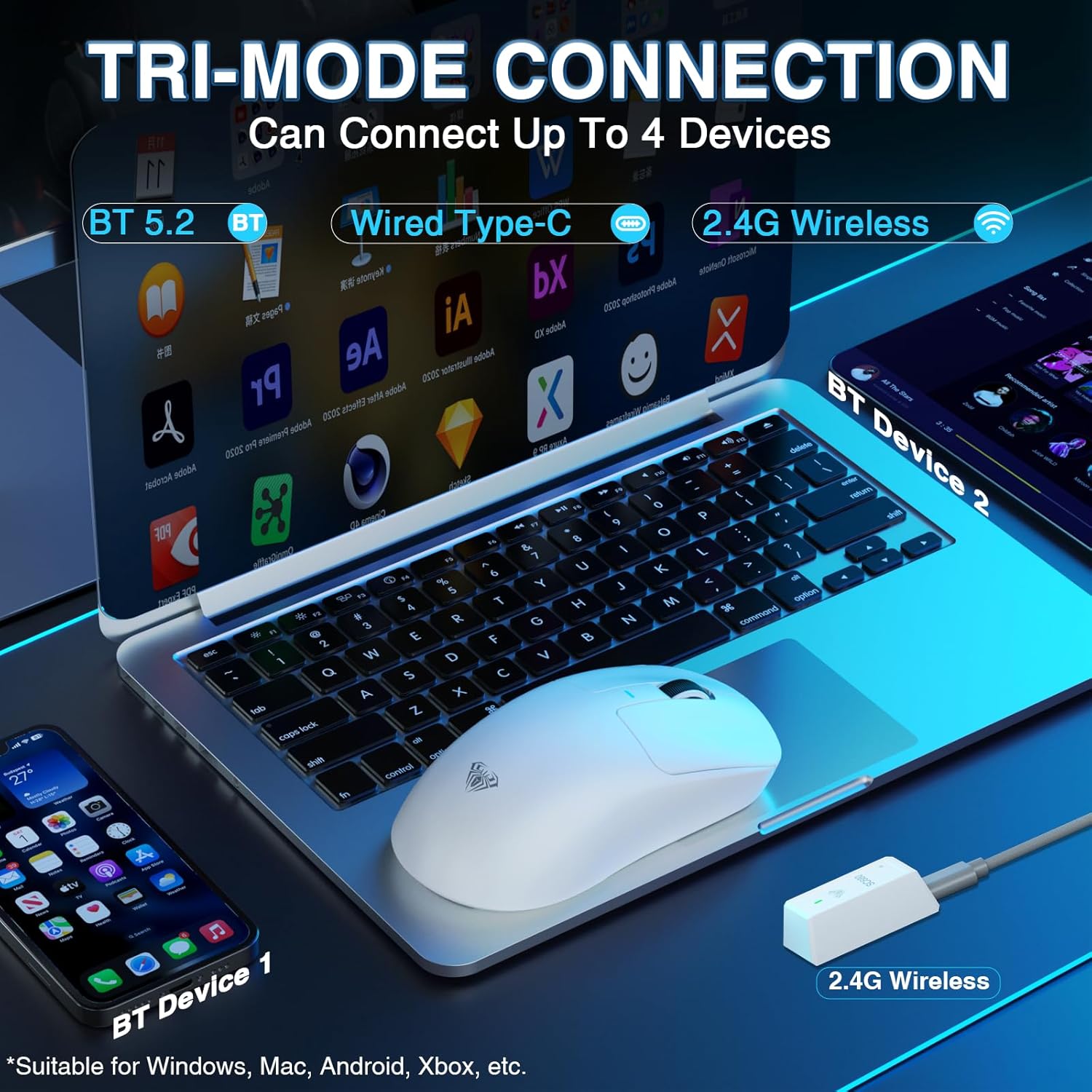
Image: Diagram illustrating the tri-mode connection for the AULA SC680 mouse, showing Bluetooth 5.2, Wired Type-C, and 2.4G Wireless options, compatible with Windows, Mac, Android, and Xbox.
- 2.4 GHz haririk gabeko konexioa:
- Plug the 2.4GHz USB receiver (usually found with the keyboard's receiver or stored in the mouse) into your computer's USB port.
- Ensure the mouse's mode switch is set to 2.4GHz.
- Bluetooth 5.2 konexioa:
- Set the mouse's mode switch to Bluetooth.
- Zure gailuan, gaitu Bluetooth-a eta bilatu gailu berriak.
- Select "AULA SC680" to pair. The mouse can connect to up to two Bluetooth devices.
- USB-C kable bidezko konexioa:
- Connect the USB-C cable to the mouse and your computer.
- The mouse will operate in wired mode and charge.
4. Funtzionamendu-argibideak
4.1 Keyboard Functions (AULA F75 Pro)
- Modu aldaketa: Use the dedicated switch or shortcut keys to toggle between 2.4GHz, Bluetooth, and Wired modes.
- Bluetooth gailuen aldaketa: If connected to multiple Bluetooth devices, use specific key combinations (refer to the quick start guide or keyboard markings) to switch between them.
- Bolumen-eskulekua: The rotary knob typically controls system volume. Pressing it may mute/unmute.
- RGB atzeko argiztapena: Use Fn key combinations to change lighting effects, brightness, and speed.
- Beroan alda daitezkeen etengailuak: The keyboard supports 3-pin or 5-pin mechanical switches. To replace switches:
- Power off the keyboard or disconnect it.
- Use the provided switch puller tool to carefully remove the keycap.
- Use the switch puller to gently extract the switch from the PCB.
- Lerrokatu etengailu berriaren pinak PCBko zuloekin eta sakatu ondo klik egin arte.
- Lotu berriro giltza-tapoia.
- Bateria egoera: The keyboard features a 4000mAh battery. Indicators (usually an LED) will show charging status and low battery warnings. Charge via the USB-C port.
4.2 Mouse Functions (AULA SC680)
- DPI doikuntza: Use the dedicated DPI button (if present) or software to cycle through DPI settings (up to 26000 DPI).
- Bozketa-tasa: The mouse supports an 8000Hz polling rate for responsive tracking. This setting may be adjustable via software.
- Custom Macros: Programmable buttons and macros can be configured using the official AULA software (downloadable from the AULA webgunea).
- Bateria egoera: The mouse has an internal rechargeable battery. An indicator light will show charging status and low battery. Charge via the USB-C port.
5. Mantentzea
- Garbiketa: Use a soft, dry cloth to clean the surfaces of the keyboard and mouse. For deeper cleaning, use compressed air to remove dust and debris from between keycaps. Avoid liquid cleaners directly on components.
- Biltegiratzea: Gorde gailuak leku fresko eta lehor batean, eguzki-argitik eta muturreko tenperaturetatik babestuta.
- Bateria zaintzea: For optimal battery life, avoid fully discharging the devices frequently. Charge them regularly.
6. Arazoak
| Arazoa | Irtenbidea |
|---|---|
| Keyboard/Mouse not connecting wirelessly. |
|
| Konexioa atzerapena edo tarteka etenik gabea. |
|
| Keys not responding / Mouse not tracking. |
|
| RGB argiztapena ez dabil. |
|
7. Zehaztapenak
7.1 AULA F75 Pro Mechanical Keyboard
- Konexio moduak: Bluetooth 5.0, 2.4 GHz haririk gabekoa, USB-C kable bidezkoa
- Bateria: 4000mAh kargagarria
- Diseinua: 75% with Rotary Knob
- Etengailuak: Hot-swappable (3-pin/5-pin compatible), LEOBOG Star Vector Switches (pre-lubricated)
- Teklatuak: Side-engraved PBT
- Egitura: Advanced structure with extended integrated silicone pad, PCB single key slotting, five layers of sound-dampening materiala.
- Bateragarritasuna: PC, Laptops, Tablets, Mobile Phones, PS, XBOX

Irudia: Lehertua view of the AULA F75 Pro keyboard's advanced internal structure, detailing components like the metal volume knob, two-color injection molded PBT keycaps, upper cover, rotary encoder, LEOBOG Reaper Switches, slotted PC positioning board, sound-absorbing cotton, IXPE shaft bottom pad, PET voice actor pad, single key slotted PCBA board, PO base cotton, silicone base mat, and bottom shell.
7.2 AULA SC680 Wireless Mouse
- Konexio moduak: Bluetooth 5.2, 2.4 GHz haririk gabekoa, USB-C kable bidezkoa
- Sentsore: PAW3395 Flagship Sensor
- DPI: 400-26000 (programmable)
- IPS abiadura: 650
- Azelerazioa: 50G
- Bozketa-tasa: 8000Hz
- Pisua: 58 g (gutxi gorabehera)
- Bateragarritasuna: Windows 7/8/10, Vista, XP, Mac, Windows 2000, Linux

Irudia: Gertuko planoa view of the PAW3395 flagship sensor in the AULA SC680 mouse, detailing its specifications: DPI Adjustment (400-26000), IPS (650), and Accelerated Speed (50G).
8. Bermea eta Laguntza
AULA products are designed for reliability and performance. For warranty information, technical support, or to download the latest drivers and software, please visit the official AULA webgunearekin edo jarri harremanetan zure tokiko banatzailearekin.
Official AULA Store: AULA Amazon Store


