1. Sarrera
This manual provides essential information for setting up, operating, and maintaining your Samsung 27" Odyssey G5 G53F QHD Gaming Monitor. Designed for an immersive gaming experience, this monitor features QHD resolution, a 200Hz refresh rate, IPS panel technology, HDR10 support, AMD FreeSync™ Premium, Black Equalizer, and Auto Source Switch+ for optimal performance and visual clarity.
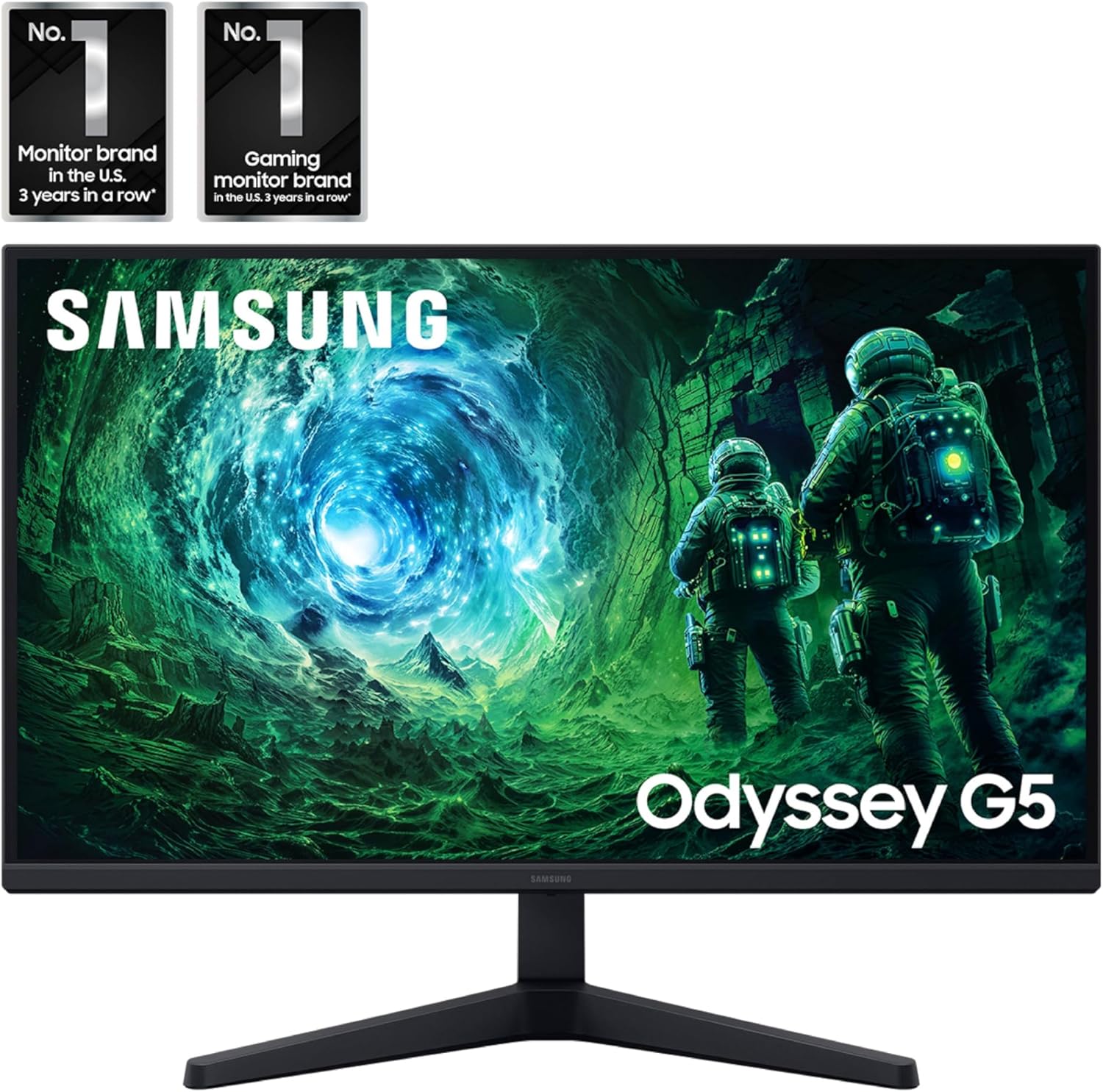
Irudia: Aurrealdea view of the Samsung 27" Odyssey G5 G53F QHD Gaming Monitor.
2. Zer dago kutxan
Upon unboxing your Samsung Odyssey G5 monitor, please ensure all the following components are present:
- Samsung 27" Odyssey G5 G53F QHD Gaming Monitor
- Monitorearen euskarria (oinarria eta lepoa)
- Elikatze-kablea
- HDMI kablea
- DisplayPort (DP) kablea
- Erabiltzailearen gida / Argibide eskuliburua
- Mounting Screws (for stand assembly)
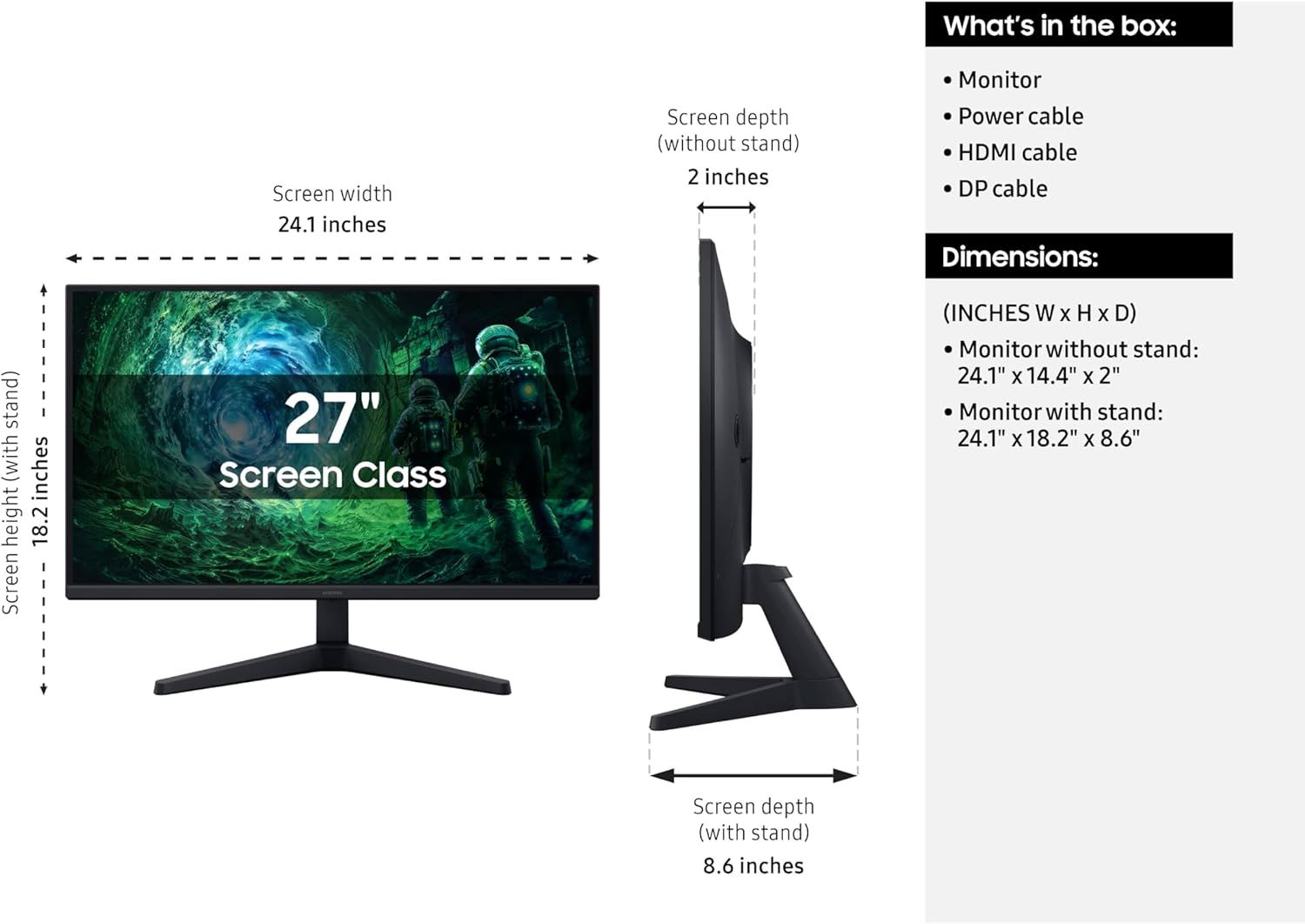
Image: Diagram showing the monitor, stand, and included cables, along with dimensions.
3. Konfigurazioa
3.1 Standa muntatzea
- Kontu handiz atera monitorearen eta euskarriaren osagaiak paketetik.
- Attach the stand neck to the stand base. Secure it with the provided screw, typically located at the bottom of the base.
- Align the assembled stand with the mounting area on the back of the monitor.
- Gently push the stand into the monitor until it clicks into place. Ensure it is securely fastened.
- Tighten any additional screws if provided, to further secure the stand to the monitor.
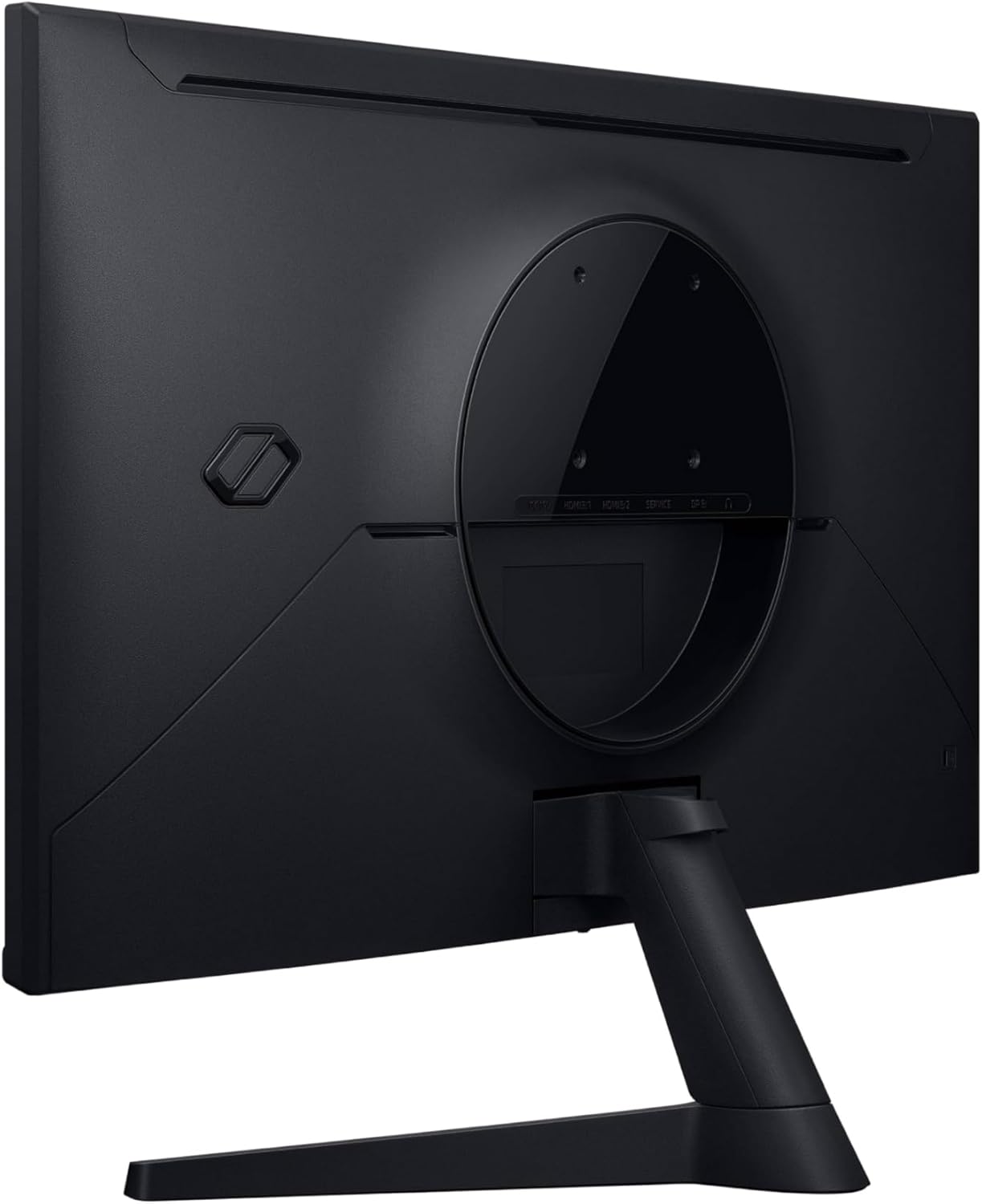
Irudia: Atzealdea view of the monitor showing the stand attachment point.
3.2 Konektatzeko kableak
Connect the necessary cables to your monitor and computer/device.
- Sare elektrikoa Connect one end of the power cable to the monitor's power input (DC 19V) and the other end to a power outlet.
- Bideo kablea: Connect either an HDMI cable or a DisplayPort (DP) cable from your computer's graphics card to the corresponding input on the monitor (HDMI IN 1, HDMI IN 2, or DP IN). For optimal performance, especially for 200Hz refresh rate and QHD resolution, use the DisplayPort connection.
- Audioa (Aukerakoa): If you are using external speakers or headphones, connect them to the Headphone OUT port on the monitor.
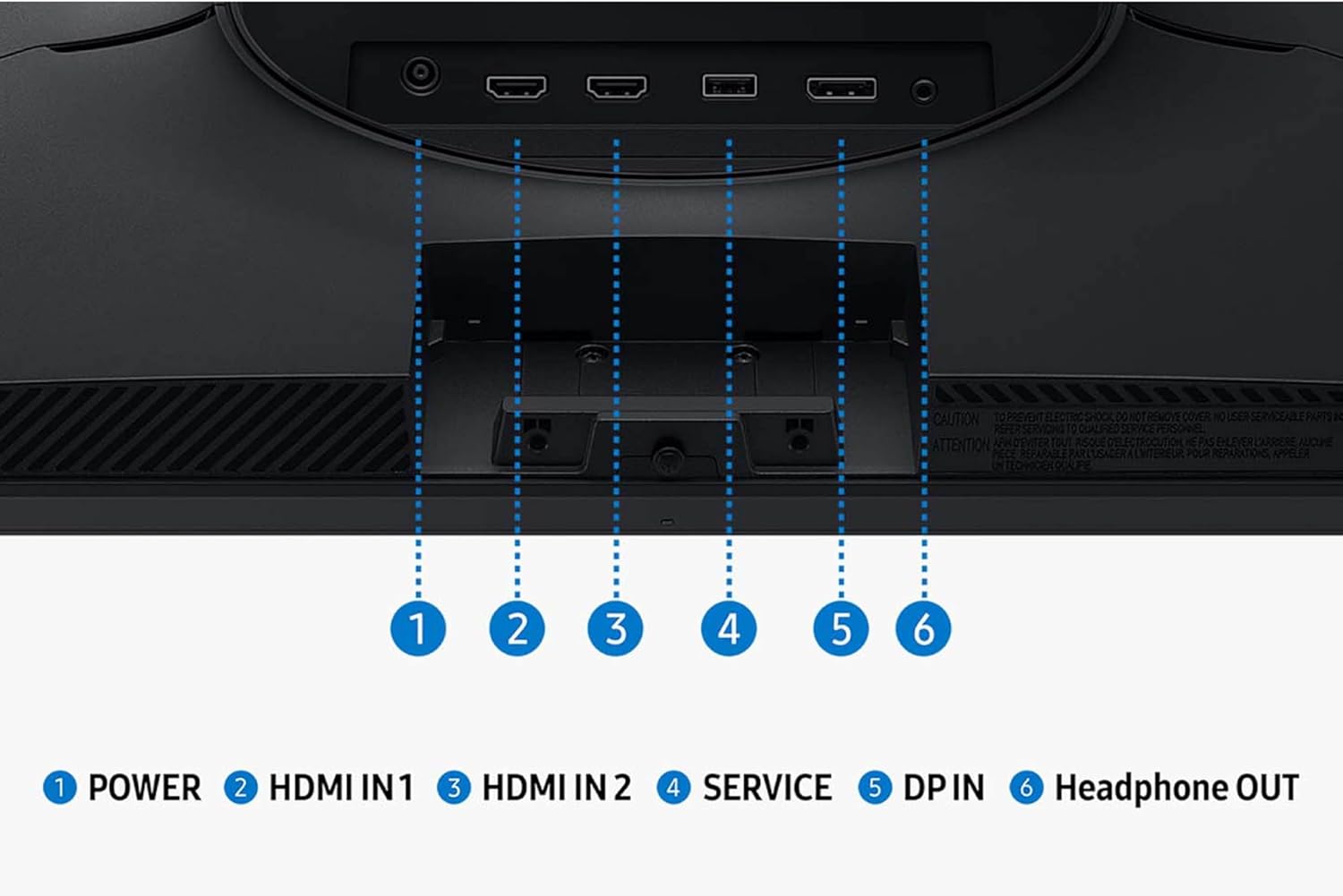
Irudia: Xehetasun handikoa view Monitorearen sarrera eta irteera ataken zerrenda.
3.3 Hasierako piztea
Once all cables are connected, press the power button on the monitor to turn it on. The monitor should automatically detect the input signal. If not, you may need to manually select the input source using the monitor's OSD (On-Screen Display) menu.
4. Monitorea funtzionatzea
4.1 Pantailan bistaratze (OSD) menuko nabigazioa
The monitor's settings can be adjusted using the OSD menu, typically accessed via a joystick or buttons located on the bottom or rear of the monitor. Navigate through the menu options to customize your viewesperientzia.
4.2 Ezaugarri eta ezarpen nagusiak
- QHD bereizmena (2560x1440): Enjoy incredibly detailed and sharp images with 1.7 times the pixel density of Full HD.
- 200 Hz freskatze-abiadura: Experience ultra-smooth gaming with fast reactions and reduced motion blur.
- 1ms-ko erantzun-denbora (MPRT): Ensures movements are captured in real-time for precise gaming.
- IPS Panel with 178° ViewAngelua: Consistently delivers precise and radiant colors across various viewpuntuak.
- AMD FreeSync™ Premium-a: Reduces choppiness, screen lag, and image tearing during intense gaming sessions. Ensure your graphics card supports AMD FreeSync™ Premium for this feature to function.
- HDR10: Provides brighter highlights and nuanced shadows for added depth, making scenes feel more realistic.
- Berdinketa beltza: Improves visibility in the deepest shadows, allowing you to spot enemies or details in dark areas.
- Helburu Puntu Birtuala: Increases the accuracy of the player’s aim by displaying crosshairs on the screen.
- Iturburu-aldaketa automatikoa+: Allows instantaneous switching between connected devices, automatically detecting and switching to a new signal source.
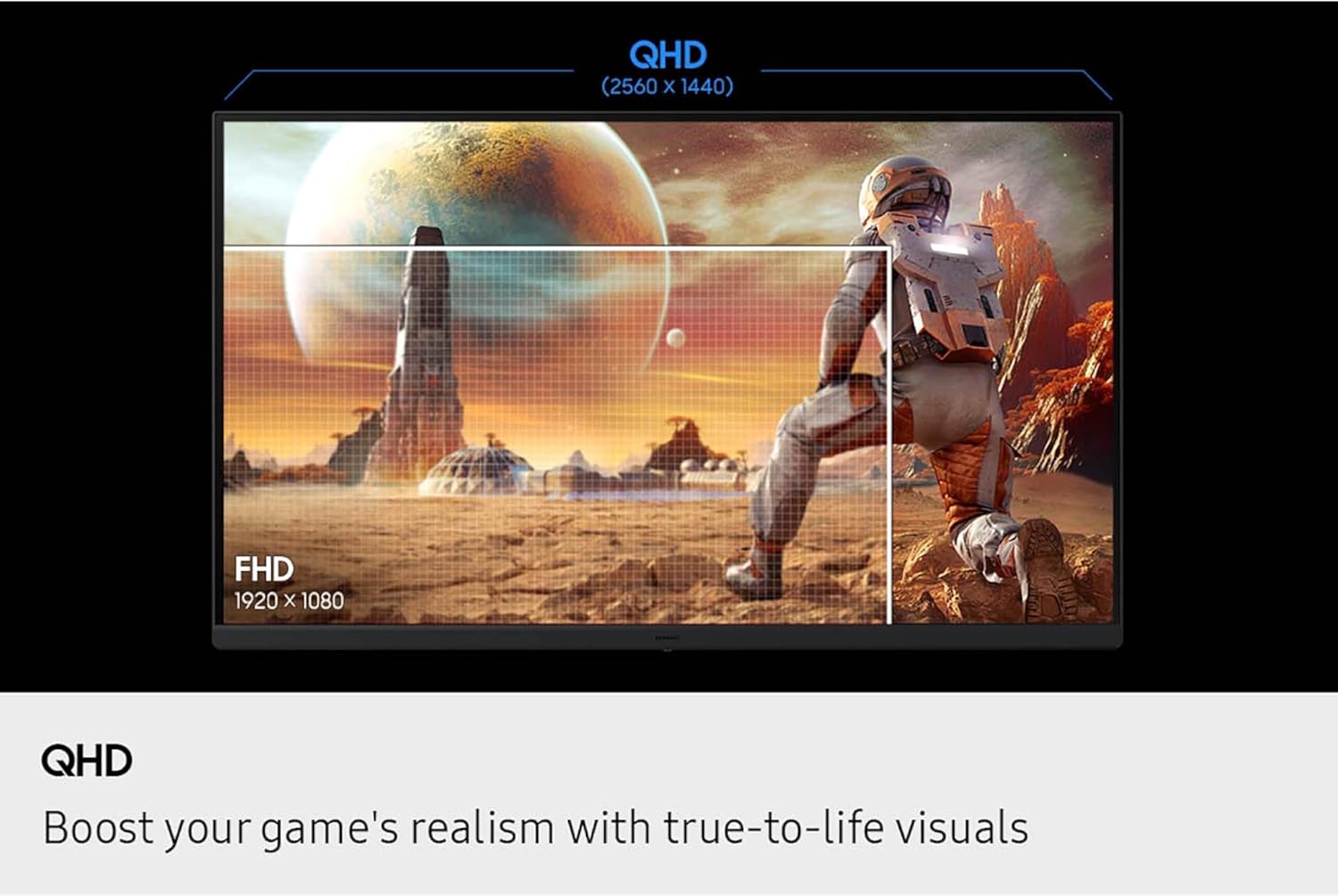
Image: Visual comparison of QHD vs. FHD resolution.

Image: Monitor displaying 200Hz refresh rate for swift and smooth gameplay.

Image: Illustration of the wide 178° viewing angle of the IPS panel.
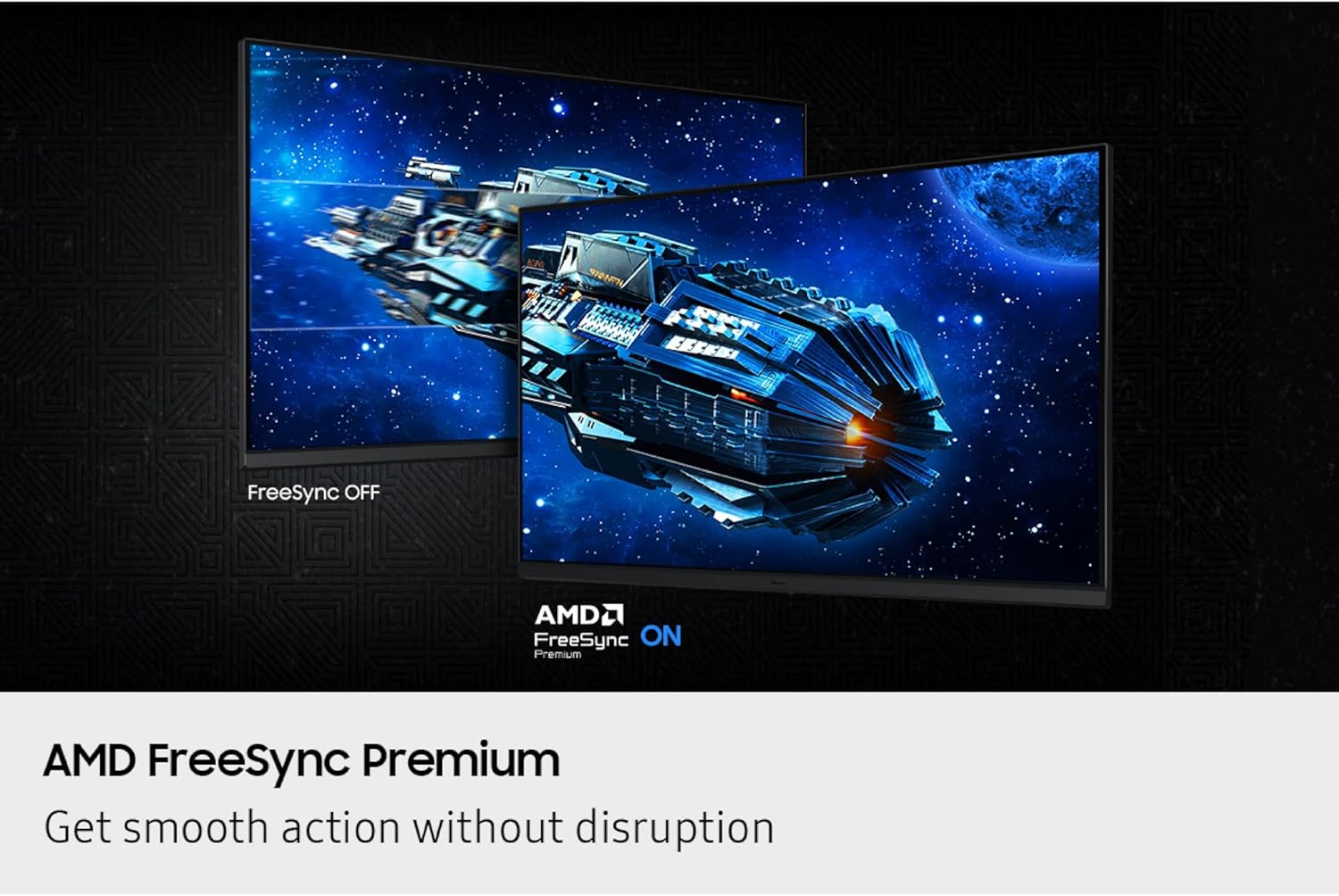
Image: Comparison of FreeSync OFF vs. FreeSync ON, demonstrating smooth action without disruption.
5. Mantentzea
To ensure the longevity and optimal performance of your Samsung Odyssey G5 monitor, follow these maintenance guidelines:
- Pantaila garbitzea: Garbitu pantaila astiro-astiro zapi leun eta pelusik gabeko batekin. Orban egoskorrak izanez gero, garbitu astiro-astiro.ampen the cloth with water or a screen-safe cleaning solution. Avoid harsh chemicals, abrasive materials, or direct spraying onto the screen.
- C garbiketaasing: Erabili zapi leun eta lehor bat monitorearen gainazala garbitzeko.asing.
- Aireztapena: Ziurtatu monitorearen aireztapen-irekidurak ez daudela blokeatuta gehiegi berotzea saihesteko.
- Biltegiratzea: Denbora luzez erabiltzen ez baduzu, gorde monitoreak leku fresko eta lehor batean, ahal dela jatorrizko ontzian, hautsetik eta kalte fisikoetatik babesteko.
6. Arazoak
Monitorearekin arazoak badituzu, jarraitu arazoak konpontzeko ohiko urrats hauek:
- Potentziarik gabe:
- Egiaztatu elikadura-kablea monitoreari zein korronte-hartuneari ongi konektatuta dagoen.
- Ziurtatu korronte-hartunea funtzionala dela.
- Sakatu monitorearen pizteko botoia.
- Seinalerik ez / Pantaila hutsa:
- Verify that the video cable (HDMI or DisplayPort) is securely connected to both the monitor and your computer/device.
- Ziurtatu sarrera-iturri zuzena hautatuta dagoela monitorearen OSD menuan.
- Check if your computer/device is powered on and outputting a signal.
- Saiatu beste bideo-kable edo ataka batekin.
- Irudiaren kalitate arazoak (lausoa, distortsionatua, kolore okerrak):
- Ziurtatu monitorearen bereizmena bere jatorrizko QHD (2560x1440) dela ezarrita ordenagailuaren pantaila-ezarpenetan.
- Adjust settings like brightness, contrast, and color balance through the OSD menu.
- Egiaztatu bideo-kablea kaltetuta edo konexio solterik dagoen.
- Flickering or Tearing:
- Ensure AMD FreeSync™ Premium is enabled in both the monitor's OSD and your graphics card settings.
- Egiaztatu zure txartel grafikoaren kontrolatzaileak eguneratuta daudela.
- Check the refresh rate setting in your computer's display settings to ensure it matches the monitor's capabilities (up to 200Hz).
7. Zehaztapenak
| Ezaugarri | Xehetasuna |
|---|---|
| Marka | Samsung |
| Ereduaren izena | Odyssey G5 G53F |
| Elementuaren eredu-zenbakia | S27FG532EN |
| Pantailaren tamaina | 27 hazbete |
| Pantailaren bereizmena | QHD 2560x1440 Pixels |
| Gehienezko pantailaren bereizmena | 2560 x 1440 pixel |
| Freskatze tasa | 200Hz |
| Erantzun Denbora | 1 ms (MPRT) |
| Panel mota | IPS |
| Viewangelua | 178° (Horizontala/Bertikala) |
| HDR euskarria | HDR10 |
| Adaptive Sync Teknologia | AMD FreeSync™ Premium |
| Aspektu-erlazioa | 16:9 |
| Pantailaren gainazala | Matea |
| Kolorea | Beltza |
| Elementuaren pisua | 8.59 kilo |
| Produktuaren neurriak (LxWxH) | 8.55 x 24.14 x 18.23 hazbete |
| Konektibitatea | 2x HDMI, 1x DisplayPort, 1x Headphone Out |
8. Bermea eta laguntza
Bermeari buruzko informazioa, laguntza teknikoa edo zerbitzu-kontsultak egiteko, jo ezazu zure produktuarekin batera datorren berme-txartelera edo bisitatu Samsung-en laguntza-zerbitzu ofiziala. webgunea. Gorde erosketa-agiria erosketaren frogagiri gisa berme-erreklamazioetarako.
Laguntza eta baliabide gehigarriak aurki ditzakezu hemen: Samsung denda Amazonen.