1. Sarrera
This manual provides essential information for setting up, operating, maintaining, and troubleshooting your Lenovo ThinkPad E14 G7 laptop. Please read this guide thoroughly to ensure proper use and to maximize the performance and longevity of your device.
The ThinkPad E14 G7 is a powerful and versatile laptop featuring an Intel Core 5 210H processor, a 14-inch WUXGA IPS touchscreen display, 16GB DDR5 RAM, and a 512GB NVMe SSD, running on Windows 11 Pro.
2. Konfigurazioa
2.1 Kutxatik ateratzea eta hasierako ikuskapena
Kontu handiz atera osagai guztiak paketetik. Egiaztatu "Zer dago kutxan" atalean zerrendatutako elementu guztiak daudela. Jarraitu aurretik, egiaztatu ordenagailu eramangarria kalte fisikorik duen.
- Lenovo ThinkPad E14 G7 Laptop
- AC Potentzia Egokitzailea
- Konfigurazio Gida
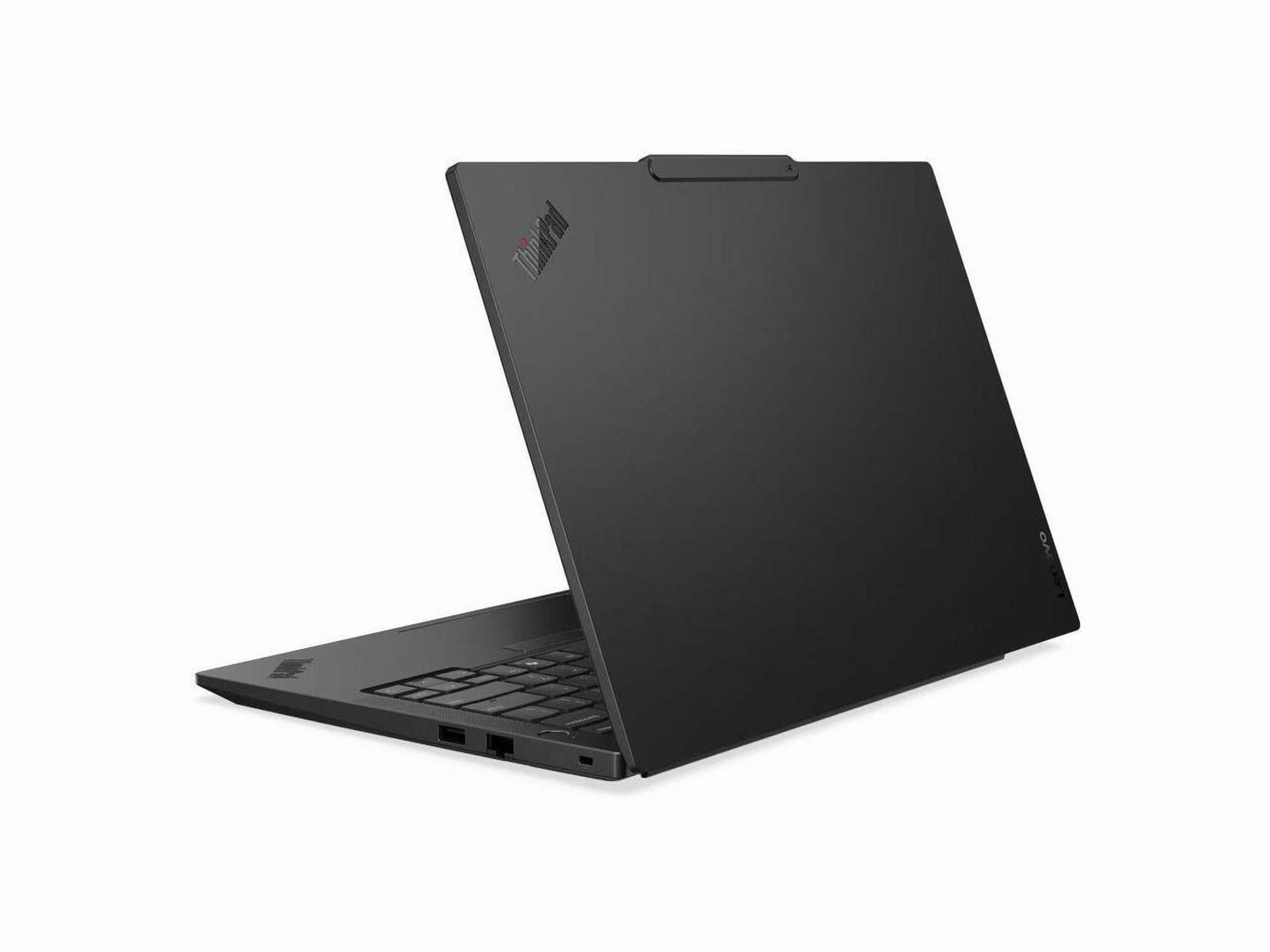
Image of the Lenovo ThinkPad E14 G7 laptop, showcasinbere diseinu dotorea eta 14 hazbeteko pantaila.
2.2 Potentzia konektatzea
Connect the AC power adapter to the laptop's power input port and then plug the adapter into a wall outlet. It is recommended to fully charge the battery before initial use.
2.3 Hasierako abiarazpena eta Windows konfigurazioa
Press the power button to turn on the laptop. Follow the on-screen instructions to complete the Windows 11 Pro setup process. This includes selecting your region, language, creating a user account, and connecting to a Wi-Fi network.
2.4 Periferikoak konektatzea
Utilize the available ports to connect external devices such as a mouse, keyboard, external monitor, or USB drives.
- USB 3.0 portuak: USB gailu estandarretarako.
- Thunderbolt 4 ataka: For high-speed data transfer, power delivery, and display output.
- HDMI 2.1 ataka: Kanpoko pantailetara edo proiektoreetara konektatzeko.
- Ethernet Port (Gigabit LAN): Kable bidezko sare konexiorako.
- Audio Jack: Entzungailuetarako edo kanpoko bozgorailuetarako.
3. Zure ordenagailu eramangarria erabiltzea
3.1 Bistaratzeko Ezaugarriak
Your ThinkPad E14 G7 features a 14-inch WUXGA (1920 x 1200) IPS touchscreen display. The IPS technology provides wide viewing angles, and the touchscreen functionality allows for intuitive interaction with Windows 11 Pro.
3.2 Teklatua eta ukipen-panela
The integrated keyboard provides a comfortable typing experience. The touchpad supports multi-touch gestures for navigation. Refer to the Windows 11 Pro documentation for detailed gesture controls.
3.3 hatz-marken irakurgailua
For enhanced security and convenient login, configure the integrated fingerprint reader through Windows Hello settings in Windows 11 Pro.
3.4 Haririk gabeko konexioa
The laptop supports Wi-Fi 6E for high-speed wireless internet access and Bluetooth 5.3 for connecting wireless peripherals such as headphones or mice.
- Wi-Fira konektatzen: Egin klik ataza-barrako Wi-Fi ikonoan, hautatu zure sarea eta idatzi pasahitza.
- Bluetooth gailuak parekatzea: Go to Windows Settings > Bluetooth & devices, and follow the instructions to pair a new device.
4. Mantentzea
4.1 Ordenagailu eramangarria garbitzea
- Pantaila: Erabili lipurrik gabeko zapi leun bat dampUrarekin edo pantaila garbitzeko soluzio batekin garbitu. Ez ihinztatu likidoa zuzenean pantailan.
- Teklatua eta txasisa: Erabili zapi leun bat gainazalak garbitzeko. Zikinkeria egoskorra bada, garbitu apur bat.amp xaboi leun batekin zapi bat erabil daiteke, likidorik irekiduretan sartzen ez dela ziurtatuz.
- Portuak: Erabili aire konprimatua portuetako hautsa astiro-astiro kentzeko.
Itzali eta deskonektatu beti ordenagailu eramangarria garbitu aurretik.
4.2 Bateria zaintzea
To prolong battery life, avoid extreme temperatures and allow the battery to discharge partially before recharging. For long-term storage, charge the battery to approximately 50% and store the laptop in a cool, dry place.
4.3 Software eguneraketak
Regularly check for and install Windows updates and Lenovo driver updates to ensure optimal performance, security, and compatibility. You can find Windows updates in Settings > Windows Update, and Lenovo updates via the Lenovo Vantage application or Lenovo's support webgunea.
7. Bermea eta Laguntza
7.1 Produktuaren bermea
For detailed information regarding your product's warranty, please refer to the warranty document included with your laptop or visit the official Lenovo support webgunea. Bermearen baldintzak eta zehaztapenak eskualdearen arabera alda daitezke.
7.2 Laguntza Teknikoa
Eskuliburu honetako urratsak erabiliz konpondu ezin diren arazorik baduzu, jarri harremanetan Lenovoren laguntza teknikoarekin. Harremanetarako informazioa eta baliabide gehigarriak aurki ditzakezu Lenovoren laguntza ofizialean. webgunea:
https://support.lenovo.com


