1. Sarrera
This manual provides detailed instructions for the assembly, setup, operation, and maintenance of your Glacier Weikav MAX102 Mechanical Keyboard Kit. The MAX102 is a full-size, 102-key layout keyboard kit featuring tri-mode connectivity (wired, 2.4 GHz wireless, Bluetooth), hot-swappable switch sockets, and customizable RGB backlighting. Its premium CNC aluminum construction ensures durability and a refined typing experience.
2. Paketearen edukia
Please verify that all items listed below are present in your package.
- Glacier Weikav MAX102 Keyboard Case (CNC Aluminum)
- PCB (Printed Circuit Board) with hot-swappable sockets
- FR4 Plate
- Gasket Mount Components (Poron, IXPE, Silicone dampening layers)
- Detachable USB-C Cable (Aviator or Standard, depending on variant)
- 2.4 GHz haririk gabeko hargailua
- Screws and assembly tools (if applicable)
- Erabiltzailearen eskuliburua (dokumentu hau)
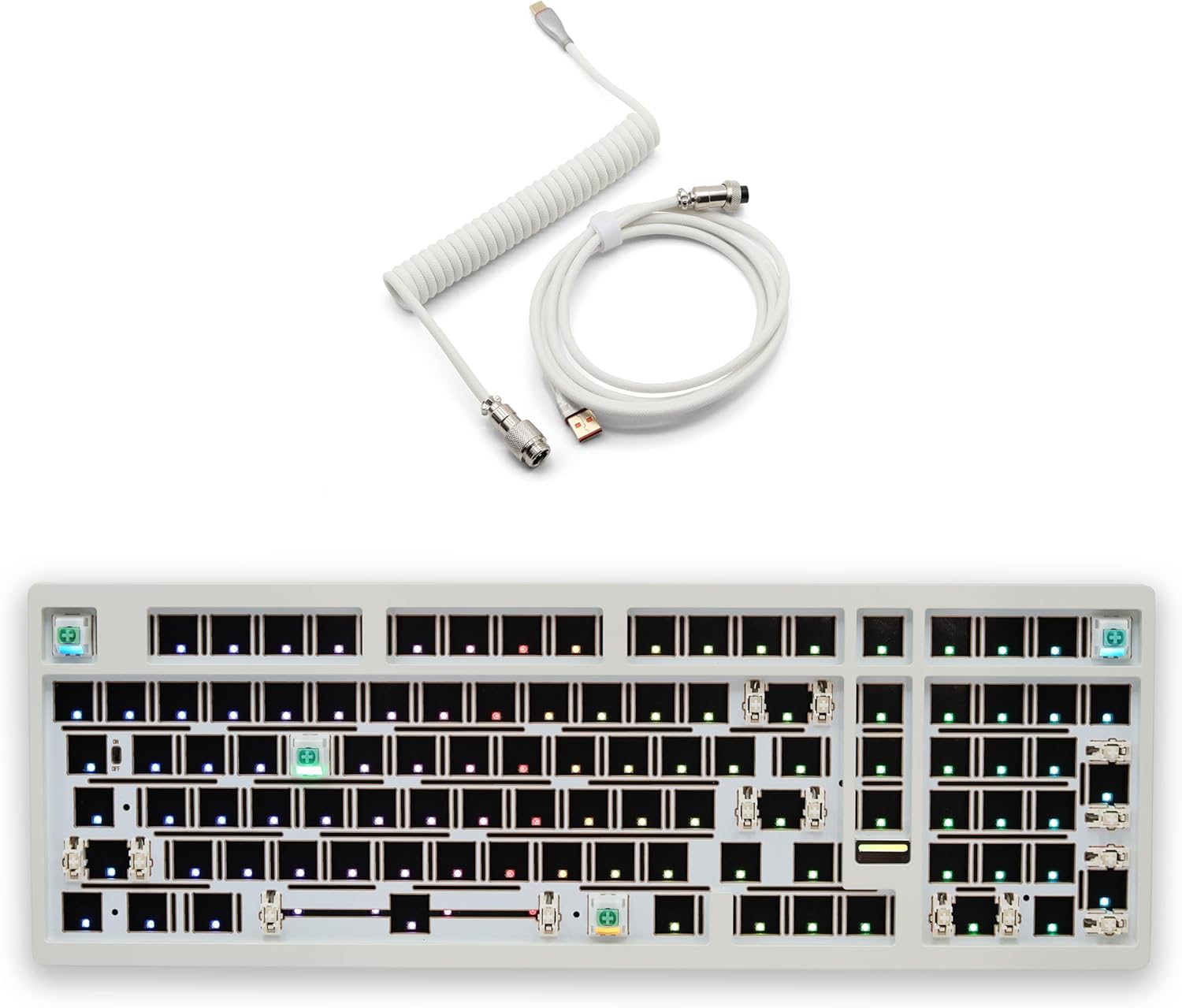
2.1. irudia: Amaituview of the Glacier Weikav MAX102 Mechanical Keyboard Kit components, including the keyboard base, PCB, and a coiled USB-C cable.
3. Konfigurazioa eta Muntaketa
The MAX102 is a DIY kit, requiring assembly of switches and keycaps. Follow these steps for proper setup.
3.1. Keyboard Assembly
- Osagaiak prestatu: Ensure you have the keyboard case, PCB, FR4 plate, gasket materials, switches, and keycaps ready.
- Install Gasket Materials: Carefully place the Poron, IXPE, and silicone dampening layers onto the PCB and plate as indicated by the design. These layers enhance acoustics and typing feel.
- Mount PCB to Plate: Align the PCB with the FR4 plate.
- Instalatu etengailuak: Insert your desired MX-style mechanical switches into the hot-swappable sockets on the PCB. Ensure the pins are straight and align correctly with the sockets before pressing down firmly. No soldering is required.
- Secure PCB/Plate Assembly: Place the assembled PCB and plate into the keyboard case, ensuring the gasket mounts are properly seated.
- Tekla-tapoiak instalatu: Press your chosen keycaps onto the installed switches.
- Connect Bottom Case: Secure the bottom case to the main body using the provided screws.

3.1. irudia: Lehertuta view illustrating the various layers of the Glacier Weikav MAX102 keyboard, including the aluminum case, PCB, FR4 plate, and sound dampening materialak.

3.2. irudia: Xehetasuna view of the hot-swappable PCB, highlighting the switch sockets and the physical ON/OFF switch for power control.

3.3. irudia: Illustration of mechanical switches being installed into the hot-swappable sockets on the keyboard's PCB, demonstrating the solder-free customization process.
3.2. Konexio moduak
The MAX102 supports three connectivity modes: Wired (USB-C), 2.4 GHz Wireless, and Bluetooth.
- Kable modua: Connect the provided USB-C cable to the keyboard and your computer. The keyboard will automatically switch to wired mode.
- 2.4 GHz-ko haririk gabeko modua:
- Locate the 2.4 GHz USB receiver.
- Konektatu hargailua ordenagailuko USB ataka erabilgarri batean.
- Switch the mode selector on the keyboard (usually located on the back or side) to 2.4G mode. The keyboard should connect automatically.
- Bluetooth modua:
- Switch the mode selector on the keyboard to Bluetooth mode.
- Zure ordenagailuan edo gailuan, gaitu Bluetooth-a eta bilatu gailu berriak.
- Select "Glacier MAX102" (or similar name) from the list of available devices to pair.
- The keyboard can typically store multiple Bluetooth profiles for quick switching between devices. Refer to the keyboard's specific key combinations for managing Bluetooth profiles (e.g., Fn + 1, Fn + 2, Fn + 3).

3.4. irudia: Visual representation of the three connectivity options: Wired (USB-C), 2.4 GHz Wireless, and Bluetooth, available on the Glacier Weikav MAX102 keyboard.
4. Funtzionamendu-argibideak
4.1. Piztu/Itzali
Locate the physical ON/OFF switch on the keyboard's PCB (visible when the bottom case is removed, or through an access port). Toggle this switch to power the keyboard on or off.
4.2. RGB atzeko argiztapenaren kontrola
The MAX102 features customizable per-key RGB backlighting with seven default lighting modes. Specific key combinations are used to control the lighting effects.
- Argiztapen modua aldatu: Typically, use Fn + [Tekla] (e.g., Fn + \ or Fn + Ins) to cycle through different lighting effects.
- Doitu distira: Erabili Fn + ↑ / ↓ to increase or decrease backlight brightness.
- Adjust Speed/Direction: Erabili Fn + ← / → to change the speed or direction of dynamic lighting effects.
- Aldatu kolorea: For some modes, Fn + [Tekla] (e.g., Fn + Del) may cycle through static colors.
- Softwarearen pertsonalizazioa: For advanced per-key RGB customization and macro programming, download the official Glacier software from the manufacturer's webgunea.
4.3. Bero-trukatzeko etengailuak
The hot-swappable design allows you to change mechanical switches without soldering.
- Itzali: Ensure the keyboard is powered off and disconnected from your computer.
- Kendu tekla-tapoia: Gently pull off the keycap from the switch you wish to replace using a keycap puller.
- Kendu etengailua: Use a switch puller tool to carefully grip the top and bottom clips of the switch and pull it straight up. Avoid bending the pins.
- Txertatu etengailu berria: Align the pins of the new MX-style mechanical switch with the holes in the hot-swappable socket on the PCB. Ensure the pins are straight.
- Sakatu irmo: Gently but firmly press the new switch into the socket until it clicks into place. Do not force it.
- Proba: Reattach the keycap and test the switch functionality after powering the keyboard back on.
Kontuz: Always ensure switch pins are straight before insertion to prevent damage to the PCB sockets.
5. Mantentzea
5.1. Garbiketa
- Garbiketa orokorra: Use a soft, lint-free cloth to wipe down the keyboard case. For stubborn smudges, a slightly damp xaboi leun batekin oihal bat erabil daiteke, eta ondoren berehala lehortu.
- Tekla-tapoien garbiketa: Keycaps can be removed and cleaned with warm, soapy water. Ensure they are completely dry before reattaching.
- Hautsa kentzea: Use compressed air to remove dust and debris from between keycaps and around switches.
5.2. Switch and Stabilizer Lubrication (Advanced)
For enthusiasts, lubricating switches and stabilizers can enhance typing feel and sound. This process requires specialized lubricants and tools. Refer to online guides for detailed instructions if you choose to perform this maintenance.
6. Arazoak
| Arazoa | Kausa posiblea | Irtenbidea |
|---|---|---|
| Keyboard not responding in Wired Mode. | Loose cable connection, faulty USB port, incorrect mode. |
|
| Keyboard not connecting via 2.4 GHz Wireless. | Receiver not plugged in, incorrect mode, low battery. |
|
| Teklatua ez da Bluetooth bidez konektatzen. | Bluetooth not enabled on device, incorrect mode, pairing issue, low battery. |
|
| Some keys are not working. | Loose switch, bent switch pins, faulty switch. |
|
| RGB backlighting is not working or stuck. | Software glitch, incorrect settings. |
|
7. Zehaztapenak
| Ezaugarri | Xehetasuna |
|---|---|
| Eredua | Glacier Weikav MAX102 |
| Diseinua | Full-Size 102-Key, QWERTY |
| Konektibitatea | Kable bidezkoa (USB-C), 2.4 GHz-ko haririk gabekoa, Bluetooth |
| Etengailuen bateragarritasuna | Hot-swappable, compatible with MX-style mechanical switches |
| Kasu Materiala | CNC 6063 Aluminum |
| Plaka Materiala | FR4 |
| Muntatzeko estiloa | Gasket Mount (Poron, IXPE, Silicone dampening) |
| Atzeko argiztapena | Customizable Per-Key RGB |
| Energia iturria | Wired/Wireless (Internal Battery for wireless modes) |
| Gailu bateragarriak | PC |
| Elementuaren pisua | Gutxi gorabehera 3 libra (1.36 kg) |
| Paketearen neurriak | 16 x 7.25 x 2 hazbete (40.64 x 18.42 x 5.08 cm) |
8. Bermea eta Laguntza
For warranty information and technical support, please refer to the official Glacier website or contact Glacier customer service directly. Keep your purchase receipt as proof of purchase.
Glacier Official Webgunea: Visit the Glacier Store on Amazon (markari buruzko informazio orokorra lortzeko)


