1. Sarrera
Thank you for choosing the Pisichen 27-inch 4K UHD Touchscreen Monitor with Webcam. This manual provides essential information for the safe and efficient operation of your new monitor. Please read it thoroughly before use and retain it for future reference.
2. Segurtasun informazioa
- Energia iturria: Use only the power adapter supplied with the monitor. Ensure the power outlet meets the voltage eskakizunak.
- Aireztapena: Ez blokeatu aireztapen-irekidurak. Utzi nahikoa leku monitorearen inguruan aire-fluxu egokia izan dadin.
- Likidoaren esposizioa: Keep the monitor away from liquids. Do not expose it to rain or moisture.
- Garbiketa: Disconnect the power cable before cleaning. Use a soft, dry cloth. Avoid abrasive cleaners.
- Lekua: Jarri monitoreak gainazal egonkor eta lau batean, eror ez dadin.
- Zerbitzua: Ez saiatu monitorearen konponketa zeuk egiten. Konponketa guztiak langile kualifikatuei eskatu.
3. Paketearen edukia
Mesedez, egiaztatu paketearen edukia despaketatzean. Elementuren bat falta bada edo hondatuta badago, jarri harremanetan zure saltzailearekin.
- Pisichen 27-inch 4K UHD Touchscreen Monitor
- Monitorearen euskarria (oinarria eta besoa)
- Elikatze-moldagailua
- HDMI kablea
- USB-B to USB-A Cable (for Touch Function)
- Erabiltzailearen eskuliburua
4. Produktua amaitu daview
4.1 Ezaugarri nagusiak
- Ultra HD 4K Touchscreen Display: 27-inch 4K Ultra HD screen with vibrant colors, sharp details, and wide viewing angles. Features a responsive 10-point touchscreen for intuitive control.
- Built-in High-Definition Webkamera: Integratua webcam for video calls, online meetings, and streaming, reducing desk clutter.
- Konektibitate polifazetikoa: Multiple ports including HDMI, DisplayPort, and USB-C for easy connections to various devices. Supports both touch and traditional input.
- Optimized for Productivity and Creativity: Large 4K touch display for precise control and streamlined workflows, ideal for graphic designers, content creators, and multitasking.
- Sleek and Functional Design: Modern design with an adjustable stand for optimal viewing angles and comfort during extended use.
4.2 Portuak kontrolatzea
The monitor features various ports for connecting to your devices. Refer to the image below for port identification.
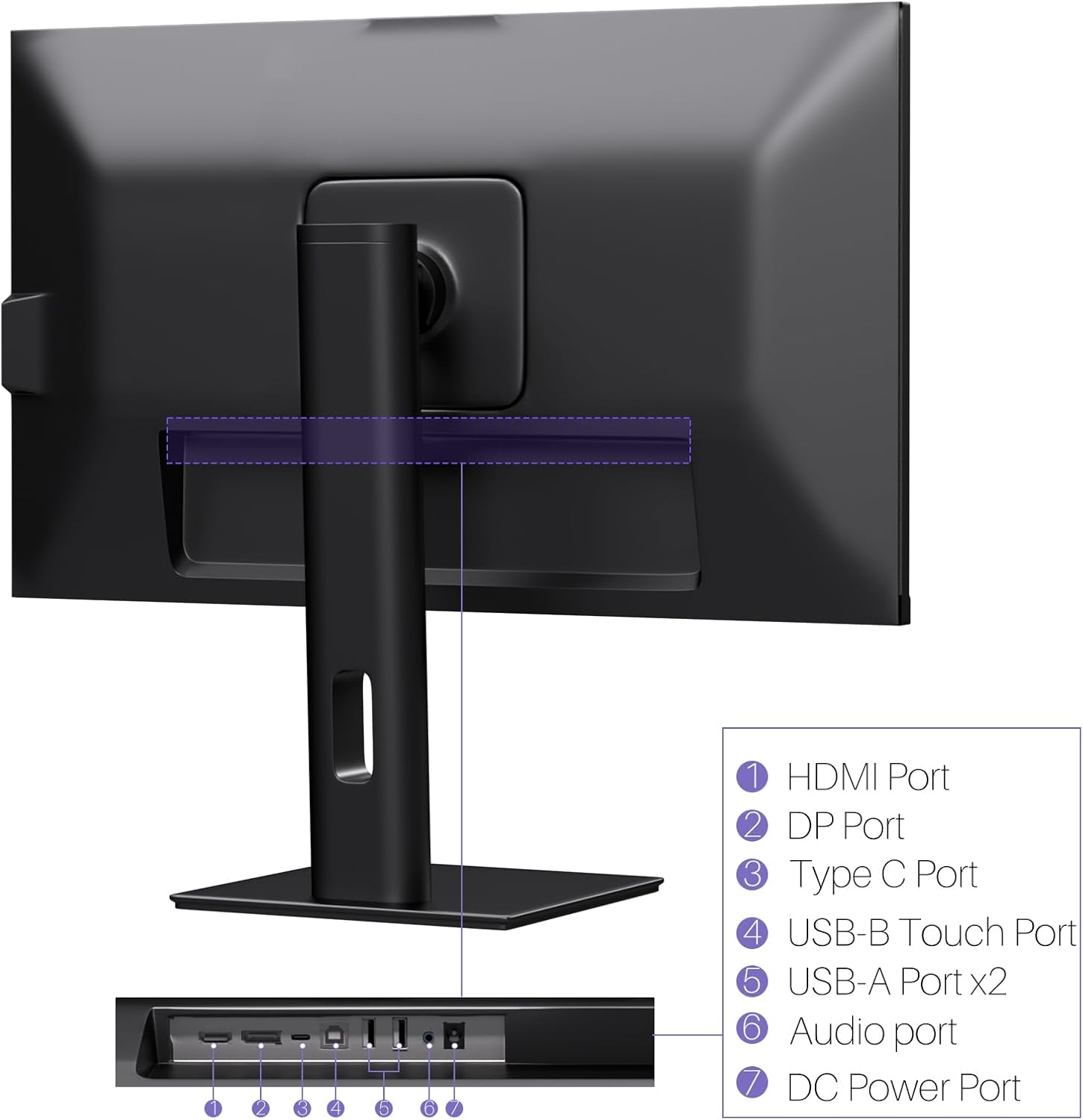
Irudia: Atzealdea view of the monitor displaying the HDMI, DP, Type-C, USB-B Touch, USB-A, Audio, and DC Power ports.
- HDMI ataka: Connects to devices via HDMI cable for video and audio input.
- DP ataka: Connects to devices via DisplayPort cable for video and audio input.
- C motako ataka: Connects to devices via USB-C cable for video, audio, and power delivery. (Requires USB-C port on signal device to support DisplayPort Alternate Mode for touch functionality).
- USB-B Touch Port: Connects to your computer via USB-B to USB-A cable to enable touchscreen functionality.
- USB-A ataka (x2): USB periferikoak konektatzeko.
- Audio ataka: Kanpoko audio gailuak konektatzeko.
- DC Power Portua: Korronte-egokigailura konektatzen da.
5. Konfiguratzeko argibideak
5.1 Standa muntatzea
- Kontu handiz atera monitorearen eta euskarriaren osagaiak paketetik.
- Attach the stand arm to the monitor's VESA mounting points.
- Secure the stand base to the arm using the provided screws.
- Ensure all connections are tight and the monitor is stable.
5.2 Gailu batera konektatzea
The monitor supports various connection types. Choose the appropriate cable for your device.

Image: Connection diagrams illustrating how to connect the monitor as a secondary display (HDMI/DP + DC), a touchscreen monitor (HDMI/DP + USB-B + DC), or via USB-C (USB-C + DC).
- For Video and Audio (Non-Touch): Konektatu HDMI edo DisplayPort kable bat ordenagailutik monitorearen dagokion atakara.
- For Video, Audio, and Touch (Windows PC): Connect an HDMI or DisplayPort cable for video/audio. Additionally, connect the USB-B to USB-A cable from the monitor's USB-B Touch Port to a USB-A port on your computer.
- For Video, Audio, and Touch (USB-C Compatible Device): Connect a USB-C cable from your device to the monitor's Type-C port. Ensure your device's USB-C port supports DisplayPort Alternate Mode for touch functionality.
5.3 Energia-konexioa
- Connect the power adapter to the monitor's DC Power Port.
- Entxufatu korronte-egokigailua hormako entxufe batera.
6. Funtzionamendu-argibideak
6.1 Piztu/Itzali
Sakatu monitorearen gainean dagoen pizteko botoia pizteko edo itzaltzeko.
6.2 Pantailan bistaratzeko (OSD) menua
Use the control buttons (typically located on the back or bottom of the monitor) to navigate the OSD menu. This menu allows you to adjust settings such as brightness, contrast, color temperature, input source, and other display parameters.
6.3 Ukipen-pantailaren funtzionaltasuna
The monitor features a 10-point multi-touch screen. Ensure the USB-B to USB-A cable (or USB-C cable for compatible devices) is connected to enable touch functionality.
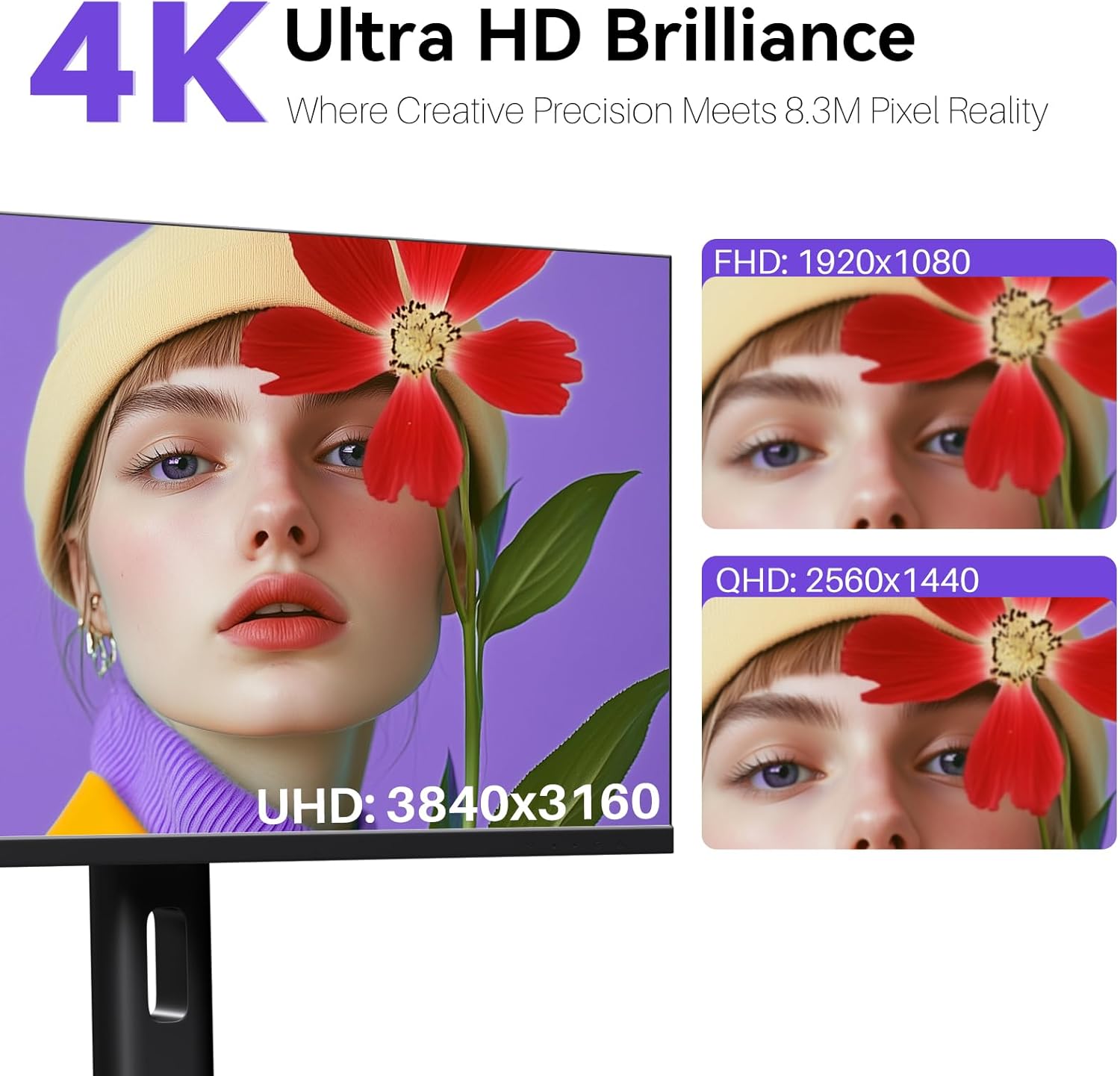
Image: A user's hand interacting with the monitor screen, highlighting the responsive 10-point touch experience.
- Basic Touch: Tap to click, swipe to scroll.
- Ukipen anitzeko keinuak: Use two fingers to zoom in/out, rotate, or pan, depending on the application.
- Touch Calibration (Windows Only): If the cursor does not align with your touch, calibration may be required. Go to Control Panel > Hardware and Sound > Tablet PC Settings > Calibrate. Follow the on-screen prompts.
6.4 Using the Built-in Webkamara
Integratua webcam is automatically detected by most operating systems and video conferencing applications. No additional drivers are typically required.

Image: The monitor displaying a video conference call, showcasing its integrated webcam for seamless communication.
- Open your preferred video conferencing software (e.g., Zoom, Microsoft Teams, Skype).
- Select the integrated webcam as your video input device in the application's settings.
6.5 Adjusting Display Resolution
To set the resolution of the monitor (Windows):
- Right-click on your desktop and select "Display Settings."
- Find your monitor (if multiple displays are connected).
- Under "Display resolution," select the recommended resolution of 3840 x 2160.
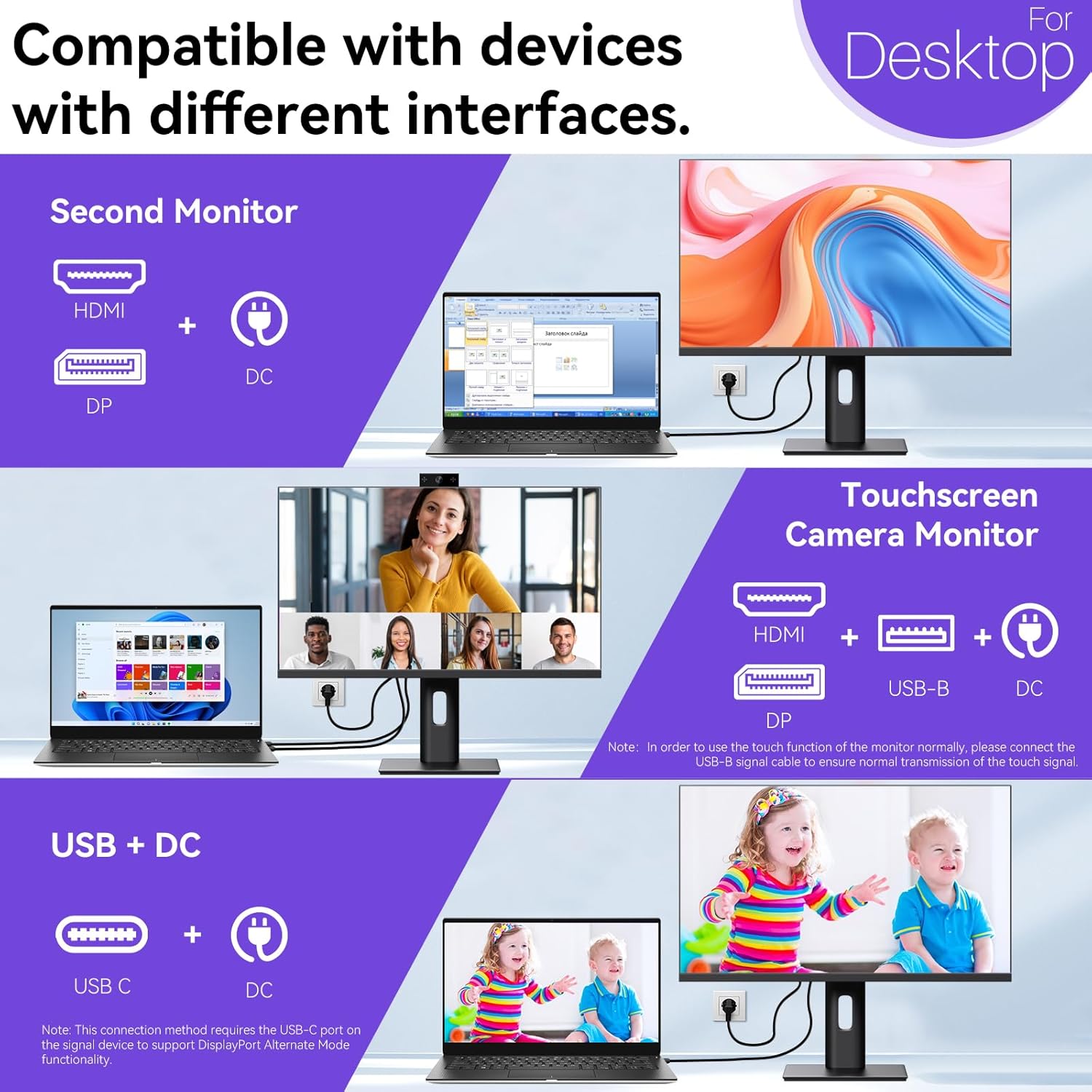
Image: A visual comparison demonstrating the superior clarity of 4K UHD (3840x2160) compared to FHD (1920x1080) and QHD (2560x1440) resolutions.
7. Mantentzea
- Pantaila garbitzea: Garbitu pantaila astiro-astiro zapi leun eta pelusik gabeko batekin. Orbanik egoskorrak izanez gero, garbitu astiro-astiro.ampGarbitu zapia urarekin edo pantailarako garbiketa-soluzio espezifiko batekin. Ez ihinztatu likidoa zuzenean pantailan.
- C garbiketaasing: Erabili zapi leun eta lehor bat monitorearen garbiketa egiteko.asing.
- Biltegiratzea: If storing the monitor for an extended period, disconnect it from power, pack it in its original packaging, and store it in a cool, dry place.
8. Arazoak
If you encounter issues with your monitor, refer to the following troubleshooting guide. For problems not listed, please contact customer support.
| Arazoa | Kausa posiblea | Irtenbidea |
|---|---|---|
| Ez dago irudirik pantailan | Kable elektrikoa deskonektatuta; bideo-kablea deskonektatuta; sarrera-iturri okerra hautatuta. | Ensure power cable is securely connected. Check video cable (HDMI/DP/USB-C) connections. Select correct input source via OSD menu. |
| Ukipen-pantailak ez du erantzuten | USB-B cable not connected; USB-C port not supporting DisplayPort Alternate Mode; Device incompatibility (e.g., iPhone). | Ensure the USB-B to USB-A cable is connected from the monitor to your computer. If using USB-C, verify your device's USB-C port supports DisplayPort Alternate Mode. Note: Touch function is not supported when connected to an iPhone due to iOS system restrictions. |
| Cursor moves incorrectly (Windows) | Touchscreen calibration required. | Perform touchscreen calibration: Go to Control Panel > Hardware and Sound > Tablet PC Settings > Calibrate. |
| Webkamera ez da detektatu | USB connection issue; Software settings. | Ensure all necessary USB cables are connected. Check your application's settings to select the correct webkamara. |
9. Zehaztapenak
| Ezaugarri | Xehetasuna |
|---|---|
| Marka | Pisichen |
| Modelo zenbakia | 27INTSCMR-4K |
| Pantailaren tamaina | 27 hazbete |
| Ebazpena | 3840 x 2160 Pixels (4K UHD 2160p) |
| Aspektu-erlazioa | 16:9 |
| Irudiaren distira | 400 Kandela |
| Pantailaren gainazalaren deskribapena | Distiratsua |
| Produktuaren neurriak | 14.37 x 24.21 x 16.54 hazbete |
| Elementuaren pisua | 16.59 kilo |
| Fabrikatzailea | Shenzhen Konowa Electronics Co., LTD |
| Konektibitatea | HDMI, DisplayPort, USB-C, USB-B (for touch), USB-A (x2), Audio Port |
10. Bermea eta Laguntza
This product comes with a manufacturer's warranty. Please refer to the warranty card included in your package for specific terms and conditions. For technical support or inquiries, please contact Pisichen customer service at support_2308@163.com. When contacting support, please provide your model number and a detailed description of the issue, including any relevant pictures or videos.


