1. Produktua amaitu daview
This CAMECHO 8 Core 6+128G Android 15 Car Stereo is designed specifically for Subaru Outback models from 2010 to 2014. It features a 9.7-inch IPS 2.5D display and integrates advanced functionalities such as Wireless CarPlay, Android Auto, FM/RDS radio, 32-band EQ with DSP, GPS navigation, Wi-Fi connectivity, and Steering Wheel Control (SWC). An AHD backup camera is also included for enhanced safety.
2. Zer dago kutxan
- CAMECHO Android 15 Car Stereo Unit
- AHD babeskopia kamera
- Elikatze-kablea
- USB kableak
- GPS antena
- Mikrofonoa
- RCA Cables (Input/Output)
- Atzeko kameraren sarrera-kablea
- Erabiltzailearen eskuliburua

Image: Contents of the CAMECHO car stereo package.
3. Instalazio gida
Before beginning installation, ensure your vehicle is turned off and the battery is disconnected. Compare your car's center console and adapter connectors with the provided unit to ensure compatibility. Professional installation is recommended.
3.1 Instalazio fisikoa
Carefully remove the original car radio unit. Connect the provided wiring harness to the car stereo and the vehicle's existing wiring. Ensure all connections are secure. Mount the new CAMECHO car stereo into the dashboard opening, securing it with the appropriate brackets and screws.

Image: Before and after installation of the car stereo.
3.2 Atzerako kameraren instalazioa
Install the AHD backup camera at the rear of your vehicle, typically near the license plate. Route the camera cable to the car stereo unit and connect it to the designated 'Reversing Camera Input' port. Ensure the camera is securely mounted and has a clear view.

Image: Easy installation of the AHD backup camera.
4. Initial Setup and Connectivity
4.1 Bluetooth konexioa
To enable hands-free calling and Bluetooth music streaming, pair your mobile device with the car stereo. Navigate to the Bluetooth settings on the car stereo and your mobile device. Select 'CarBT' from the list of available devices on your phone and enter the PIN (usually '0000') if prompted. Once connected, you can make calls and play music wirelessly.

Irudia: Bluetooth esku libreko deiak egiteko interfazea.
Video: Demonstrates Bluetooth hands-free calling and other features.
4.2 Haririk gabeko CarPlay eta Android Auto
This unit supports both Wireless CarPlay and Android Auto. Connect your smartphone via Bluetooth first. Once paired, the system will prompt you to activate CarPlay or Android Auto. This allows for voice control, navigation, music playback, and messaging directly from the car stereo display.

Image: Wireless CarPlay and Android Auto interfaces.
Video: Demonstrates CarPlay and Android Auto functionality.
Video: Shows CarPlay features and usage.
4.3 Wi-Fi konexioa
Connect the car stereo to a Wi-Fi network (e.g., your phone's hotspot) to access online maps, download apps, and stream content. Go to 'Settings' on the car stereo, then 'Network & Internet', and select your desired Wi-Fi network. Enter the password if required.
5. Funtzionamendu-argibideak
5.1 Erabiltzaile interfazea eta gaiak
The car stereo runs on Android 15 and offers a customizable interface with 59 UI desktop themes. You can personalize the look and feel of your display by selecting different themes and wallpapers through the settings menu.

Image: Multi-theme and UI options.
Video: Demonstrates the car stereo's user interface and various functions.
5.2 DSP and 32-Band EQ
The built-in Digital Sound Processor (DSP) and 32-band Equalizer (EQ) allow for precise audio customization. Access the sound settings to adjust frequencies and select preset sound effects (e.g., Pop, Rock, Jazz) to optimize your listening experience.
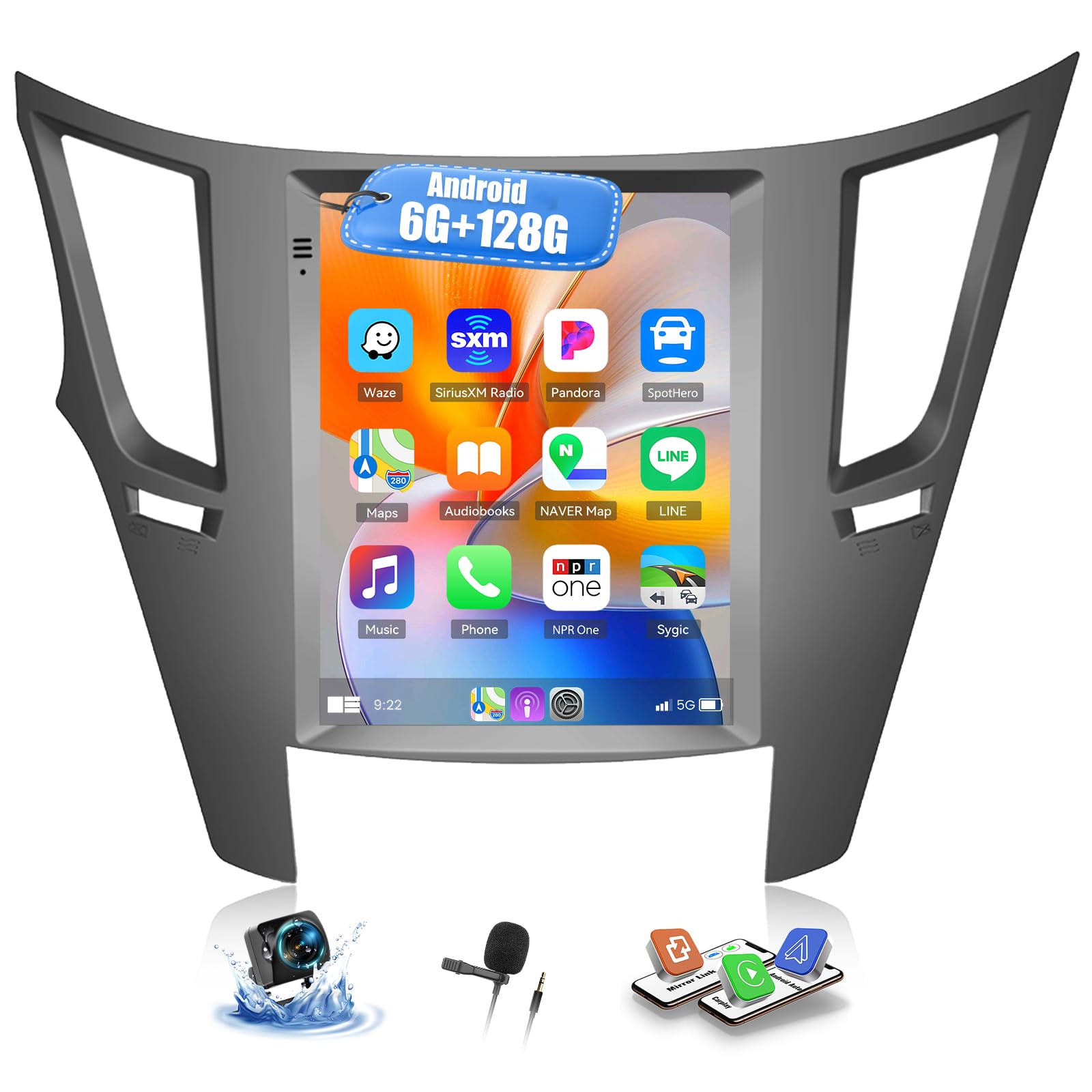
Image: Excellent sound quality with DSP and EQ.
5.3 GPS nabigazioa
The car stereo includes a built-in positioning chip supporting GPS/QZSS/SBAS. After connecting to Wi-Fi, you can download offline maps or use online navigation applications like Google Maps, Waze, etc., from the app store.
5.4 FM/RDS irratia
Tune into FM radio stations within the 87.0M-108M frequency range. The Radio Data System (RDS) feature provides additional information such as station name, song title, and traffic updates where available. You can preset up to 30 stations for quick access.
5.5 Bolantearen kontrola (SWC)
The unit supports your vehicle's existing steering wheel controls. This allows you to safely manage functions like volume adjustment, track skipping, and answering calls without taking your hands off the wheel. Configuration may be required in the car settings menu.
Image: Steering Wheel Control features.
5.6 AHD Rear Camera Input
When the vehicle is shifted into reverse gear, the car stereo automatically displays the feed from the AHD backup camera, providing a clear view of the area behind your car for safer parking and maneuvering.
5.7 Ahots kontrola
Utilize voice commands to control various functions of the car stereo, including navigation, music playback, and phone calls, enhancing both convenience and driving safety.
5.8 Pantaila zatituaren funtzionalitatea
The split-screen feature allows you to run two applications simultaneously, such as navigation on one side and music playback on the other, improving multitasking capabilities.
6. Zehaztapenak
- Sistema eragilea: Android 15
- Prozesadorea: 8 Nukleoa
- RAM: 6 GB
- ROM: 128 GB
- Bistaratzeko tamaina: 9.7 hazbete
- Bistaratzeko mota: IPS 2.5D Touchscreen (1280*720 HD)
- Konektibitatea: Bluetooth 5.0, USB, Wi-Fi
- Audio ezaugarriak: 32-Band EQ, DSP, Stereo Audio Output
- Nabigazioa: Built-in GPS/QZSS/SBAS, supports offline/online maps
- Irratia: FM/RDS with 30 preset stations
- Ezaugarri bereziak: Wireless CarPlay, Android Auto, Mirror Link, Steering Wheel Control, Voice Control, Split Screen, 59 UI Desktop Themes
- Dakarten osagaiak: Backup Kamera
- Elementuaren pisua: 3.08 kilo
- Produktuaren neurriak: 10 x 6 x 3 hazbete
7. Arazoak
7.1 Connectivity Issues (CarPlay/Android Auto/Bluetooth/Wi-Fi)
- Bluetootha ez da konektatzen: Ensure Bluetooth is enabled on both the car stereo and your mobile device. Check that the device name 'CarBT' is visible and attempt to pair again. Verify the PIN (0000) if prompted. If issues persist, restart the Bluetooth function on both devices.
- CarPlay/Android Auto Not Activating: After successful Bluetooth pairing, ensure your phone's Wi-Fi hotspot is active and the car stereo is connected to it. Some devices may require manual confirmation for CarPlay/Android Auto activation. If the connection fails, try restarting the ZLink application on the car stereo and your phone.
- Wi-Fi konexiorik ez: Confirm your mobile hotspot is active and broadcasting. Check the Wi-Fi settings on the car stereo to ensure it's scanning for networks and the correct password is entered.
- Etengabeko konexioa: Ensure your phone is close to the car stereo and there are no obstructions. Check for any software updates for both your phone and the car stereo.
8. Bermea eta Laguntza
This CAMECHO Car Stereo comes with a 2-year warranty. For technical support, troubleshooting assistance, or warranty claims, please refer to the contact information provided in your product packaging or visit the official CAMECHO support webgunea.


